How to Recover Lost Partitions and Hard Disk Data Safely
Learn how to recover lost partitions and files with TestDisk and PhotoRec. Protect the source drive, scan safely, and save recovered data to another disk.
To install a local DEB file on Linux, use APT on Debian, Ubuntu, or another Debian-based distribution. Open a terminal in the folder containing the file and run sudo apt install ./package-name.deb, replacing the example with the actual filename. APT can resolve dependencies from your configured software sources. If you prefer a desktop interface, use your distribution’s software installer or GDebi where available.
A .deb package is for Debian and compatible systems such as Ubuntu, not every Linux distribution. Fedora and Arch use different formats. Check the publisher’s supported release and architecture (for example, amd64 or arm64); a mismatch can prevent installation.
Download only from the publisher or a repository you trust. Package installation can run administrator-level scripts. If the publisher offers a checksum, compare it before installing. Ubuntu notes that third-party DEBs can have broad access to system resources. Prefer your distribution’s repository when its version fits your needs.
Ubuntu’s package-management guide and Debian’s reference document local DEB installation with APT and dpkg. APT can try to resolve dependencies; dpkg is the lower-level option.
.deb file somewhere easy to reach, such as your Downloads folder. Note its full filename, including capitalization and version numbers.cd ~/Downloads
ls *.deb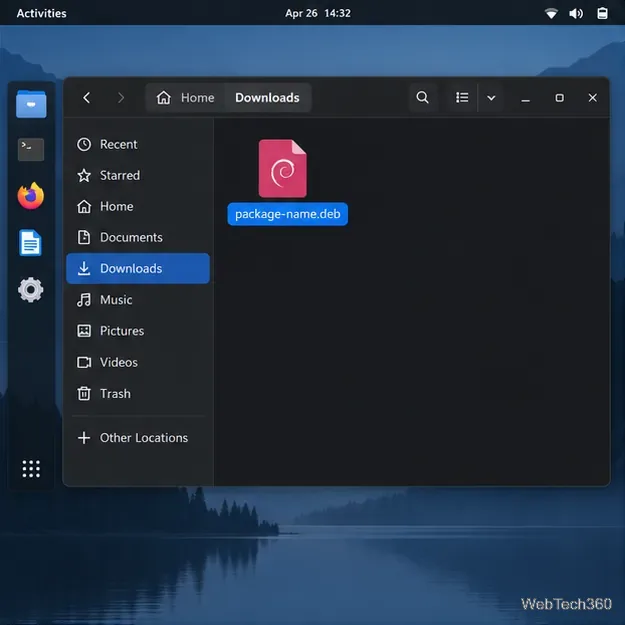
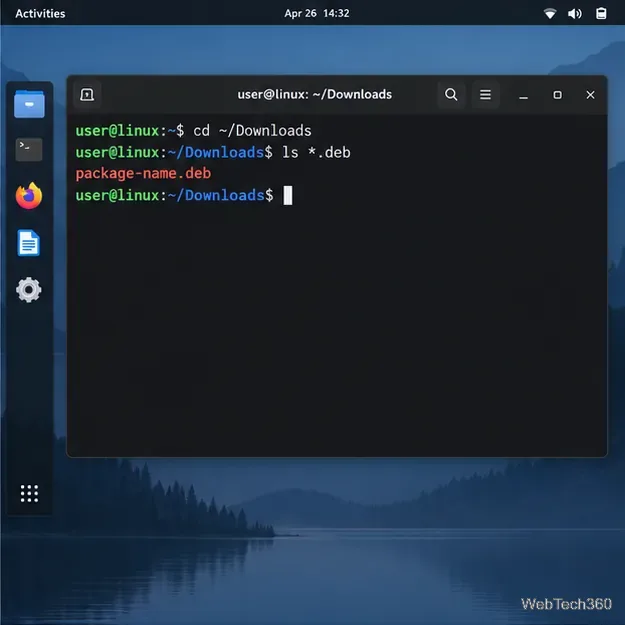
./ prefix points APT to the current folder:
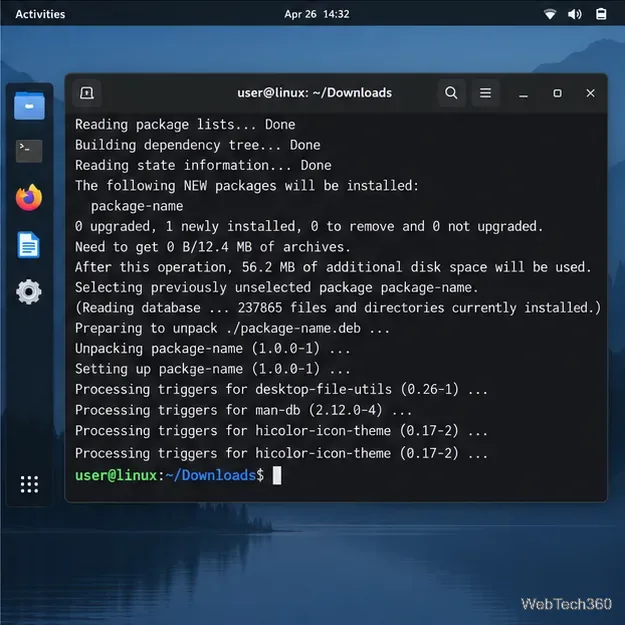
sudo apt install ./package-name.debsudo apt install "./my package.deb". Enter your password if asked. Review the proposed packages; type Y to proceed only when the changes look right.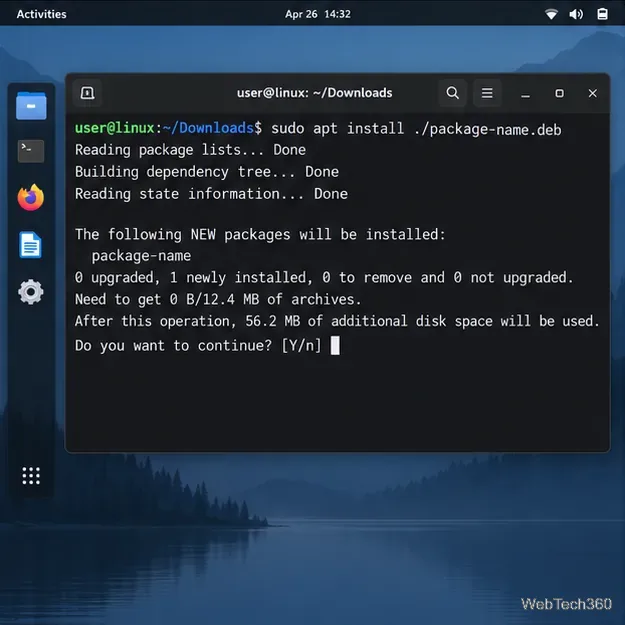
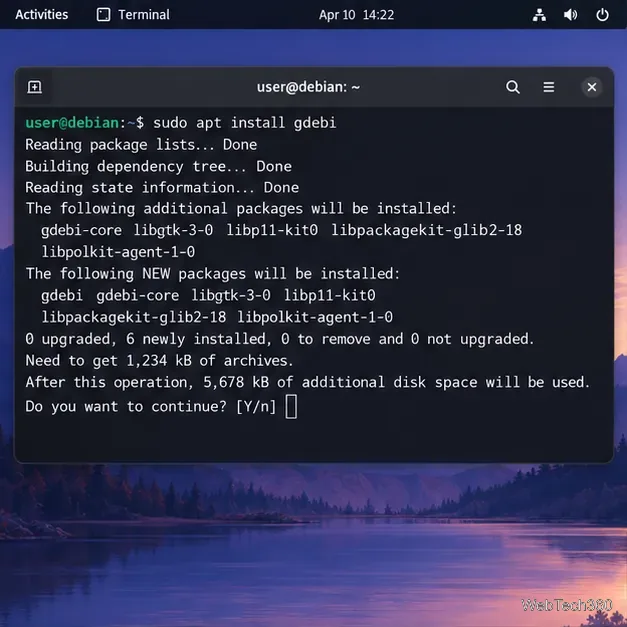
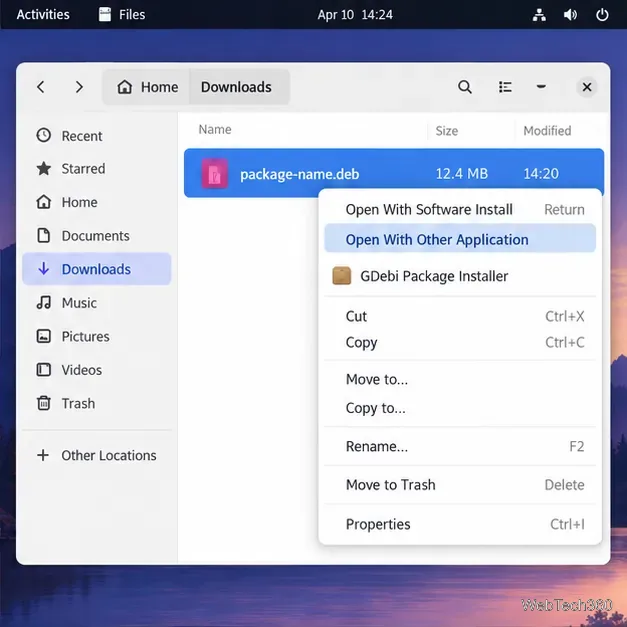
Ubuntu Desktop’s App Center can install downloaded DEBs. On other Debian-family desktops, GDebi is an optional graphical installer that can resolve available dependencies; availability and menu labels vary.
sudo apt install gdebi, review the package list, and confirm..deb and choose Open With Other Application, then GDebi Package Installer. Wording varies; use your desktop’s default installer if GDebi is unavailable.See Ubuntu’s DEB package guidance and Debian’s GDebi package page for details.
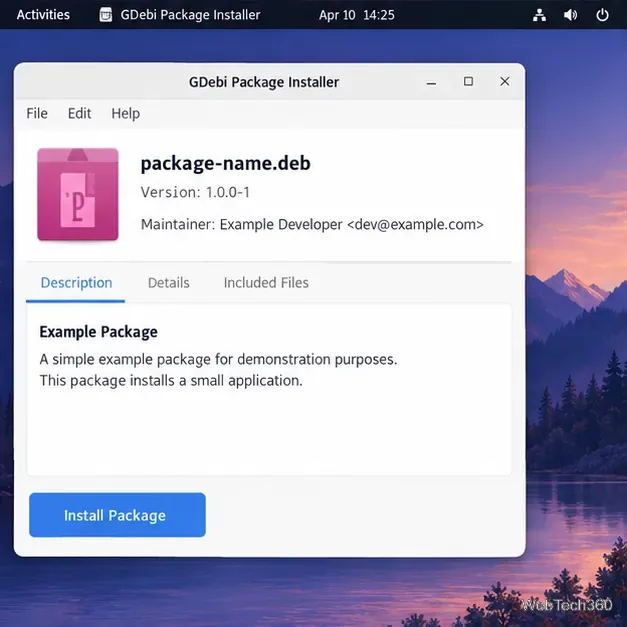
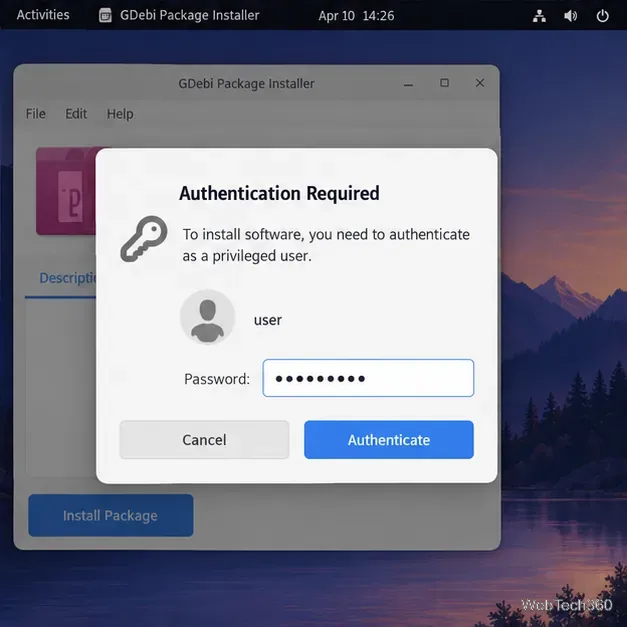
dpkg installs a local archive but does not fetch missing dependencies. After using it, ask APT to repair dependency issues:
sudo dpkg -i ./package-name.deb
sudo apt --fix-broken install
APT can fetch dependencies from configured repositories, but not packages unavailable for your release. Review its proposed changes. Debian notes that lower-level tools do not handle required dependencies automatically.
pwd and ls *.deb. Filenames are case-sensitive; use the full path if needed.sudo apt update and retry. If a dependency remains unavailable, get a compatible build from the publisher.Updates depend on the source: APT can update packages from configured repositories, while a standalone download may need manual updates. Follow only trusted publisher instructions.
Learn how to recover lost partitions and files with TestDisk and PhotoRec. Protect the source drive, scan safely, and save recovered data to another disk.
Scan QR codes on Linux with CoBang using a webcam or image file. See installation options, setup steps, and fixes for Flatpak camera access.
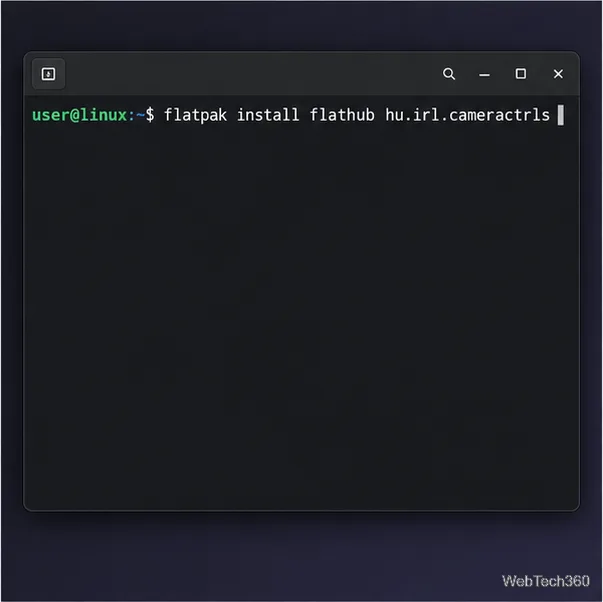
Change webcam settings on Linux with Cameractrls: tune exposure, color, flicker reduction, and other supported controls, then check compatible video modes.
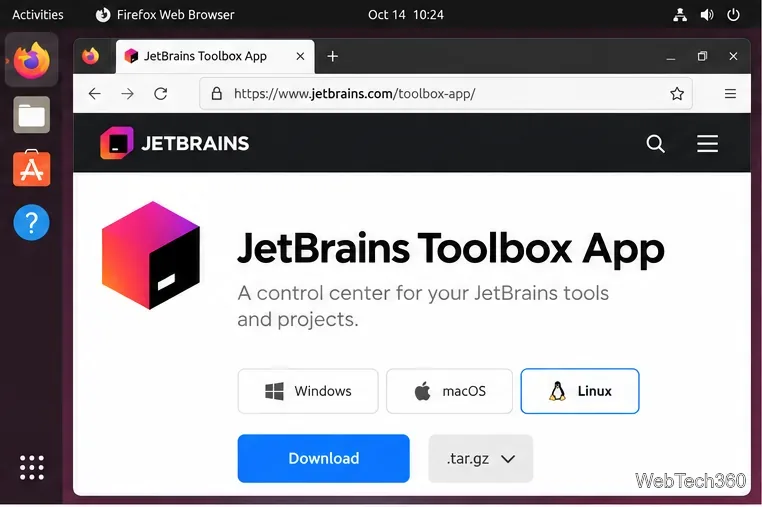
Install PhpStorm on Linux with JetBrains Toolbox or the standalone tar.gz archive, plus Snap and Arch AUR options. Java is already bundled.
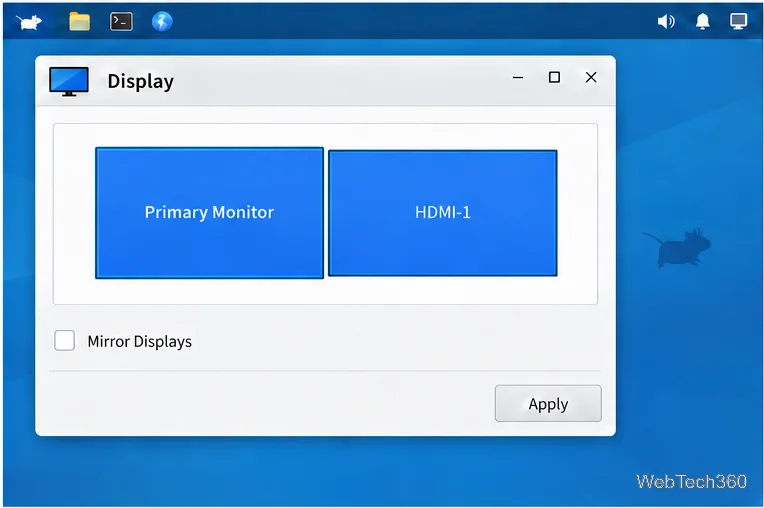
Create a separate XFCE 4 panel for each display, assign the second panel to the right output, position and size it, and add the launchers and status items you need.
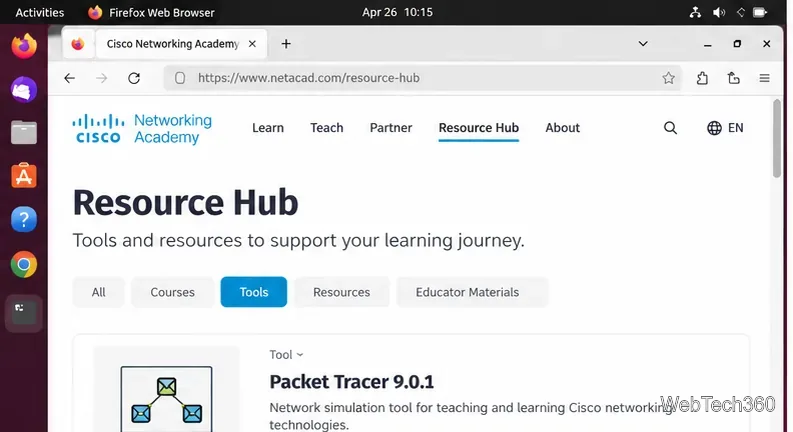
Download Cisco Packet Tracer 9.0.1 for Ubuntu 64-bit, install the DEB package with APT, accept the license in Terminal, and sign in to start a lab.
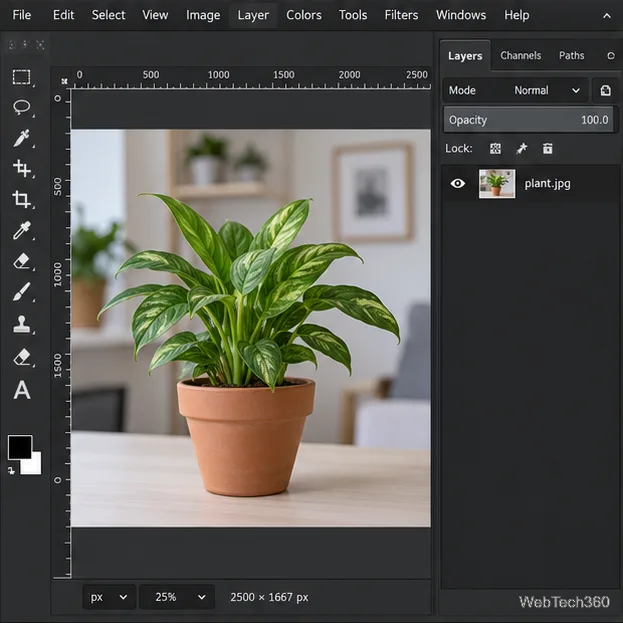
Remove a photo background on Linux with GIMP: trace a subject, delete the selected background, keep transparency, and export a reusable PNG.
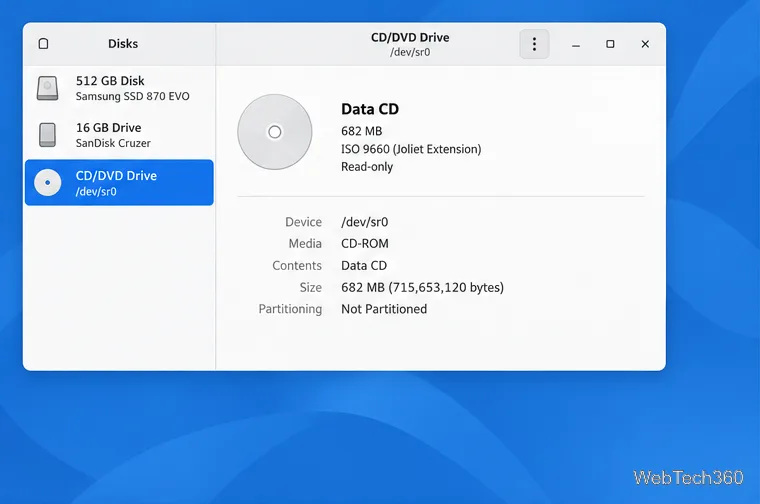
Create a CD-ROM ISO on Linux with GNOME Disks or dd. Identify the optical drive, monitor the copy, verify the image, and know when a damaged or audio disc needs another tool.
Download FlightGear for free from the official site. Compare Windows, macOS, and Linux packages, install the data files, and start your first flight.
Open Google Tasks in a browser, add a Chrome shortcut or app-style launch, and manage dated to-dos through Calendar and Gmail.