Home
» LINUX
»
How to Install a New Linux Kernel on openSUSE Leap
How to Install a New Linux Kernel on openSUSE Leap
To install a newer upstream kernel on openSUSE Leap, follow the documented Kernel:HEAD method: preserve a known-good kernel, add the repository, preview Zypper's proposed changes, then install.
Kernel:HEAD is an experimental development source, not a routine stability or security update. The openSUSE Reference specifically warns that this kernel can break a system and says ordinary users should normally use Leap's supported kernel updates, which include fixes backported by SUSE. The exact Kernel:HEAD instructions below are documented for Leap 15.6; verify that the repository supports your installed Leap release before continuing.
1. Check your Leap release and current kernel
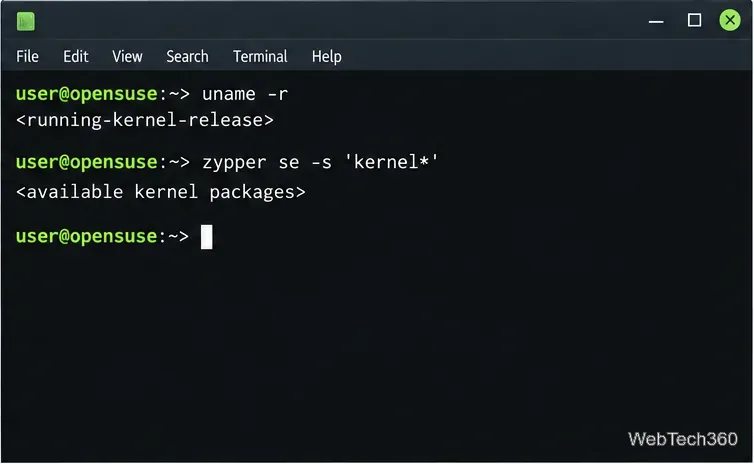
Open a terminal and record the release and kernel currently in use:
cat /etc/os-release
uname -r
sudo zypper se -s 'kernel*'
The first command identifies the distribution, uname -r prints the running kernel, and the Zypper search lists available packages. Confirm that the repository supports your Leap release and architecture; the exact Kernel:HEAD recipe here is documented for Leap 15.6.
Illustrative terminal layout; the release and package results depend on your system.
2. Preserve a bootable kernel as a fallback
Leap normally enables parallel kernel installation. Verify that multiversion support remains active and set retention before adding a development kernel:
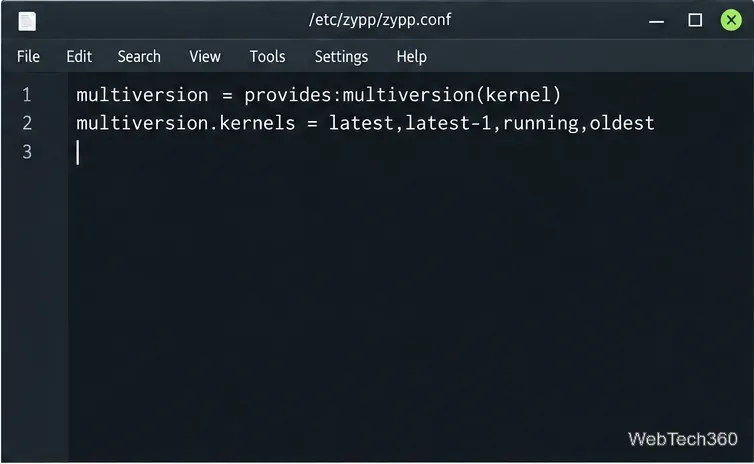
sudoedit /etc/zypp/zypp.conf
Make sure the following line is present and not commented out:
multiversion = provides:multiversion(kernel)
The multiversion setting enables parallel kernel installation. The separate multiversion.kernels setting controls which installed versions Zypper keeps. If you want to retain the earliest installed kernel as well as recent and running kernels, set the policy to:
If a retention policy already exists, edit it instead of adding a duplicate. Keep running; oldest retains the lowest-version kernel as a fallback. Save and exit.
Keep the running kernel and add oldest if you want to retain the earliest installed kernel as a fallback.
3. Add the Kernel:HEAD repository
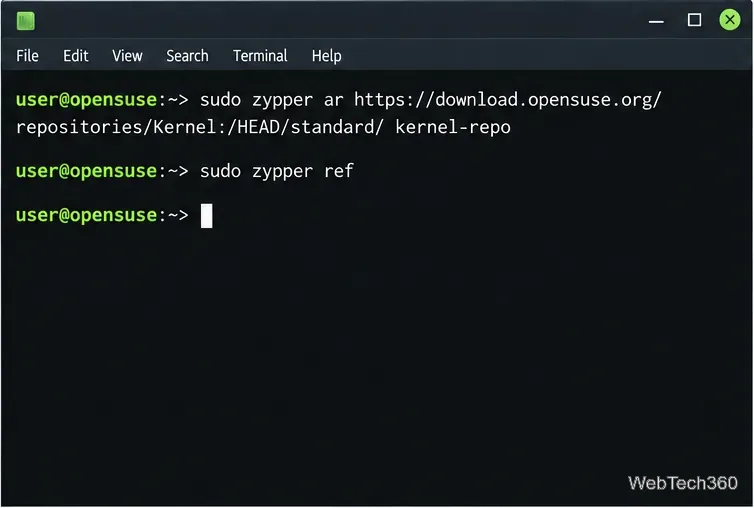
Kernel:HEAD tracks development work and can move quickly. Add it under a clear alias, then refresh repository metadata:
sudo zypper ar https://download.opensuse.org/repositories/Kernel:/HEAD/standard/ kernel-repo
sudo zypper ref
If the alias already exists, verify its URL with zypper lr -d kernel-repo; do not add a duplicate. The openSUSE reference documents this repository for its Leap 15.6 kernel procedure.
The commands add the repository and refresh its package list; no installation occurs yet.
4. Preview and install the kernel
First ask Zypper to simulate the distribution upgrade from the named repository:
Inspect the transaction. Continue only if it contains the requested kernel and necessary dependencies. If it proposes broad removals, unrelated upgrades, or unexplained vendor changes, answer no. The documented --allow-vendor-change option accounts for a kernel package from another vendor; --from selects the repository. Review every proposed change.
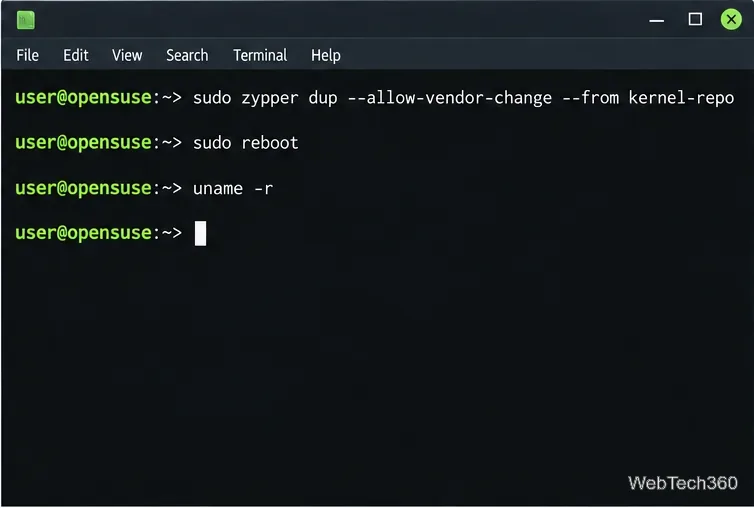
When the dry run shows only changes you intend to make, run the documented command without --dry-run and review the confirmation prompt:
Do not interrupt the transaction. If you use out-of-tree drivers or kernel module packages (KMPs), check for builds matching the new kernel; an old kernel can mask missing modules during dependency checks.
5. Reboot, verify, and keep the fallback
After Zypper finishes, reboot and check the active kernel:
sudo reboot
uname -r
The version returned by uname -r should match the kernel you selected. If it does not, use the GRUB menu to choose the new entry, then review the boot-loader default. Keep the earlier Leap kernel installed until the new kernel boots reliably and your essential hardware, storage, graphics, networking, and external modules work.
Review Zypper's proposed changes before confirming the upgrade, then check the active kernel after reboot.
Risks and recovery tips
Use Kernel:HEAD only when you need to test a development kernel. It may introduce regressions; for normal use, install Leap's official updates instead of chasing the latest upstream version number.
Check module compatibility. Proprietary graphics, virtualization, Wi-Fi, and other external modules may need a matching KMP or rebuild. With Secure Boot enabled, unsigned modules may be refused by the kernel; consult openSUSE's current driver guidance before upgrading.
Leave room in /boot. Multiple kernels, initrds, and boot entries use disk space. Check df -h /boot before installing, especially if the boot partition is small.
If the new kernel fails to boot, restart and select the previous Leap kernel from GRUB. Do not delete that fallback while diagnosing the problem.