Home
» LINUX
»
How to Install and Customize the Kitty Terminal Emulator on Linux
How to Install and Customize the Kitty Terminal Emulator on Linux
Kitty is a fast, GPU-accelerated terminal emulator for Linux with built-in tabs, tiling layouts, advanced font handling, themes, and extensive keyboard customization. The quickest way to get a current upstream build is Kitty’s official binary installer; distribution packages are also convenient, but the project notes that some distro versions can lag behind upstream. After installation, most customization happens in kitty.conf.
Step 1: Install Kitty with the official installer
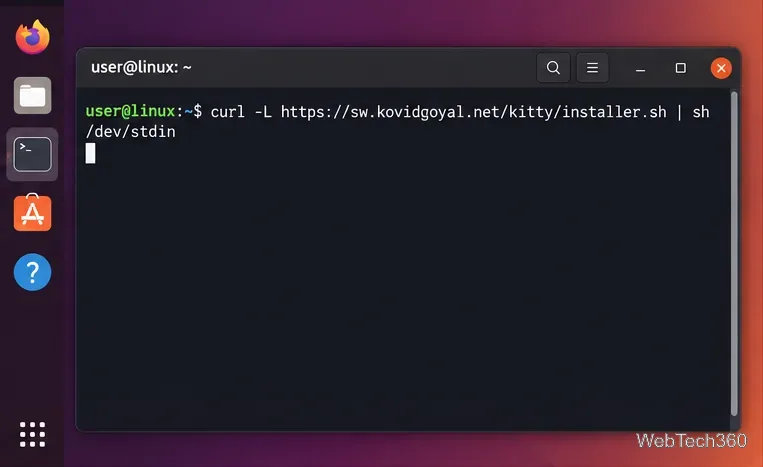
For a current upstream release, open your existing terminal and run the installer published by the Kitty project:
curl -L https://sw.kovidgoyal.net/kitty/installer.sh | sh /dev/stdin
On Linux, this installs Kitty under ~/.local/kitty.app. The installer only changes files inside that directory, and running it again updates the installation. See the official Kitty installation guide for manual downloads, nightly builds, uninstall instructions, and desktop integration.
The official installer command can install the current upstream Kitty build in your home directory.
If you want kitty and kitten available as normal commands, create symlinks in a directory that is already on your PATH:
Step 2: Or install Kitty from your Linux distribution
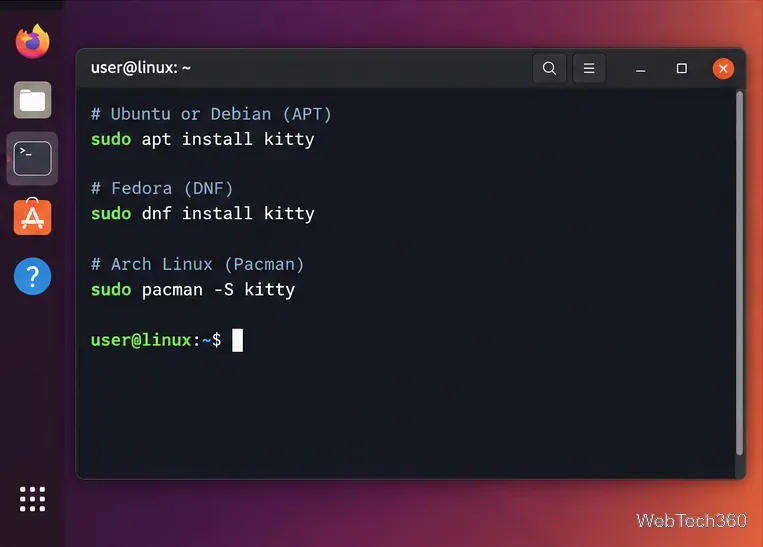
Using your distribution’s package manager is simpler to maintain alongside the rest of the system. These package names are available in the major repositories checked for this update:
Distribution
Command
Ubuntu / Debian
sudo apt update && sudo apt install kitty
Fedora
sudo dnf install kitty
Arch Linux
sudo pacman -S kitty
openSUSE
sudo zypper install kitty
Ubuntu, Debian, Fedora, and Arch all publish Kitty packages in their official repositories. If a feature in the current Kitty documentation is missing from your distro build, compare your installed version with upstream before troubleshooting; older stable distributions can intentionally ship older releases.
Kitty can also be installed through the standard package manager on major Linux distributions.
Step 3: Open Kitty’s configuration file
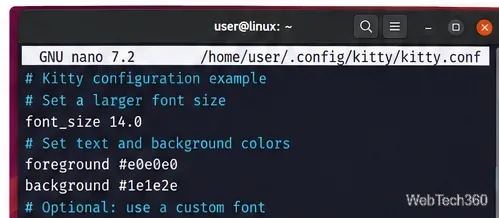
Launch Kitty, then press Ctrl + Shift + F2. Kitty opens its configuration file in your editor and creates a commented sample configuration if the file does not yet exist. The usual per-user path is ~/.config/kitty/kitty.conf. You can also create and edit it manually:
font_size is measured in points, and window_padding_width controls the blank space between terminal text and the window border. Kitty normally reloads configuration changes automatically; if you want to force a reload, press Ctrl + Shift + F5. The full set of options is documented in the official kitty.conf reference.
A small kitty.conf can change text size and terminal colors without a graphical settings window.
Step 4: Choose fonts and themes, then tune your workflow
For fonts, the current recommended method is Kitty’s interactive font picker. Run:
kitten choose-fonts
It previews installed monospace fonts and can write the appropriate font configuration for you. The official font guide also explains manual font_family syntax, variable fonts, and font features.
For color schemes, run:
kitten themes
This opens an interactive theme browser with live previews. When you select a theme, Kitty stores the theme configuration in your Kitty config directory and reloads it. The official themes documentation explains custom themes and automatic light/dark switching.
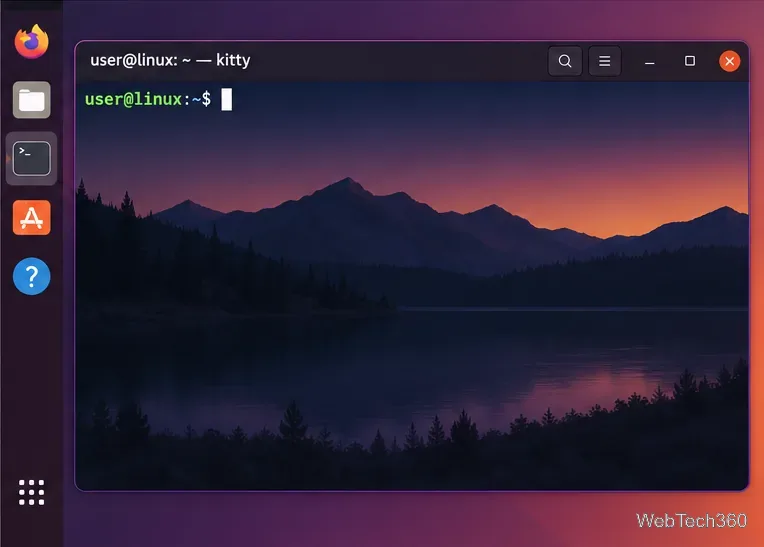
After saving the configuration, Kitty can reflect your preferred colors, spacing, fonts, and theme.
If Kitty does not launch after installation
First, run kitty --version. If your shell says the command is not found after using the upstream installer, try ~/.local/kitty.app/bin/kitty; if that works, the issue is your PATH or missing symlink rather than Kitty itself. With a distro package, refresh your package metadata and confirm the kitty package is installed for your current system. If Kitty launches but a new configuration causes unexpected behavior, temporarily move ~/.config/kitty/kitty.conf aside and start Kitty with its built-in defaults, then reintroduce your changes in small groups.
Kitty also manages multiple terminal panes without a separate multiplexer. Press Ctrl + Shift + Enter to create another Kitty window inside the current tab, Ctrl + Shift + L to cycle layouts, and Ctrl + Shift + T to open a new tab. These shortcuts are customizable in kitty.conf, so once installation and appearance are set, you can tailor Kitty to your shell and development workflow without changing the rest of your Linux desktop.