Home
» LINUX
»
How to Install and Set Up BlueMail on Linux
How to Install and Set Up BlueMail on Linux
To set up BlueMail on Linux, install its official Snap package, open the app, and sign in to your email provider. BlueMail’s current Linux release is distributed through the Snap Store and requires a 64-bit Intel or AMD (amd64) computer with Snap support. The older AUR and Wine methods found in archived guides are not the current officially supported installation path.
After installation, most accounts need only an email address and provider sign-in. BlueMail can detect common server settings automatically; use manual setup only if the automatic connection fails or your provider requires custom details.
Check Linux and Snap requirements
BlueMail for Linux is a Snap app. Snap is ready to use on Ubuntu and its official flavors, KDE Neon, and Zorin OS. Linux Mint, Debian, Fedora, Pop!_OS, elementary OS, Arch, Manjaro, openSUSE, RHEL-family systems, and Kali support Snap but may require a one-time setup first. Follow the instructions for your exact distribution in BlueMail’s Linux installation guide; package names and setup steps differ by distro.
Your computer must use a 64-bit Intel or AMD processor. BlueMail’s Linux page lists amd64 as the required architecture.
Snap requires systemd. BlueMail says distributions without systemd, including Alpine, Void, Devuan, Artix, and Slackware, are not supported.
If Snap is not installed, use the official Snapd installation instructions for your Linux distribution before installing BlueMail.
Install BlueMail on Linux
Open a terminal. On many Linux desktops, press Ctrl + Alt + T, or open Terminal from the applications menu.
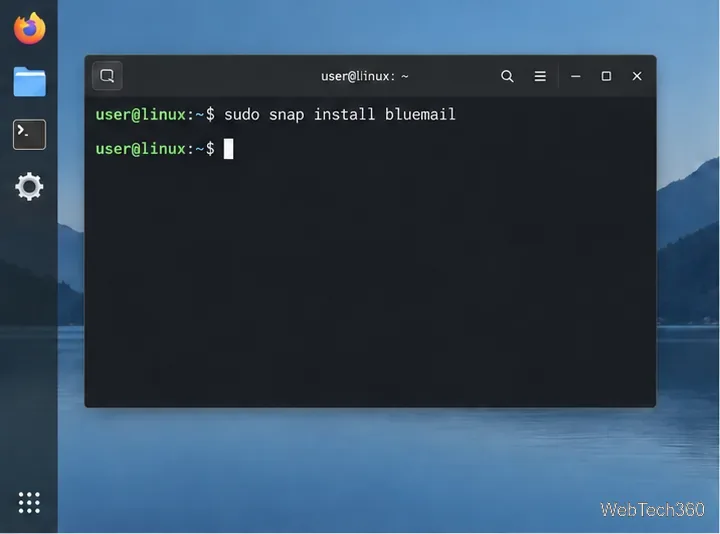
Install BlueMail from the verified Snap Store package by running:
sudo snap install bluemail
Enter your Linux password if prompted. The terminal does not display password characters as you type. The Snap Store lists BlueMail under the package name bluemail; see the BlueMail Snap Store page if you want to review the publisher and package details.
Illustrative interface mockup; labels can vary by BlueMail version and email provider.
When installation finishes, open BlueMail from your desktop’s applications menu. You can also launch it from a terminal with bluemail on supported setups.
If the command fails because Snap is unavailable, complete your distribution’s Snap setup first. If it fails on a system that has Snap, check that the system meets the amd64 and systemd requirements above. Avoid downloading an old Windows installer or an unofficial package in place of the supported Linux Snap.
Add an email account
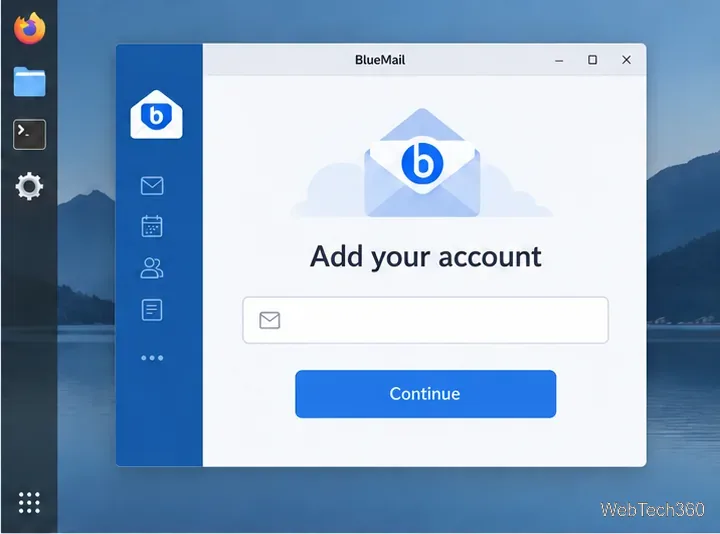
Start BlueMail. On first launch, choose the option to continue or add an account. If you already have an account set up, use the account picker or open Settings → Accounts → Add Account.
Illustrative interface mockup; labels can vary by BlueMail version and email provider.
Enter your full email address and select the matching provider if BlueMail asks. For Gmail, use the Google sign-in option when it appears. BlueMail’s supported providers also include services such as Outlook, Yahoo, AOL, iCloud, Exchange, and other IMAP providers; available sign-in choices depend on the account.
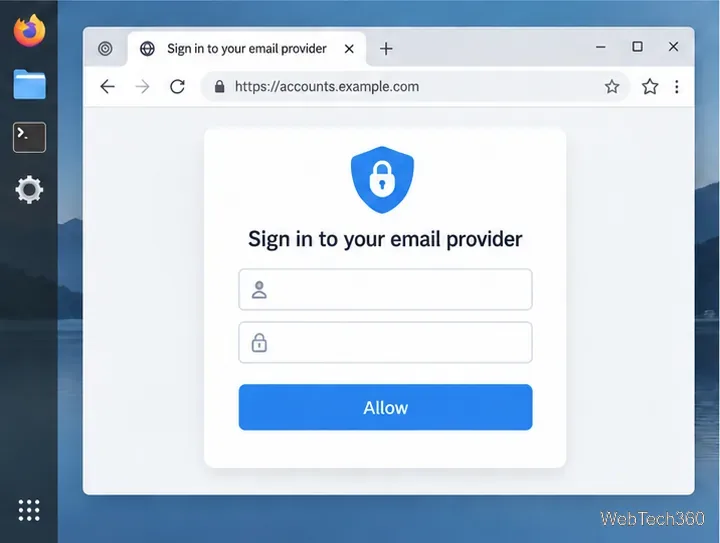
Complete the provider’s sign-in and approval screen. For Gmail, sign in on Google’s page and approve BlueMail when prompted. The page and button labels differ among providers, so follow the provider-branded prompts rather than entering a provider password into an unrelated page.
Illustrative interface mockup; labels can vary by BlueMail version and email provider.
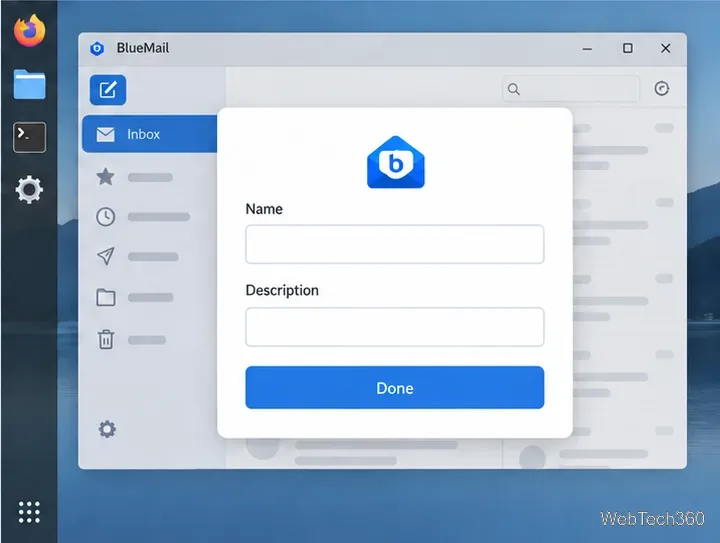
If BlueMail asks for account details, enter a display name and a description, such as “Personal” or “Work,” then choose Done. The description helps distinguish accounts inside BlueMail; it does not change your email address.
Illustrative interface mockup; labels can vary by BlueMail version and email provider.
Wait for the mailbox to sync, then open an inbox message or send a brief test email if you want to confirm both receiving and sending. If you have more than one mailbox, return to the account picker and add each account separately.
Use manual setup only when needed
If BlueMail cannot detect your provider, or your administrator gave you custom server settings, open the add-account screen and choose Manual Setup. Select the account type your provider supports—usually IMAP, Exchange, or POP3—then enter the incoming and outgoing server names, ports, and encryption settings supplied by the email provider. BlueMail explains this route in its manual account configuration guide.
Do not guess server names or port numbers. Check the provider’s own support pages or ask your work administrator. Some services require IMAP to be enabled or require an app-specific password, particularly when two-step verification is on. For Gmail, start with Google sign-in; BlueMail notes that Gmail’s normal sign-in configures the connection automatically.
Fix common setup problems
BlueMail will not install: confirm Snap is installed and running, then check the amd64 and systemd requirements. Use the distro-specific instructions on BlueMail’s Linux page.
Sign-in is rejected: verify the full email address and password by signing in to the provider’s webmail. If your provider requires it, create an app password.
IMAP is disabled: enable IMAP in the provider’s settings, or ask your work or school administrator whether access is allowed.
Manual connection fails: recheck the incoming and outgoing host names, ports, and SSL/TLS setting against the provider’s documentation.
BlueMail’s account troubleshooting guide covers provider-specific errors. If the problem continues, contact BlueMail support with your provider, the setup method you selected, and the exact error message.