How to Share Files Over Bluetooth on Linux with Blueman

Send and receive files over Bluetooth on Linux with Blueman. Install OBEX support, pair devices, choose a file, accept transfers, and fix common issues.
To set up the Foliate eBook reader on Linux, install it from Flathub with Flatpak, open an ebook from your computer, and adjust the reading view to suit you. Foliate is a desktop reader rather than a store: you supply the files. Its current Flathub listing includes EPUB, Mobipocket, Kindle, FB2, CBZ, and PDF support, along with page and scrolling layouts, bookmarks, annotations, text search, and appearance controls. EPUB is a good starting format, but the app is not limited to EPUB.
Flathub is the recommended, cross-distribution route in the Foliate project’s installation instructions. If Flatpak is not installed on your system, first follow the official Flathub setup guide for your Linux distribution. That guide covers enabling Flatpak and adding the Flathub repository; the exact package command for installing Flatpak differs between distributions.
If Flatpak is ready, open Terminal and check whether Flathub is already configured:
flatpak remotesIf you do not see a remote named flathub, add it using the repository file published by Flathub:
flatpak remote-add --if-not-exists flathub https://dl.flathub.org/repo/flathub.flatpakrepoThen install Foliate using the application ID shown on Flathub:
flatpak install flathub com.github.johnfactotum.FoliateRead the confirmation prompt and approve the installation. Flatpak uses a system-wide installation by default, so your system may request administrator authentication. If you prefer a per-user install, add --user to both the remote-add and install commands. When the install finishes, launch Foliate from your desktop’s applications menu. You can also start it from a terminal with flatpak run com.github.johnfactotum.Foliate.
The project also links to packages for several Linux distributions. Package names and versions vary, so use the Foliate project site or your distribution’s current repository page if you want a native package. Avoid installing a second copy until you know how your desktop distinguishes the two launchers.
Open Foliate and choose its Open action from the welcome view or header bar. Browse to the folder containing your ebook, select the file, and choose Open. The file chooser works well for books in Downloads, Documents, or an external drive; Foliate does not need to import or move the original file.
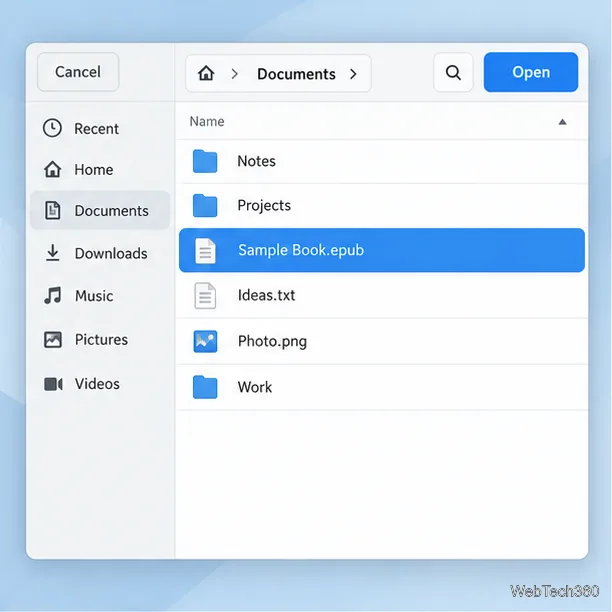
For a first test, use an EPUB you know opens in another reader. The Flathub listing currently names EPUB, Mobipocket, Kindle, FB2, CBZ, and PDF among the supported formats. Support can vary with the book’s contents and version, and a protected ebook may not open if it depends on a retailer’s digital-rights system. Foliate does not remove that protection. If a file fails, confirm its extension and source, try a DRM-free copy where available, and update Foliate before assuming the reader is broken.
Use the previous and next controls or the progress slider to move through the book. The table of contents and search tools help you jump to a chapter or find a word; bookmarks and annotations let you save useful passages. If you prefer continuous reading, press Ctrl+M to switch between paginated and scrolled layouts. Foliate’s controls may hide while you read, so move the pointer over the window or use the relevant toolbar control to bring them back.
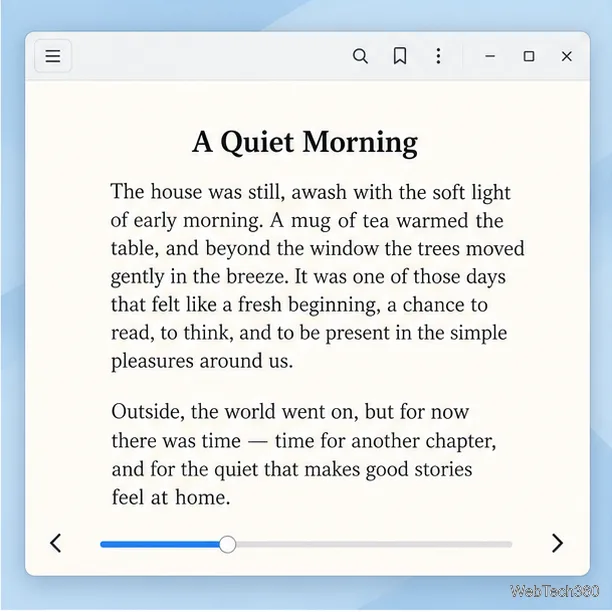
Foliate is focused on reading, so keep your files in a folder structure that makes sense to you. You can open another title later from the app’s Open action. Moving or renaming a book in your file manager may mean you need to browse to its new location the next time you open it.
Open Foliate’s header-bar menu and choose Preferences or the appearance controls. Select Light, Sepia, Dark, or Invert to change the reading colors. Adjust the font, font size, line spacing, and margins until the page feels comfortable. A larger font can reduce the number of words on screen; increasing line spacing can make dense paragraphs easier to track.
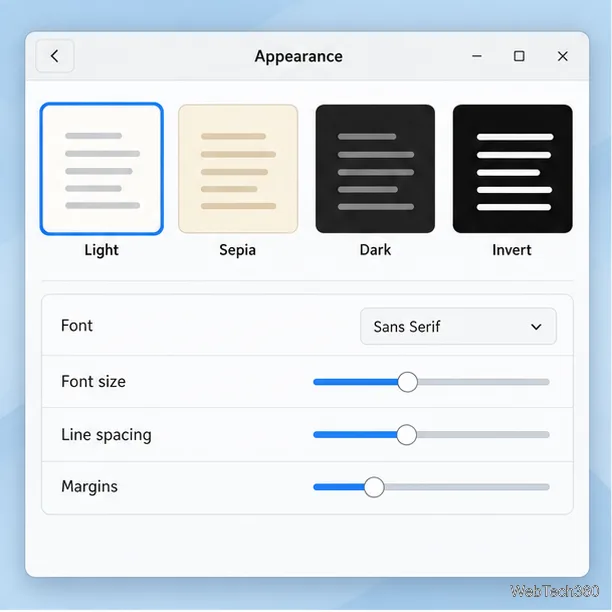
These choices affect how reflowable text is displayed. A PDF or another fixed-layout document may not respond to every font or spacing adjustment in the same way as an EPUB. If the book’s publisher has embedded a font or fixed its layout, the page may remain closer to the original design.
flatpak run com.github.johnfactotum.Foliate; after enabling Flathub for the first time, follow any restart step specified by your distribution’s setup guide.flatpak update, then test another supported, unprotected ebook. A damaged file, unsupported content, or retailer DRM can prevent a specific title from opening.For app-specific changes and source-build instructions, consult the Foliate repository. For general Flatpak commands, see the Flatpak user documentation.
Send and receive files over Bluetooth on Linux with Blueman. Install OBEX support, pair devices, choose a file, accept transfers, and fix common issues.
Connect GNOME Files to SSH/SFTP, FTP, SMB, WebDAV, or NFS with the correct server URI, sign-in details, and fixes for common connection errors.
Open SFTP, SSH, SMB, FTP, NFS, and WebDAV locations in Dolphin, sign in safely, transfer files, and save network folders for later.
Connect a DualShock 4 to Linux by USB or Bluetooth, then check controller detection and configure Steam Input only when a game needs it.
Use DNF5 parallel downloads to reduce RPM install waits in GNOME Software, then tell when mirror or Flatpak delays need a different fix.
Access iCloud on Linux in a current browser. Learn how to sign in, use iCloud Drive and other web apps, and understand the limits of browser access.
Save GRUB settings, boot files, and UEFI entry details to removable storage, then use rescue media to repair the correct boot path safely.
Install Bitwarden on Linux with the right DEB, RPM, Snap, Flatpak, or AppImage package, then sign in and set a secure vault timeout.
Pick a screensaver theme in Xfce, preview it, choose when it starts, and configure automatic locking in the separate Lock Screen tab.
Stop GNOME Shell from blanking or locking your display automatically. Change Power and Screen Lock settings, or use Caffeine for a temporary keep-awake toggle.








