Home
» LINUX
»
How to Install and Use KDE Apper on Linux
How to Install and Use KDE Apper on Linux
KDE Apper is a graphical package manager that uses PackageKit to install, remove, and update software supplied by a Linux distribution. First check whether your distribution still offers it: KDE now labels Apper unmaintained and says it is no longer released by the KDE community. Some archives still carry it, but availability and backend support depend on your distribution. See KDE's Apper status page before proceeding.
If Apper is missing or causes problems, use your distribution's supported software manager. KDE's current Discover can manage repository software and, when the relevant backends are installed, sources such as Flatpak and Snap.
Check whether Apper is available
Refresh your repository metadata with your normal system updater, then search for the exact package name apper. Availability depends on your distribution version and enabled repositories. Do not add an unofficial repository just to make an old package appear.
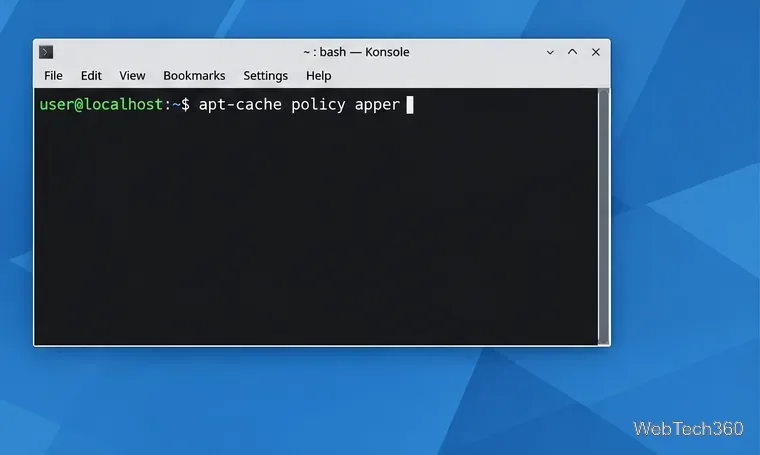
Check your enabled APT repositories for an Apper candidate before installing it.
Linux distribution
Check first
Install only if a package is listed
Ubuntu or Debian
apt-cache policy apper
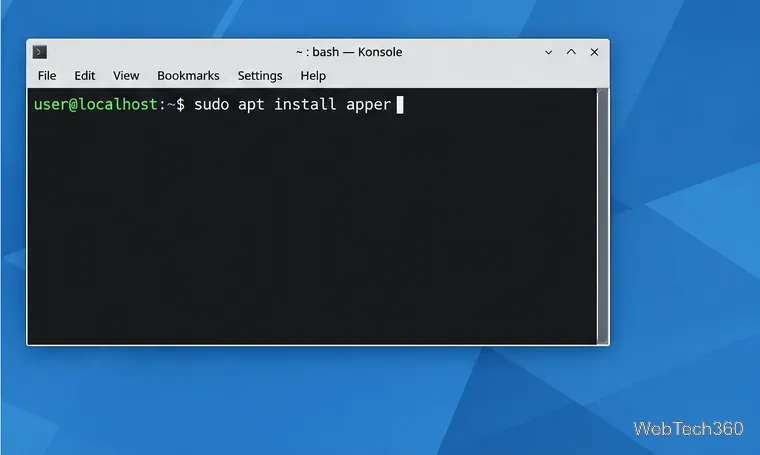
sudo apt install apper
Fedora
dnf info apper
sudo dnf install apper
Arch Linux
pacman -Ss apper
If no official repository result appears, use a maintained alternative; do not assume an old community build is supported.
openSUSE
zypper search apper
Install only from an official repository that lists a package for your release.
Package catalogs vary by release. Ubuntu lists Apper for selected releases, and Debian's Trixie search also shows it. Check current records for Fedora, Arch, and openSUSE. openSUSE currently lists no official Apper package for Leap 16.0 and marks Tumbleweed options experimental.
Install and open Apper
On Ubuntu or Debian, run sudo apt update, check the candidate, then run sudo apt install apper if one is available. On Fedora, use the DNF command in the table only when dnf info apper returns a package for your enabled repositories. For other distributions, use their software center if it offers Apper; if the package is not in the official repositories, stop here and choose the maintained alternative.
On an APT-based system, install Apper through the distribution's package manager.
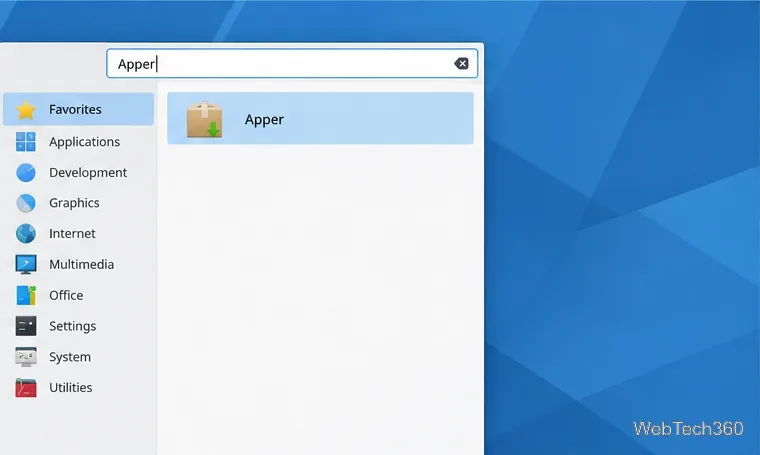
After installation, search the application launcher for Apper or run apper in a terminal. Do not start the graphical app with sudo; let PackageKit and the desktop authorization prompt handle each transaction.
Search the application menu for Apper after the package installation finishes.
Search for and install an application
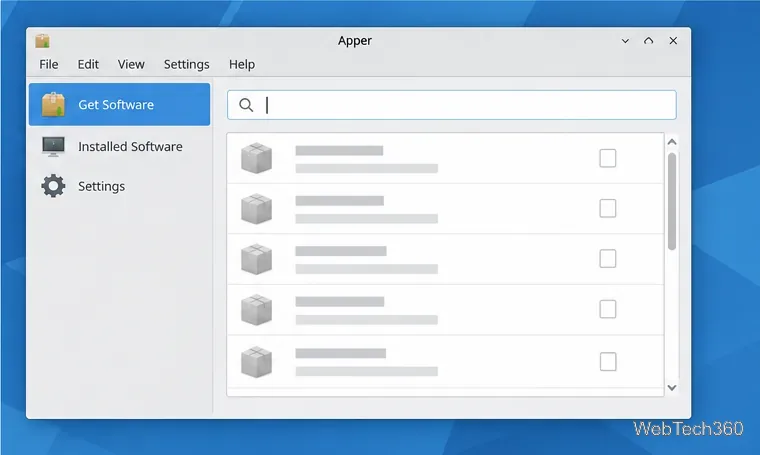
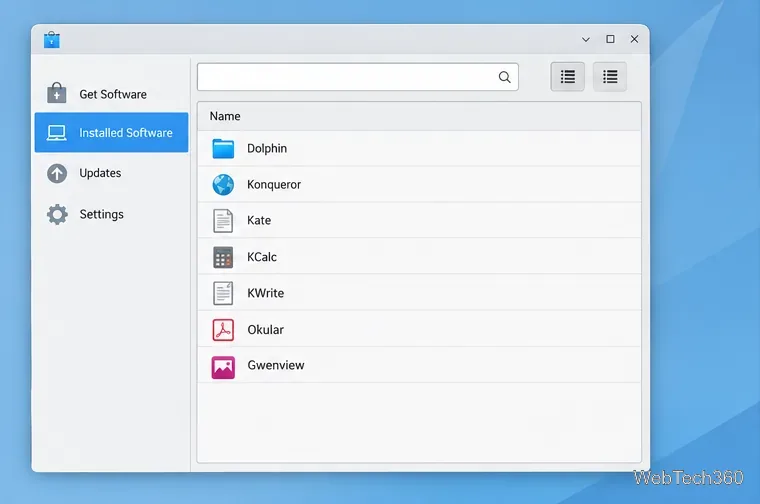
Apper's labels vary by version, but look for a software or package search view such as Get Software or Search Packages. Enter an application's name, then read its description and package details. Search results may include libraries, language packs, and development files alongside applications, so choose the entry that matches what you need.
Apper's package view provides a search field and a list; exact labels differ between builds.
Search for the application or package.
Select the intended result and choose its install action. Some builds stage the selection before applying changes.
Review the transaction summary, including any additional packages or dependencies.
Apply the changes and approve the system authorization prompt if one appears.
Cancel if the summary proposes removing unrelated software or installing packages from a source you do not recognize. Apper works with the software sources exposed by your distribution's PackageKit backend; do not expect it to manage every Flatpak, Snap, or AppImage installed on the computer.
Remove software safely
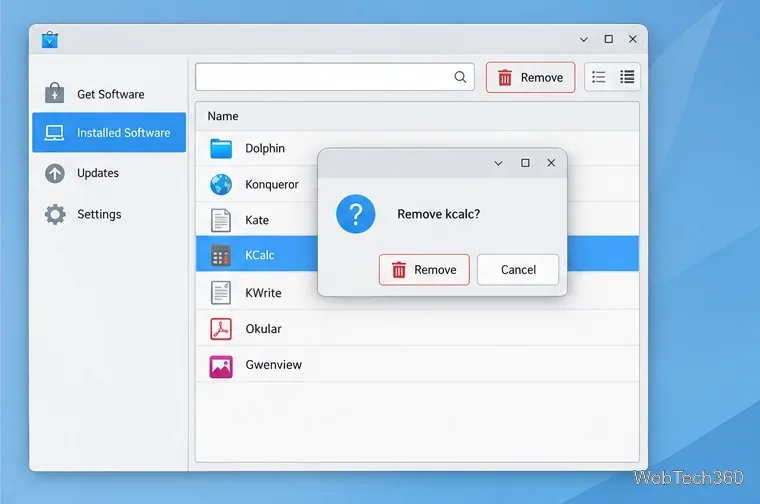
Open Installed Software (or the equivalent list), search for the application, select it, and choose Remove. Review the proposed transaction before confirming. Apper may offer to remove packages that depend on the selected item, and the package list can include components used by Plasma or other parts of the system. If you are unsure what a dependency does, cancel and use your distribution's supported package manager or consult its package documentation.
Use the installed-software view to locate the application you intend to remove.Confirm a removal only after checking the selected package and its dependent changes.
Check for updates
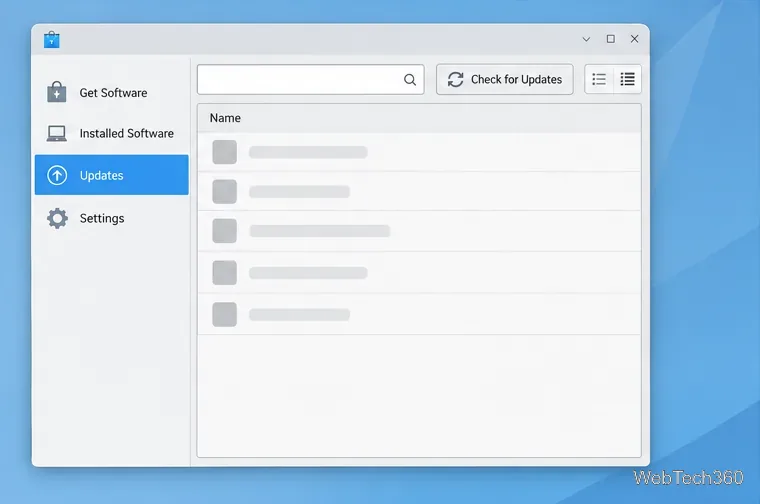
Choose Updates and select Check for Updates if that control is available. Review the packages Apper finds, then apply the transaction and authorize it. Update names and controls depend on the distribution's PackageKit backend. For a major operating-system upgrade, use the distribution's documented upgrade process rather than treating Apper's package list as an upgrade plan.
The Updates view can check repository packages when the PackageKit backend supports it.
What to do if Apper cannot load packages
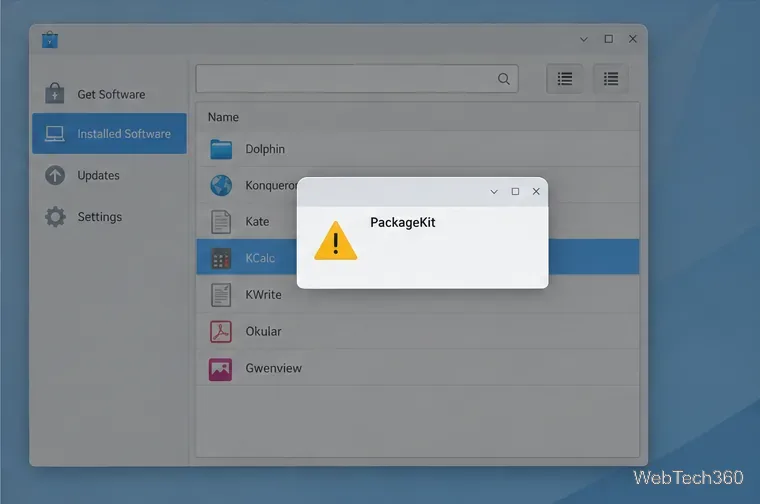
If search results are empty, check that your network works and refresh repository metadata in your distribution's normal software manager. Then verify that Apper is still available for your release and that its PackageKit backend is installed. If a PackageKit warning appears or a transaction fails, note the full message and stop rather than repeatedly retrying with elevated privileges.
A PackageKit warning can point to a backend or repository problem; the exact message depends on the system.
If Apper or its backend is unavailable, use your distribution's maintained software updater or package manager for installs, removals, and security updates.