The easiest current way to install Stremio on Linux is Flatpak. Stremio moved its v5 Linux app to the stable Flatpak channel in June 2026, while the official downloads page still offers a Stremio 4.4 Debian/Ubuntu package for users who prefer a DEB. This guide covers both options, then shows the basic setup and playback workflow.
Stremio is a media center rather than a content provider. What you can browse or play depends on the add-ons and services available to you. Use streaming sources you are authorized to access.
Which Stremio package should you install?
| Method | Best for | What to know |
|---|
| Flatpak | Most Linux distributions | Recommended for the current Stremio v5 Linux experience. |
| DEB | Debian and Ubuntu-based systems | The official Stremio downloads page currently labels this package as Stremio 4.4. |
For Fedora, Arch/Manjaro, openSUSE, and other distributions, Flatpak is the simplest supported route shown on Stremio's current download page. Stremio's Linux v5 release announcement also directs users to Flathub.
Install Stremio on Linux with Flatpak
- Make sure Flatpak and the Flathub remote are configured. If they are not, follow the instructions for your distribution on the Flathub setup page.
- Open a terminal and, if needed, add Flathub:
flatpak remote-add --if-not-exists flathub https://flathub.org/repo/flathub.flatpakrepo
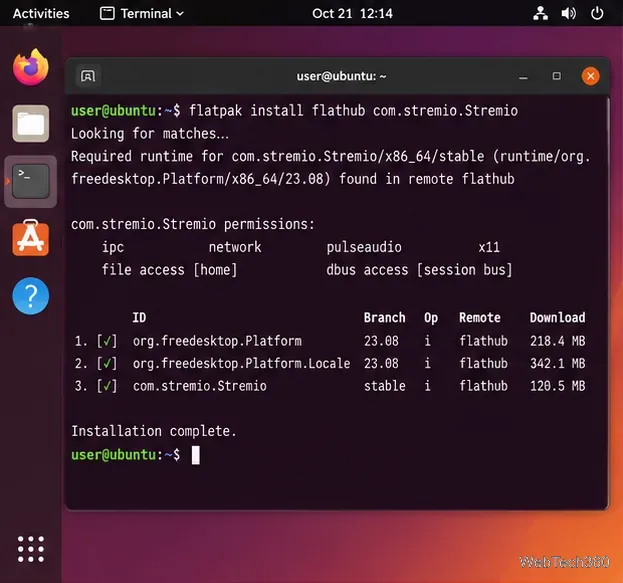
- Install Stremio:
flatpak install flathub com.stremio.Stremio
- Launch it from your application menu or run:
flatpak run com.stremio.Stremio
The Stremio page on Flathub is also useful if you prefer installing through a graphical software center.
Install the Debian/Ubuntu package instead
If you specifically want the DEB package, download it from Stremio's official downloads page rather than copying an old version-specific URL from another guide. Then open a terminal in the folder containing the file and install it with APT:
cd ~/Downloads
sudo apt install ./stremio_<version>_amd64.deb
If APT reports broken dependencies, Stremio's Linux support article recommends:
sudo apt-get install --fix-broken
See the official Linux installation troubleshooting page for current package guidance.
How to use Stremio on Linux
1. Launch Stremio and choose how to sign in
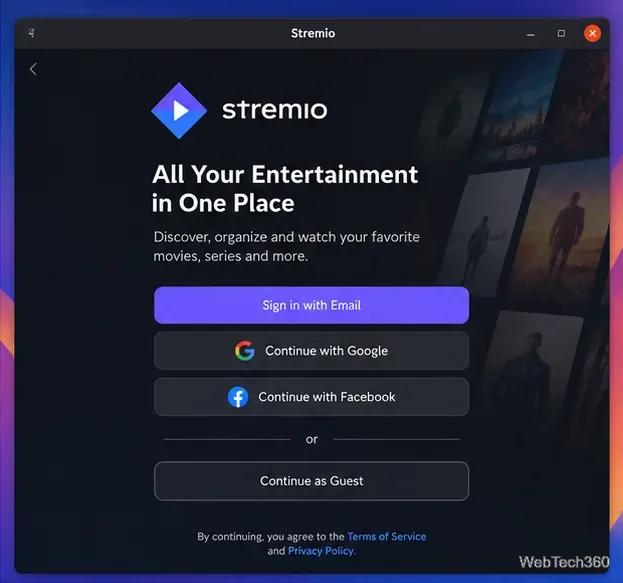
Open Stremio from your app menu. Signing in lets Stremio sync useful account data such as your library and progress between devices. Stremio also documents a Guest mode; it avoids account synchronization, so use it only if you do not need cross-device continuity.
2. Browse or search for something to watch
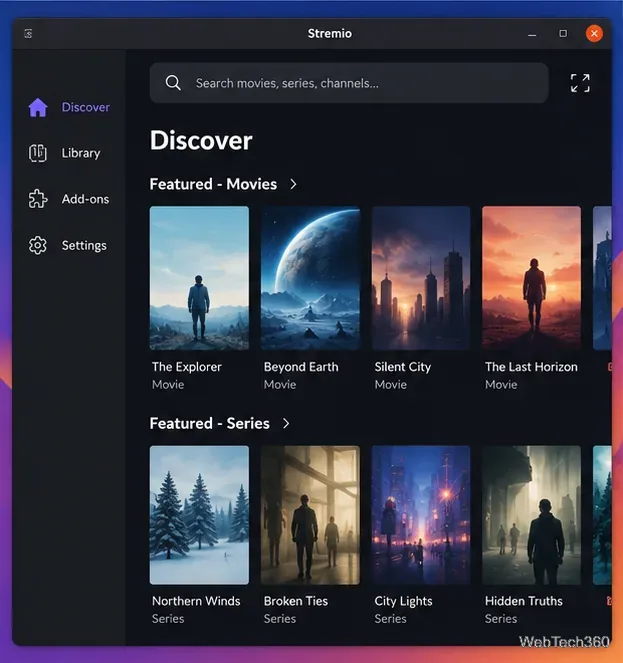
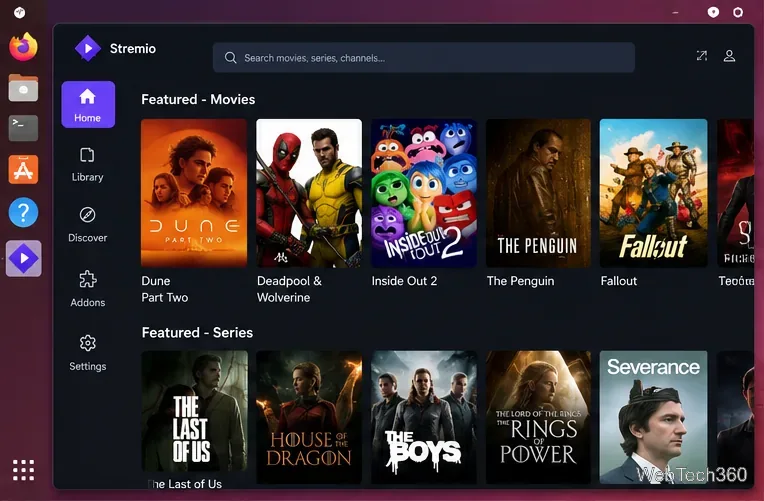
Use the main catalog, Discover area, and search field to find movies, series, channels, or other media exposed by your installed add-ons. The exact catalogs you see can differ by add-on, service, and region.
3. Install the add-ons you actually need
Open Add-ons from the navigation area, search or browse, and select Install. Stremio explains that add-ons supply catalogs, metadata, subtitles, and stream information; they do not install executable code on your computer. Official add-ons are maintained by Stremio, while community add-ons are maintained by third parties.
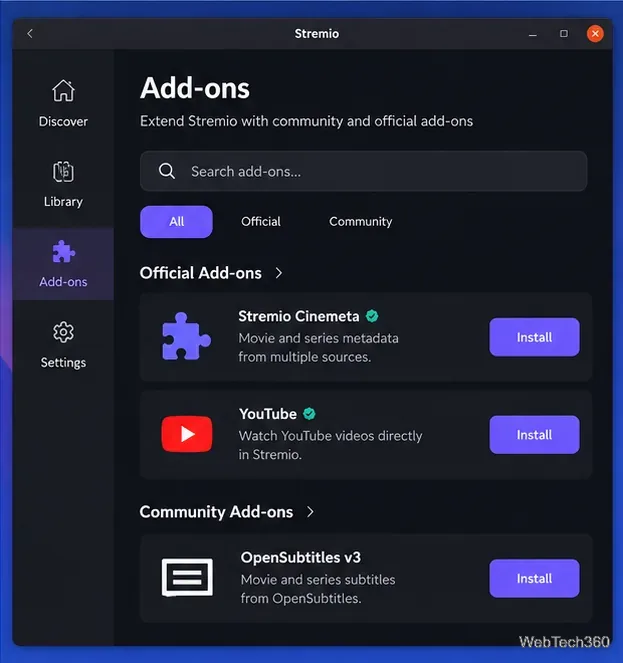
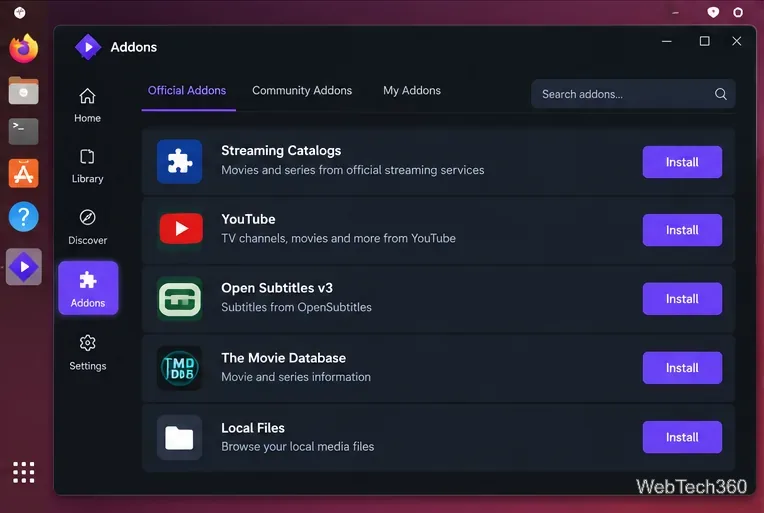
For the latest interface instructions, see Stremio's official add-on installation guide.
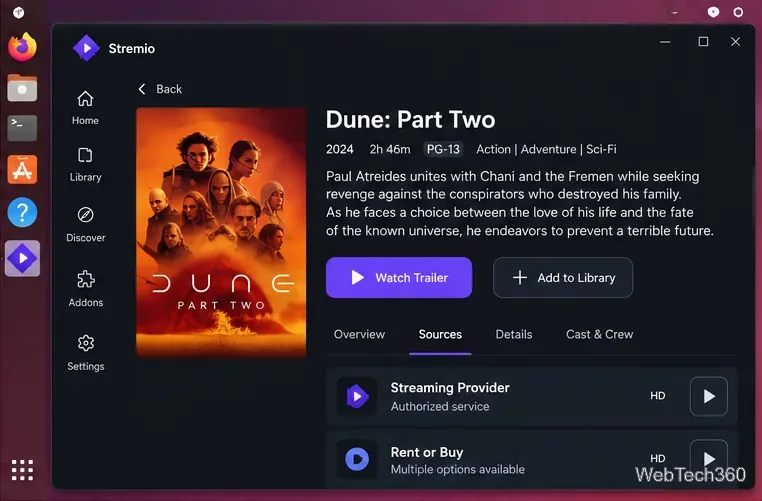
4. Open a title and choose an available source
Select a title to open its details page. Available sources depend on your installed add-ons and subscriptions. Pick a legitimate provider or rental/purchase option you can access; if no playable source appears, check your add-ons rather than assuming the Linux app is broken.
5. Add favorites to your library
Use Add to Library on a title's details page when you want to find it again quickly. If you are signed in, your library can sync across supported devices. This is one of the main reasons to use an account instead of Guest mode.
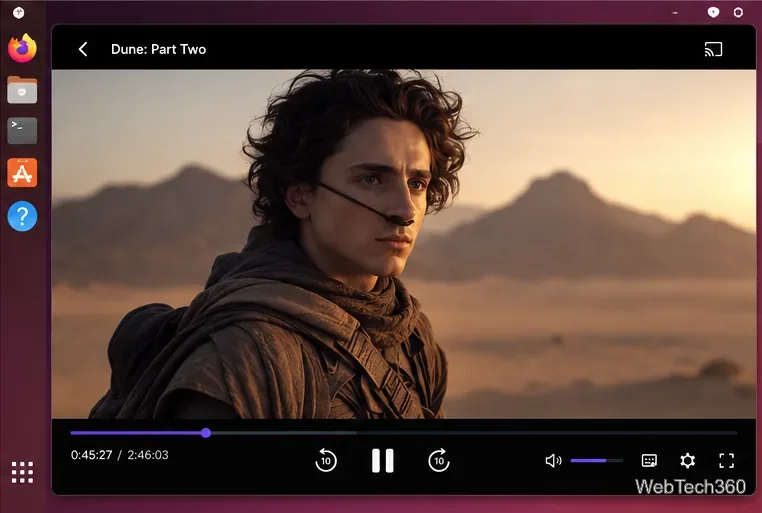
6. Use player controls for subtitles, audio, speed, and casting
Start playback from an available source, then use the player controls for features supported by that stream. Current Stremio desktop updates include subtitle and audio preferences, playback-speed controls, casting improvements, and other player refinements.
Update or remove the Flatpak version
To update Stremio when a new Flatpak build is available, run:
flatpak update com.stremio.Stremio
To remove it:
flatpak uninstall com.stremio.Stremio
If Stremio opens but shows little or no content, check the Add-ons section first. If installation itself fails, verify that Flatpak/Flathub is configured correctly or use Stremio's current official Linux support page instead of old distro-specific commands.









