How to Share Files Over Bluetooth on Linux with Blueman

Send and receive files over Bluetooth on Linux with Blueman. Install OBEX support, pair devices, choose a file, accept transfers, and fix common issues.
To set up the Glances system monitor on Linux, install it in an isolated Python environment, then run the command-line dashboard or start the optional Web UI. Python 3.10 or newer is required for Glances 4. The current official documentation lists Glances 4.5.8; a distribution package may provide a different release.
The PyPI install is a practical cross-distribution choice when you want the current release and browser mode. Glances 4 replaced the older Bottle-based web server with FastAPI and Uvicorn, so do not follow old instructions that separately install Bottle.
Check your Python version, create a virtual environment, and install the web extra. This keeps Glances and its Python dependencies separate from system-managed packages:
python3 --version
python3 -m venv ~/.venvs/glances
~/.venvs/glances/bin/python -m pip install --upgrade 'glances[web]'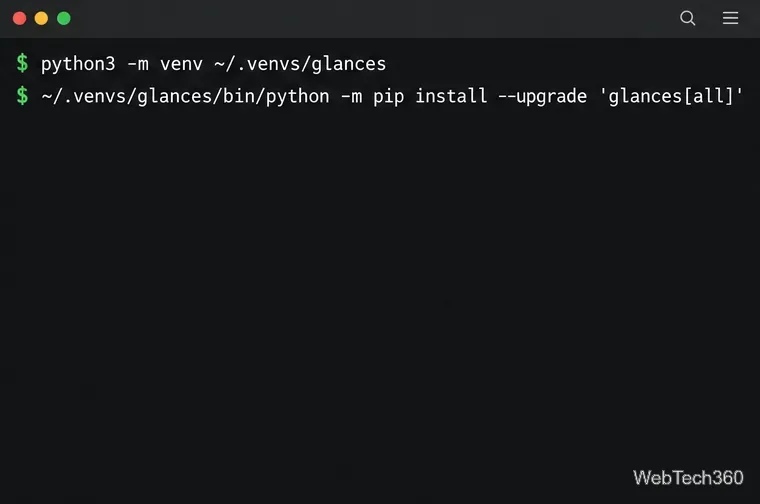
The web extra supplies the dependencies needed for the browser interface and API. If python3 -m venv reports that the module is missing, install your distribution's Python virtual-environment package first; on Debian and Ubuntu, that package is commonly named python3-venv. You can confirm the installed release with:
~/.venvs/glances/bin/glances --versionGlances is also packaged by many Linux distributions. Upstream notes that distribution builds can lag behind PyPI and may enable only basic plugins; Debian-based packages may also omit the Web UI static files for Glances 4. Use the isolated PyPI setup if the browser interface or a current version is important.
Start Glances in standalone mode by running:
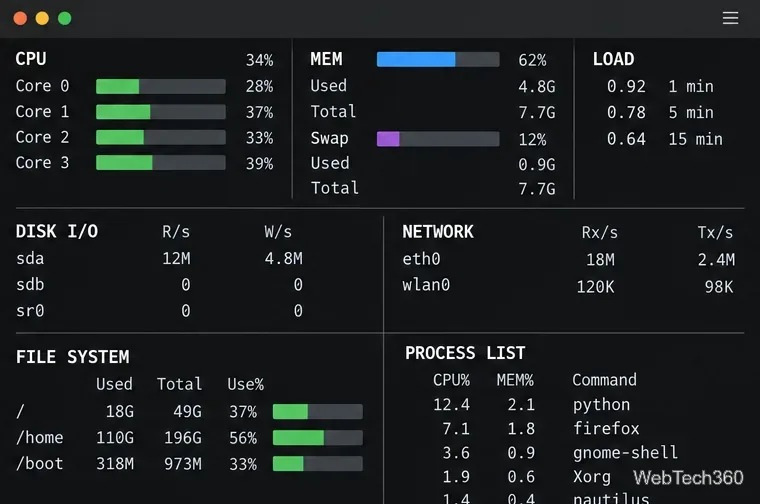
~/.venvs/glances/bin/glancesThe dashboard updates while it runs and brings CPU, memory, load, disk I/O, network, filesystem, and process information into one terminal view. Some panels appear only when the operating system and installed plugins provide the data. Press q or Esc to quit. The official Glances quickstart documents standalone and server modes, and the command reference lists interactive keys and options.
To keep the Web UI local, open a second terminal and run:
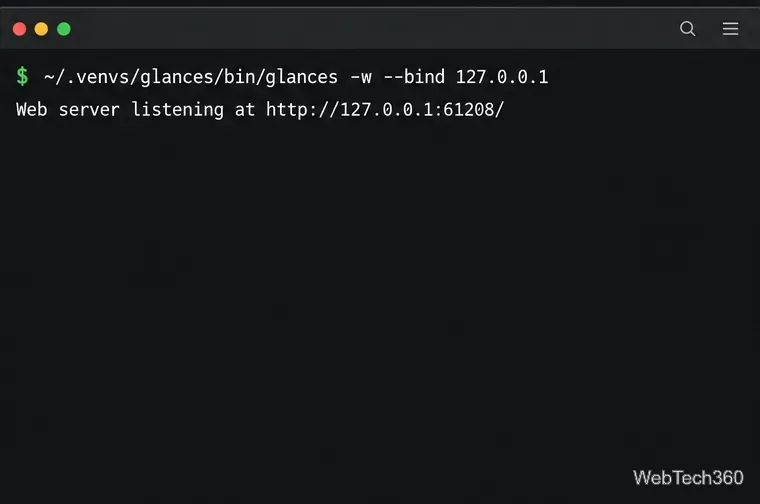
~/.venvs/glances/bin/glances -w --bind 127.0.0.1Leave that process running, then open http://127.0.0.1:61208 in a browser on the same Linux computer. Port 61208 is the documented Web UI port. Close the browser when finished and return to the terminal running Glances; press Ctrl+C to stop the server.
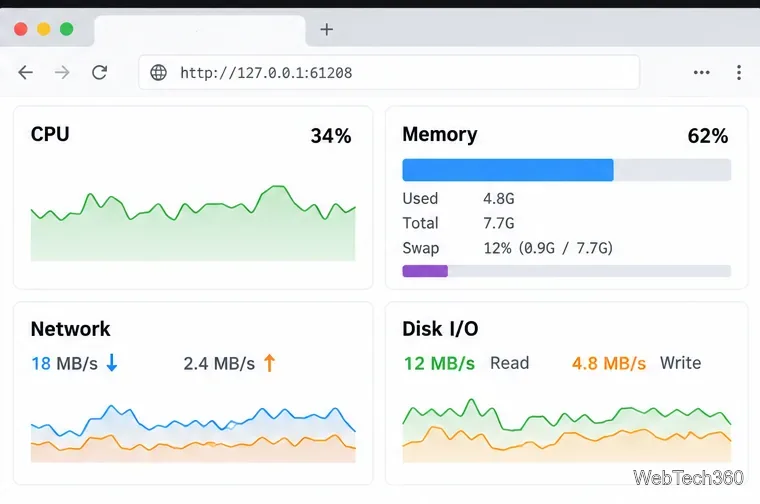
The browser view is useful when you want to keep the monitor visible beside other work or prefer a graphical layout. A value or panel that is absent in the Web UI may depend on the installed Glances build, a plugin, or system-level access to that metric.
The Glances 4.5.8 security guide warns that Web server mode is unauthenticated by default and, unless configured otherwise, listens on all network interfaces. Its process list and API can expose sensitive details, including command-line arguments. The loopback bind shown above avoids making this tutorial's server reachable from other devices.
If you deliberately need access from another computer, bind to the Linux host's private LAN address, enable password authentication, and allow only the needed hostnames or IP addresses. For example, replace SERVER_LAN_IP with the address assigned to the monitored machine:
~/.venvs/glances/bin/glances -w --bind SERVER_LAN_IP --passwordConfigure webui_allowed_hosts in the [outputs] section of ~/.config/glances/glances.conf with the hostnames or IPs users will enter. For a local-only service, the setting can be:
[outputs]
webui_allowed_hosts=localhost,127.0.0.1
For LAN access, add the server address or its DNS name to that comma-separated list. Restrict the firewall to trusted devices. Do not expose the plain HTTP service directly to the public internet; the official Glances API security guidance recommends a reverse proxy with TLS and authentication for public-facing deployments.
PATH.'glances[web]' inside the same virtual environment, then restart the Web UI.61208. When viewing from another device, 127.0.0.1 refers to that device itself; use the monitored Linux machine's reachable address and configure the bind, password, allowed hosts, and firewall deliberately.For installation details, optional components, and release notes, consult the official Glances install documentation, the Glances project README, and its release list.
Send and receive files over Bluetooth on Linux with Blueman. Install OBEX support, pair devices, choose a file, accept transfers, and fix common issues.
Connect GNOME Files to SSH/SFTP, FTP, SMB, WebDAV, or NFS with the correct server URI, sign-in details, and fixes for common connection errors.
Open SFTP, SSH, SMB, FTP, NFS, and WebDAV locations in Dolphin, sign in safely, transfer files, and save network folders for later.
Connect a DualShock 4 to Linux by USB or Bluetooth, then check controller detection and configure Steam Input only when a game needs it.
Use DNF5 parallel downloads to reduce RPM install waits in GNOME Software, then tell when mirror or Flatpak delays need a different fix.
Access iCloud on Linux in a current browser. Learn how to sign in, use iCloud Drive and other web apps, and understand the limits of browser access.
Save GRUB settings, boot files, and UEFI entry details to removable storage, then use rescue media to repair the correct boot path safely.
Install Bitwarden on Linux with the right DEB, RPM, Snap, Flatpak, or AppImage package, then sign in and set a secure vault timeout.
Pick a screensaver theme in Xfce, preview it, choose when it starts, and configure automatic locking in the separate Lock Screen tab.
Stop GNOME Shell from blanking or locking your display automatically. Change Power and Screen Lock settings, or use Caffeine for a temporary keep-awake toggle.








