Home
» LINUX
»
How to Install and Use the Pale Moon Browser on Linux
How to Install and Use the Pale Moon Browser on Linux
Pale Moon can run on Linux without a traditional installer. Download the official 64-bit tarball, extract it to a folder your user account can write to, and launch the palemoon executable. For most current distributions, the GTK3 build is the right choice; GTK2 is provided as a legacy option. This guide also covers everyday browsing, bookmarks, add-ons, updates, and the most useful fixes if the browser does not start.
The project currently publishes Pale Moon 35.0.2, released October 6, 2026. Instead of copying a version-specific download URL into a terminal, use the official Pale Moon download page so you always get the current release and the correct mirror.
Check Linux requirements first
Official Linux builds are now 64-bit only and require a reasonably modern system. Pale Moon lists an AVX-capable 64-bit processor, at least 2 GB of free RAM, and a modern Linux distribution among its baseline requirements. The GTK3 build needs GTK 3.22 or newer; the project also lists GLib 2.56+, Pango 1.42+, libstdc++ 6.0.26+, and a package that provides libdbus-glib. See the official system requirements before troubleshooting an older machine or distribution.
1. Download Pale Moon for Linux
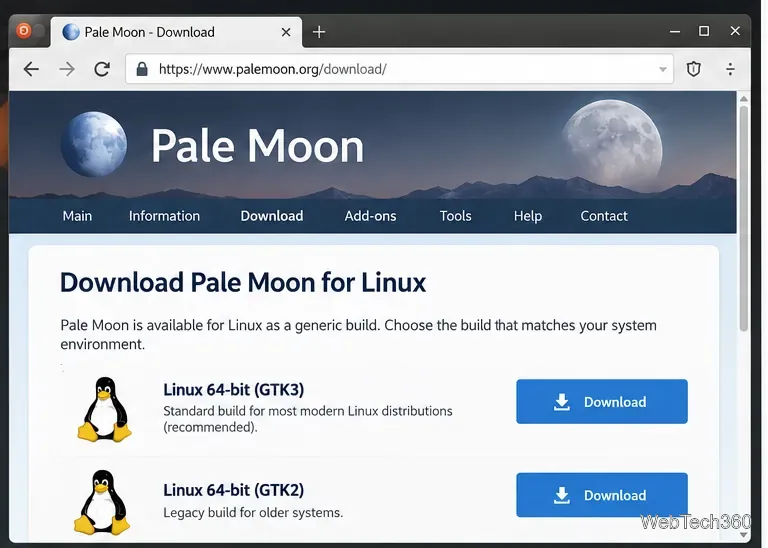
Open the official download page and choose Linux 64-bit GTK3 for a typical modern desktop. Choose the GTK2 build only when you specifically need the legacy GTK2 version. Pale Moon also links to endorsed contributed builds for some distributions and alternative configurations.
The official download page offers a GTK3 build for modern Linux systems and a legacy GTK2 build.
2. Extract the archive and launch Pale Moon
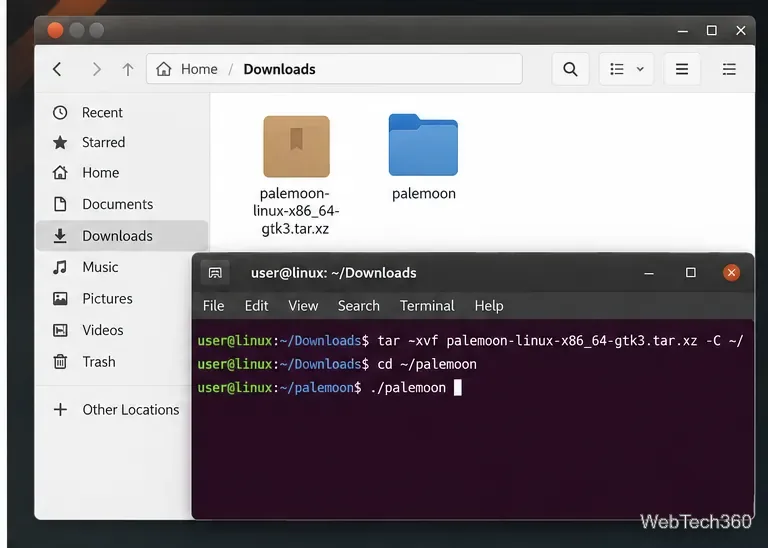
The official Linux package is an xz-compressed tar archive. It does not need a system-wide installation. If the archive was downloaded to ~/Downloads, open a terminal and run:
cd ~/Downloads
tar -xvf palemoon-*.linux-x86_64-gtk3.tar.xz -C ~/
~/palemoon/palemoon
If more than one Pale Moon tarball is in the Downloads folder, replace the wildcard with the exact file name. The extraction command above creates ~/palemoon. Keeping that directory in a location your account can write to matters because Pale Moon's built-in updater needs write access to the application directory.
You can later start the browser with ~/palemoon/palemoon, or open the palemoon folder in your file manager and run the executable from there. If you want a system menu entry, icon links, or a command such as palemoon available globally, follow the project's Linux installation documentation rather than using an old third-party AUR helper recipe.
Extract the tarball into a user-writable folder, then launch the palemoon executable.
3. Browse, search, and save bookmarks
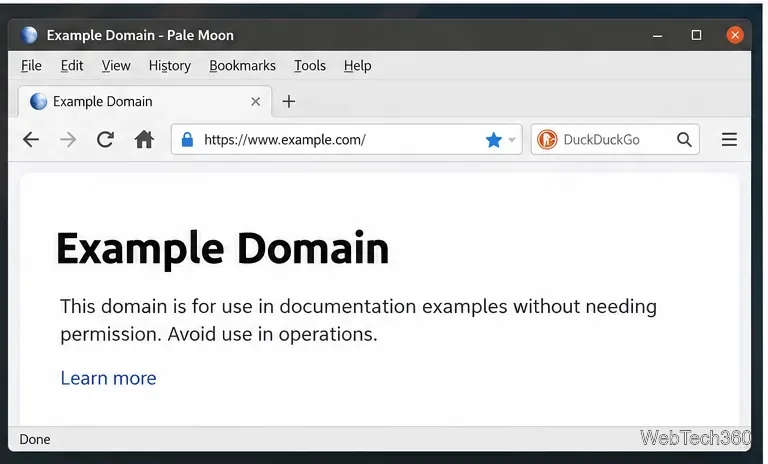
Using Pale Moon is intentionally familiar. Enter a full web address in the location bar and press Enter. Ctrl+L focuses the location bar quickly. Depending on your toolbar layout, you may also see a separate search field beside it.
To save the current page, click the star at the right side of the location bar, or use Ctrl+D. Use the Bookmarks menu when you want to organize saved pages into folders. History and bookmark suggestions can also appear in the location bar; those behaviors are configurable under Pale Moon's privacy preferences.
Pale Moon uses a traditional browser layout with a location bar, search field, tabs, and bookmark controls.
4. Install Pale Moon-compatible add-ons
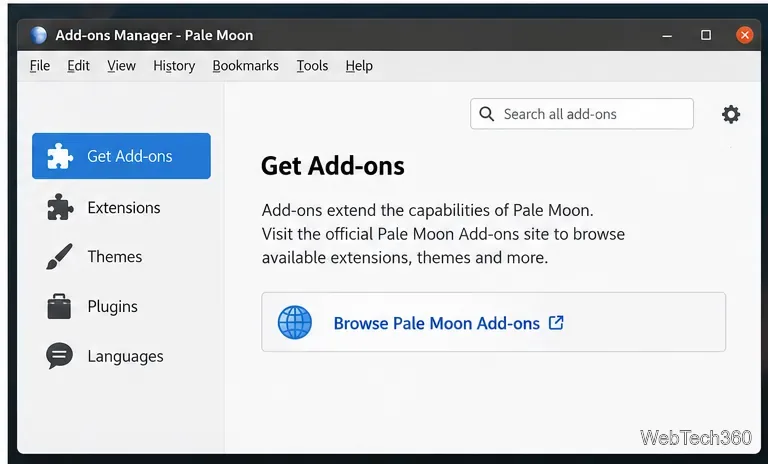
Open Tools > Add-ons to manage extensions, themes, plugins, and language-related add-ons. For new extensions, use the official Pale Moon Add-ons site. Pale Moon uses its own classic extension ecosystem and does not support modern Firefox WebExtensions, so extensions from Firefox's current add-ons catalog or the Chrome Web Store should not be assumed to work.
The official add-ons catalog includes Pale Moon-targeted extensions, complete themes, search plugins, language packs, and dictionaries. Check each add-on's stated compatibility before installing it, especially after a major Pale Moon release.
Use Pale Moon's Add-ons Manager and official add-ons site for compatible extensions and themes.
5. Keep Pale Moon updated and fix common Linux problems
Pale Moon includes an internal updater. If updates are detected but cannot be installed, first check that the extracted palemoon directory is writable by your user account. This is another reason not to unpack the browser into a root-owned folder unless you intentionally manage updates yourself.
If Pale Moon will not start, run it from a terminal instead of only clicking the icon. The terminal output can reveal a missing library or another startup error. Pale Moon's Linux FAQ also notes that HD H.264 video playback requires FFmpeg's libavcodec component on Linux.
Finally, remember that Pale Moon deliberately differs from Chromium and modern Firefox. The project notes that some Chrome-centric websites may not work correctly because they depend on APIs or implementation details Pale Moon does not support. For a site that remains incompatible after updating the browser and checking add-ons, using a second browser for that site can be the practical solution.