How to Share Files Over Bluetooth on Linux with Blueman

Send and receive files over Bluetooth on Linux with Blueman. Install OBEX support, pair devices, choose a file, accept transfers, and fix common issues.
Install Termius on Linux from the official .deb download, configure an SSH host, and connect from the app’s Hosts screen. For file transfers between this computer and a server, choose the website download: Termius says its Snap build is sandboxed and cannot access local storage in SFTP or provide the local terminal.
Termius offers an official Linux .deb and Snap package. The website build provides fuller desktop features; its installation guide says to download the DEB and follow the installer prompts.
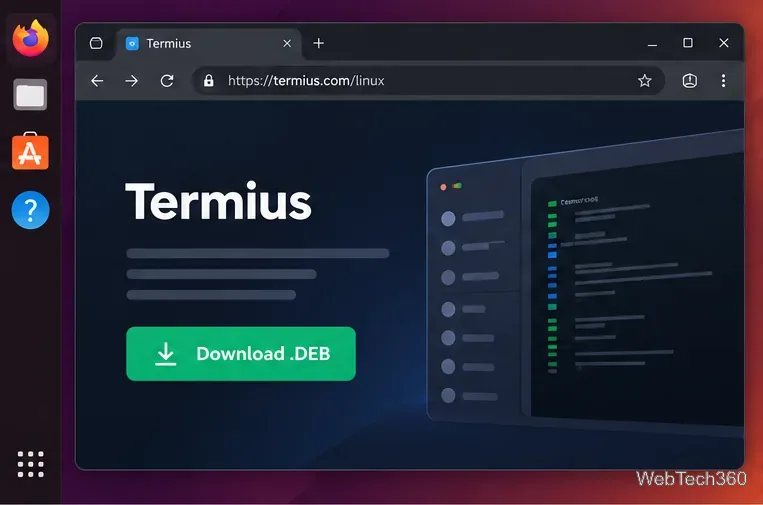
sudo apt install ./termius*.deb. Check that the filename matches if you have more than one Termius package in that folder.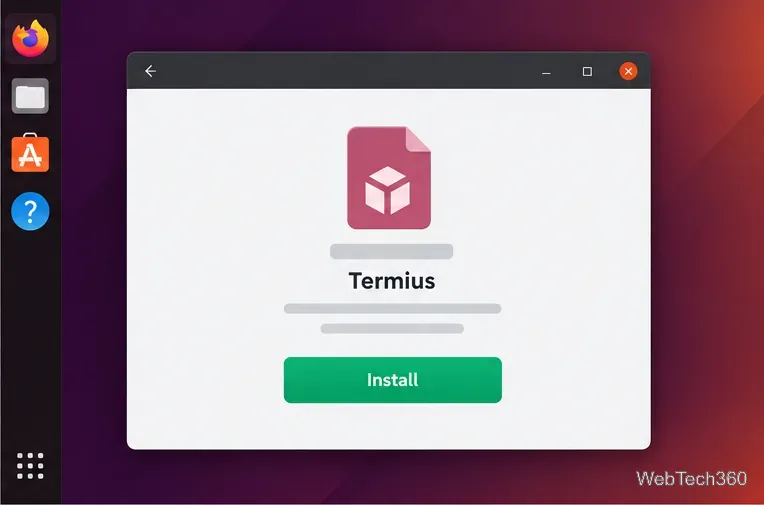
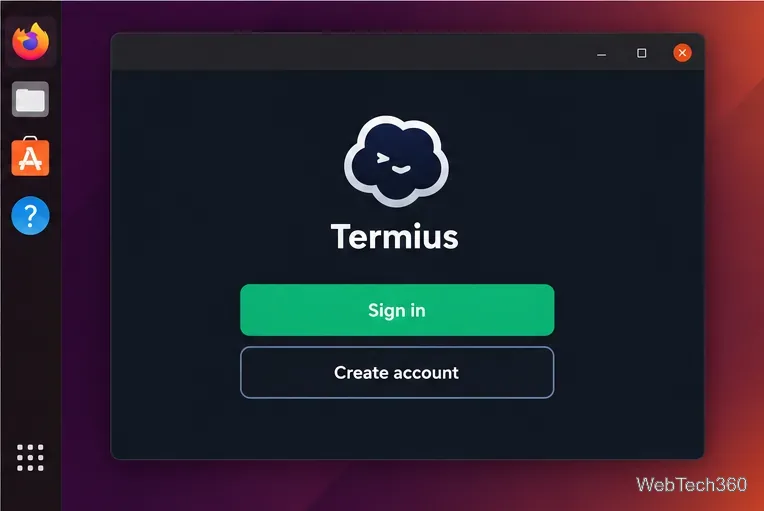
If you use Snap, install the verified Termius package with sudo snap install termius-app. It supports remote SSH, but sandboxing blocks local SFTP storage and the local terminal. Choose the website DEB on a compatible system for those features.
Before you begin, get the server address, SSH port, username, and authentication method from your provider or administrator. The server must already be running SSH and reachable from your network.
web-server so you can recognize the machine later.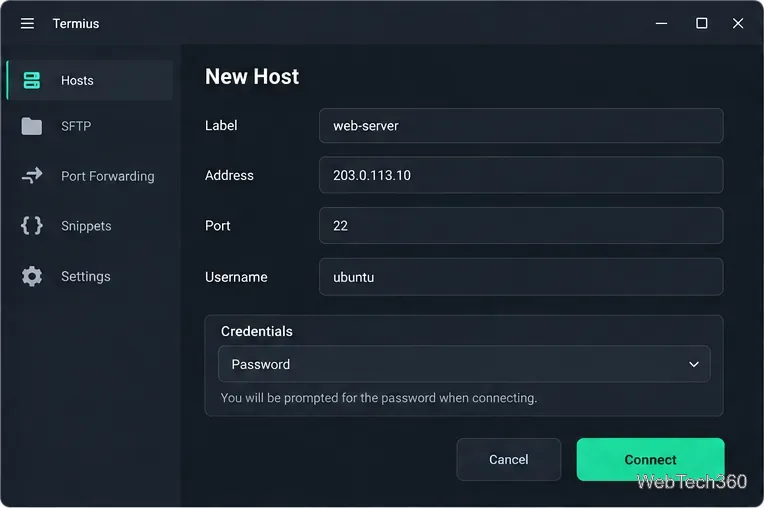
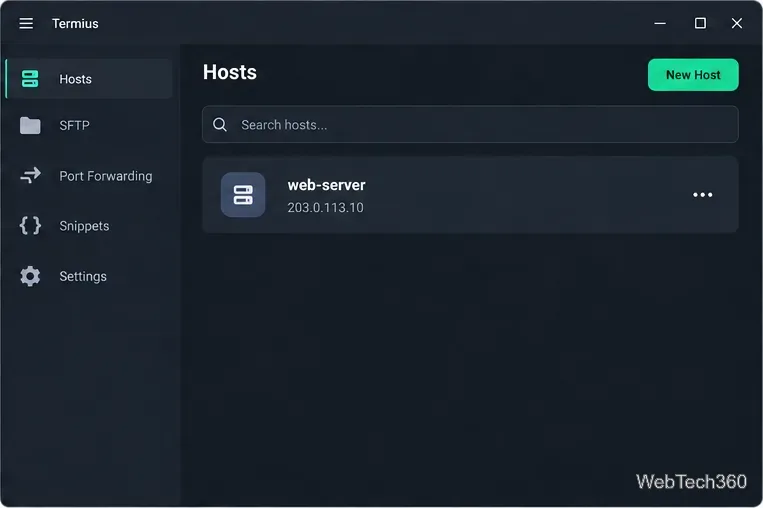
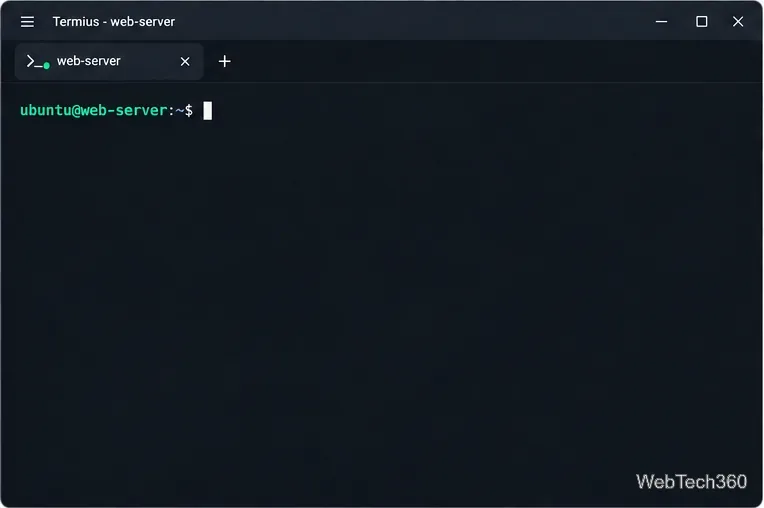
After authentication, Termius opens a terminal for the remote account. Reopen the saved host later to connect again without retyping its address.
localhost host entry.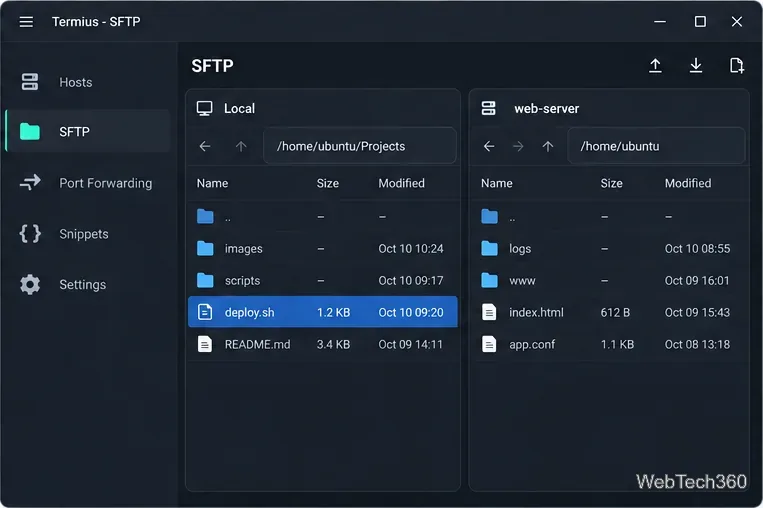
To upload, open the server’s target folder and drag a local file into that pane, or right-click it and choose Copy to target directory. For downloads, copy or drag a remote file to the local pane. Check the destination, then refresh if needed. See Termius’s SFTP guide.
A saved host gives you a reusable SSH terminal, and SFTP provides a two-pane file-transfer workflow.
Send and receive files over Bluetooth on Linux with Blueman. Install OBEX support, pair devices, choose a file, accept transfers, and fix common issues.
Connect GNOME Files to SSH/SFTP, FTP, SMB, WebDAV, or NFS with the correct server URI, sign-in details, and fixes for common connection errors.
Open SFTP, SSH, SMB, FTP, NFS, and WebDAV locations in Dolphin, sign in safely, transfer files, and save network folders for later.
Connect a DualShock 4 to Linux by USB or Bluetooth, then check controller detection and configure Steam Input only when a game needs it.
Use DNF5 parallel downloads to reduce RPM install waits in GNOME Software, then tell when mirror or Flatpak delays need a different fix.
Access iCloud on Linux in a current browser. Learn how to sign in, use iCloud Drive and other web apps, and understand the limits of browser access.
Save GRUB settings, boot files, and UEFI entry details to removable storage, then use rescue media to repair the correct boot path safely.
Install Bitwarden on Linux with the right DEB, RPM, Snap, Flatpak, or AppImage package, then sign in and set a secure vault timeout.
Pick a screensaver theme in Xfce, preview it, choose when it starts, and configure automatic locking in the separate Lock Screen tab.
Stop GNOME Shell from blanking or locking your display automatically. Change Power and Screen Lock settings, or use Caffeine for a temporary keep-awake toggle.








