How to Share Files Over Bluetooth on Linux with Blueman

Send and receive files over Bluetooth on Linux with Blueman. Install OBEX support, pair devices, choose a file, accept transfers, and fix common issues.
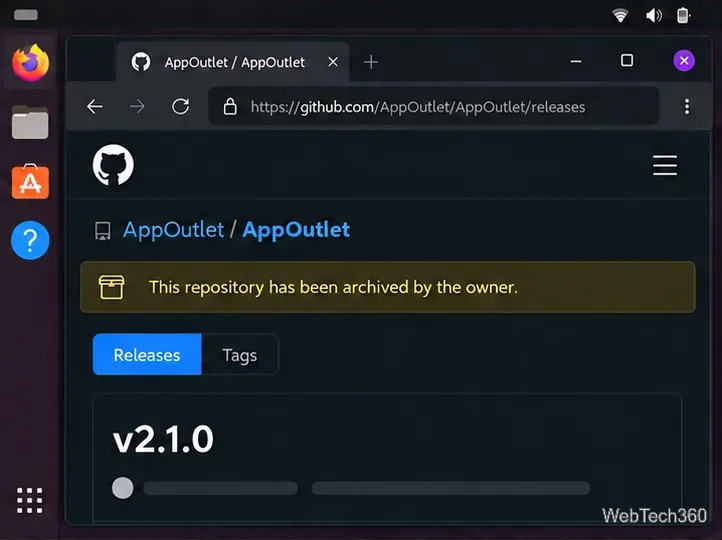
You can install the legacy App Outlet app store on Linux from its archived GitHub releases as a Debian package or an AppImage. Before downloading it, know that App Outlet is discontinued: its newest listed release is v2.1.0, dated March 31, 2022, and its repository is read-only. The app may still launch, but its catalog or install actions may no longer work.
App Outlet was designed as one place to discover Linux applications distributed as AppImages, Flatpaks, and Snaps. That description is historical. The project’s release notes say Snap support was removed in v2.0.3, and the separate App Outlet API repository that supplied catalog data is also archived. Do not use the old sudo snap install app-outlet instruction; it is obsolete.
For a maintained application store, use the software center supplied by your Linux distribution. If you specifically need App Outlet, download only from the official App Outlet releases page. The official repository identifies the project as discontinued. Avoid third-party mirrors and old one-click download endpoints.
Open the releases page and check the release tag and available Linux assets. The last listed release is v2.1.0. Pick a .deb file if you use Ubuntu, Debian, Linux Mint, or another Debian-based distribution. Choose an .AppImage for many other desktop distributions. The release is old, so confirm that the asset matches your system’s processor architecture before downloading it.
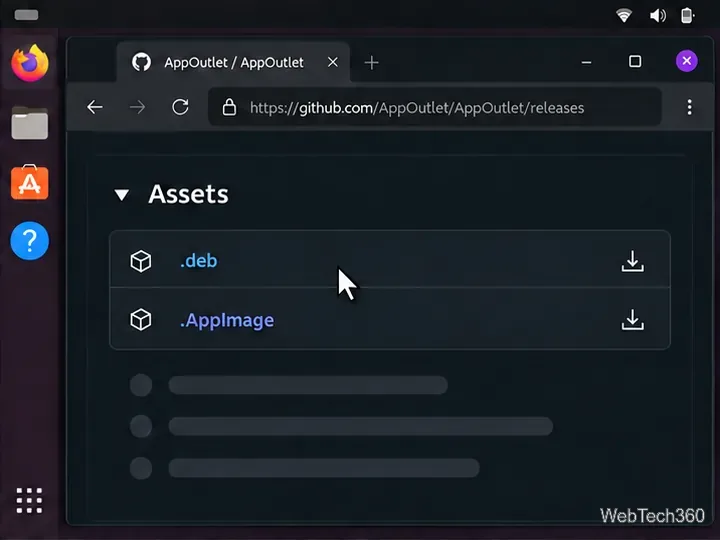
.deb package to your Downloads folder. Do not choose a source archive such as .zip or .tar.gz; those files are not installers.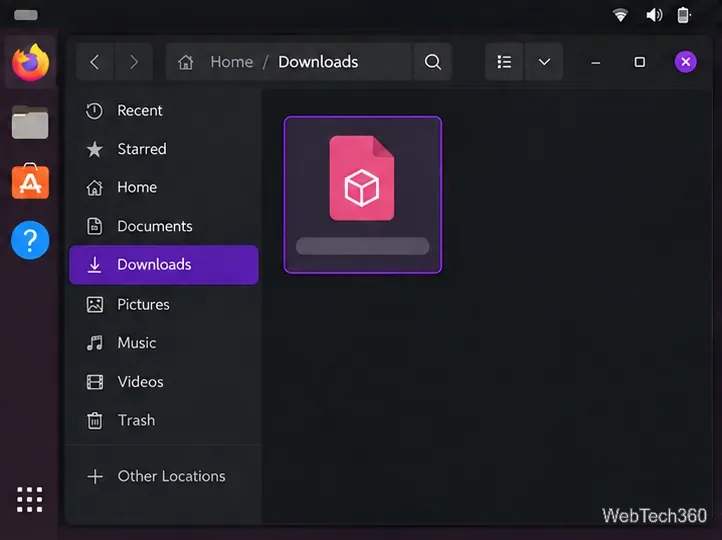
filename.deb with the exact name of the downloaded file. Keep the ./ before the name so APT treats it as a local package.sudo apt install ./filename.deb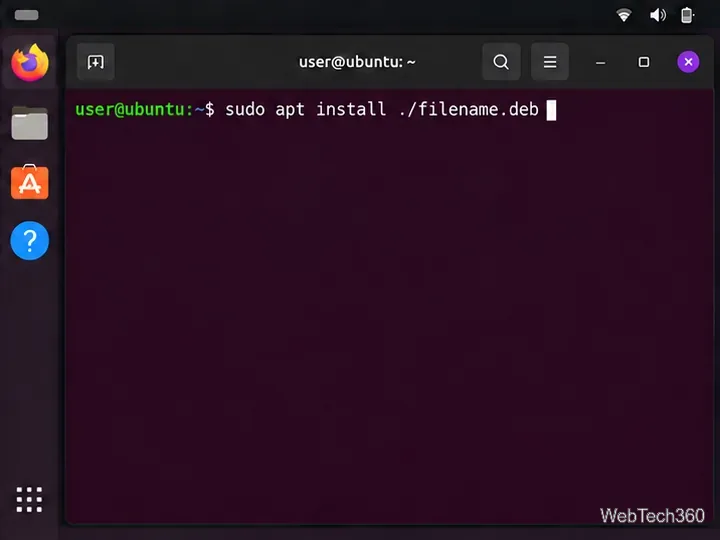
Enter your Linux password if prompted, review the package changes, and confirm only if the requested installation looks reasonable. APT can resolve dependencies from your configured repositories. When it finishes, search for App Outlet in your desktop’s application launcher and open it. This method is for Debian-based systems; Fedora and many other distributions cannot install a DEB directly.
An AppImage is a single executable file, so this option avoids installing a DEB system-wide. The AppImage project’s official running guide describes the same download, permission, and launch sequence.
.AppImage asset in Downloads. Keep the original filename in mind; the examples below use AppOutlet.AppImage.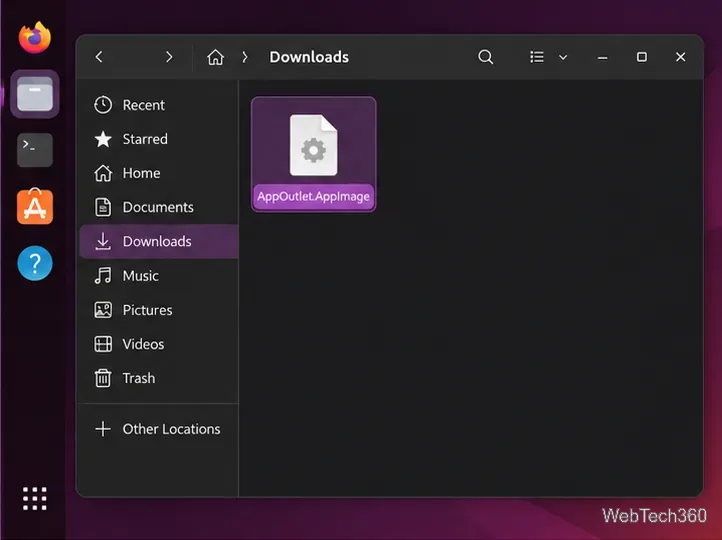
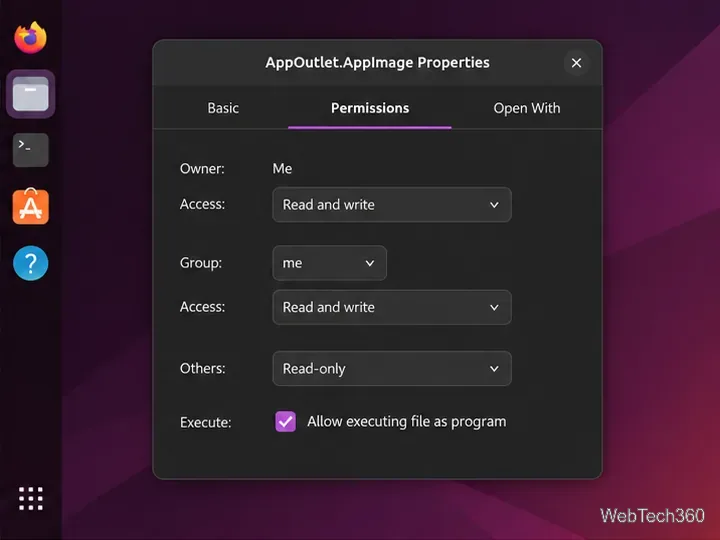
If your file manager does not provide an executable permission option, use a terminal instead. In Downloads, run the command with the actual filename:
chmod u+x ./AppOutlet.AppImage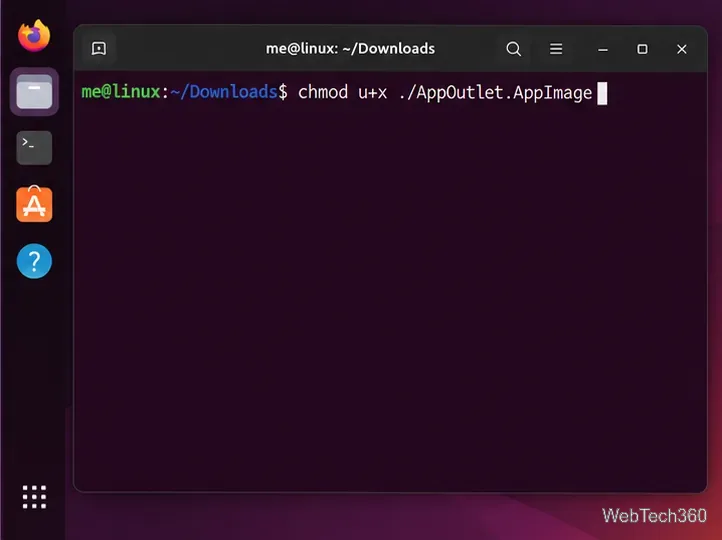
./AppOutlet.AppImage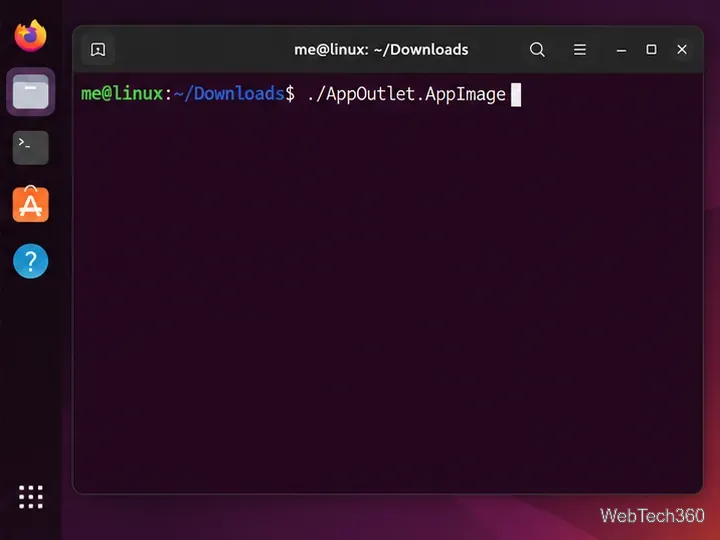
You can also double-click the executable AppImage in Files if your desktop permits it. If Linux reports a missing FUSE component or another runtime error, consult the AppImage documentation for your distribution rather than downloading a library from an unknown site. Do not run the AppImage with sudo.
A successful installation only confirms that the desktop can start the old application. It does not restore App Outlet’s retired catalog service or provide current updates. If search results are blank, a download button fails, or an install action hangs, reinstalling the same release is unlikely to fix the underlying service. The App Outlet API repository is archived, so use your distribution’s software center or a package publisher’s official site to find and install software instead.
The project still publishes source code and an archived build guide, but those instructions use an old toolchain and are not a reliable workaround for a broken catalog. If you are evaluating a source build, read the maintainer’s build notes and verify the dependencies and code yourself before proceeding.
Send and receive files over Bluetooth on Linux with Blueman. Install OBEX support, pair devices, choose a file, accept transfers, and fix common issues.
Connect GNOME Files to SSH/SFTP, FTP, SMB, WebDAV, or NFS with the correct server URI, sign-in details, and fixes for common connection errors.
Open SFTP, SSH, SMB, FTP, NFS, and WebDAV locations in Dolphin, sign in safely, transfer files, and save network folders for later.
Connect a DualShock 4 to Linux by USB or Bluetooth, then check controller detection and configure Steam Input only when a game needs it.
Use DNF5 parallel downloads to reduce RPM install waits in GNOME Software, then tell when mirror or Flatpak delays need a different fix.
Access iCloud on Linux in a current browser. Learn how to sign in, use iCloud Drive and other web apps, and understand the limits of browser access.
Save GRUB settings, boot files, and UEFI entry details to removable storage, then use rescue media to repair the correct boot path safely.
Install Bitwarden on Linux with the right DEB, RPM, Snap, Flatpak, or AppImage package, then sign in and set a secure vault timeout.
Pick a screensaver theme in Xfce, preview it, choose when it starts, and configure automatic locking in the separate Lock Screen tab.
Stop GNOME Shell from blanking or locking your display automatically. Change Power and Screen Lock settings, or use Caffeine for a temporary keep-awake toggle.








