Home
» LINUX
»
How to Install Arch Linux Faster With Calam Arch
How to Install Arch Linux Faster With Calam Arch
Calam Arch is a third-party live image that uses the Calamares graphical installer to automate much of an Arch Linux setup. It is useful when you want Arch without working through every installation command by hand. As of October 2026, the project’s SourceForge page lists Calam-Arch-Installer-2026-10 as the current release, with a 4.4 GB ISO. That makes the old advice to use a 1 GB flash drive obsolete.
Calam Arch is not the official Arch Linux installation image. The project also advertises extras such as selectable desktop environments, multilib, Pamac, and LUKS support, so review the choices if you want a very minimal system. You can check the current build on the Calam Arch SourceForge files page.
What you need before installing
An x86-64 PC that can boot from USB.
An 8 GB or larger USB drive. Writing the ISO will erase the drive.
A backup of anything important on the target disk, especially if you plan to resize partitions or dual-boot.
A stable internet connection if your package selections need to be downloaded during installation.
Download Calam Arch and create the USB
Download the newest ISO from the project’s SourceForge page rather than following an old direct link. Release names and image sizes change over time, so confirm that you are using the current build before you write it to a USB drive.
Use a reputable ISO-writing tool that writes the image directly to the USB device. On Linux, tools such as KDE ISO Image Writer or raw image-writing utilities are suitable; on Windows, Rufus can write bootable Linux images. Double-check the selected USB device because the write process destroys its existing contents. The ArchWiki USB installation-medium guide explains the general image-writing methods and safety precautions.
When the USB is ready, restart the target PC, open its firmware boot menu, and boot from the USB. Once the live desktop appears, launch the Calam Arch installer. Calamares is modular, so wording and optional screens can change between releases, but its common workflow includes location, keyboard, partitions, users, summary, installation, and finish screens. The Calamares user guide documents that standard flow.
Install Arch Linux with Calam Arch
1. Choose your language and location
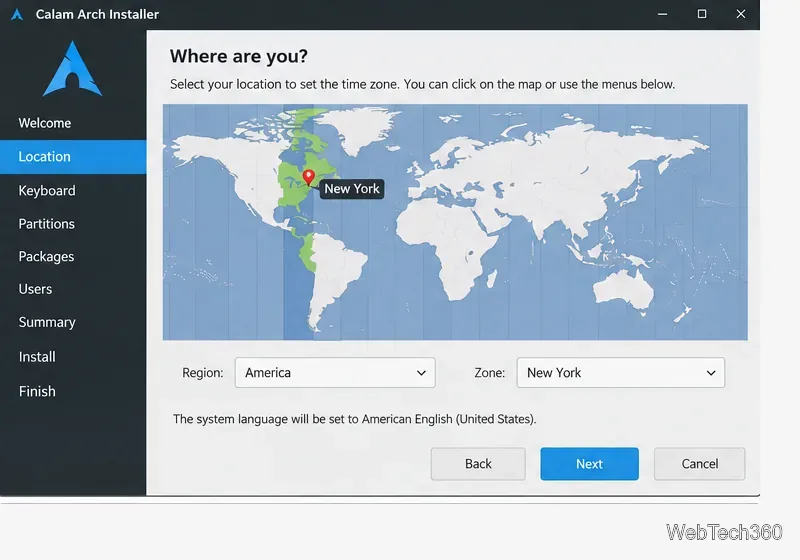
On the welcome screen, select the language you want to use in the installer. Then choose your real region and time zone. The location setting also affects formats such as date, time, and currency.
Choose the region and time zone that match the computer's actual location.
2. Set the keyboard layout
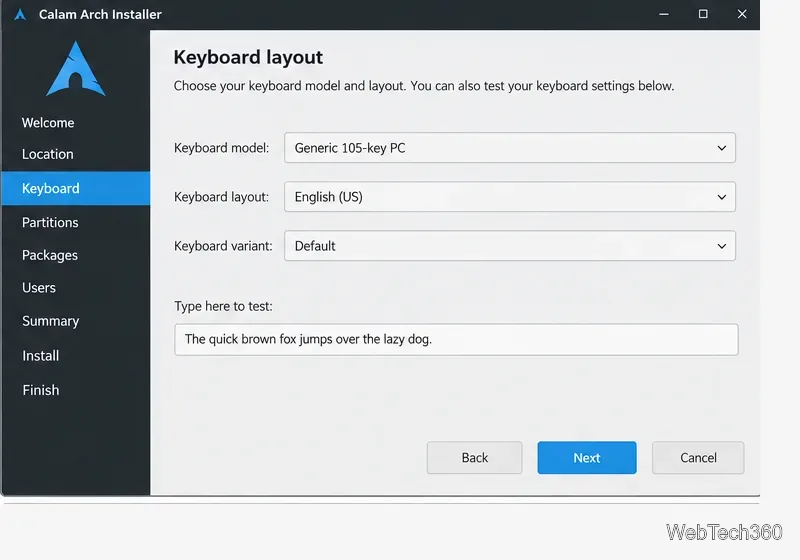
Select the keyboard model, layout, and variant that match your hardware. Use the test field before continuing, especially if your password will contain symbols that move between keyboard layouts.
Confirm the keyboard layout and test it before creating your account password.
3. Choose the disk layout carefully
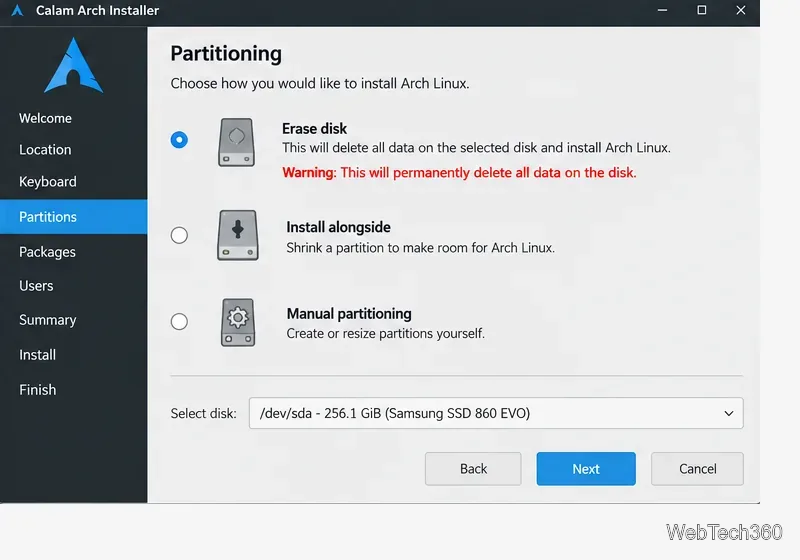
The partition screen is the point where you can permanently lose data. Erase disk removes the existing contents of the selected drive. If an install-alongside or manual-partitioning option is available and you are setting up a dual-boot system, verify every partition before continuing. Calamares documents automated and manual partitioning options in its partitioning guide.
Check the target disk carefully before choosing a destructive partition option.
4. Pick a desktop and optional packages
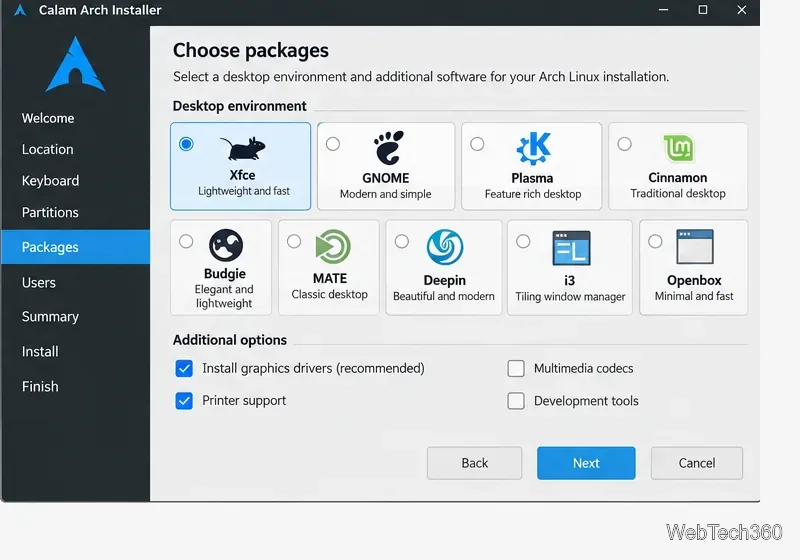
The current Calam Arch project page advertises nine desktop choices: Xfce, GNOME, Plasma, Cinnamon, Budgie, Openbox, i3, MATE, and Deepin. The exact package chooser can vary by release. Select only the desktop, drivers, printing support, codecs, or other components you actually need.
Select the desktop environment and only the optional components you need.
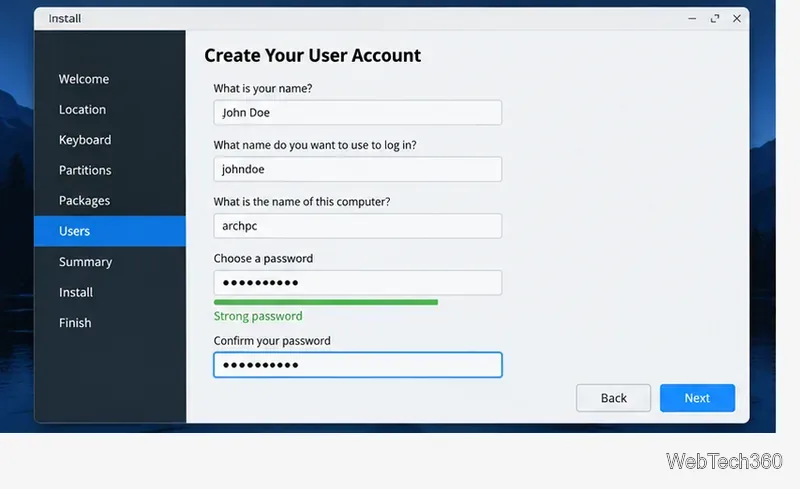
5. Create your user account
Enter your display name, login name, computer name, and password. Use a strong password you can remember. If the installer offers automatic login, leave it disabled on shared or portable computers.
Create the local user account and set a strong password.
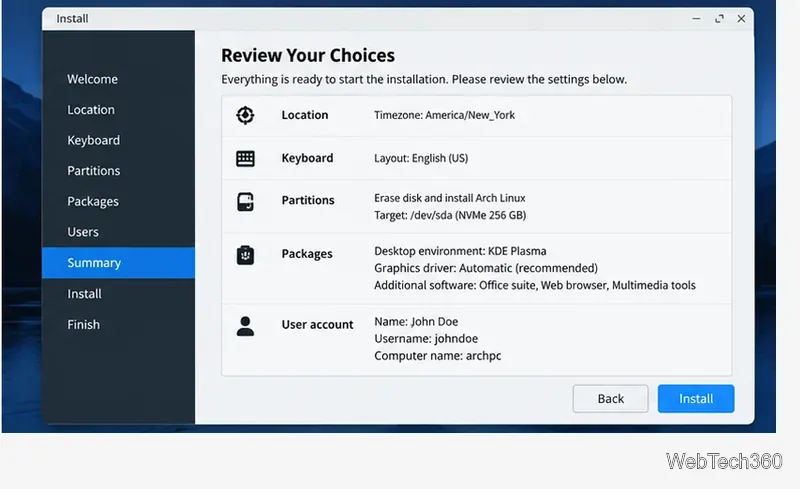
6. Review the installation summary
Before you click Install, verify the target disk, partition action, desktop choice, time zone, keyboard layout, and username. This is your last easy opportunity to catch a wrong drive or destructive partition choice.
Review every setting, especially the target disk, before starting installation.
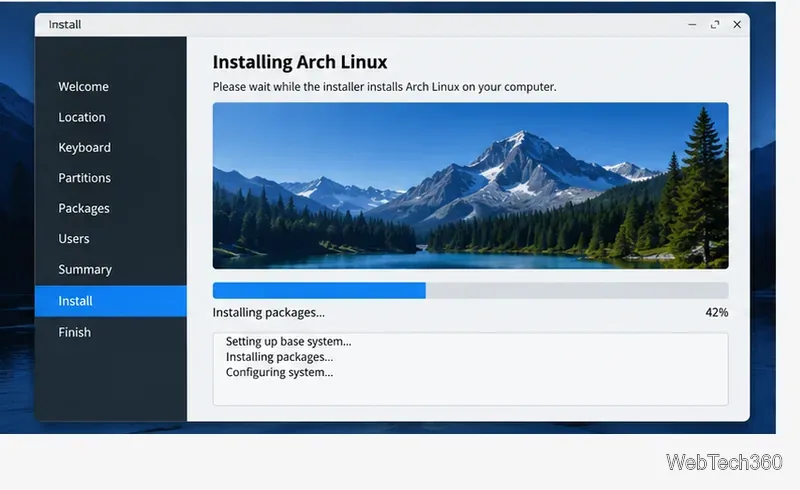
7. Let the installer finish
Calamares now partitions the disk, installs the base system and selected packages, creates the user, and configures the boot process. Do not power off the PC or remove the installation USB while this stage is running.
Keep the computer powered on while Calamares installs and configures the system.
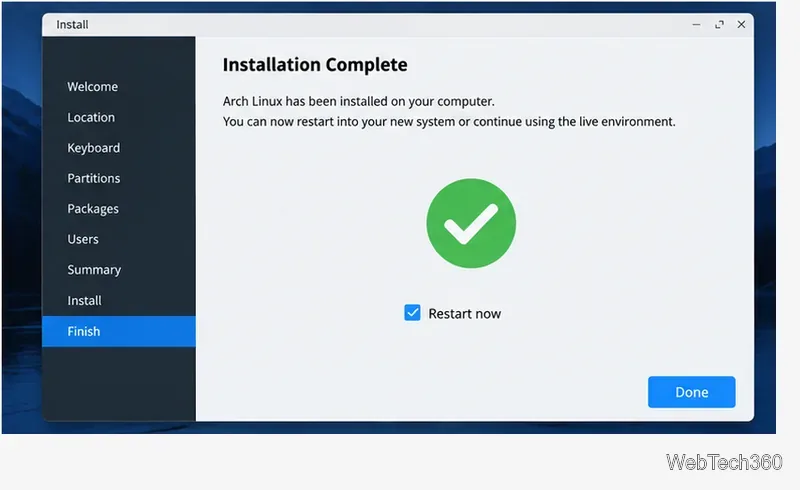
8. Restart into your new Arch system
When the installer reports that installation is complete, restart the computer and remove the USB drive when prompted or before the system boots from it again. The installed Arch system should then start from the internal drive.
Restart after the installer reports that Arch Linux installation is complete.
If you prefer an official Arch installer
Calam Arch is convenient, but it is a separate community project. If you want to stay entirely within official Arch Linux installation media, the official ISO includes archinstall, a guided text-based installer. Boot the newest image from the Arch Linux download page and run archinstall. The ArchWiki archinstall guide explains the current workflow and cautions.
Whichever route you choose, keep a backup, confirm the target disk before installing, and use the newest available installation image. That avoids the two biggest problems with older Calam Arch tutorials: outdated ISO sizes and installer screens that no longer match current releases.