Home
» LINUX
»
How to Install Aseprite on Linux: Steam, Ubuntu DEB, or Source
How to Install Aseprite on Linux: Steam, Ubuntu DEB, or Source
The easiest way to install Aseprite on Linux is through Steam or the official Ubuntu package. If neither fits your distribution, you can compile Aseprite from its source code using the project’s current build helper. The source is available to build and use for your own purposes, but Aseprite’s license does not allow you to redistribute compiled copies.
Choose the best Aseprite installation method
Method
Best for
What to know
Steam
Most Linux users who want the simplest setup
Official Linux build with automatic updates through Steam.
Ubuntu DEB
Ubuntu and compatible Debian-based systems
Paid downloads include an Ubuntu package; Aseprite says its Linux packages target Ubuntu 20.04 or later.
Build from source
Arch, Fedora, openSUSE, Void, Debian, Ubuntu, and advanced users
Requires development packages, Git, CMake, Ninja, and the matching Skia build.
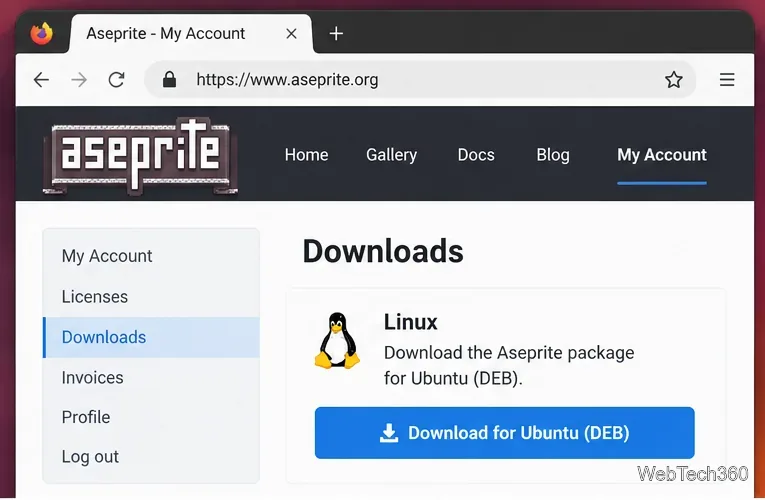
The official Aseprite account area provides the Linux package included with a paid license.
Method 1: Install Aseprite on Linux with Steam
Steam is the most straightforward option because you do not need to compile anything or manage Skia yourself. The official Aseprite Steam page lists SteamOS + Linux support, with Ubuntu 20.04 64-bit as the minimum Linux OS.
Install the Steam client using the package recommended for your Linux distribution.
Open Steam, sign in, search for Aseprite, and purchase it if you do not already own it.
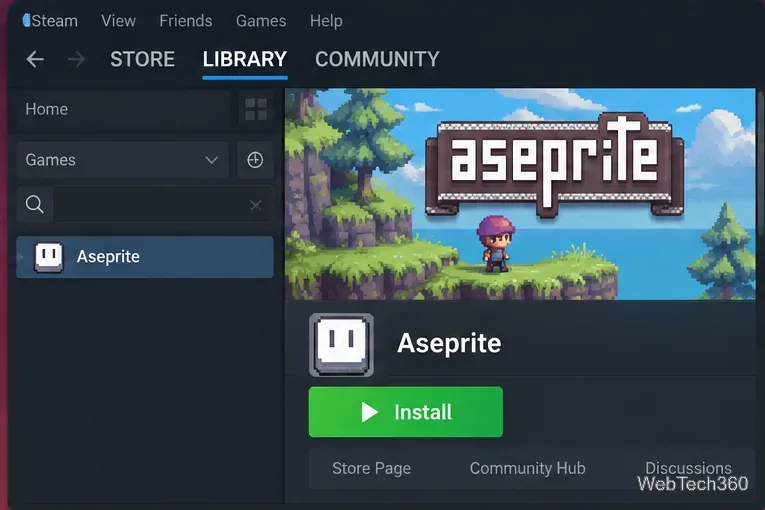
Open Library, select Aseprite, and click Install.
After the download finishes, launch Aseprite from Steam or your desktop application menu.
Aseprite is DRM-free. The project’s documentation also explains that the Steam-installed Linux binary can be launched directly from its Steam library location if you prefer not to open Steam first.
Installing Aseprite from the Steam library is the simplest route for many Linux desktops.
Method 2: Install the official Ubuntu DEB package
If you bought Aseprite directly or linked a supported purchase to an Aseprite account, sign in and download the current Ubuntu DEB package. The official Aseprite FAQ says paid downloads include Ubuntu packages and notes that they can also be unpacked and executed on other distributions, although Ubuntu is the intended target.
Download the Ubuntu DEB from your Aseprite account.
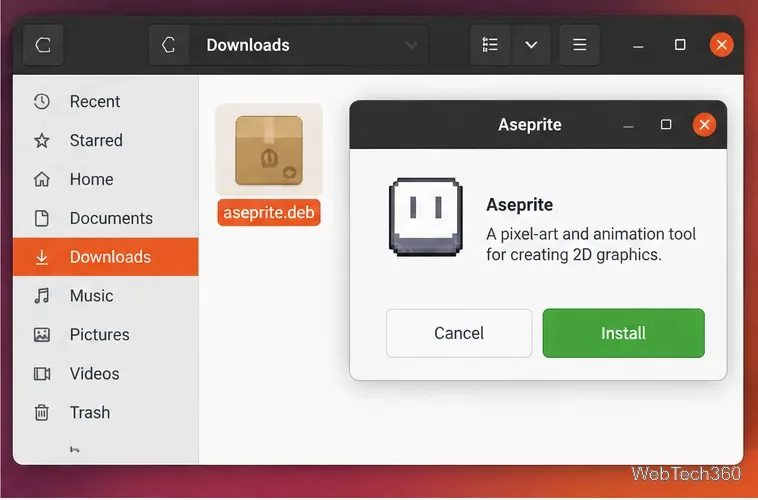
Open your Downloads folder and double-click the DEB file.
Open it with your distribution’s software installer and click Install.
Authenticate when prompted, then start Aseprite from the application menu.
If your desktop does not have a graphical DEB installer, Ubuntu and Debian-based systems can normally install a downloaded package from the terminal with sudo apt install ./filename.deb, replacing the filename with the package you downloaded.
On Ubuntu, the downloaded DEB can be opened with the system’s graphical package installer.
Method 3: Build Aseprite from source
Use the source-build route when you want to compile Aseprite yourself or when a ready-made package does not suit your distribution. The current official build instructions recommend the project’s build.sh helper on Linux. This is important because older guides that manually clone an old Skia branch are outdated; the helper can obtain the matching prebuilt Skia package for the current source tree.
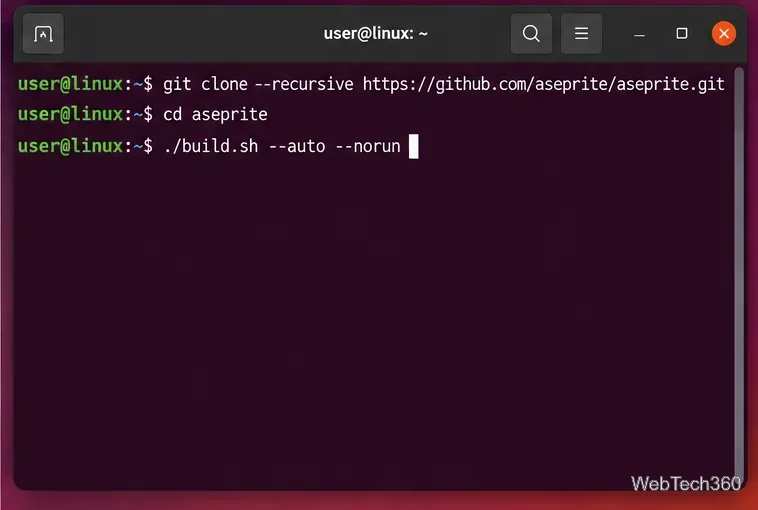
git clone --recursive https://github.com/aseprite/aseprite.git
cd aseprite
3. Run the official build helper
./build.sh
Follow the prompts. The script stores its build configuration, downloads a compatible Skia package when needed, configures CMake, runs the build, and prints the path to the resulting Aseprite executable. For an unattended default release build, the script also supports ./build.sh --auto --norun.
The current source-build workflow starts with a recursive Git clone and Aseprite’s build helper.
If Aseprite does not build or start
Submodules are missing: run git submodule update --init --recursive inside the Aseprite source directory.
CMake or Ninja is missing: install the dependency set for your distribution, then rerun ./build.sh.
You are following an old Skia tutorial: return to the current official INSTALL document. Aseprite now expects a newer Skia branch and provides a helper that can download the matching build automatically.
For most people, Steam or the official Ubuntu package is faster and easier. Building from source is the better choice when you specifically need a self-compiled Linux build or your distribution is not covered by the packaged options.