How to Share Files Over Bluetooth on Linux with Blueman

Send and receive files over Bluetooth on Linux with Blueman. Install OBEX support, pair devices, choose a file, accept transfers, and fix common issues.
Install Chromium through the package source maintained for your Linux distribution. On Ubuntu, use Snap; Debian, Arch Linux, and Fedora provide Chromium through their own package repositories. Other distributions can use Snap after installing and enabling snapd. The steps below use official package names and current project instructions, so you can pick the section that matches your system.
Chromium is an open-source web browser project. Its package name and delivery format vary by distribution, so avoid copying an installation command from a different Linux release. Use a terminal account with administrator privileges, and enter your password when sudo asks for it.
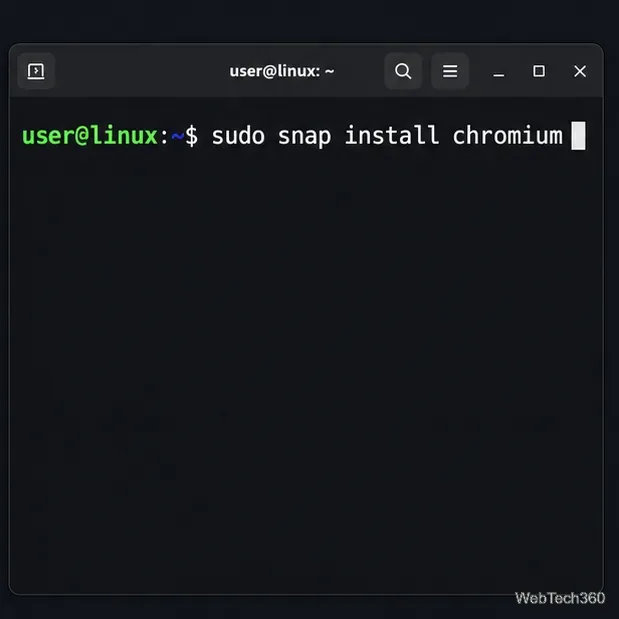
On current Ubuntu releases, the APT package named chromium-browser is transitional: it directs users to the Chromium Snap instead of installing a standalone browser package. Install the Snap directly with the command below. Snap support is included by default on Ubuntu 16.04 LTS and later, according to Canonical’s setup guide.
sudo snap install chromium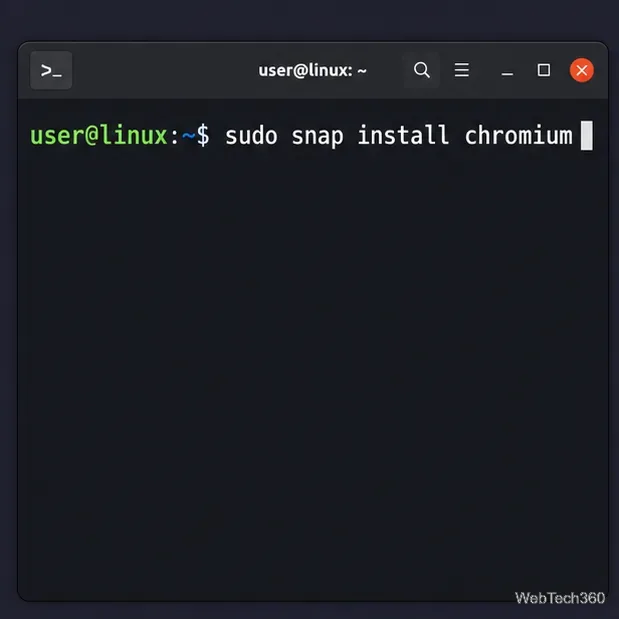
When installation finishes, open the applications menu and search for Chromium. The Ubuntu package listing identifies the transitional package, and the official Snap Store instructions for Ubuntu provide the install command.
Debian publishes Chromium in its own repositories. Refresh APT’s package index, then install the package named chromium:
sudo apt update
sudo apt install chromium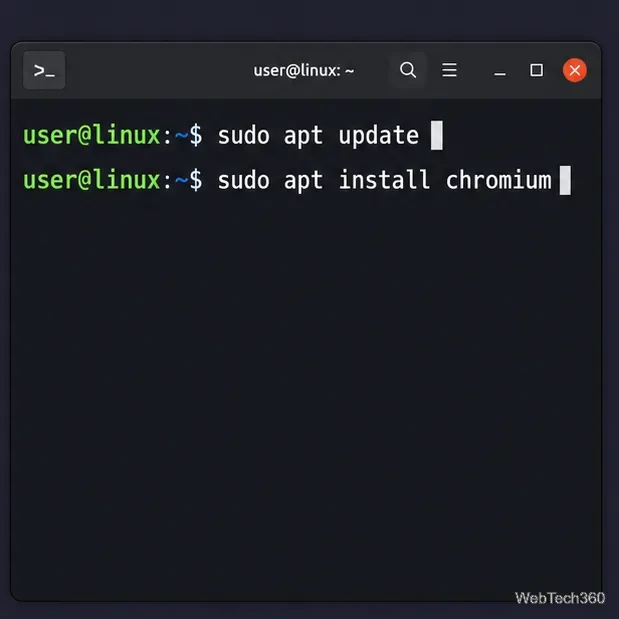
The repository version follows your Debian release and its security-update policy, so it may differ from the newest upstream release number. Check the Debian stable package page if APT reports that it cannot find Chromium or if you want to confirm package details.
Arch Linux provides a package named chromium. Arch does not support partial system upgrades, so update the system and install Chromium together:
sudo pacman -Syu chromium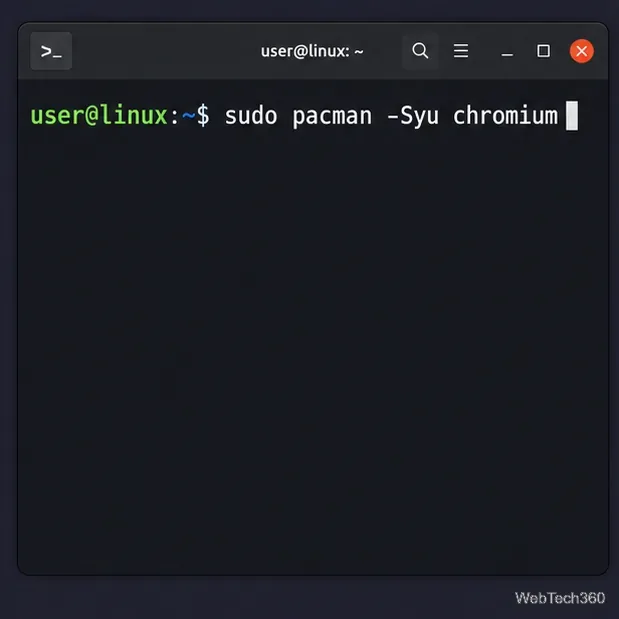
Review the proposed package changes before confirming. See the Arch package listing and the Arch guidance on partial upgrades for details.
Fedora’s repositories include the chromium package. Open a terminal and run:
sudo dnf install chromium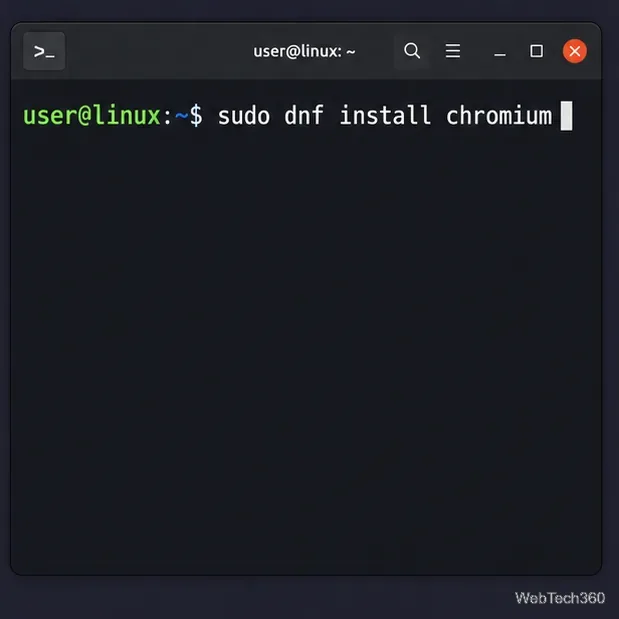
DNF resolves dependencies and asks you to approve the transaction before it installs anything. The Fedora Packages page shows the package and the Fedora releases that publish it.
Snap is a practical option when your distribution does not offer Chromium in its enabled repositories or you prefer Canonical’s cross-distribution package. First check whether Snap is ready:
snap versionIf the command is missing or cannot connect to the Snap daemon, install snapd using the instructions for your exact distribution and release. Some systems also require enabling the daemon or logging out and back in before Snap commands work. Canonical maintains a distribution-by-distribution snapd installation guide; follow it instead of applying another distribution’s repository commands.
For openSUSE, the official Chromium Snap guide explains the Snappy repository and service setup for the supported openSUSE versions. Configure that repository and enable Snap as directed before installing Chromium:
sudo snap install chromium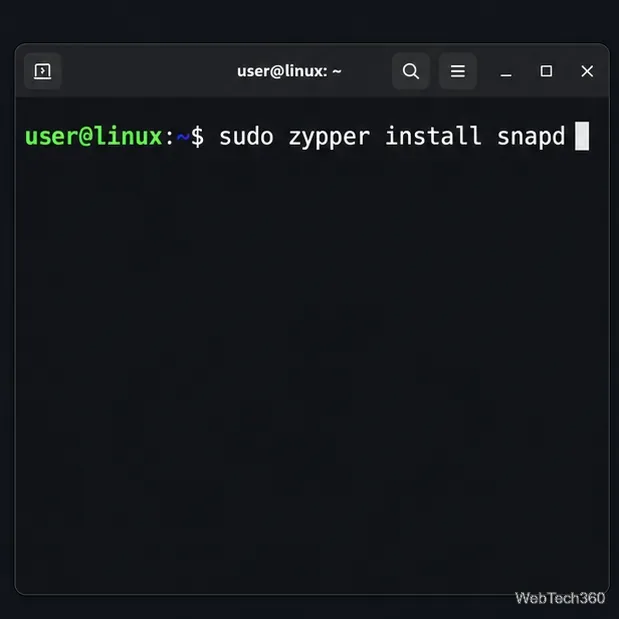
For this route, see the official Chromium instructions for openSUSE or the Chromium page in the Snap Store.
Use the desktop application menu to open Chromium, or launch it from a terminal. To check the installed build, run:
chromium --version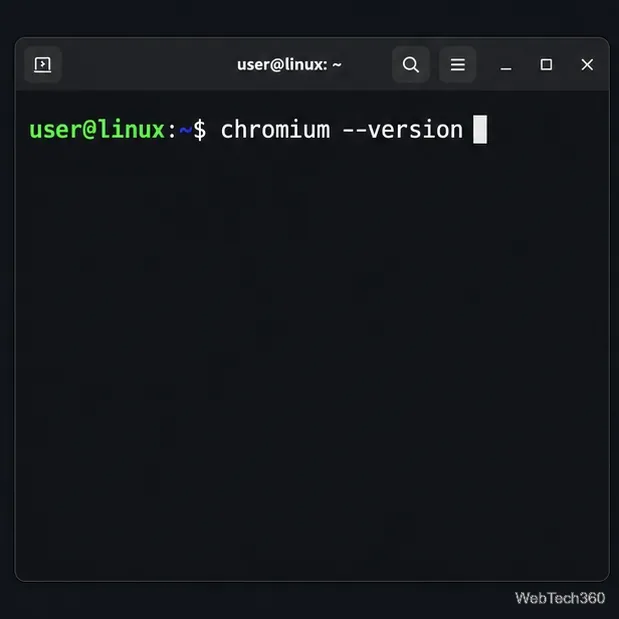
If the shell says the command is not found, confirm that the installation completed and try launching Chromium from the application menu. On some distributions the executable name or desktop launcher can differ; consult that distribution’s package page before creating a custom shortcut.
Packages installed with APT, Pacman, or DNF receive updates through the normal system-update process. Keep your system’s package index and updates current, then install available updates using the package manager for your distribution. Snap packages refresh automatically, but you can request an update manually:
sudo snap refresh chromium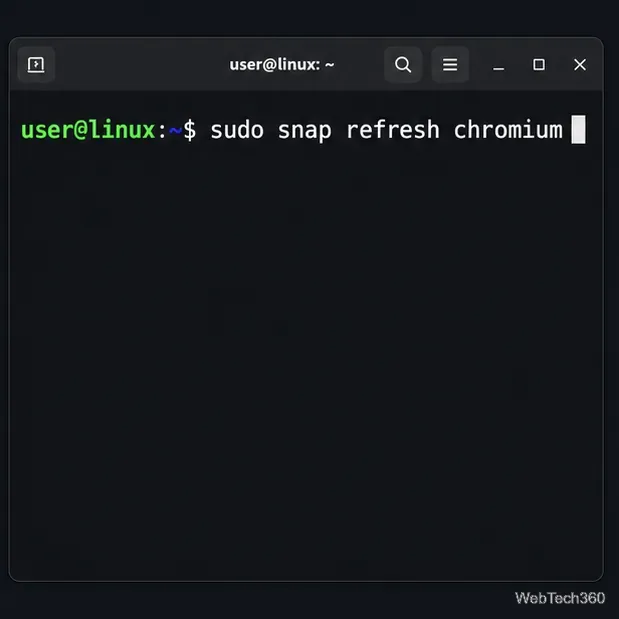
snapd using the official instructions for your distribution, then start a new login session if the guide requires it.Avoid adding an unofficial repository just to get a newer version unless you trust its maintainer and understand how it will receive security updates. For most users, the distribution repository or the official Chromium Snap page is the simplest place to start.
Send and receive files over Bluetooth on Linux with Blueman. Install OBEX support, pair devices, choose a file, accept transfers, and fix common issues.
Connect GNOME Files to SSH/SFTP, FTP, SMB, WebDAV, or NFS with the correct server URI, sign-in details, and fixes for common connection errors.
Open SFTP, SSH, SMB, FTP, NFS, and WebDAV locations in Dolphin, sign in safely, transfer files, and save network folders for later.
Connect a DualShock 4 to Linux by USB or Bluetooth, then check controller detection and configure Steam Input only when a game needs it.
Use DNF5 parallel downloads to reduce RPM install waits in GNOME Software, then tell when mirror or Flatpak delays need a different fix.
Access iCloud on Linux in a current browser. Learn how to sign in, use iCloud Drive and other web apps, and understand the limits of browser access.
Save GRUB settings, boot files, and UEFI entry details to removable storage, then use rescue media to repair the correct boot path safely.
Install Bitwarden on Linux with the right DEB, RPM, Snap, Flatpak, or AppImage package, then sign in and set a secure vault timeout.
Pick a screensaver theme in Xfce, preview it, choose when it starts, and configure automatic locking in the separate Lock Screen tab.
Stop GNOME Shell from blanking or locking your display automatically. Change Power and Screen Lock settings, or use Caffeine for a temporary keep-awake toggle.








