To install Curl on Ubuntu, open Terminal and run sudo apt update, followed by sudo apt install curl. Ubuntu provides Curl in its official package archive, so you normally do not need to add a PPA, download a separate installer, or use a third-party package.
Curl is a command-line tool for transferring data with URLs. It is commonly used to download files, inspect web responses, call APIs, and troubleshoot network services. Ubuntu's current package index lists the curl package across supported releases, while the official Curl command-line documentation covers its options in detail.
Install Curl on Ubuntu with APT
1. Open Terminal
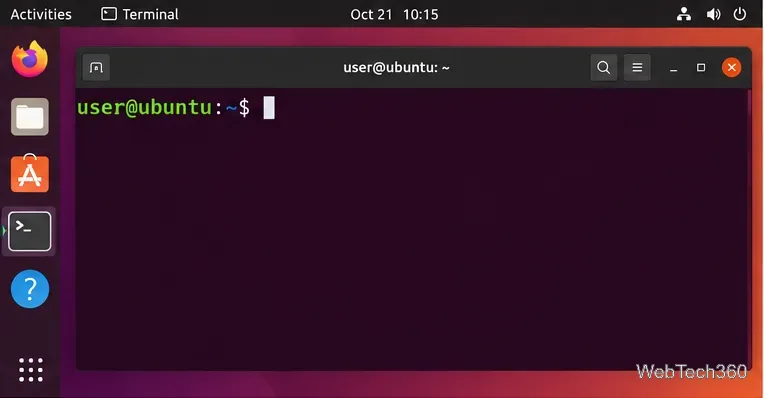
Press Ctrl + Alt + T, or open the applications menu and search for Terminal. The following commands work on standard Ubuntu installations and Ubuntu flavors that use the same APT repositories.
Open a Terminal window before running the package-management commands.
2. Refresh the package index
Run:
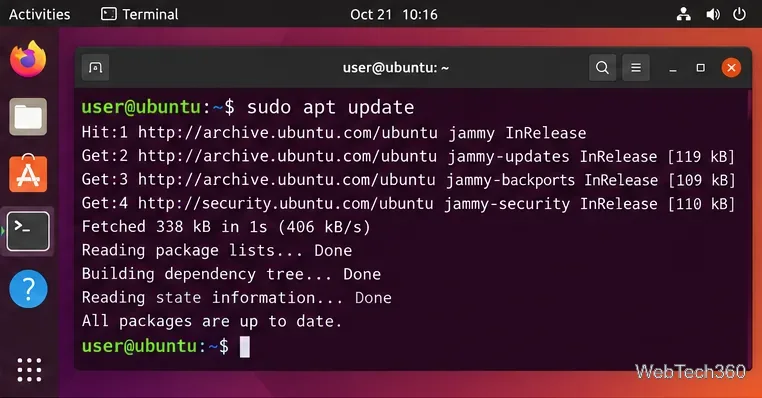
sudo apt update
The apt update command downloads current package information from your configured software sources. Ubuntu documents apt as the interactive command-line interface for package management, and its update action refreshes package information before installation. See the Ubuntu apt manual page for the command reference.
The repository names and output shown by apt update vary by Ubuntu release and configured sources.
3. Install the Curl package
After the update completes, run:
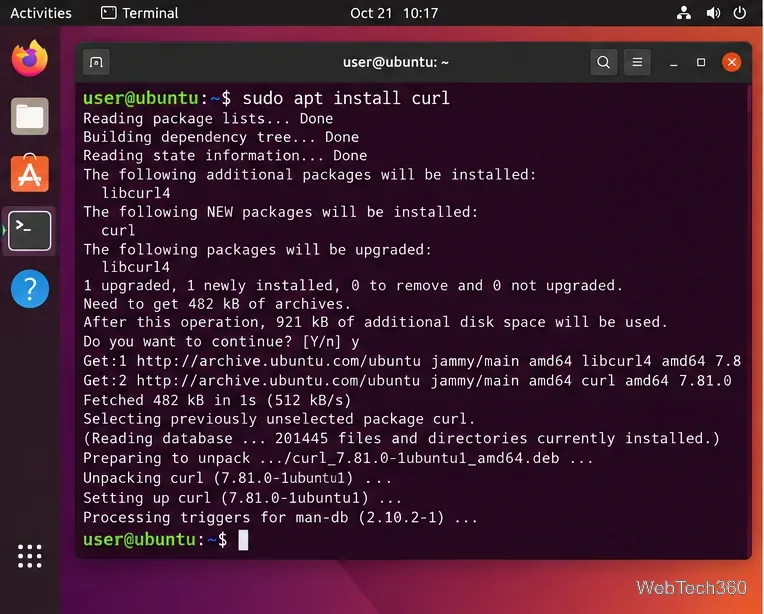
sudo apt install curl
If APT asks for confirmation, press Y and then Enter. When sudo asks for your account password, Terminal does not display dots or asterisks while you type; that is normal.
The official Ubuntu package index for Curl shows the package in the Ubuntu archives for releases including Ubuntu 22.04 LTS, 24.04 LTS, and 26.04 LTS. The Curl version you receive depends on your Ubuntu release and enabled updates, so there is no need to match a single version number from another system.
APT resolves the package and any required dependencies automatically. Package versions can differ between Ubuntu releases.
4. Verify that Curl works
Check the installed command with:
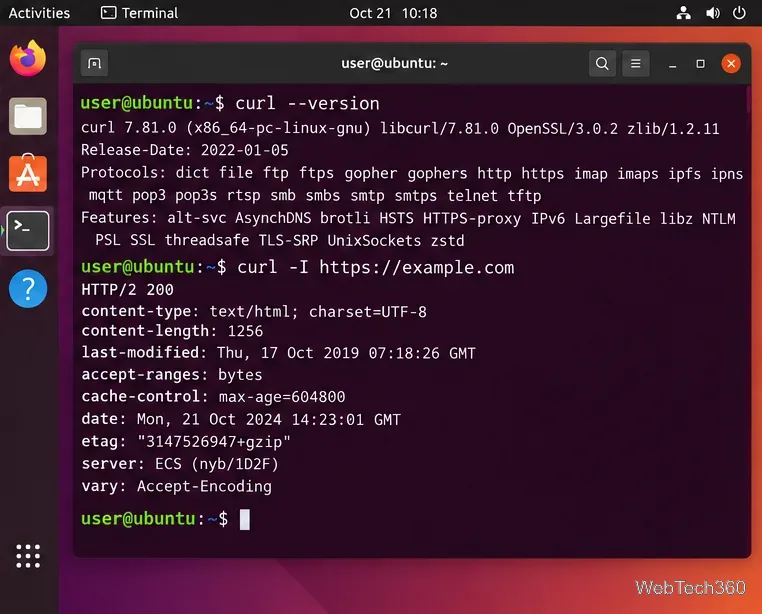
curl --version
This prints the Curl and libcurl versions plus information about supported protocols and features. You can also make a simple header-only request:
curl -I https://example.com
For HTTP URLs, -I (or --head) requests headers only. The Curl man page documents --version, --head, and the rest of the command-line options.
A version check confirms the command is installed; a request to a reachable site confirms Curl can make a network connection.
Useful Curl commands after installation
Once Curl is installed, these examples cover several common tasks:
curl https://example.com — print a URL's response body in Terminal.
curl -o page.html https://example.com — save output with a name you choose.
curl -O https://example.com/file.zip — save a remote file using its remote filename.
If you prefer a graphical package manager, Synaptic remains available in Ubuntu's repositories, including the current Ubuntu 26.04 LTS Synaptic package. If Synaptic is already installed, open it, search for curl, mark the curl package for installation, and choose Apply.
If Synaptic is not installed yet, you can add it with sudo apt install synaptic. For most users, installing Curl directly with APT is faster and avoids adding another package-management interface solely for this task.
Do not use the old curl-unofficial Snap
Older guides sometimes recommend sudo snap install curl-unofficial --edge. That is no longer a good default. The Snap Store listing for curl-unofficial says its edge build was last updated on May 26, 2018 and warns that it may be unmaintained and could have stability or security issues. Use Ubuntu's maintained APT package instead.
Troubleshooting Curl installation
“Unable to locate package curl”: run sudo apt update and check the output for repository or network errors. Curl is present in the official Ubuntu archive, so a package-not-found error usually points to stale or misconfigured package sources.
APT says Curl is already the newest version: no further installation is required. Run curl --version to confirm which build is installed.
The install command cannot reach Ubuntu servers: verify your internet connection, DNS, proxy settings, and the errors reported by sudo apt update.
You need Curl development headers: the curl command-line package is different from libcurl development packages used when compiling software. Install the development package required by your project rather than assuming the CLI package contains headers.
For a normal Ubuntu desktop, server, VM, or WSL installation, sudo apt update followed by sudo apt install curl is the recommended and simplest way to get Curl.