How to Access a Windows BitLocker Partition in Linux

Use Dislocker to unlock a BitLocker volume in Linux, mount its virtual NTFS file read-only, and safely unmount it without exposing your password in a command.
To load a custom kernel module on SLES 15 with Secure Boot enabled, build it for the exact kernel you will run, sign the finished .ko file with a trusted signing certificate, enroll that certificate as a Machine Owner Key (MOK), and then load the module with modprobe. A MOK is a locally controlled certificate that SUSE’s shim and Linux kernel can trust for Secure Boot module verification. Do not turn Secure Boot off to work around a rejected signature. The process below is for an administrator who controls the machine and can approve a key enrollment at reboot.
This guide follows SUSE’s SLES 15 SP7 administration documentation and SUSE’s kernel-module packaging guidance, checked October 6, 2026. Commands use acme_driver as an example module name; replace it with the actual module name without the .ko suffix where appropriate. These are command examples, not output from a tested host.
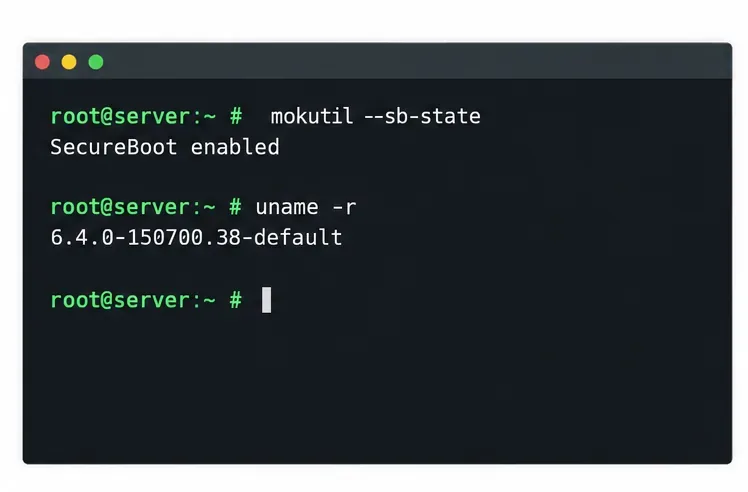
Use this approach for a custom out-of-tree module—one supplied separately from the running kernel—when you can rebuild or obtain a build for the target SLES kernel and can enroll a certificate on the server. It applies to systems booting through the SUSE Secure Boot and shim path. If a vendor supplies an official SLES 15 driver package, use its supported installation and signing instructions first; a vendor package may handle kernel compatibility and updates better than a manual copy.
Secure Boot validates the boot chain, and the kernel also checks signatures on loadable modules under the applicable policy. A module can be signed yet still fail to load if it targets a different kernel ABI, depends on missing symbols, or is built for the wrong architecture. Conversely, matching the kernel does not make an unsigned module trusted. Signing addresses trust; it does not establish compatibility or certify that the code is safe.
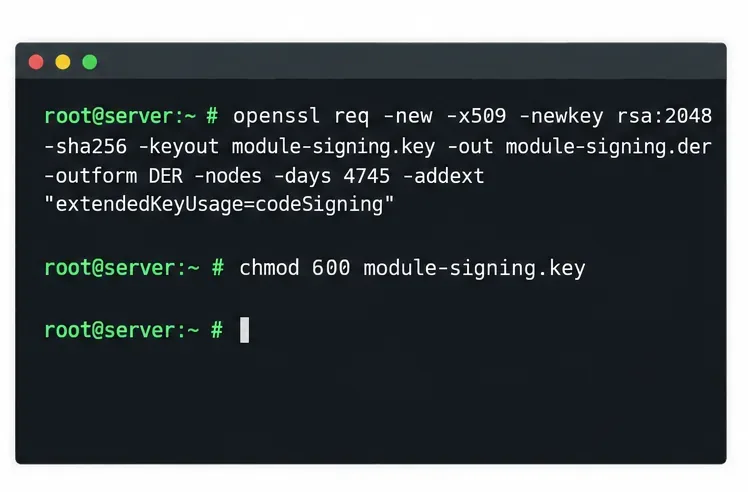
uname -r and mokutil --sb-state. Build the module against the matching kernel development files and toolchain for that kernel flavor. The package names and required files vary by SLES service pack, kernel flavor, and build method, so verify them against the repositories enabled on the target system.On a protected signing system, create a private key and a DER-encoded X.509 certificate. SUSE’s kernel module packaging guidance calls for the codeSigning extended key usage on current SLES 15 service packs. This example uses OpenSSL and a descriptive certificate name:
openssl req -new -x509 -newkey rsa:2048 -sha256 \
  -keyout module-signing.key \
  -out module-signing.der -outform DER -nodes \
  -days 4745 -addext "extendedKeyUsage=codeSigning" \
  -subj "/CN=Custom Module Signing/"
chmod 600 module-signing.key
The -nodes option leaves the private key unencrypted, so file permissions and storage controls matter. Do not copy that private key into a general-purpose server or embed it in a package. If organizational policy requires an encrypted key, hardware-backed signing, key rotation, or a different certificate lifecycle, follow that policy and the signing tool’s requirements. Transfer only module-signing.der to the system that will enroll the public key.
Build the module against the exact kernel release shown by uname -r. The source project’s build instructions determine the compiler, headers, and configuration it needs; there is no single build command that fits every custom module. Check the result’s vermagic with modinfo if you need to diagnose a kernel mismatch.
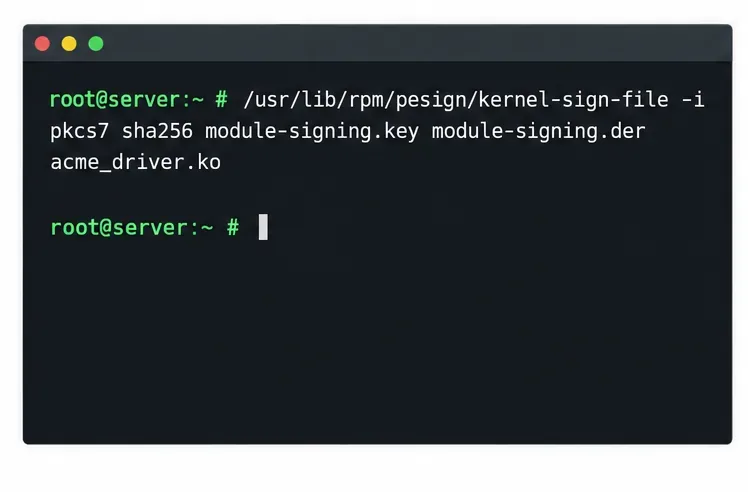
Sign the final module file after compilation and any packaging or stripping step. SUSE documents its signing helper at /usr/lib/rpm/pesign/kernel-sign-file; the following example uses the PKCS#7 format and SHA-256 digest:
/usr/lib/rpm/pesign/kernel-sign-file -i pkcs7 sha256 \
  module-signing.key module-signing.der acme_driver.ko
The helper must be available from the SUSE signing integration on your system. If it is missing, check the official SLES/KMP documentation and enabled repositories for the supported signing setup instead of substituting an arbitrary signing command. A module signature is appended to the file. Do not strip, edit, recompress, or otherwise alter the module after signing; such a change can invalidate the signature. Keep a pristine build artifact so you can repeat the final signing step.
On the SLES server, place the public module-signing.der certificate where root can read it, then queue it for enrollment:
mokutil --root-pw --import module-signing.der
mokutil --list-new
SUSE documents --root-pw as a way to authorize the pending enrollment with the root password. The import command queues the certificate; it does not enroll it immediately. Reboot the server. In MokManager, choose Enroll key from disk, select the certificate, confirm enrollment, and complete the requested authorization. Menu wording can vary slightly with the shim/MokManager version. If you cannot access the enrollment screen, check the boot path and arrange console access; do not assume the certificate was enrolled just because the import command succeeded.
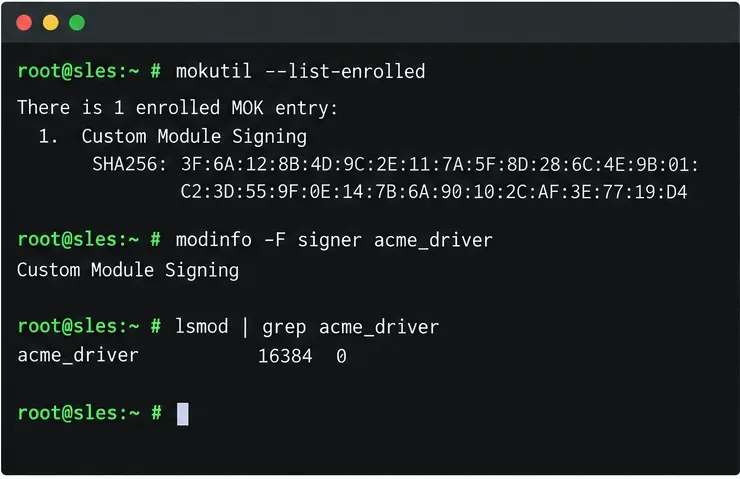
After the server boots, confirm the key appears in the enrolled list:
mokutil --list-enrolled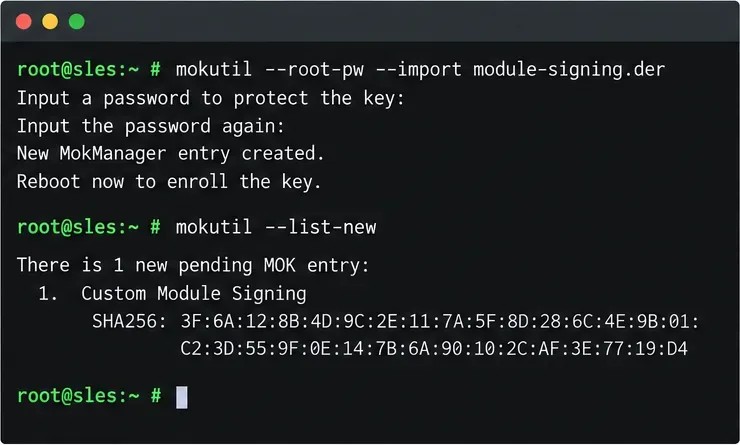
mokutil --list-new displays pending enrollment requests.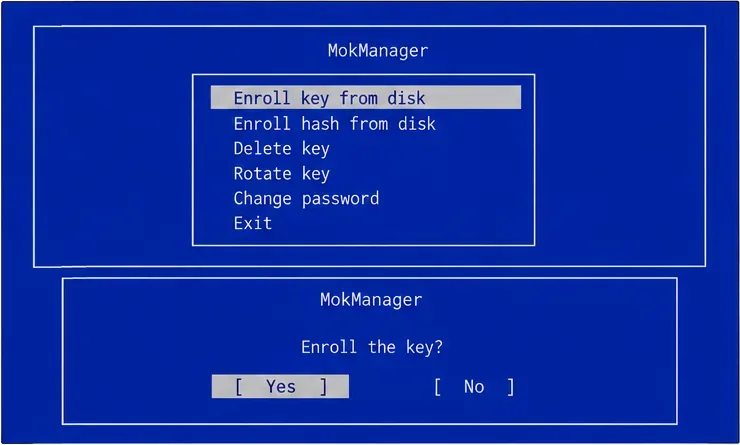
Copy the signed file into the extra-modules directory for the running kernel, refresh the dependency map, and request the module by name. Substitute the actual kernel release if you are installing for a different booted kernel:
release=$(uname -r)
install -D -m 0644 acme_driver.ko \
  "/lib/modules/$release/extra/acme_driver.ko"
depmod -a "$release"
modprobe acme_driver
modprobe is generally preferable to insmod because it resolves module dependencies. Test the actual device or functionality that the driver provides; a successful command alone does not prove the hardware works correctly. If the module is intended to load at boot, add its module name on its own line in a file such as /etc/modules-load.d/acme_driver.conf. SLES uses systemd’s module-loading mechanism for these configuration files.
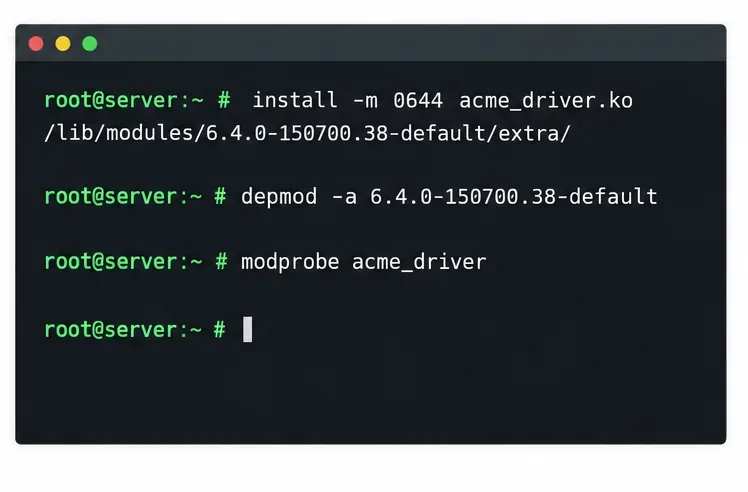
modprobe.Useful checks include:
mokutil --list-enrolled
modinfo -F signer /lib/modules/$(uname -r)/extra/acme_driver.ko
lsmod | grep acme_driver
journalctl -k -b | tail -n 80
modinfo -F signer displays signer metadata embedded in the module. By itself, it does not prove that the certificate is enrolled or that the running kernel accepted the signature. A successful modprobe with Secure Boot still enabled, followed by kernel-log inspection and a functional device check, is more useful evidence. The displayed terminal output in the figure is an example of the commands and illustrative output, not a report of a test performed for this article.
| Symptom | What to check |
|---|---|
Key was rejected by service or a signature-related load error | Confirm the certificate that signed this exact module is enrolled with mokutil --list-enrolled; confirm the module was signed after its last modification; review journalctl -k -b. |
Invalid module format | Compare the module’s vermagic with uname -r. Rebuild for the running kernel and its flavor. |
Unknown symbol or unresolved dependency | Check the matching build environment and required companion modules; rerun depmod -a after installation. |
Module not found | Check the filename, module name, kernel-specific destination directory, and dependency map. The name passed to modprobe usually omits .ko. |
SUSE also tracks whether a module is supported, and loading an unsupported module can affect the kernel’s support status or taint state. That policy is separate from signature verification: changing an unsupported-module setting does not enroll a signing key and will not repair a rejected signature. Review SUSE’s support guidance before changing that policy on a supported production system.
A module built for one kernel release is not automatically compatible with the next. After a kernel update, install the matching build environment, rebuild the module for the new kernel ABI, sign the final file, install it in that kernel’s module tree, and refresh its dependency information. If the signing certificate remains trusted, you normally do not need to enroll it again. A replacement or rotated certificate does require its own enrollment and approval. Test the new kernel and module together before relying on unattended boot-time loading.
For a fleet or a driver that must survive routine updates, use a repeatable packaging workflow such as SUSE’s Kernel Module Package (KMP) approach where it fits your driver and support model. Packaging can organize per-kernel builds and signing steps, but it does not remove the need for correct key protection, module compatibility, MOK trust, and update testing. Consult the documentation for the exact SLES 15 service pack and your organization’s supported kernel lifecycle.
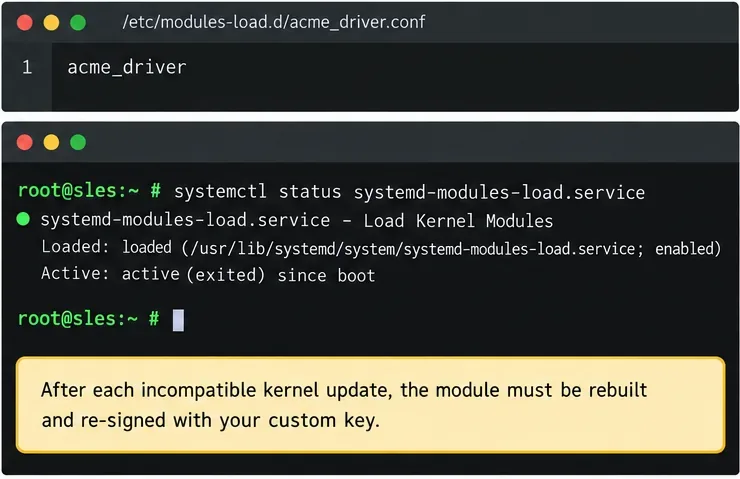
/etc/modules-load.d entry can request boot-time loading after the module has been rebuilt and signed for the installed kernel.Use Dislocker to unlock a BitLocker volume in Linux, mount its virtual NTFS file read-only, and safely unmount it without exposing your password in a command.
Learn how to reduce RAM usage on Linux by finding memory-hungry apps, trimming browser and startup load, and testing a lighter desktop safely.
Compare four WhatsApp alternatives for Linux by privacy defaults, desktop support, setup requirements, and the people each app suits.
Troubleshoot a VirtualBox VM that will not start on Linux by checking vboxdrv, kernel headers, Secure Boot, Extension Pack versions, and VM logs.
Transfer your Ubuntu user data with a tar archive and external drive, then restore personal files and selected settings without overwriting the new setup.
Install gThumb on Linux, browse and make simple photo edits, then set it as the default app for the image types you choose in GNOME.
Create an organized playlist in Rhythmbox or save a reusable XSPF playlist in VLC. Learn how to add tracks, name a list, and reopen it on Linux.
Install Dino on Linux with Flatpak or your distribution’s package manager. Get current Ubuntu, Debian, Fedora, and Arch commands, plus first-launch tips.
Install Arch Linux’s linux-lts kernel, add it to GRUB or systemd-boot, select it at startup, and verify it while keeping a fallback kernel.
Download the right Pi 4 image, write it to a microSD card, and complete LibreELEC’s first-run setup with Raspberry Pi Imager.








