How to Recover Lost Partitions and Hard Disk Data Safely
Learn how to recover lost partitions and files with TestDisk and PhotoRec. Protect the source drive, scan safely, and save recovered data to another disk.
To install Devuan Linux, boot an official ISO from USB and run the installer. Devuan Excalibur Desktop Live boots Xfce and includes Refracta Installer; its official archive lists 6.1.1 for amd64 PCs. It requires manual partitioning. For automatic partitioning or the more extensively tested UEFI path, use the separate console-based regular installer.
Open Devuan's download page and choose Desktop Live for your architecture. Most 64-bit Intel or AMD computers use amd64. The current archive lists devuan_excalibur_6.1.1_amd64_desktop-live.iso. Use the official Excalibur archive or a mirror linked by Devuan.
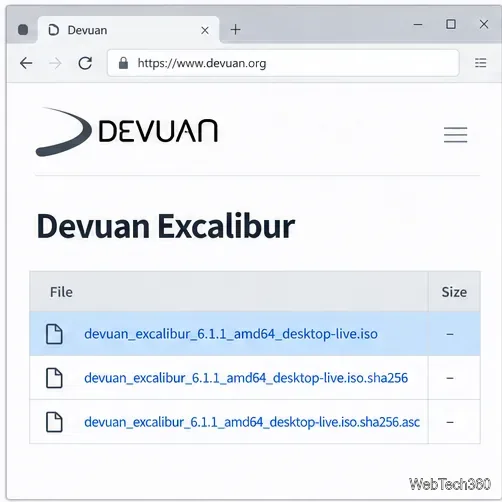
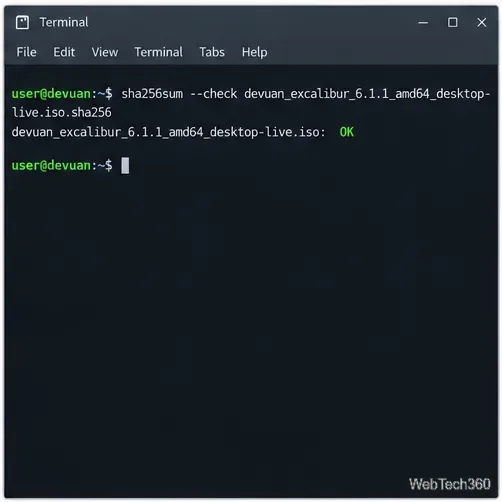
Download the ISO's .sha256 sidecar from the same directory. On Linux, check it with sha256sum --check filename.iso.sha256; on macOS use shasum -a 256 filename.iso; in PowerShell use Get-FileHash .\filename.iso -Algorithm SHA256. Compare the computed digest with the published value. For authenticity, verify the matching .sha256.asc signature with GPG and confirm the key against Devuan's developer list. If the digest does not match, download the ISO again.
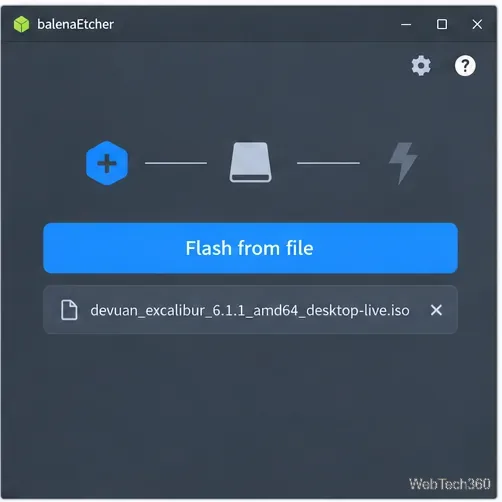
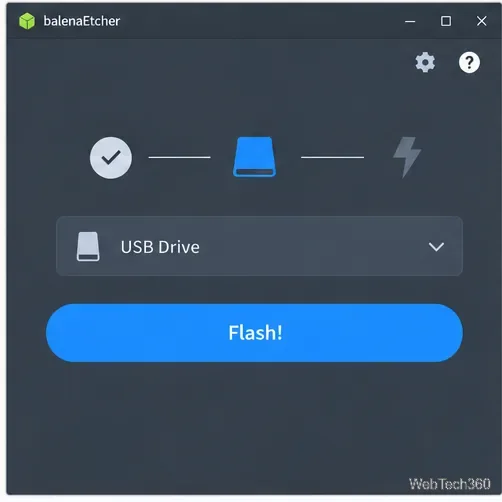
Install balenaEtcher. Choose Flash from file, select the ISO, choose the USB drive, and start the flash. Check the drive name and capacity first because its existing contents will be erased. Let Etcher finish verifying, then safely eject the drive.
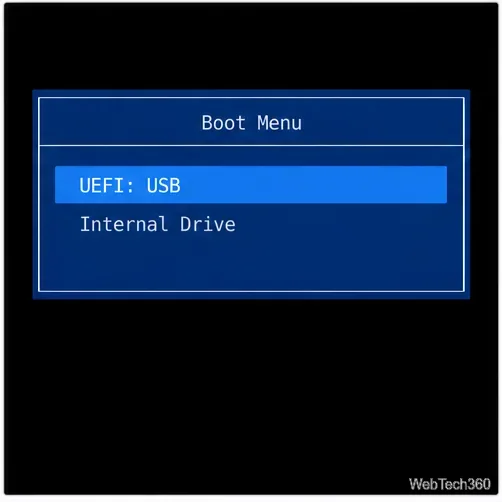
Restart and open the computer's one-time boot menu. Select the USB entry; for UEFI, choose its UEFI USB option. If keeping another OS, boot Devuan in the same mode, UEFI or legacy BIOS. Choose the live desktop from the startup menu.
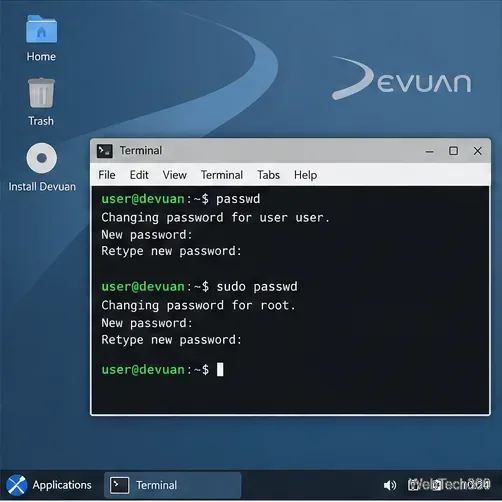
The Desktop Live README lists the public credentials: user devuan / password devuan, and root password toor. Before connecting to a network, open a terminal and run passwd, then sudo passwd, to change both. Refracta Installer copies the running system, so the new passwords carry over.
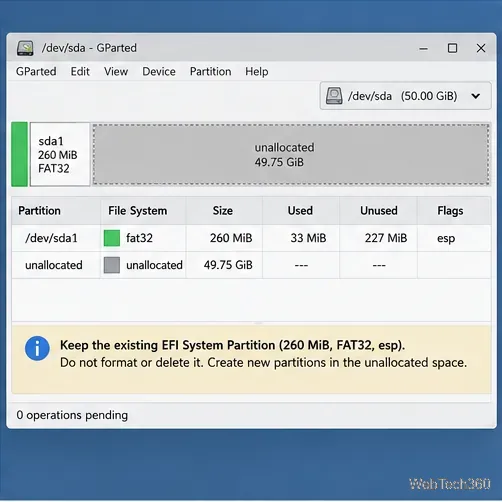
Open GParted and identify the target disk by its size and existing partitions. Desktop Live has no automatic partitioning. A legacy BIOS install needs a system partition; UEFI also needs an EFI System Partition (ESP). Devuan's guide specifies a 50–500 MB FAT32 ESP with the esp flag. Reuse an existing ESP when keeping another OS, and do not format it. Create Devuan's root partition in free space; ext4 is a common choice. If unsure which disk or partition is safe, stop before applying changes.
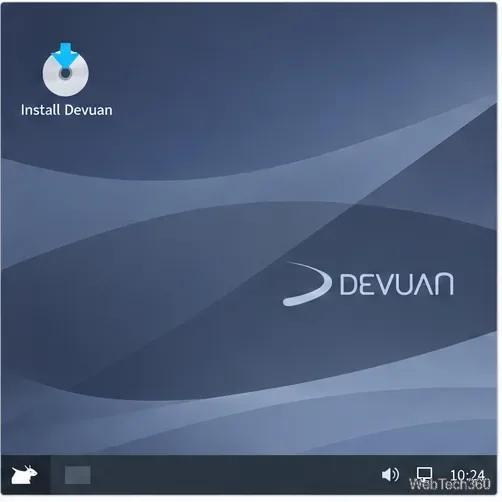
Double-click Install Devuan or open it from the applications menu. The graphical installer can also be started with sudo refractainstaller-yad. Read the help if an EFI warning appears; for UEFI, Devuan says the EFI partition should be on the first disk.
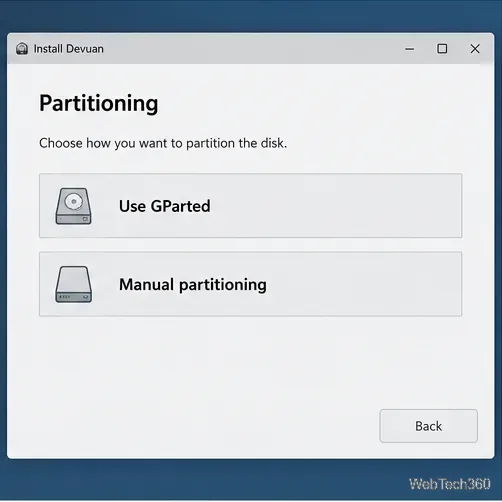
Select the prepared root partition, assign it to /, and choose ext4. In UEFI mode, select the ESP for the EFI mount point if prompted, and leave its contents unformatted. For BIOS, follow the GRUB prompt for the boot disk. A separate /home or /boot is optional.
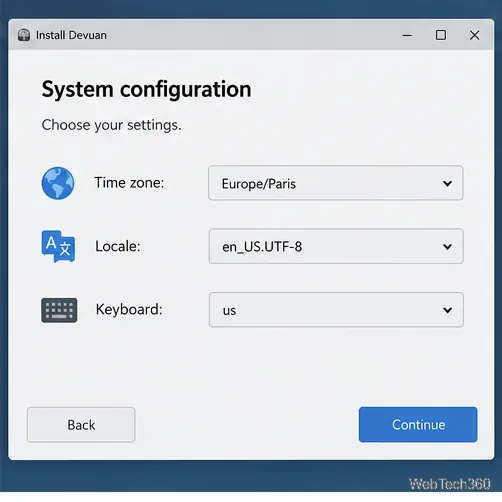
Select your time zone, locale, keyboard, and layout. Set a hostname, root password, and everyday user account. Refracta can encrypt root and home filesystems; read its help before enabling encryption, particularly if you plan a separate /boot or swap partition. See Devuan's Excalibur Live Install Guide for partitioning details.
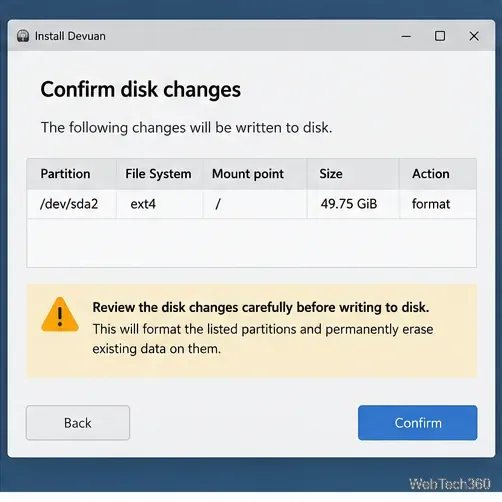
Check the summary's disk, partitions, mount points, and format actions. Formatting erases the selected partition. Go back if the plan names the wrong disk or includes a partition you need; confirm only when the changes match your plan. The installer then copies the live system to disk.
Let the installer install GRUB so the computer can start Devuan. In UEFI mode, it goes to the EFI partition. For legacy BIOS, Devuan's guide generally recommends the first boot disk's MBR. When asked for a BIOS location, select the disk rather than a Linux partition.
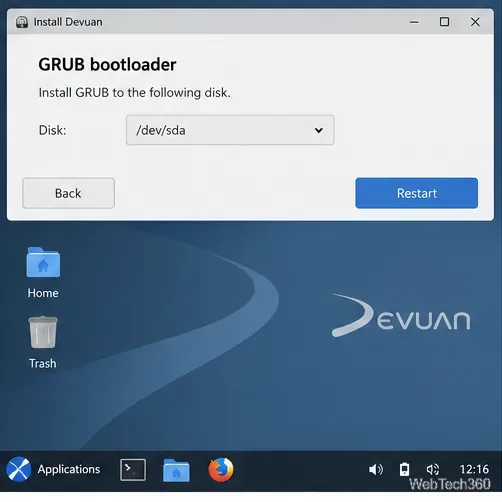
Finish the installer, remove the USB drive as the computer restarts, and select Devuan if a boot menu appears. Sign in with the account you created. Check network, time, and hardware, then follow Devuan's Excalibur package guidance for updates.
If the USB is not listed, retry the one-time boot menu and re-create the drive if needed. If the installer cannot find an ESP, confirm you booted in UEFI mode and that the FAT32 partition has the esp flag. Do not format a disk until its identity is clear. For automatic partitioning or the regular console installer, follow Devuan's separate Excalibur installation guide.
Learn how to recover lost partitions and files with TestDisk and PhotoRec. Protect the source drive, scan safely, and save recovered data to another disk.
Scan QR codes on Linux with CoBang using a webcam or image file. See installation options, setup steps, and fixes for Flatpak camera access.
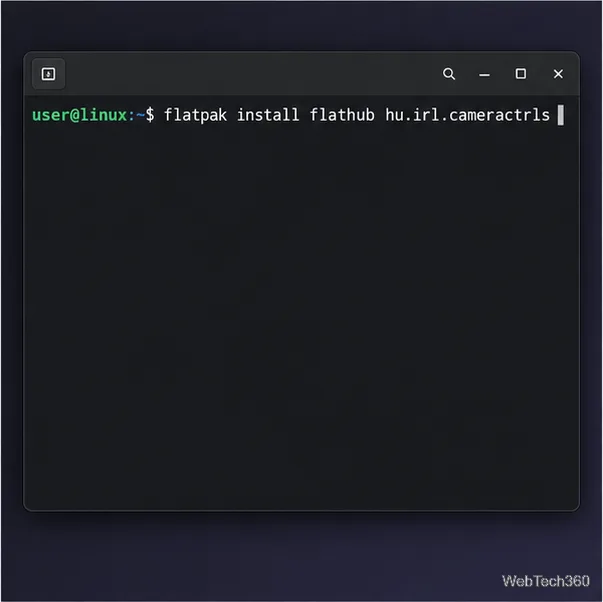
Change webcam settings on Linux with Cameractrls: tune exposure, color, flicker reduction, and other supported controls, then check compatible video modes.
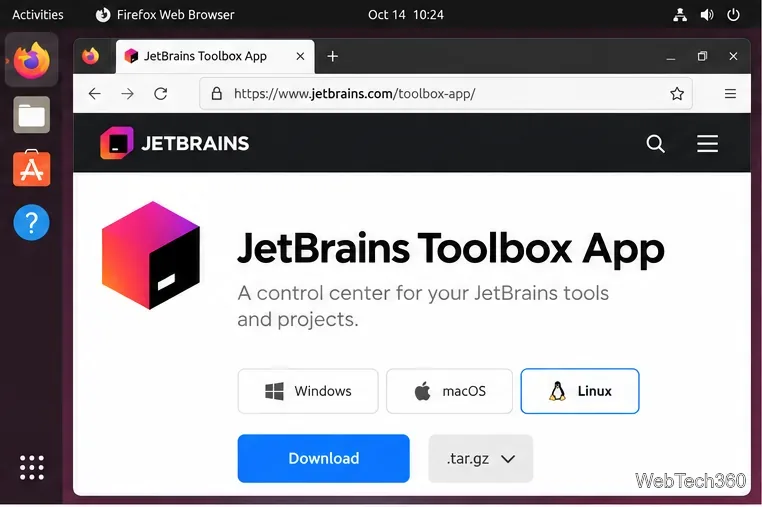
Install PhpStorm on Linux with JetBrains Toolbox or the standalone tar.gz archive, plus Snap and Arch AUR options. Java is already bundled.
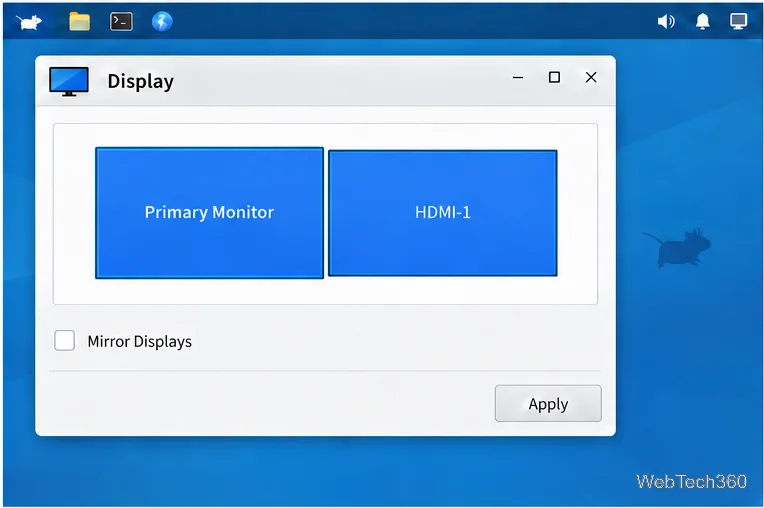
Create a separate XFCE 4 panel for each display, assign the second panel to the right output, position and size it, and add the launchers and status items you need.
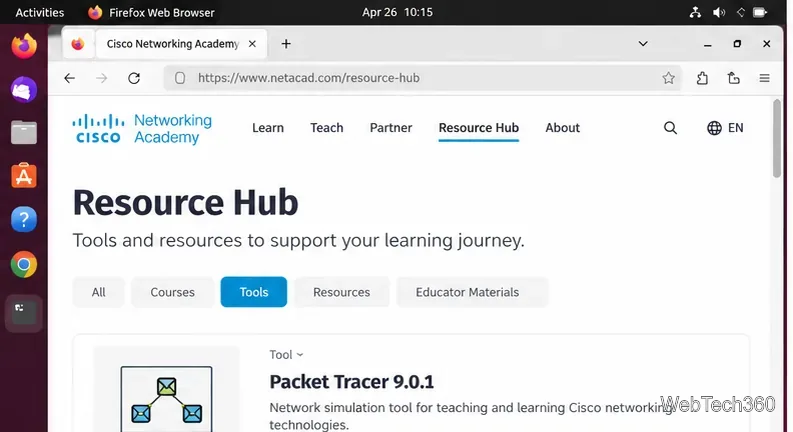
Download Cisco Packet Tracer 9.0.1 for Ubuntu 64-bit, install the DEB package with APT, accept the license in Terminal, and sign in to start a lab.
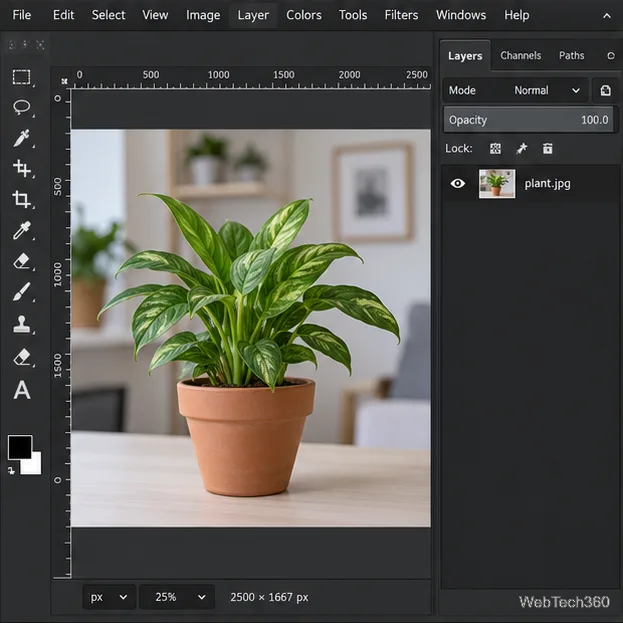
Remove a photo background on Linux with GIMP: trace a subject, delete the selected background, keep transparency, and export a reusable PNG.
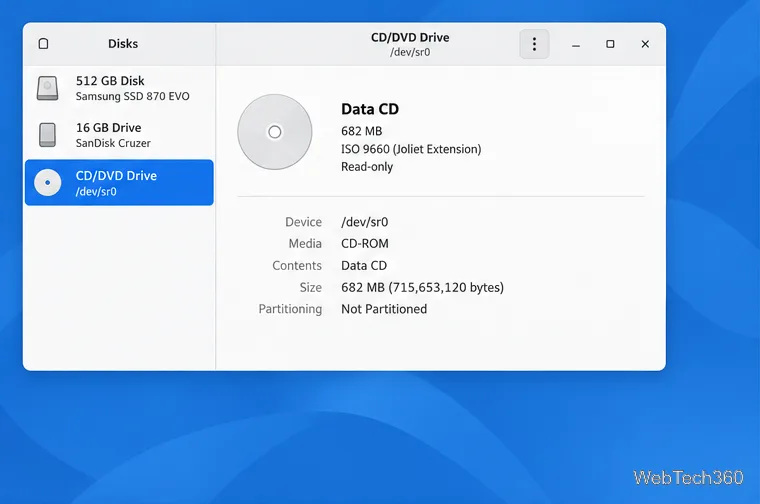
Create a CD-ROM ISO on Linux with GNOME Disks or dd. Identify the optical drive, monitor the copy, verify the image, and know when a damaged or audio disc needs another tool.
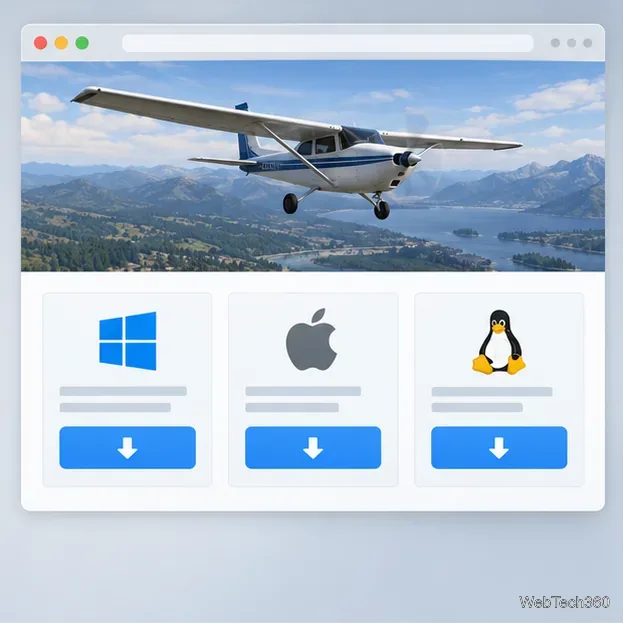
Download FlightGear for free from the official site. Compare Windows, macOS, and Linux packages, install the data files, and start your first flight.
Open Google Tasks in a browser, add a Chrome shortcut or app-style launch, and manage dated to-dos through Calendar and Gmail.