EndeavourOS is an Arch Linux-based rolling-release distribution with a graphical installer that makes a clean Arch-style setup much easier. To install it, download the current ISO, write it to a USB drive, boot that USB in UEFI mode, and complete the Calamares installer. Back up important files first because some partitioning choices can erase an entire drive.
What you need before installing EndeavourOS
A 64-bit x86-64 PC. The project has listed 2.5 GB of RAM and 15 GB of drive space as absolute minimums; 4 GB or more of RAM is a better target for an online installation.
An 8 GB or larger USB flash drive. The current Titan Nova ISO is 3.63 GiB.
A reliable internet connection if you use the recommended online installer.
A backup of anything you cannot afford to lose.
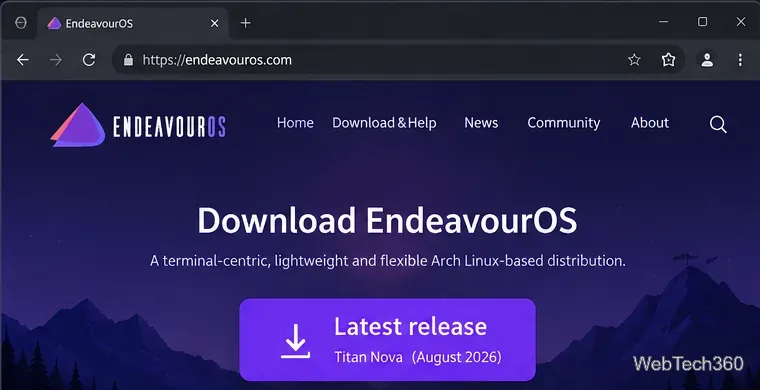
The project's current download page lists EndeavourOS Titan Nova, image dated August 15, 2026. Always use the latest ISO shown on the official EndeavourOS download page rather than an old mirror link from a tutorial.
1. Download and verify the EndeavourOS ISO
Download the ISO from a mirror close to you. EndeavourOS also publishes a SHA-512 checksum and a GPG signature. Verifying at least the SHA-512 checksum is worthwhile because it confirms that the download arrived intact before you spend time troubleshooting a bad USB.
The EndeavourOS download workflow starts with the latest release ISO.
2. Write the ISO to a USB drive
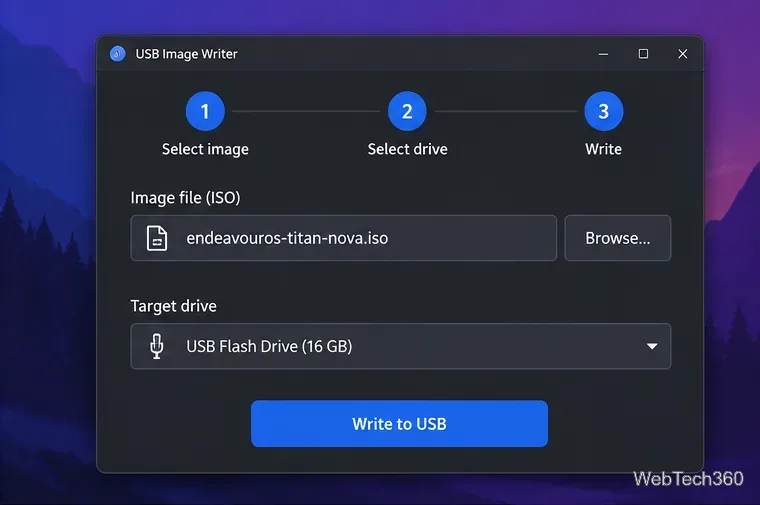
The USB must be written as a bootable disk image; copying the ISO file onto a normal USB filesystem is not enough. EndeavourOS recommends tools that preserve the hybrid ISO without modifying it. On Windows, its USB creation guide documents USBWriter and Rufus; if Rufus asks between ISO mode and DD mode, choose DD mode. On Linux, the project recommends raw-image methods such as dd. Double-check the destination drive before writing because the USB will be overwritten.
Select the EndeavourOS ISO, choose the correct USB drive, then write the image.
3. Boot the PC from the USB
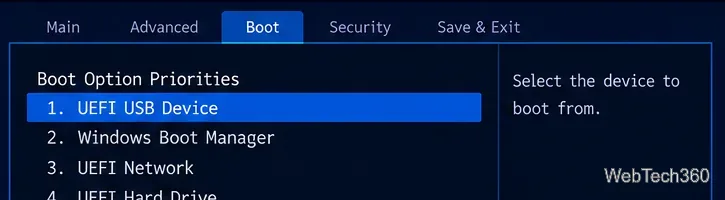
Restart the computer and open its one-time boot menu or UEFI setup. The key varies by manufacturer; common choices include F12, F10, Esc, or Del. On a modern PC, select the entry labeled UEFI for your USB instead of a legacy or CSM entry.
Choose the UEFI entry for the installation USB on modern systems.
4. Check UEFI settings if the USB will not boot
EndeavourOS currently does not support Secure Boot in the normal installation path, so Secure Boot usually needs to be disabled. The project also recommends disabling CSM/legacy compatibility on modern UEFI machines. If you are dual-booting with Windows, disable Windows Fast Startup as well. See the official Live ISO installation notes for firmware and partitioning details.
Modern EndeavourOS installs should normally use UEFI with Secure Boot and CSM disabled.
5. Start the EndeavourOS live environment
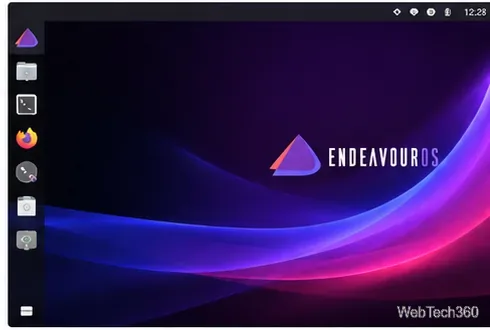
Boot the USB and let the live desktop load. Confirm that your display, input devices, network, and storage work before changing the disk. Open the EndeavourOS Welcome application when you are ready to install.
The live desktop lets you check basic hardware before installation.
6. Choose online or offline installation
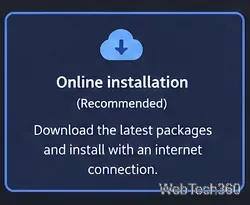
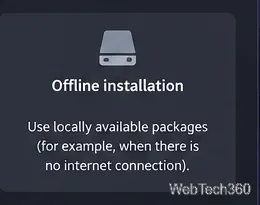
Online installation is the recommended choice. It downloads current packages, offers the available desktop environments, and lets you adjust package selections. Offline installation is a fallback for unreliable or unavailable networking; the current offline path installs KDE Plasma from the ISO and may require more updating afterward.
Online installation is the normal choice when you have a stable internet connection.Offline installation is intended as a fallback when networking is unavailable or unreliable.
7. Complete the Calamares setup pages
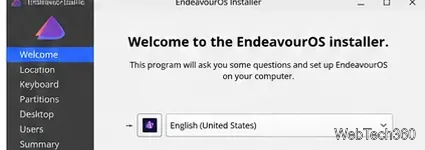
In Calamares, choose your language, region and time zone, then your keyboard layout. Next, select the destination disk and partitioning method. Erase disk deletes everything on the selected drive, so use it only when you intentionally want EndeavourOS to take the whole disk. Alongside and Replace can preserve other partitions in supported layouts; use manual partitioning only if you understand EFI system partitions and mount points.
For an online install, choose the desktop environment and optional packages you want, then create your user account and password. Review the summary carefully before clicking Install.
Calamares guides you through language, location, keyboard, disk, desktop, user, and final review stages.
8. Install, reboot, and update
Start the installation only after checking the target disk and summary. When Calamares finishes, reboot, remove the USB when prompted, and boot from the installed system. Because EndeavourOS is rolling release, run a full update after your first login with sudo pacman -Syu.
Current KDE Plasma installer note
At the time of this update on October 21, 2026, EndeavourOS has an active notice for the Plasma 6.8 transition: the current online installer can fail if plasma-x11-session or kgamma is selected because those packages are no longer provided upstream. Until the project's hotfix reaches the ISO installer, deselect those packages in the online install package screen. The official EndeavourOS announcement has the latest status.
If installation fails
Do not immediately reboot out of the live session. EndeavourOS recommends saving the installer log and checking its support resources while the failed session is still open. For failures, recheck the network, ISO checksum, USB-writing method, Secure Boot, and whether the USB was booted in UEFI mode.