Home
» LINUX
»
How to Install Flatpak Apps on Linux Without Using a Terminal
How to Install Flatpak Apps on Linux Without Using a Terminal
You can install Flatpak apps on Linux without typing terminal commands, as long as Flatpak support and a repository such as Flathub are already available in your graphical software center. On GNOME desktops, use Software; on KDE Plasma, use Discover. Search for the app, make sure Flathub is selected as the source when more than one package is offered, then click Install.
Before you start: check Flatpak and Flathub support
The no-terminal part applies to installing apps after the graphical Flatpak integration is ready. Setup differs by distribution, so check the official Flathub setup page if Flatpak apps do not appear in your software center.
Linux Mint 18.3 and newer: Flathub says Flatpak support is built in, so you can normally use Software Manager immediately.
Fedora Workstation, Silverblue, and Kinoite: Flatpak is installed by default. You may only need to enable Flathub through Fedora's third-party repository options or the Flathub repository file.
Kubuntu: Flathub's current instructions let you enable the Flatpak backend from Discover's Settings, restart Discover, and add the Flathub repository there.
Ubuntu 23.10 and newer: Ubuntu App Center does not install Flatpak apps. Flathub currently recommends the deb version of GNOME Software plus the Flatpak plugin; the official setup instructions use terminal commands for that one-time configuration. Afterward, app installation can be graphical.
Install Flatpak apps with GNOME Software
GNOME Software is designed to find, install, update, and remove applications. If your distribution has connected it to Flathub, you can install Flatpaks with a few clicks.
1. Open Software
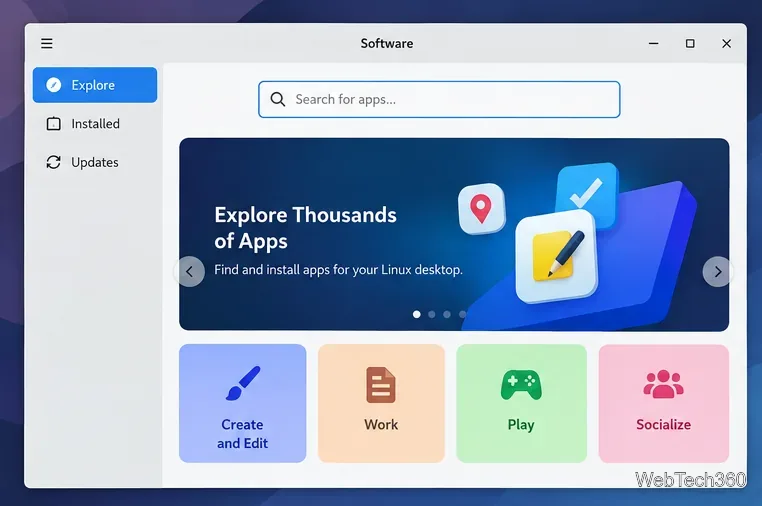
Open your applications menu and launch Software. The exact layout varies slightly by GNOME version and distribution, but you should see an Explore page and a search control.
GNOME Software's Explore view provides a graphical search field for finding applications.
2. Search for the app
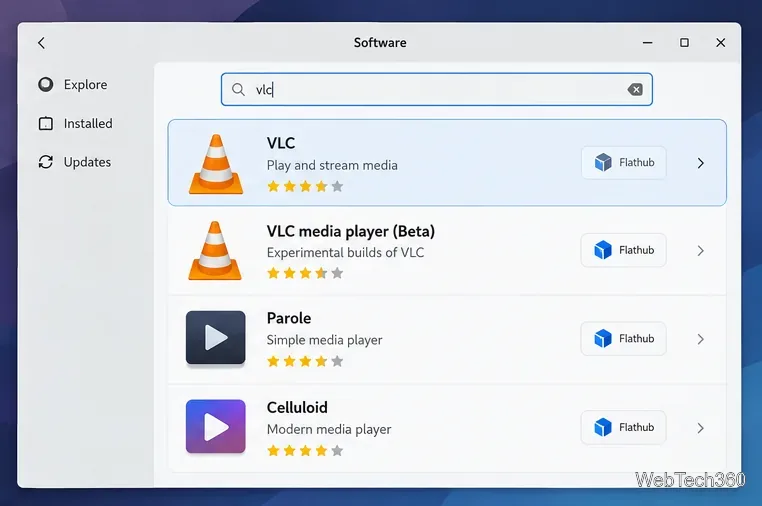
Use the search box to find the application you want. A result may come from Flathub, your distribution's repository, or another enabled source. Open the result that matches the app you want.
Search results can identify Flathub as the source for a Flatpak application.
3. Choose Flathub when several sources are available
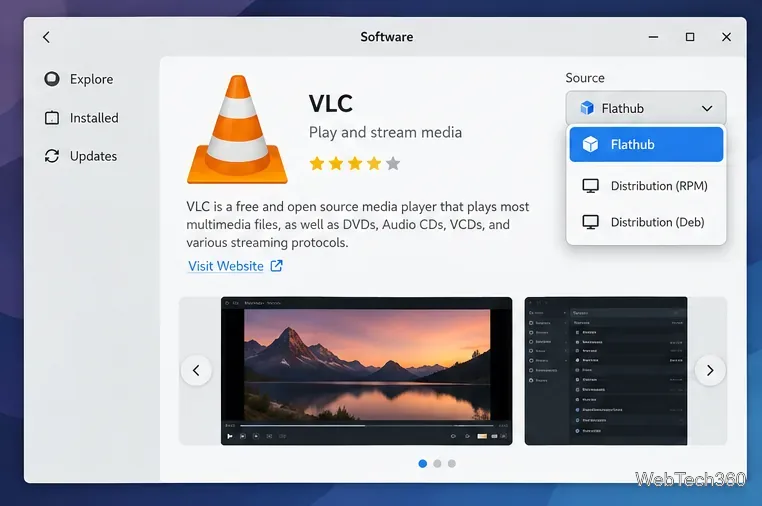
On the app details page, look for the package source. If Software offers multiple builds, select Flathub to install the Flatpak edition. If Flathub is the only source, there may be nothing to change.
When several package sources are available, choose Flathub for the Flatpak build.
4. Click Install
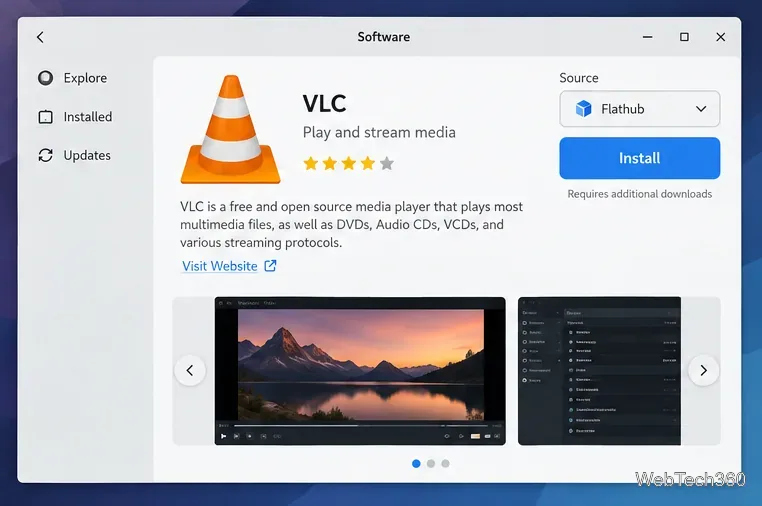
Select Install and approve any authentication prompt from your system. Flatpak may download a shared runtime or other dependencies the first time you install an app, so the initial download can be larger than the app itself. When installation finishes, launch the app from Software or your normal applications menu.
After confirming the Flathub source, use the Install button to begin the graphical installation.
Install Flatpak apps with KDE Discover
KDE Discover can manage software from several sources, including Flatpak repositories. KDE also publishes a dedicated Flatpak backend for Discover.
1. Check the Flatpak backend
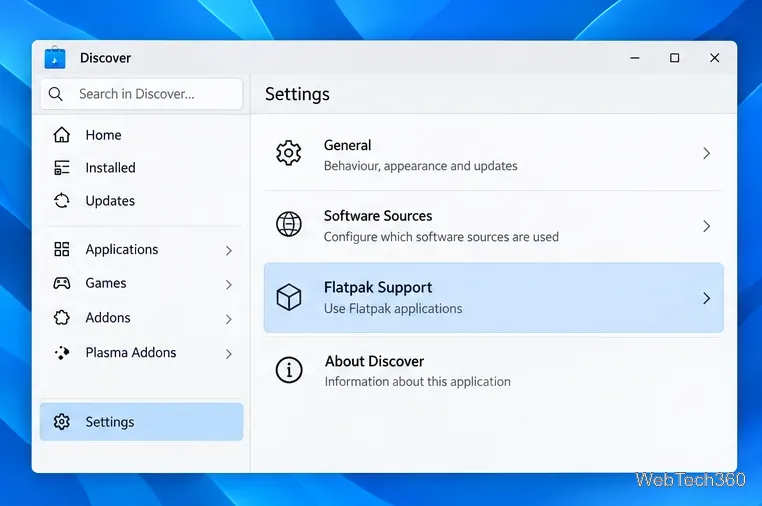
Open Discover, then go to Settings. If your distribution exposes the Flatpak backend here, make sure it is installed or enabled. On Kubuntu, this is the graphical setup path documented by Flathub.
Discover's Settings area is where supported distributions expose Flatpak integration.
2. Enable or add Flathub
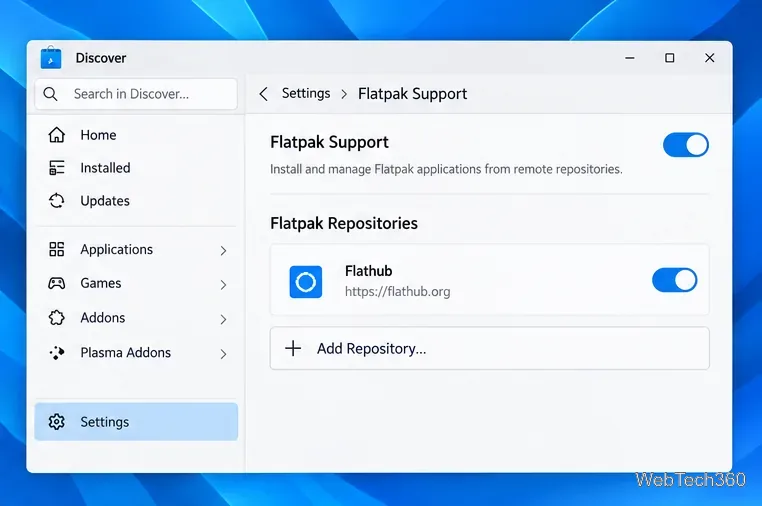
In Discover's Flatpak or repository settings, confirm that Flathub is enabled. If it is missing and your distribution supports graphical setup, add the Flathub repository from Discover and restart the app if prompted.
Flathub must be enabled as a Flatpak repository before its apps appear in Discover.
3. Search and confirm the source
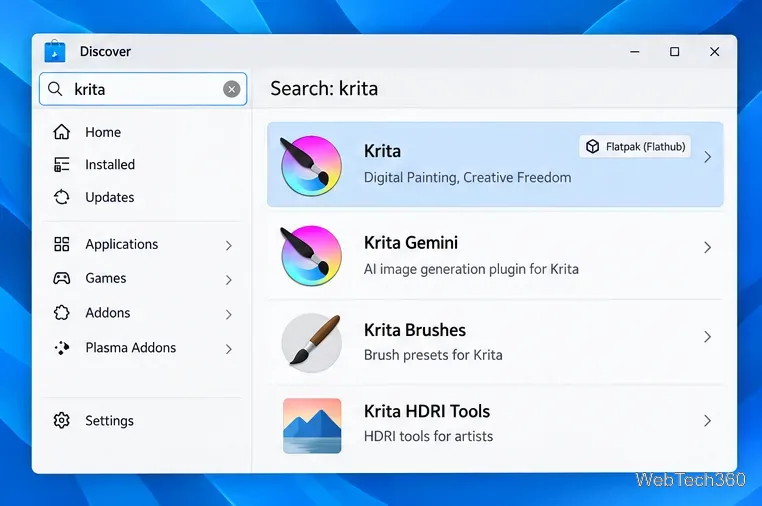
Search for the application. If Discover lists multiple package formats, choose the result labeled Flatpak or Flathub. This avoids accidentally installing a distribution package or another format when you specifically want Flatpak.
Look for the Flatpak or Flathub source label when multiple package formats are available.
4. Install the Flatpak
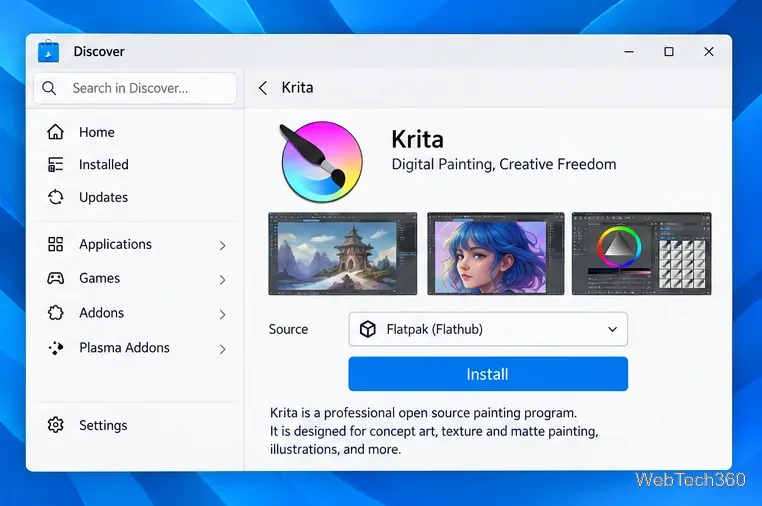
Open the app page, verify that the source is Flathub, and click Install. Discover handles the Flatpak download and required runtimes in the background. Once complete, the application appears in your normal Plasma launcher.
Discover can install the selected Flathub build without opening a terminal.
What if Flathub apps do not appear?
No Flathub source: follow the setup instructions for your exact distribution at Flathub rather than copying commands meant for another distro.
Ubuntu App Center shows no Flatpaks: this is expected; current Flathub documentation says Ubuntu App Center does not support installing Flatpak apps.
Discover has no Flatpak options: the Flatpak backend may not be installed by your distribution. Check its official setup page before changing repositories.
Only a non-Flatpak package appears: open the source selector, if available, and look for Flathub. If it is absent, Flathub is probably not enabled.
You can also browse apps directly on Flathub. On desktops where .flatpakref files are associated with a compatible graphical installer, opening the downloaded file can hand the installation to your software center without requiring a terminal.