To install fonts on Ubuntu, you can use the graphical GNOME Fonts app or copy font files into the correct font directory yourself. For a manual install, use ~/.local/share/fonts/ for your account only, or /usr/local/share/fonts/ to make fonts available to all users. After copying the files, refresh the font cache if the new typeface does not appear right away.
This guide covers the current paths and tools used by Ubuntu and GNOME, including how to verify that Fontconfig can actually see the font.
Before you install a font
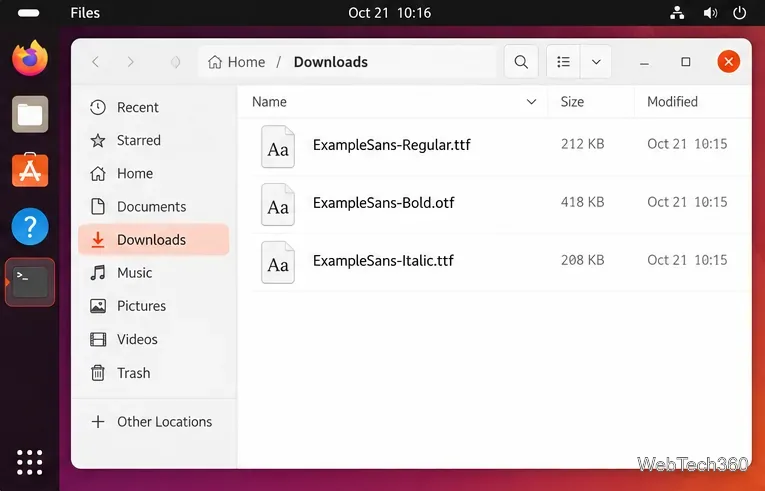
Download the font from a source you trust and check its license before using it. Ubuntu commonly works with TrueType (.ttf) and OpenType (.otf) fonts. If the download is a ZIP or another archive, extract it first so you can access the actual font files.
Method 1: Install a font with GNOME Fonts
The easiest method on a standard Ubuntu desktop is to open the font file with Fonts, also packaged as gnome-font-viewer. The official GNOME app supports installing downloaded font files and can make fonts available either to your user or to all users. Ubuntu also continues to package GNOME Font Viewer in current releases.
- Open Files and browse to the folder containing the downloaded
.ttf or .otf file.
- Double-click the font file to open its preview in Fonts. If it opens in another app, use Open With and choose Fonts.
- Use the install control in the font preview. If the app offers a choice between installing for your account and for all users, choose the scope you need.
- Close and reopen any application that was already running before you installed the font.
For current app information, see GNOME Fonts. If Fonts is not installed, Ubuntu provides the gnome-font-viewer package, which you can install with sudo apt install gnome-font-viewer.
Method 2: Install fonts for your user account
For a terminal-based install that does not require administrator access, place font files in ~/.local/share/fonts/. This is the current per-user directory documented by GNOME and Fontconfig; older guides that use ~/.fonts are best updated to the XDG data directory.
Open Terminal and run:
mkdir -p ~/.local/share/fonts
cp ~/Downloads/ExampleSans-Regular.ttf ~/.local/share/fonts/
fc-cache ~/.local/share/fonts/
Replace ExampleSans-Regular.ttf with the actual filename. The mkdir -p command is safe to run even if the directory already exists.
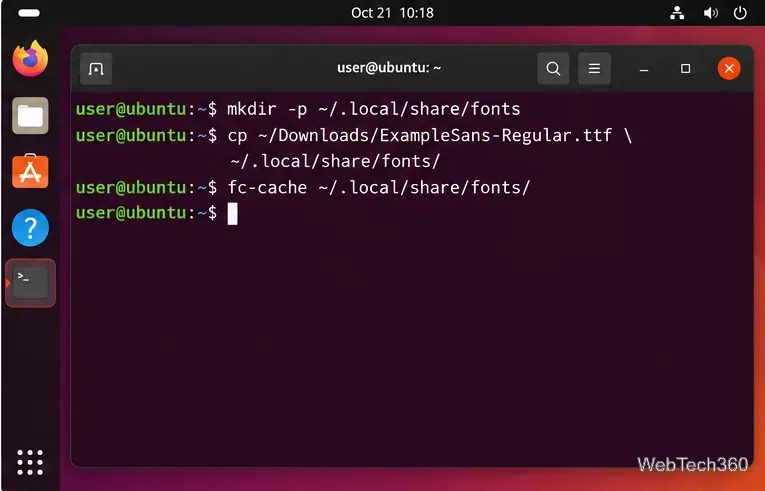
GNOME's administration guide confirms ~/.local/share/fonts/ as the per-user location and notes that you may need to refresh the cache with fc-cache. See the official per-user font instructions.
Method 3: Install fonts system-wide
Use a system-wide install when every account on the computer should have access to the font. A clean place for locally added fonts is /usr/local/share/fonts/. Creating a subfolder keeps custom files organized.
sudo mkdir -p /usr/local/share/fonts/custom
sudo cp ~/Downloads/ExampleSans-Regular.ttf /usr/local/share/fonts/custom/
sudo fc-cache /usr/local/share/fonts/
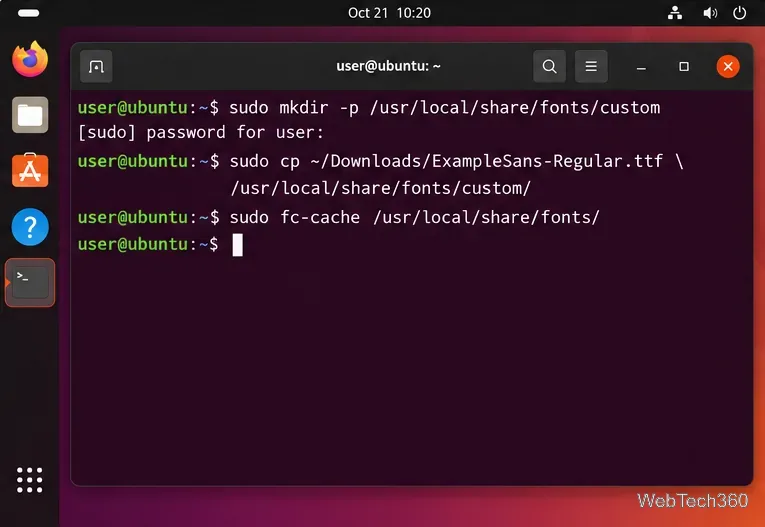
GNOME documents /usr/local/share/fonts/ as the system-wide location for extra fonts. The corresponding GNOME system font guide also recommends refreshing that directory with fc-cache when necessary.
Verify that Ubuntu can see the font
If the font still is not listed in your application, first check whether Fontconfig recognizes it. Search by the family name rather than relying only on the filename:
fc-list | grep -i "Example Sans"
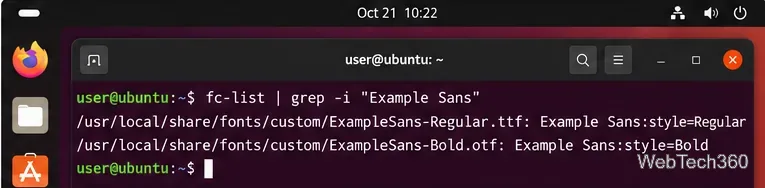
You can also ask Fontconfig which installed font matches a family name:
fc-match "Example Sans"
If you recently replaced or changed font files, force a cache rebuild with:
fc-cache -f -v
The Ubuntu fc-cache manual explains that -f forces regeneration of caches and -v prints progress.
What to do if the font does not appear
- Restart the application, not necessarily Ubuntu. GNOME notes that running applications may need to be reopened, while the entire user session does not need to be restarted.
- Make sure the font is extracted. Applications cannot use a
.ttf or .otf file that is still inside a ZIP archive.
- Check the destination. Use
~/.local/share/fonts/ for one user or /usr/local/share/fonts/ for all users.
- Refresh the cache. Run
fc-cache for the relevant directory, or use fc-cache -f -v when troubleshooting.
- Check the family name. The font's internal family name can differ from its filename, so use
fc-list or fc-match to confirm what Ubuntu calls it.
For most users, GNOME Fonts is the quickest route. The terminal methods are better when you are installing several fonts, scripting a setup, or choosing precisely whether a font belongs to one account or the whole system.









