To install GCC on Ubuntu, open a terminal and run sudo apt update, followed by sudo apt install gcc g++. Ubuntu’s current developer documentation uses these packages for the default C and C++ compilers. If you also want common build tools and development headers, install build-essential instead or afterward.
Install GCC on Ubuntu with APT
The simplest method is Ubuntu’s APT package manager. The gcc package provides the release’s default GNU C compiler, while g++ provides the C++ compiler. The exact GCC version depends on your Ubuntu release, so you do not need to hard-code a version number for a normal installation.
1. Open Terminal
Press Ctrl + Alt + T on Ubuntu Desktop, or open Terminal from the application menu. On Ubuntu Server, sign in to the shell as usual.
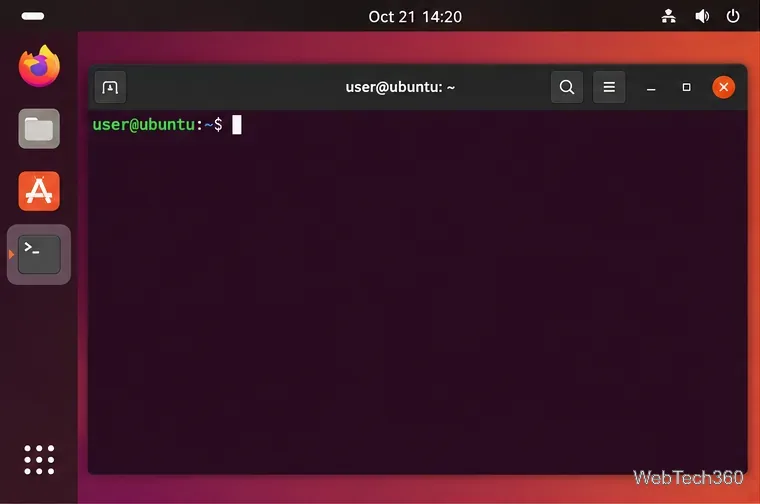
An Ubuntu terminal window ready for the GCC installation commands.
2. Refresh the package index
Update APT’s package information before installing the compiler:
sudo apt update
If sudo asks for your password, type it and press Enter. Ubuntu normally does not show characters or asterisks while you type a sudo password.
3. Install the C and C++ compilers
Install Ubuntu’s default GCC packages:
sudo apt install gcc g++
Review the proposed packages and disk-space changes, then confirm the installation when APT prompts you. This matches the current Ubuntu developer guide for setting up GCC.
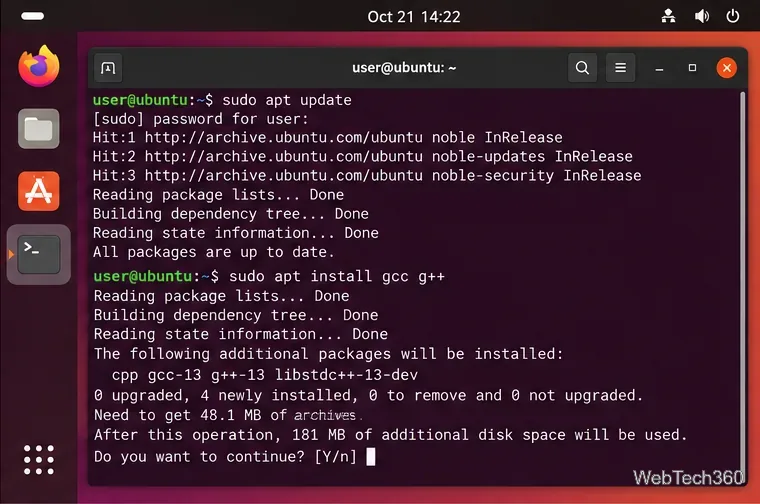
APT refreshing package information and preparing to install GCC and G++.
Verify that GCC is installed
After APT finishes, check the compiler:
gcc --version
g++ --version
command -v gcc
The version number can differ across supported Ubuntu releases. That is expected: Ubuntu’s gcc package tracks the default compiler chosen for that release. The final command should normally print a path such as /usr/bin/gcc.
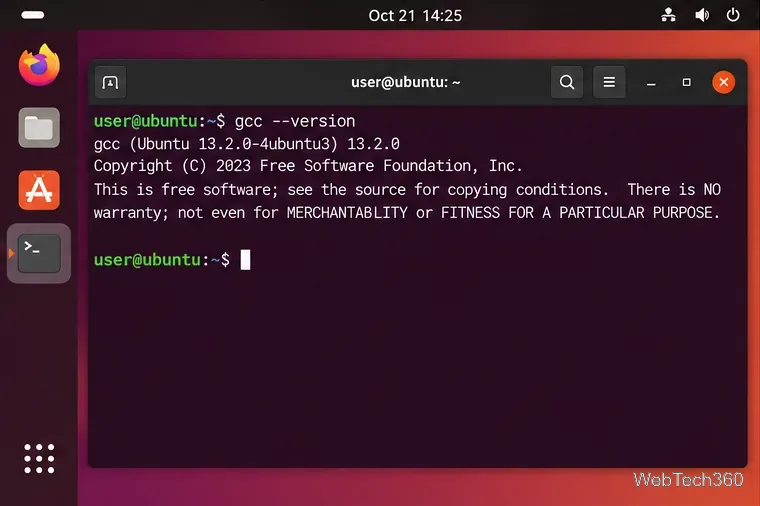
Use gcc --version to confirm that the compiler is available.
Compile a quick test program
You can confirm that compilation and linking work by building a tiny C program. Create hello.c with the following contents:
#include <stdio.h>

int main(void) {
    printf("Hello, world!\n");
    return 0;
}
Then compile and run it:
gcc hello.c -o hello
./hello
You should see Hello, world!. GCC normally handles preprocessing, compilation, assembly, and linking when you invoke it this way, as described in the official GCC manual.
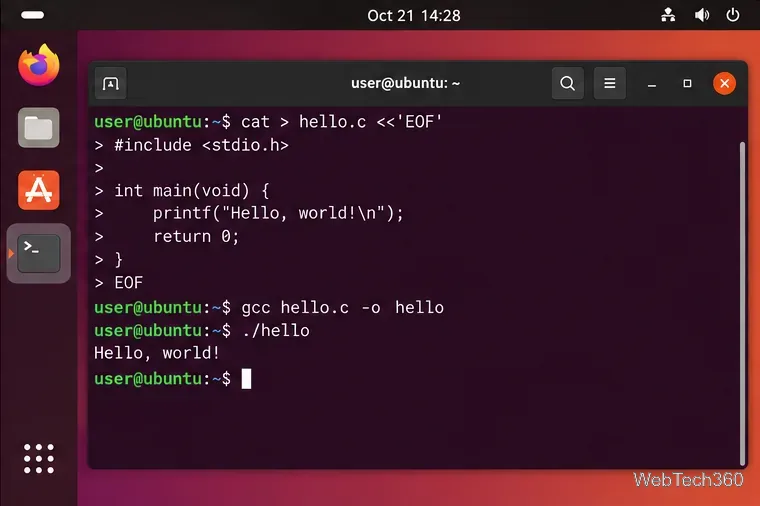
A simple C program compiled with GCC and run successfully from the terminal.
Should you install build-essential instead?
For many development tasks, build-essential is more convenient than installing only the compilers. It is a meta-package that pulls in GCC, G++, GNU Make, development headers, and Debian package-development tools needed by many source builds.
sudo apt install build-essential
If you already installed gcc g++, installing build-essential is safe; APT will keep the existing compiler packages and add any missing dependencies. You can review the package dependencies on Ubuntu’s official package site.
Install a specific GCC version
Ubuntu repositories can contain several GCC releases at the same time, but the available versions depend on your Ubuntu release and enabled repositories. Avoid copying old lists such as “gcc-7 through gcc-10,” because those package names are no longer a reliable guide for current systems.
First, see which versioned compiler packages your configured repositories offer:
apt-cache search '^gcc-[0-9]+$'
If the version you need appears, install the matching C and C++ packages. For example, when version 14 is available:
sudo apt install gcc-14 g++-14
gcc-14 --version
Replace 14 with the version present in your repository. You can keep multiple versions installed and invoke a specific compiler directly, such as gcc-14, without changing the system-wide gcc command. Ubuntu also maintains an official GCC availability reference, although your own APT results are the best check for the repositories actually configured on your machine.
Common installation problems
“Unable to locate package”: run sudo apt update and confirm that your Ubuntu release is still supported and its normal repositories are enabled.
gcc: command not found after installation: run command -v gcc and dpkg -l gcc to confirm the package is installed.
A project reports missing headers or make: install build-essential, then install any project-specific -dev libraries named by the build error.
For a standard Ubuntu C/C++ setup, sudo apt install gcc g++ is the direct route; build-essential is the better choice when you also need the usual build toolchain.