Home
» LINUX
»
How to Install GitKraken on Linux: DEB, RPM, Snap, and Archive Options
How to Install GitKraken on Linux: DEB, RPM, Snap, and Archive Options
Install GitKraken Desktop on Linux by downloading the package that matches your distribution, then installing it with the system package manager. GitKraken provides DEB, RPM, Snap, and tar.gz options. The DEB package is the usual choice for Ubuntu and Debian; Fedora and RHEL users should use RPM. Snap is convenient when snapd is already enabled.
The official guide says other distributions may work, but are not officially supported. The older AUR-helper instructions sometimes copied for Arch are community-maintained; GitKraken’s current install guide does not document them as a supported method. For Arch or openSUSE, use the Snap package if you have snapd, or consult GitKraken’s current guide before trying a native package.
Check your processor architecture
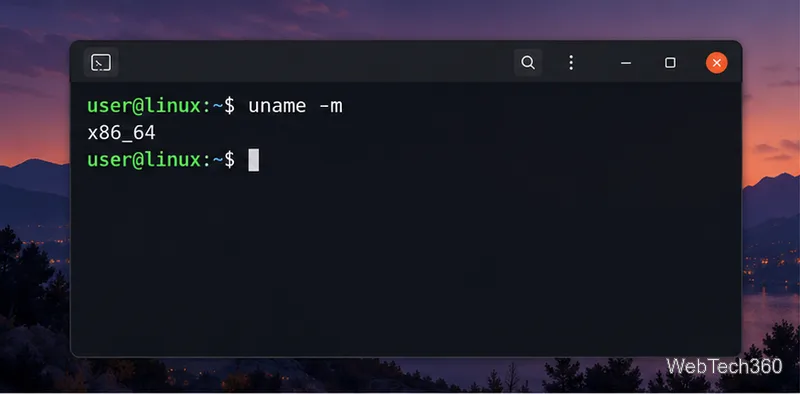
Before downloading, open a terminal and run uname -m. A common 64-bit Intel or AMD system reports x86_64; GitKraken’s standard Linux downloads for this architecture use filenames containing amd64. Do not install an amd64 package on an ARM computer. The download page also offers Linux ARM packages marked as preview; select one that matches both your CPU and distribution.
Check the Linux processor architecture
Install GitKraken on Ubuntu or Debian
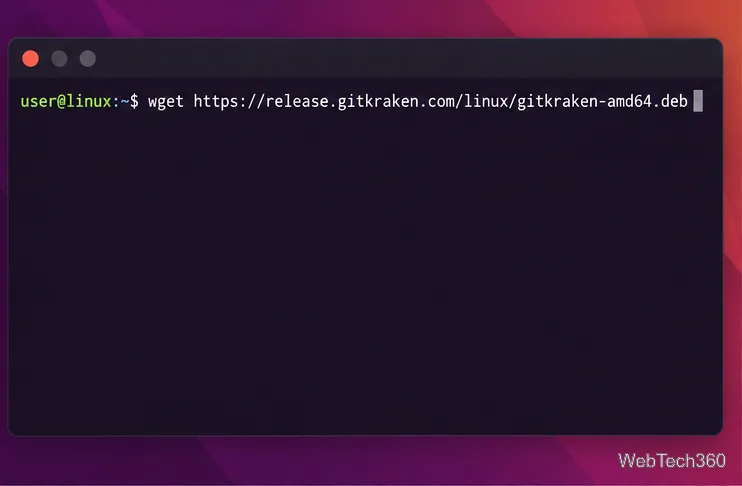
For a supported Ubuntu or Debian system, download the DEB package from the official page or use the terminal. The commands below save it in your Downloads folder and install it with APT:
cd ~/Downloads
wget https://release.gitkraken.com/linux/gitkraken-amd64.deb
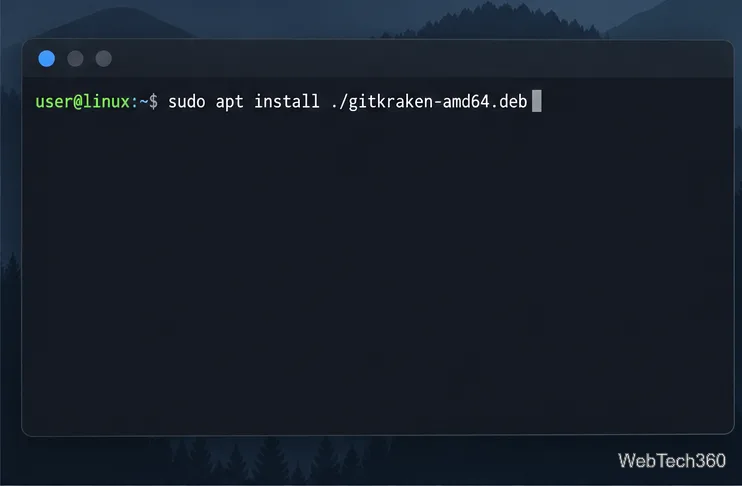
sudo apt install ./gitkraken-amd64.deb
Download the GitKraken DEB package
If you already downloaded the file in a browser, skip the wget line and make sure the terminal is in the folder containing the package. Keep the ./ before the filename: it tells APT to install the local file rather than search for a repository package. APT can resolve package dependencies as part of the install.
Install the DEB package with APT
Install GitKraken on Fedora or RHEL
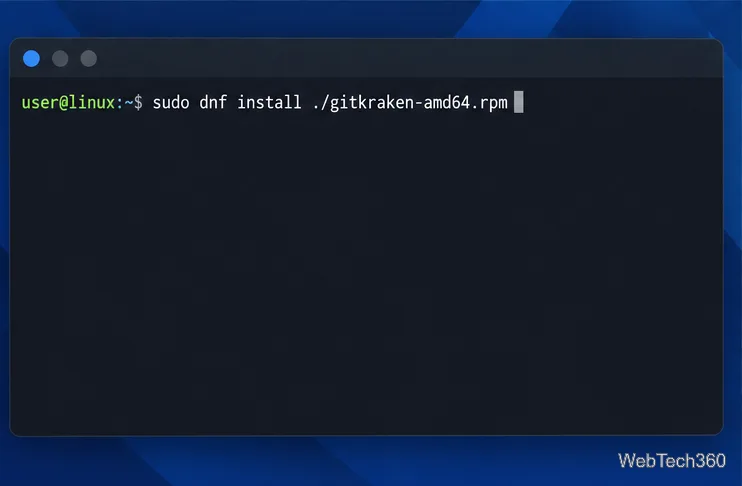
On Fedora 39 or later, or RHEL 8 or later, choose the RPM download. From the folder where it was saved, install it with DNF:
cd ~/Downloads
wget https://release.gitkraken.com/linux/gitkraken-amd64.rpm
sudo dnf install ./gitkraken-amd64.rpm
Install the RPM package with DNF
For an older distribution that has yum but not dnf, GitKraken’s guide says to use yum instead. Package support still depends on your distribution version; installing an RPM on another Linux family does not make that system officially supported.
Install with Snap
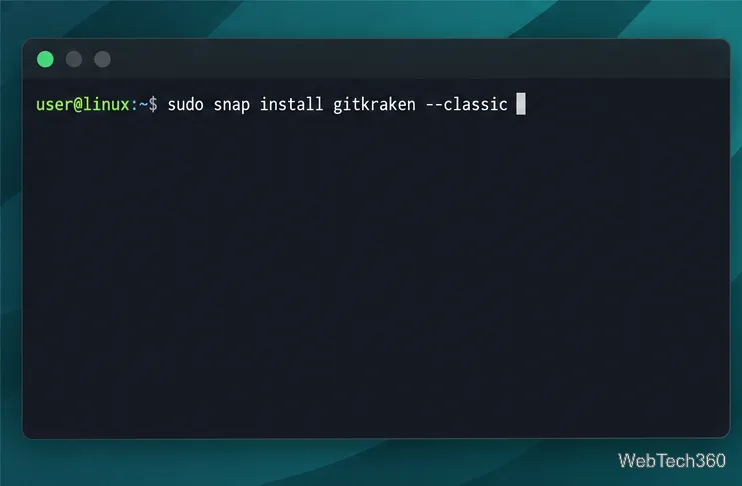
Snap is an alternative on distributions where the Snap Store and snapd are set up. If Snap is not installed, follow Canonical’s snapd setup instructions for your distribution. Then install GitKraken Desktop with the command shown on its Snap Store listing:
sudo snap install gitkraken --classic
Install GitKraken from Snap
The --classic flag is required for this Snap package. Do not omit it if Snap reports that the package needs classic confinement.
Use the tar.gz archive
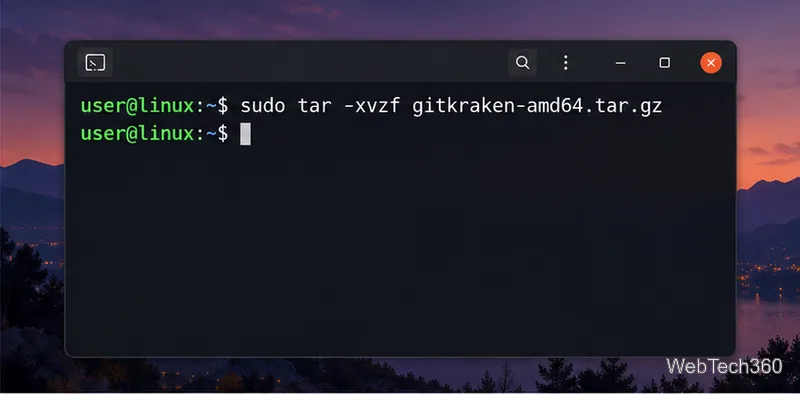
The archive is a manual option when you prefer not to use DEB, RPM, or Snap. Download the Linux tar.gz file from GitKraken’s download page, then extract it. For the x86_64 package, the vendor’s guide shows these commands:
cd ~/Downloads
wget https://release.gitkraken.com/linux/gitkraken-amd64.tar.gz
sudo tar -xvzf gitkraken-amd64.tar.gz
Extract the GitKraken archive
An archive is not registered as an APT or DNF package, so those package managers will not manage its updates or removal. After extraction, use the gitkraken launcher as described in the install guide. If your shell cannot find it, open a terminal in the extracted application folder and check the included launcher; do not assume the archive added a system-wide command.
Launch GitKraken and troubleshoot
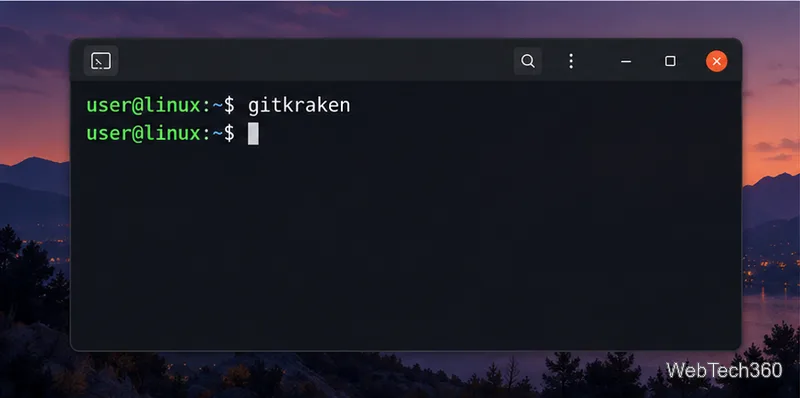
After installing a DEB, RPM, or Snap package, open GitKraken Desktop from your application menu if it appears there, or launch it from a terminal:
gitkraken
Launch GitKraken from a terminal
GitKraken’s basic Git client does not require separate Git command-line tools. Install Git from the official Git downloads page if you need GitKraken’s embedded terminal, Git LFS, or certain advanced features.
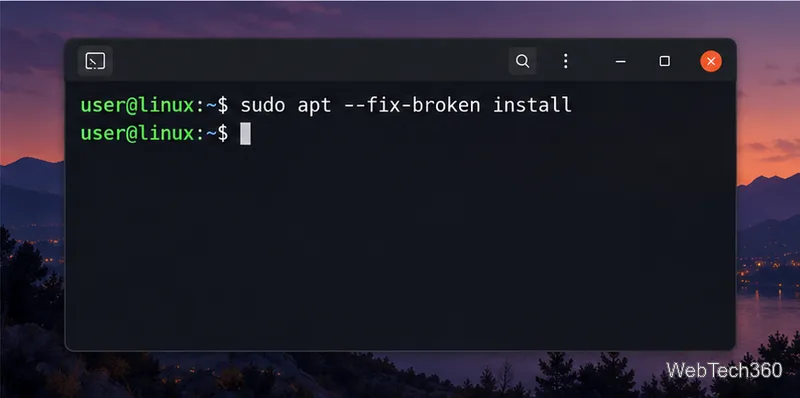
If an install fails, check the package path and architecture first. A “file not found” message usually means the terminal is not in the directory where the download was saved; run cd ~/Downloads or provide the full path. If APT reports broken or missing dependencies on Ubuntu or Debian, repair the package state and retry the install:
sudo apt --fix-broken install
Repair broken APT dependencies
For an RPM, use DNF with the local filename so it can handle dependencies. For Snap, confirm that snapd is installed and keep the required --classic flag. If GitKraken will not start after using the tar.gz archive, run the launcher from the extracted directory and verify that you downloaded the archive for your processor architecture.