Home
» LINUX
»
How to Install Google Chrome on Gooroom OS Without Breaking Security Policies
How to Install Google Chrome on Gooroom OS Without Breaking Security Policies
Installing Google Chrome on Gooroom OS is technically similar to installing it on Debian, but there is one extra question to answer first: is the computer an ordinary Gooroom installation, or a centrally managed and security-hardened endpoint? That distinction matters more than the Chrome command itself.
As of October 2026, the Gooroom project lists Gooroom 4.5 as its current 4.x common release. Its release notes show an amd64 ISO, Linux kernel 6.1, APT 2.6.1, and packages based on Debian 12. The project also documents executable-integrity protection and centralized management as optional security capabilities. Importantly, the public common ISO is documented as not including Gooroom security-hardening features by default, although organizations can add them. See the official Gooroom download page, the Gooroom 4.5 release notes, and the Gooroom security overview.
This guide therefore uses a policy-preserving approach: verify the machine first, install only Google's signed Debian package if local installation is allowed, keep Gooroom protections enabled, and stop if management policy blocks the package.
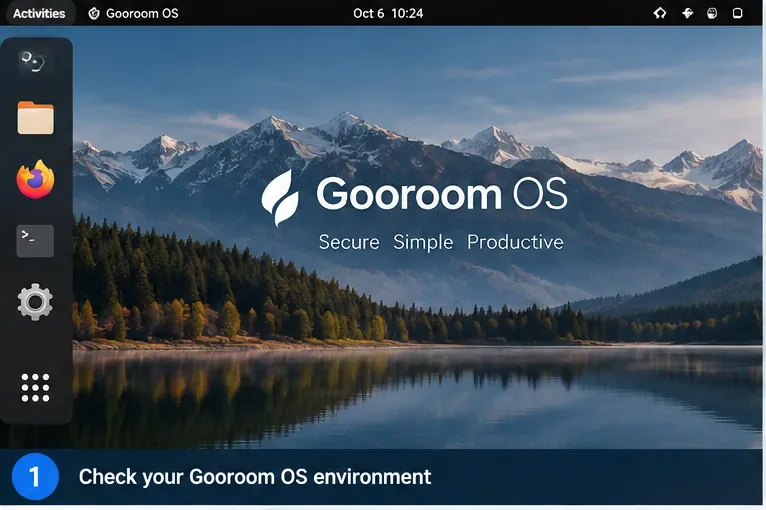
A Gooroom OS desktop illustration. The exact desktop theme can vary by release or organization.
What you need to know before installing Chrome
APT is the package manager used by Debian-family systems to install software and resolve dependencies. A .deb package is the software package format used by Debian and compatible distributions. Gooroom 4.5 includes APT, and Google officially supports Chrome on 64-bit Debian 10 or newer, so the package format is a good technical match for the current Gooroom 4.x base.
That does not automatically mean you are authorized to install it. Gooroom was designed for secured workplace environments, and its official documentation describes executable protection that verifies signatures and can prevent unauthorized programs from running. It also provides centralized endpoint management. On an organization-owned machine, those controls are part of the security design, not an error to work around.
Action: before downloading anything on a work, school, government, defense, or otherwise managed device, confirm that third-party browsers and external package repositories are permitted. If your organization requires software to come from an internal repository or administrator deployment, use that route instead.
Step 1: Confirm your Gooroom version and CPU architecture
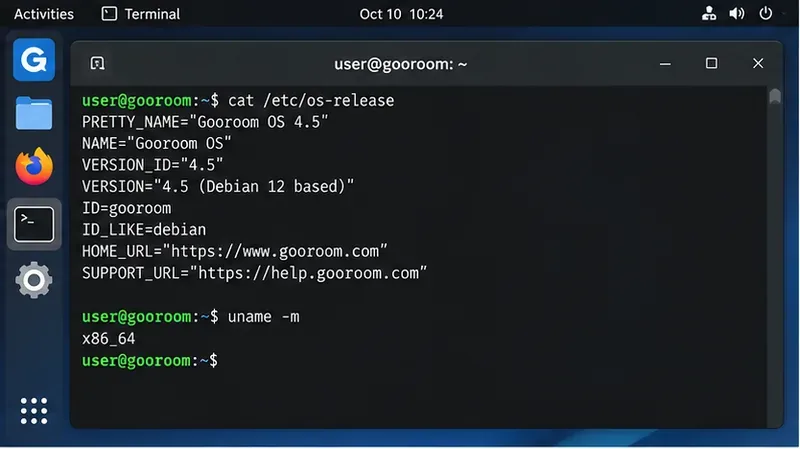
Open Terminal and inspect the operating system and architecture. These commands only read system information:
cat /etc/os-release
uname -m
On the official Gooroom 4.5 common image, you should be on the amd64/x86-64 path. If uname -m reports x86_64, choose Google's 64-bit Debian/Ubuntu .deb package. Do not assume an image or package intended for another CPU architecture will work.
Use the terminal to confirm the installed Gooroom release and CPU architecture before selecting a Chrome package.
A common misunderstanding is that “Debian-based” means every Debian package is automatically safe or policy-compliant. Compatibility and authorization are different questions. A package may install successfully while still violating an organization's approved-software policy.
Step 2: Check whether the endpoint appears to be managed
There is no single universal end-user command that proves a Gooroom device is or is not managed. Organizations can customize Gooroom, and GPMS deployment details can differ. You can, however, collect clues without changing anything:
These commands list installed packages and services containing the Gooroom name. Their output is informational only; the presence or absence of a particular package is not definitive proof of management status.
Action: if the device is enrolled in an organization or you are unsure whether software is allowlisted, ask the administrator whether Google Chrome is approved. Do not disable executable protection, Secure Boot, policy agents, or Gooroom services merely to make the installation succeed.
Avoid repackaged Chrome downloads from software portals, random mirrors, or scripts that add unknown signing keys. On a security-focused system, reducing the number of trust sources is especially important.
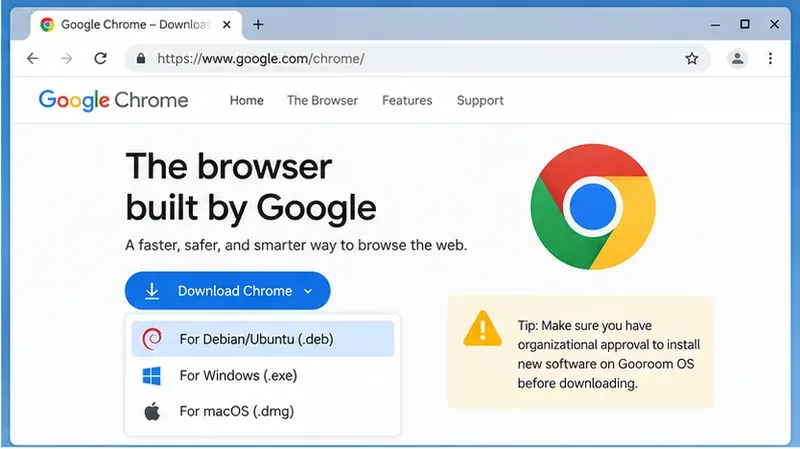
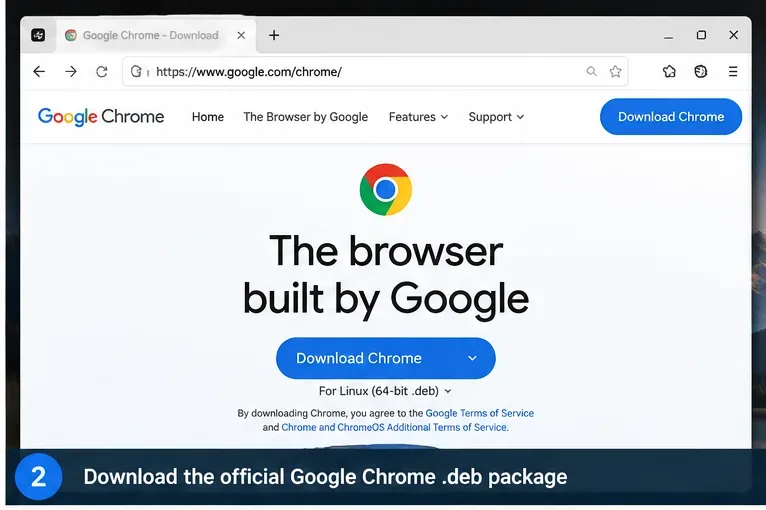
Choose the Debian/Ubuntu .deb build from Google's official Chrome download page.Google provides a Debian/Ubuntu package for supported 64-bit Linux systems.
Step 4: Install the downloaded .deb with APT
For a standard Gooroom 4.5 amd64 installation, the downloaded file is normally named similarly to google-chrome-stable_current_amd64.deb. Confirm the file is present:
cd ~/Downloads
ls -lh google-chrome*.deb
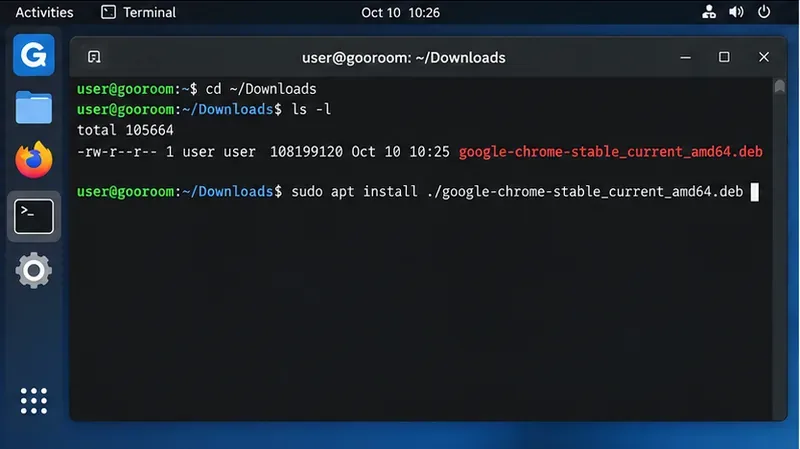
Confirm the downloaded Chrome package is in your Downloads folder before installing it.
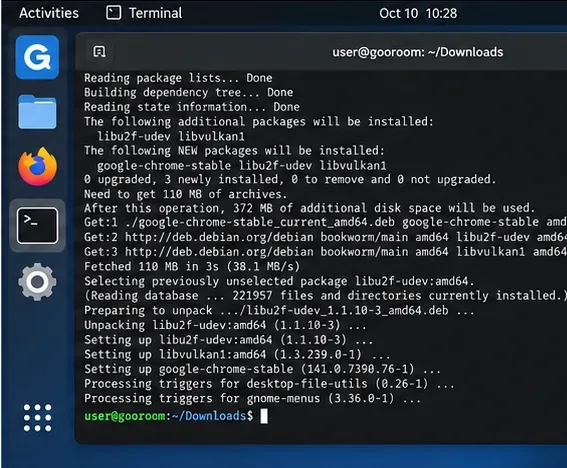
Using apt install ./package.deb lets APT resolve dependencies from configured repositories. You will need an administrator password. Read the transaction summary before accepting it. If APT reports that the operation is blocked by policy, executable protection, or insufficient privileges, stop there. That is a policy decision to resolve with the administrator, not a reason to disable security controls.
APT installs Chrome and resolves required dependencies from the system's configured repositories.
GUI alternative, when your build provides a package installer
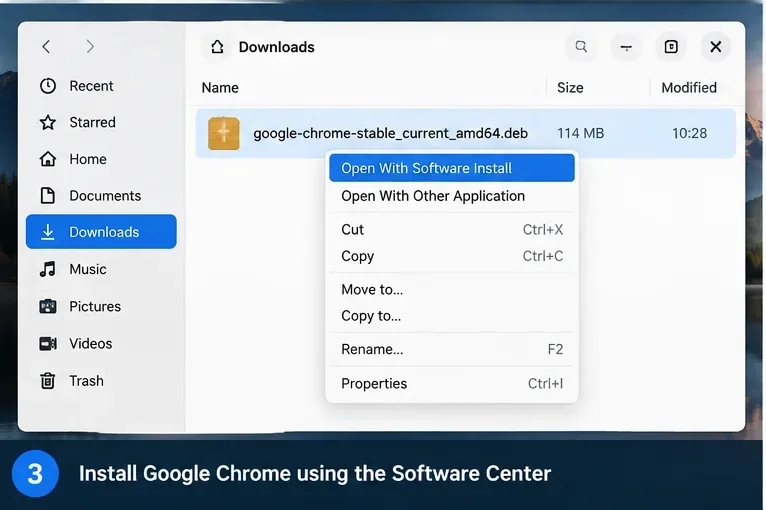
Some Gooroom desktop builds may associate .deb files with a graphical software installer. If yours does, opening the downloaded package can provide an Install action and request your administrator password. Because desktop applications vary by Gooroom build and organizational customization, the terminal method above is the more predictable reference.
If your Gooroom build provides a graphical package installer, you can open the downloaded .deb there instead of using the terminal.
Step 5: Understand what happens to updates
Google documents that installing Chrome on Linux normally adds the Google software repository so the package manager can keep Chrome updated. Google also publishes the Linux signing keys used to verify its packages. You can review the official details on the Google Linux Software Repositories page.
This is convenient on a personal, unmanaged computer because browser security patches can arrive through normal package updates. On a tightly managed Gooroom endpoint, however, an external repository may itself require approval. Some organizations mirror approved packages internally or deploy fixed versions through endpoint management.
Action: do not suppress Chrome updates just to avoid an administrator rule. If external repositories are forbidden, ask the administrator to provide Chrome through the approved software channel. Google does document administrator methods for controlling Linux updates, but those are deployment decisions, not a bypass for end users. See Google's Linux update management documentation.
Step 6: Launch Chrome and verify both browser and policy state
Launch Chrome from the application menu or run:
google-chrome
You can confirm the installed build with:
google-chrome --version
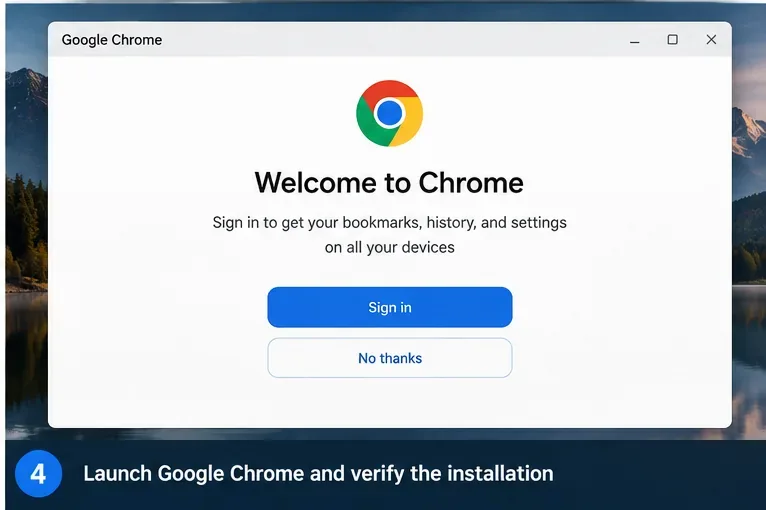
Launch Chrome after installation and confirm that the browser opens normally.
For Chrome-specific enterprise policies, enter chrome://policy in the address bar. On Linux, administrators can also deploy Chrome policy JSON files under locations such as /etc/opt/chrome/policies/managed. Google documents this model in its Chrome policy management guide.
Do not confuse Chrome policies with Gooroom OS policies. chrome://policy reports browser policy known to Chrome; it does not prove that Gooroom executable protection, GPMS rules, network controls, or other endpoint restrictions are absent.
What to do when installation fails
“Permission denied” or no sudo access
Your account is not authorized to install system packages. On an organization-managed endpoint, this is expected behavior. Ask the administrator to deploy Chrome rather than trying to obtain or bypass elevated privileges.
The package installs but Chrome will not run
On a hardened Gooroom deployment, executable protection can block unauthorized or unapproved programs. The official Gooroom documentation explicitly describes blocking programs installed without authorization. Do not disable that protection. Capture the error message and send it to the administrator so the package can be approved through the organization's normal process.
APT reports a signing-key or repository error
Do not work around signature verification by marking an unverified repository as trusted. First confirm that the repository is Google's official one and compare the signing-key information with Google's repository documentation. Package-signature errors are security signals and should not be ignored.
You installed Chrome before checking policy
If the computer is managed and Chrome was not approved, notify the administrator rather than attempting to hide the change. On an unmanaged machine, Chrome can be removed with sudo apt remove google-chrome-stable. On a managed machine, let IT decide whether the associated repository configuration also needs to be removed or replaced by an internal mirror.
Chrome or Gooroom Browser: which should you use?
Gooroom already includes a Chromium-based browser designed around its security model. The official Gooroom overview describes separate trusted and untrusted browsing processes and differentiated browser security policies. Chrome may still be required for a specific enterprise web application, Google account workflow, extension, test matrix, or vendor support requirement, but it is not automatically a replacement for Gooroom Browser.
For a personal Gooroom installation, using Chrome is mainly a compatibility choice. For a managed workplace deployment, browser choice is also a security-architecture decision. If an application works in Gooroom Browser, staying with the organization's supported browser usually reduces maintenance and policy complexity. If Chrome is required, the cleanest solution is administrator-approved deployment with updates and browser policy configured centrally.
Safe installation checklist
Confirm the Gooroom release and architecture before downloading a package.
Determine whether the endpoint is centrally managed or security-hardened.
Use only Google's official Debian/Ubuntu .deb package.
Install with the normal package manager; do not disable Gooroom security features.
Review whether adding Google's update repository is allowed by organizational policy.
Verify Chrome starts, stays updateable, and receives any required enterprise policies.
If a policy blocks installation or execution, stop and use the administrator-approved deployment path.
The safest rule is simple: treat a Gooroom policy block as an instruction, not an obstacle. On an unmanaged Gooroom 4.5 system, installing Google's official .deb with APT is straightforward. On a managed endpoint, the correct installation is the one that your organization can approve, update, audit, and support.