Home
» LINUX
»
How to Install Google Earth Pro on Linux
How to Install Google Earth Pro on Linux
Google Earth Pro is still available for Linux as an official 64-bit desktop download. The cleanest method is to download Google’s DEB package for Ubuntu/Debian-based systems or its RPM package for Fedora/openSUSE, then install the file with your distribution’s package manager.
As of October 2026, Google lists Google Earth Pro 7.3.7 as the newest 7.x direct installer for Linux. Google also says new Google Earth Pro desktop downloads are scheduled to end on June 25, 2027, although the legacy desktop app can continue to be used. You can verify the current release on Google’s official Google Earth Pro update page.
Before you install Google Earth Pro on Linux
Google’s Linux requirements call for an amd64-compatible 64-bit CPU, at least 2 GB of RAM, 2 GB of free disk space, an internet connection, and OpenGL 1.4-compatible 3D graphics. Google recommends 4 GB of RAM, 4 GB of free space, and OpenGL 2.0. Its support page says recent Ubuntu and Fedora releases are supported, while other Linux distributions may work but are not guaranteed. See Google’s official system requirements for the full list.
The current Linux downloads are for x86_64/amd64 systems. Google does not list an official ARM Linux package on its installer page, so devices such as ARM-based Linux laptops and single-board computers are not covered by this guide.
1. Download the correct Linux package
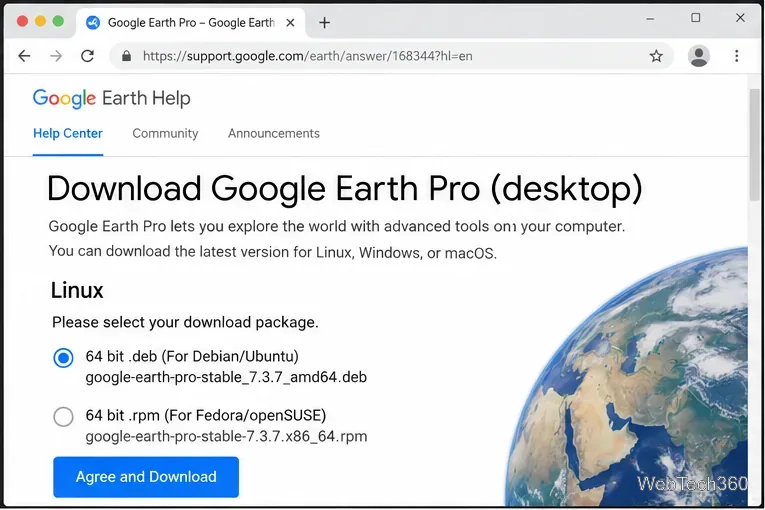
Use Google’s official installer page and choose the package that matches your distribution:
Ubuntu, Debian, Linux Mint, and similar Debian-based distributions: download the 64-bit .deb package.
Fedora and openSUSE: download the 64-bit .rpm package.
Choose the DEB package for Debian/Ubuntu-based systems or the RPM package for Fedora/openSUSE.
For the version currently listed by Google, the direct files are Google Earth Pro 7.3.7 DEB and Google Earth Pro 7.3.7 RPM. If Google publishes a newer release, use the filename you actually downloaded in the commands below.
2. Install Google Earth Pro on Ubuntu or Debian
Open a terminal and move to the folder where your browser saved the DEB file. For the usual Downloads folder:
Using APT to install the downloaded DEB lets the package manager handle required dependencies.
This approach is preferable to installing the file with dpkg alone because APT can resolve dependencies during installation. If your downloaded filename is different, type sudo apt install ./ and then the actual DEB filename.
3. Install Google Earth Pro on Fedora or openSUSE
Fedora
After downloading the RPM, open a terminal in your Downloads directory and run:
cd ~/Downloads
sudo dnf install ./google-earth-pro-stable-7.3.7.x86_64.rpm
openSUSE
Use Zypper with the same RPM package:
cd ~/Downloads
sudo zypper install ./google-earth-pro-stable-7.3.7.x86_64.rpm
The Google-provided RPM can be installed with the native package manager on Fedora or openSUSE.
On both systems, review the package-manager prompt and confirm the installation when asked.
4. Launch Google Earth Pro
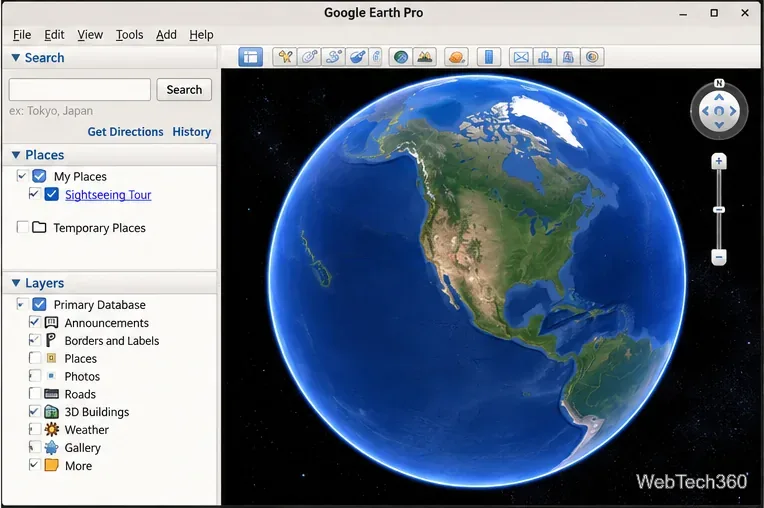
When installation finishes, open your desktop’s application menu and search for Google Earth Pro. The program should start with the familiar globe view, search tools, places, and map layers.
Google Earth Pro running on a Linux desktop after installation.
What about Arch Linux and other distributions?
The older method of installing an AUR helper such as Trizen is no longer a good default recommendation for this guide. Google does not officially support Arch Linux or provide an Arch package. Community packages may exist, but they are maintained separately from Google and can change independently. If you use Arch, Manjaro, or another unsupported distribution, check the package source and build instructions carefully before installing it.
If Google Earth Pro will not install or start
Check the architecture: the official Linux packages are 64-bit amd64/x86_64 installers.
Use the package manager rather than a low-level installer: APT, DNF, and Zypper can resolve dependencies more cleanly.
Confirm 3D graphics support: Google lists OpenGL 1.4 as the minimum and OpenGL 2.0 as recommended.
Use an administrator account: installation requires permission to add system packages.
Re-download from Google if the file is incomplete: avoid old mirrors or third-party download sites.
If you only need the current Google Earth experience and do not specifically require the legacy Pro desktop workflow, Google is increasingly directing users toward Google Earth on the web and mobile as it approaches the June 2027 desktop download cutoff.