Home
» LINUX
»
How to Install GParted Partition Editor on Linux
How to Install GParted Partition Editor on Linux
GParted is a graphical partition editor for Linux that can create, delete, resize, move, copy, label, and check partitions. On most distributions, the safest way to install it is from the distribution's official package repository. Upstream currently lists GParted 1.8.1 as the stable release, although your Linux distribution may provide a different supported version.
If you only want to install the desktop application, use the command for your distribution below. If you need to resize or move the partition that contains your running Linux system, skip to the GParted Live section because a system partition normally cannot be fully edited while it is mounted.
Before installing or using GParted
GParted makes low-level changes to disk partitions, so back up important files before resizing, moving, deleting, or formatting anything. The official GParted manual notes that many partition operations require the target partition to be unmounted, and moving a boot partition can leave an operating system unable to start.
Also confirm the device name and partition you intend to edit before applying pending operations. Installing GParted itself does not change your partitions; changes happen only when you use the application and apply an operation.
Install GParted on Ubuntu or Debian
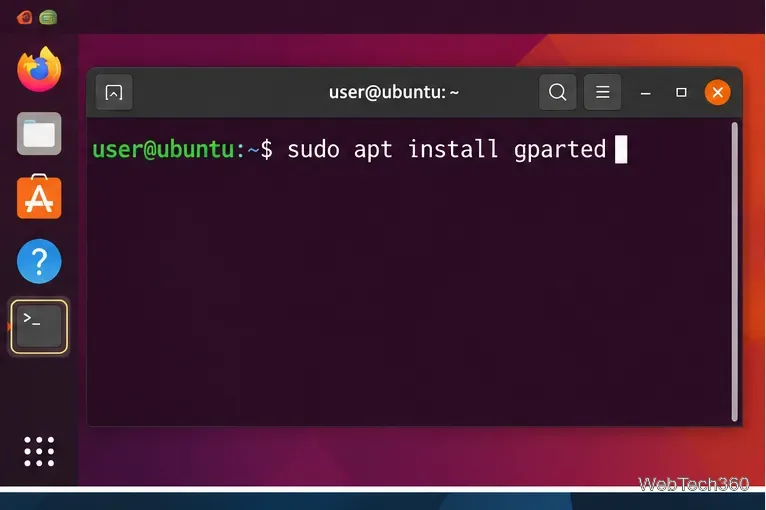
Ubuntu and Debian both provide the gparted package through APT. Open a terminal, refresh the package list if needed, and install it:
sudo apt update
sudo apt install gparted
APT may ask for your password and confirmation. After installation, open the application menu and search for GParted, or run gparted from a terminal. The application may request administrator authentication when it starts.
On Ubuntu and Debian-based systems, APT installs the GParted package from the configured repositories.
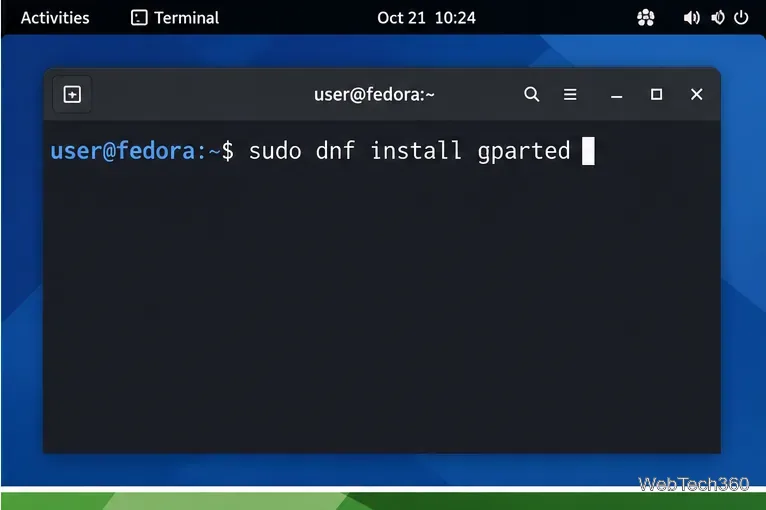
Fedora includes GParted in its package repositories. Install it with DNF:
sudo dnf install gparted
Review the transaction summary, confirm the installation when prompted, and then launch GParted from the desktop menu. Fedora's official package database lists the current Fedora builds on its GParted package page.
Fedora users can install GParted directly with DNF.
Install GParted on Arch Linux
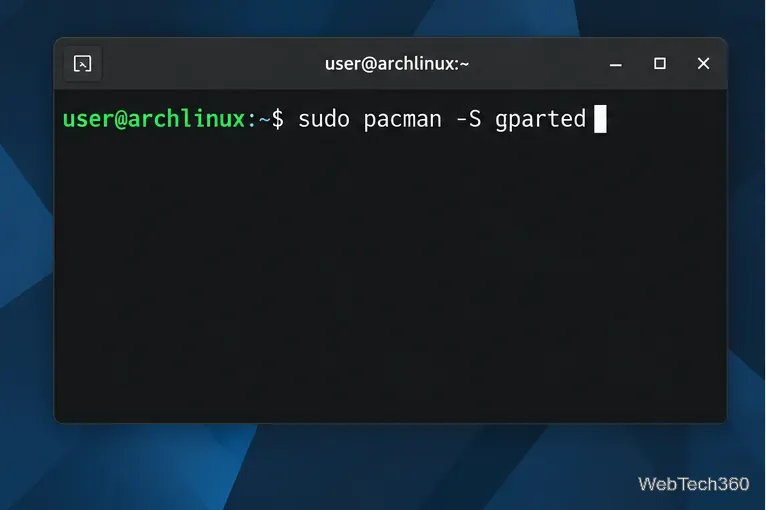
GParted is available as an official package in Arch Linux's Extra repository, so an AUR helper is not required. On an up-to-date Arch system, install it with:
sudo pacman -S gparted
If your system has not been updated recently, follow Arch's normal full-upgrade practice first rather than performing a partial upgrade. The official Arch Linux package page shows the packaged GParted version and dependencies.
Arch Linux provides GParted in the official Extra repository.
Install GParted on openSUSE
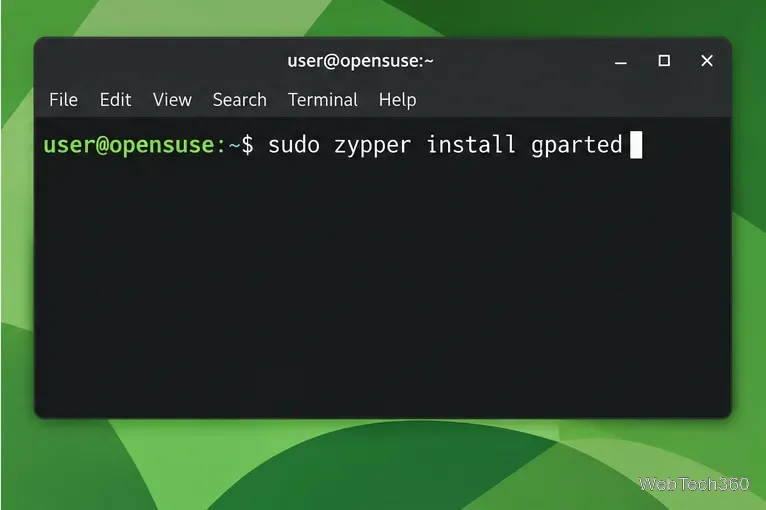
On openSUSE, use Zypper to install the package:
sudo zypper install gparted
Accept the package transaction when prompted. The official Zypper documentation describes zypper install as the standard command for installing packages and their dependencies.
openSUSE users can install the GParted package with Zypper.
When to use GParted Live instead
Installing GParted inside your normal Linux session is ideal for working with secondary drives, removable storage, and partitions that can be unmounted. For the root partition, a boot partition, or another partition that stays busy while Linux is running, use GParted Live.
GParted Live boots independently from your installed operating system, which lets you work on partitions without mounting them first. The GParted project specifically recommends creating a disk or partition-image backup before resize or move operations.
GParted installed but not opening?
Command not found: confirm the package installed successfully with your distribution's package manager, then try gparted again.
No permission to edit disks: launch GParted from the desktop menu so the normal administrator-authentication prompt can appear.
Resize or move is unavailable: the partition may be mounted or otherwise active. Unmount it if safe, or boot GParted Live for system partitions.
Filesystem option is missing: some filesystems depend on additional filesystem utilities. Check the official GParted site and your distribution's package documentation for supported tools.
For most users, the distribution package is the simplest and most maintainable installation method. Once GParted is installed, take extra care with device selection and always review pending operations before applying changes to disk.