Home
» LINUX
»
How to Install JetBrains CLion on Linux: 4 Methods
How to Install JetBrains CLion on Linux: 4 Methods
To install JetBrains CLion on Linux, use the JetBrains Toolbox App for the simplest supported setup, download the official CLion archive for a manual install, or choose Snap. A Flatpak is also available on Flathub, but that package is community-provided and has sandbox limitations. Before opening a project, make sure your Linux system has a C or C++ compiler and the build tools your project needs.
Check your Linux setup first
JetBrains lists GCC/G++ or Clang as Linux compiler options. CLion also needs a toolchain, which typically includes a compiler, debugger, and build system. On Ubuntu or Debian, one common setup is:
Package names vary by distribution; install the equivalent compiler, debugger, and CMake packages with your distro’s package manager. Current CLion system requirements list x86_64 or arm64 processors, four CPU cores, 8 GB of RAM, and 10 GB of free disk space. You do not need to install Java separately because CLion includes JetBrains Runtime. Check the CLion installation guide if you are using an older or less common Linux distribution.
Method 1: Install CLion with JetBrains Toolbox
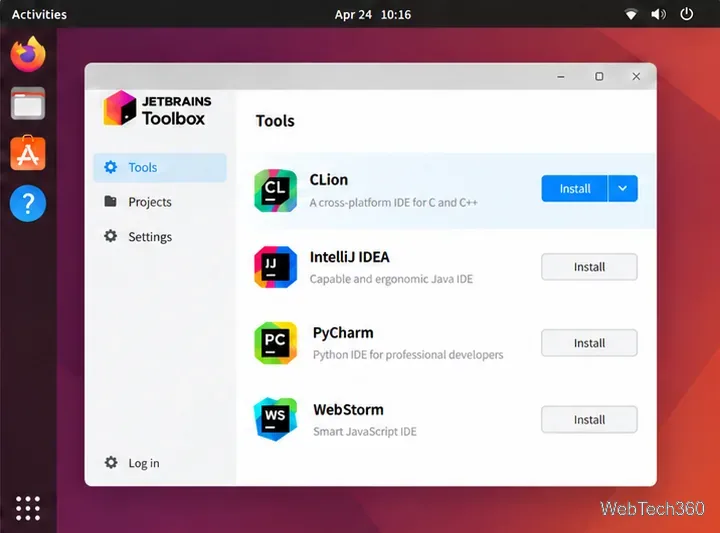
Toolbox is JetBrains’ recommended installer. It can install CLion, keep it updated, manage multiple versions, and roll back an update. Download the Linux Toolbox App from the JetBrains Toolbox page. The Linux download is a compressed archive. Extract it to a directory you can write to, then run the Toolbox launcher from the extracted folder:
cd ~/Downloads
mkdir -p ~/.local/opt
tar -xvf jetbrains-toolbox-*.tar.gz -C ~/.local/opt
cd ~/.local/opt/jetbrains-toolbox-*/
./bin/jetbrains-toolbox
If you have more than one Toolbox archive in Downloads, replace the wildcard with the exact filename. In Toolbox, find CLion and select Install. Choose a version from the available versions menu if you need a specific release. Sign in to your JetBrains account to activate a license associated with it. For troubleshooting Linux dependencies or a first launch, follow JetBrains’ Toolbox App installation instructions.
Method 2: Install the standalone CLion tarball
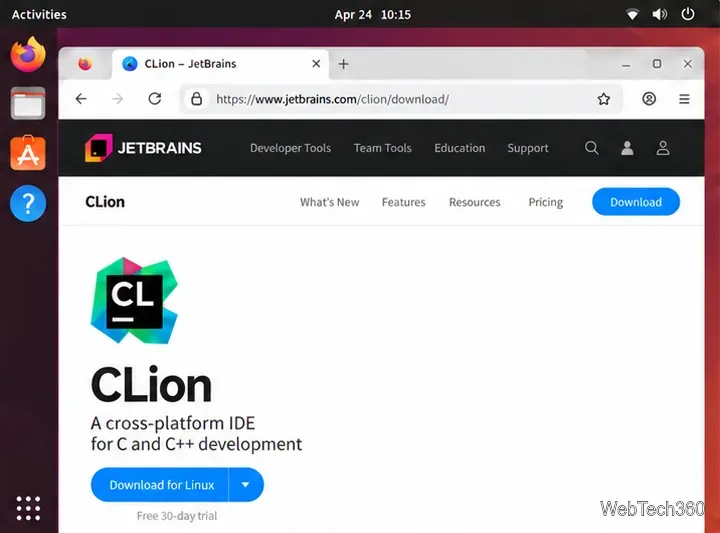
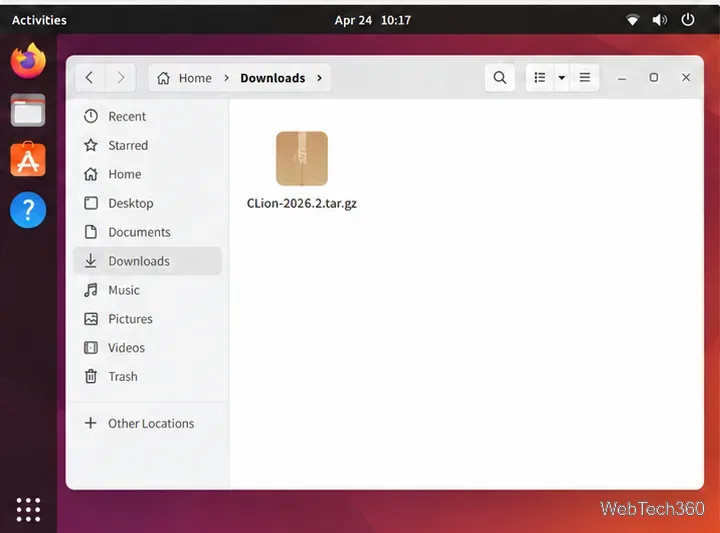
Use the standalone archive if you want to choose the installation directory yourself or prefer not to use an app manager. Open the official CLion download page, select Linux, and download the current .tar.gz archive.
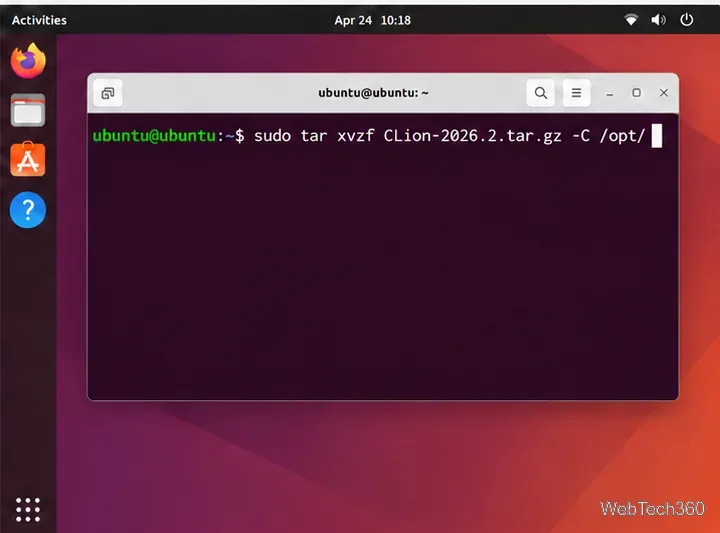
In a terminal, extract the archive to /opt, then start the IDE with the script inside its bin directory:
sudo tar xvzf ~/Downloads/CLion-*.tar.gz -C /opt/
sh /opt/clion-*/bin/clion.sh
If the wildcard matches more than one downloaded archive or an older installation, use the exact archive filename and install into a clean directory. JetBrains warns against extracting a new archive over an existing CLion installation. To add a desktop-menu shortcut, open the Welcome screen and choose Configure | Create Desktop Entry, or use Tools | Create Desktop Entry from the IDE menu.
Method 3: Install the official Snap package
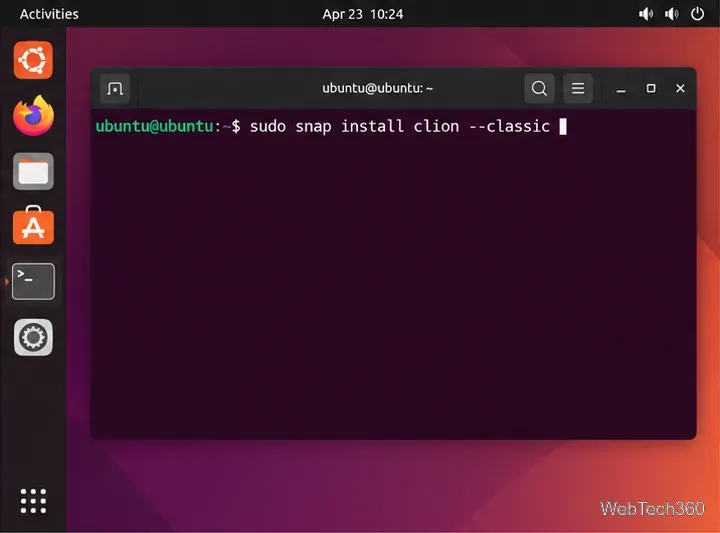
Snap is a convenient option if Snap support is already enabled on your distribution. Install and start the snapd service first if needed, using the Snapcraft snapd setup guide. Then install CLion:
sudo snap install clion --classic
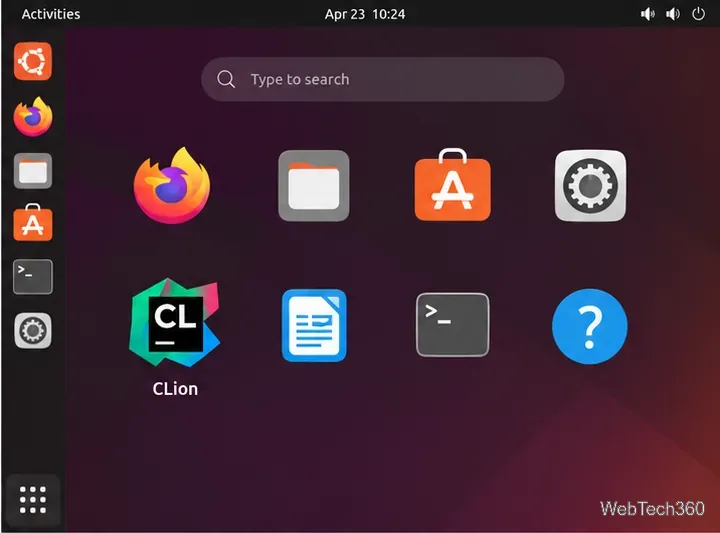
The --classic flag is required by the CLion Snap because it needs access similar to a traditionally installed desktop application. Once installation finishes, launch it with clion or select it from your application launcher. JetBrains notes that the Snap build can have performance or workflow issues in some cases. If you run into them, the Toolbox App is JetBrains’ recommended alternative.
Method 4: Install the Flathub package
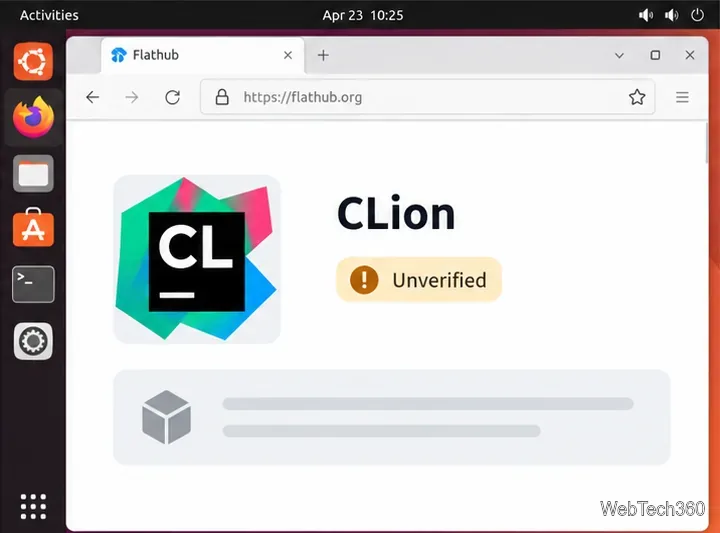
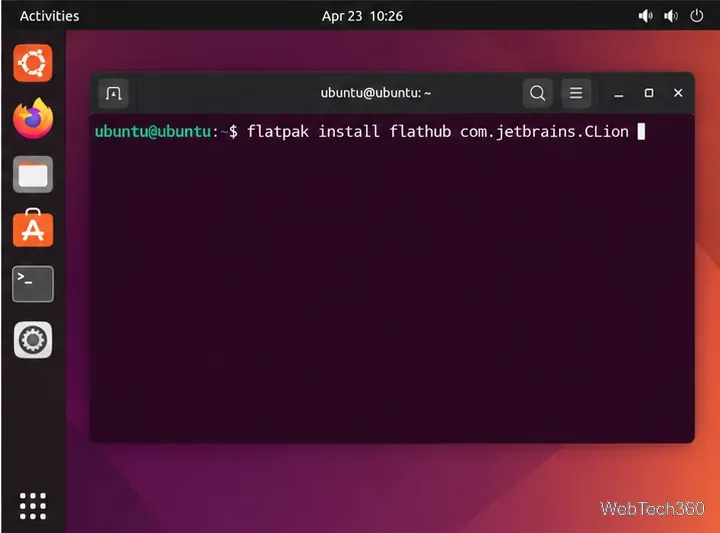
Flathub lists CLion as an unverified app. Its page says the package is community-provided, is not affiliated with or supported by JetBrains, and may not support every use case because of Flatpak sandbox limits. If those tradeoffs work for you and Flatpak is installed, add Flathub for your user and install CLion:
On first start, sign in or choose the available license option, then open or create a project. If CLion cannot build or debug your code, confirm that your compiler, debugger, and build system are installed. In CLion, review the detected toolchain under Settings | Build, Execution, Deployment | Toolchains. For a standalone install, create the desktop entry if you want CLion to appear in your desktop’s application menu. You can use CLion without installing a separate Java runtime.