Home
» LINUX
»
How to Install Kali Linux Apps in Debian Safely
How to Install Kali Linux Apps in Debian Safely
If you want Kali Linux security tools on a Debian computer, do not add the Kali rolling repository directly to your Debian APT sources. Kali’s own documentation warns that adding Kali repositories to a non-Kali operating system greatly increases the chance of breaking that installation. The safer choices are to install an equivalent package from Debian when it is available, or run the official Kali Linux image in a container and install Kali packages inside that isolated environment.
This guide shows both approaches. Use security-testing software only on systems, networks, and accounts you own or have explicit permission to assess.
Why the old “add the Kali repo to Debian” method should be avoided
Older tutorials often told Debian users to add http://http.kali.org/kali to /etc/apt/sources.list, import Kali’s signing key, and then run apt upgrade. That can cause APT to replace Debian packages with Kali builds or pull in incompatible dependency versions.
Kali now explicitly says that adding its repository to a non-Kali OS is unsupported and can break the system. See the official Kali repository documentation. Debian also warns that mixing repositories or adding third-party sources carries stability and security risks, and its current documentation treats the old apt-key workflow as obsolete. See Debian’s package authentication guidance.
Method 1: Install the tool from Debian first
Many tools associated with Kali are normal open-source packages that are also available in Debian. If Debian already provides the program you need, this is the simplest option because APT keeps all dependencies within Debian’s package set.
Refresh package information:
sudo apt update
Search for the tool. For example:
apt search nmap
If the package is available, install it normally:
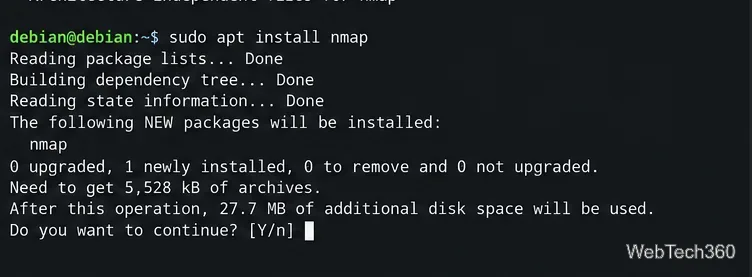
sudo apt install nmap
Install a tool from Debian’s own repository when the package you need is already available there.
This approach is best when you need only one or two utilities and do not require Kali-specific packaging.
Method 2: Run Kali packages in an official container
If you specifically need Kali’s package selection or a Kali-only package, keep it separate from the Debian host. Kali publishes official Docker images, including kalilinux/kali-rolling. Kali notes that its container images are intentionally minimal, so you install the packages you want after starting the container. See the official Kali Docker image documentation.
1. Install Docker on Debian
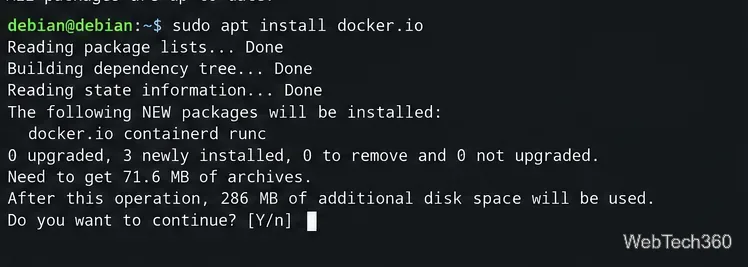
On Debian systems that provide the docker.io package, you can install it with APT. Debian’s current stable package listing is available on the Debian package site.
The Debian-packaged Docker engine provides a clean way to keep Kali packages off the host APT database.
2. Pull the official Kali rolling image
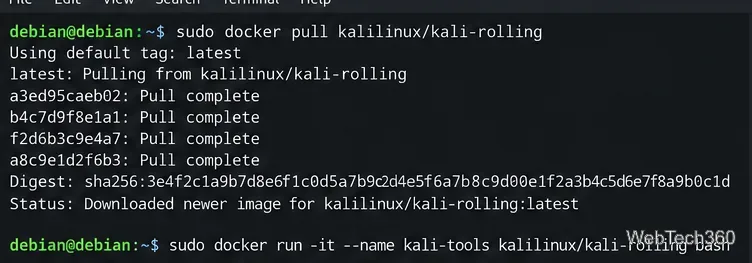
sudo docker pull kalilinux/kali-rolling
3. Create an interactive Kali container
sudo docker run --name kali-tools -it kalilinux/kali-rolling bash
Your prompt should change because you are now working inside the container rather than directly on Debian.
Pull the official Kali rolling image, then start a named interactive container for the tools you want to install.
4. Install Kali tools inside the container
First refresh Kali’s package index:
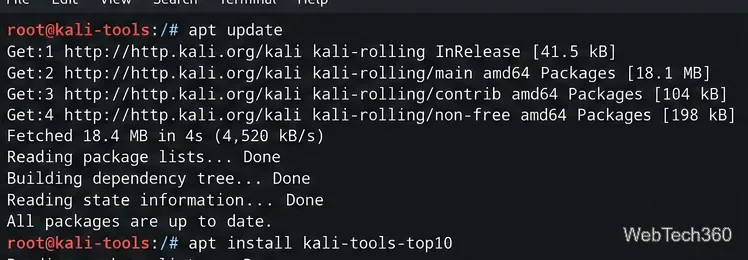
apt update
For a small curated toolset, Kali currently provides the kali-tools-top10 metapackage:
apt install kali-tools-top10
You can also install an individual package instead of a metapackage. Kali’s current metapackage list and dependencies are documented on the official Kali tools site.
Install Kali packages inside the Kali container, not into Debian’s host package database.
Reopen or remove the Kali container
After you exit the shell, the named container remains available. Reopen it with:
sudo docker start -ai kali-tools
If you no longer need it, remove the container:
sudo docker rm kali-tools
You can also remove the downloaded image later with sudo docker image rm kalilinux/kali-rolling.
When a container is not enough
A basic container works well for many command-line utilities, but some Kali applications expect a full desktop, direct USB access, Wi-Fi monitor mode, low-level networking capabilities, or system services. In those cases, use a Kali virtual machine or a separate Kali installation instead of forcing the packages onto Debian.
The key rule is simple: keep Debian repositories on the Debian host and Kali repositories inside Kali. That preserves Debian’s dependency model while still giving you access to Kali’s package ecosystem when you need it.