Home
» LINUX
»
How to Install Komodo Edit on Linux
How to Install Komodo Edit on Linux
To install Komodo Edit on Linux, download the archived 12.0.1 Linux tarball, extract it, and run the included install.sh script. The official project release page identifies 12.0.1 as the last build made by ActiveState, so treat Komodo Edit as legacy software: the archived package may not work on every current Linux distribution, and it should not be expected to receive new fixes.
Check your Linux system and download
Open a terminal and check the processor architecture:
uname -m
Choose the matching archive from the official Komodo 12.0.1 download directory. For most Intel or AMD Linux computers, use the 64-bit x86_64 file. The archive also lists an older 32-bit x86 build. If your system reports aarch64 or another ARM architecture, neither x86 package is a native build for it.
The download is a compressed .tar.gz archive rather than a DEB or RPM package, so the instructions below use the terminal and work across distributions. You do not need to create an ActiveState account just to install the downloaded archive. For an integrity check, download the SHA256SUM file from the same directory and compare the line for your archive with the output of sha256sum.
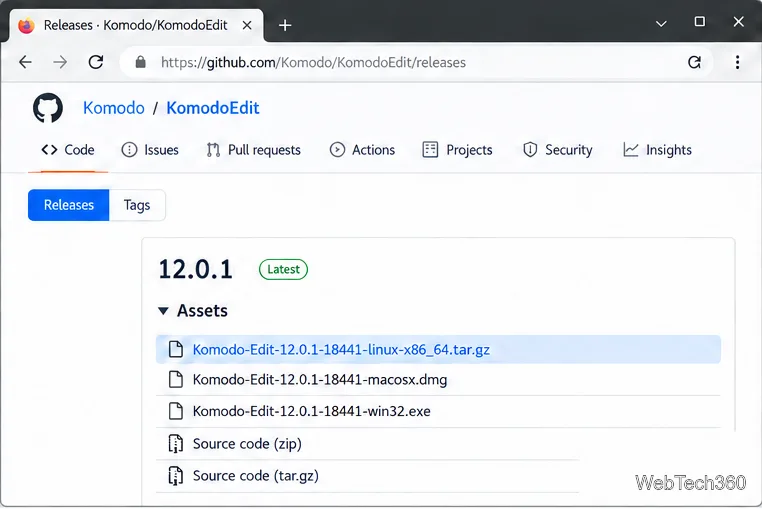
Find the Linux x86_64 archive in the Komodo Edit 12.0.1 release assets.
Extract the archive
In a terminal, move to the directory where your browser saved the file. The example below uses ~/Downloads; change it if you saved the archive elsewhere. First list the archive contents, then extract it:
cd ~/Downloads
tar -tzf Komodo-Edit-12.0.1-18441-linux-x86_64.tar.gz | head
tar -xzf Komodo-Edit-12.0.1-18441-linux-x86_64.tar.gz
If you downloaded the 32-bit build, replace the archive name in both commands with the x86 filename. The listing previews the archive’s top-level entries. After extraction, locate the installer script with:
find . -maxdepth 3 -type f -name install.sh -print
Keep the extracted folder until you have confirmed that the editor launches; the installer and application files are inside it.
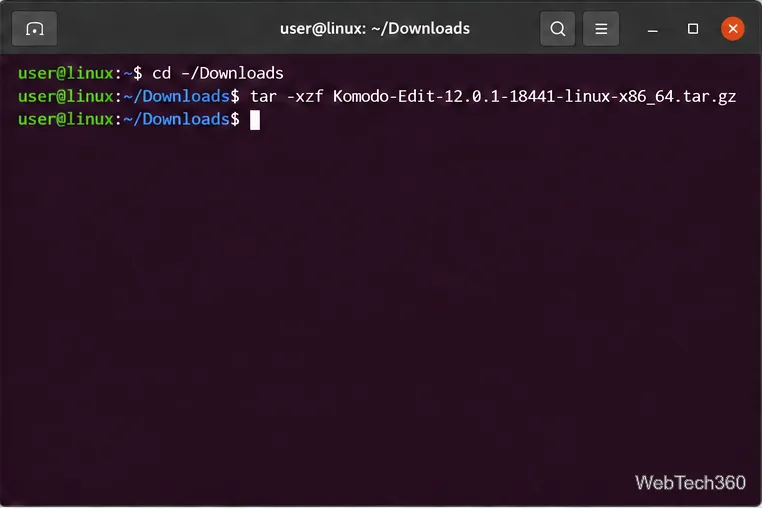
Extract the downloaded tarball from the folder where it was saved.
Run the Komodo installer
Change into the extracted directory that contains install.sh. Its name can vary slightly, so use the path printed by the find command above. Then start the installer:
cd ~/Downloads/Komodo-Edit-12.0.1-18441-linux-x86_64
./install.sh
If your extracted folder has a different name, substitute that name in the cd command. The script prompts for an installation directory. Choose a location your Linux user can write to. For a home-directory installation, create a parent folder first with mkdir -p "$HOME/Applications", then enter the full path to a folder such as /home/your-user/Applications/Komodo-Edit, replacing your-user with your Linux account name. Using a directory you own avoids making the older installer run with administrator privileges. If you prefer the default system location, keep it only if you have the required permissions.
Wait for the script to finish before closing the terminal. If the installer reports a write-permission error, rerun it as your regular user and select a writable directory instead of switching immediately to sudo.
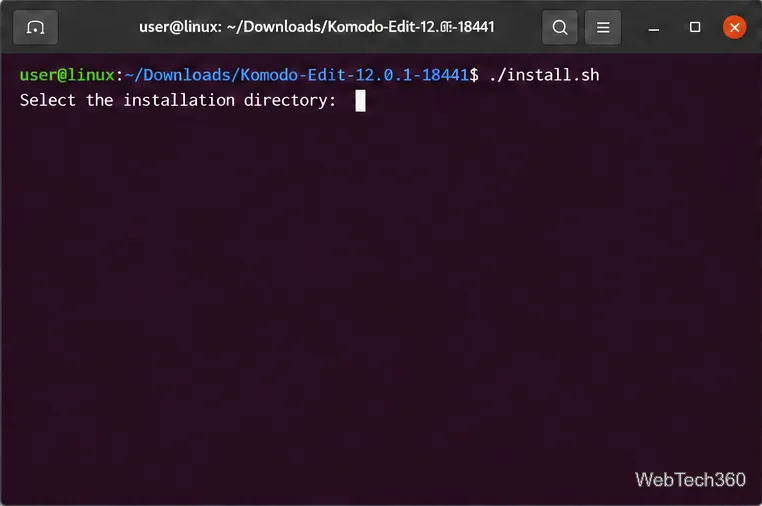
At the installer prompt, choose a directory that your Linux user can write to.
Open Komodo Edit
If the installer adds Komodo Edit to your desktop’s application menu, launch it from there. Otherwise, run the executable in the installation directory’s bin folder. For the example home-directory path above, use:
"$HOME/Applications/Komodo-Edit/bin/komodo"
Change the path if you selected a different install location. You can also open a project or source file from the editor after it starts. The included Linux build is old, so menus and desktop integration may differ from those in a current text editor.
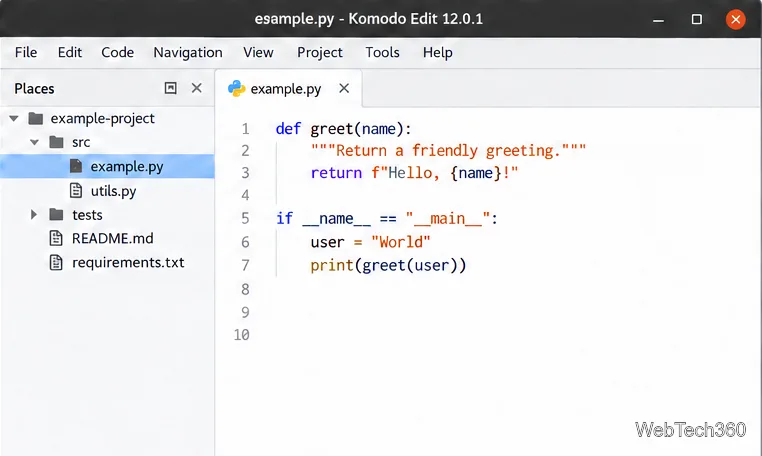
After installation, launch the editor and open a project or source file.
Troubleshoot common installation problems
./install.sh says “Permission denied”: make sure you are in the extracted directory. If the executable bit was lost, run chmod u+x install.sh, then try ./install.sh again.
The install command says the file or directory cannot be found: return to ~/Downloads and use find . -maxdepth 3 -type f -name install.sh -print to locate the actual path. Do not assume the extracted folder name if it differs from the archive filename.
The editor closes immediately or reports a missing shared library: check the binary’s dependencies with ldd "$HOME/Applications/Komodo-Edit/bin/komodo" | grep 'not found', adjusting the path to your installation. Install any identified system libraries through your distribution’s package manager; package names vary. If no missing library appears, the last ActiveState build may be incompatible with your current desktop libraries.
The project’s release list and the Komodo Edit source repository are the best places to confirm the archived version and project status. Since 12.0.1 is the last ActiveState build, avoid relying on it for security-sensitive work or assuming it will install cleanly on a modern Linux release.