Home
» LINUX
»
How to Install Latte Dock on KDE Plasma 5
How to Install Latte Dock on KDE Plasma 5
Install Latte Dock from your distribution’s package source, then launch it from the KDE Plasma application menu or with the latte-dock command. Check compatibility first: KDE’s upstream project specifies Plasma 5.24 or later and Qt 5.15 or later. The original Latte Dock is a Qt 5 application; an upstream issue reports that it does not currently work with Plasma 6. This guide is for Plasma 5. If you use Plasma 6, use a standard Plasma panel as a dock instead of forcing this legacy package to run.
1. Confirm your Plasma version
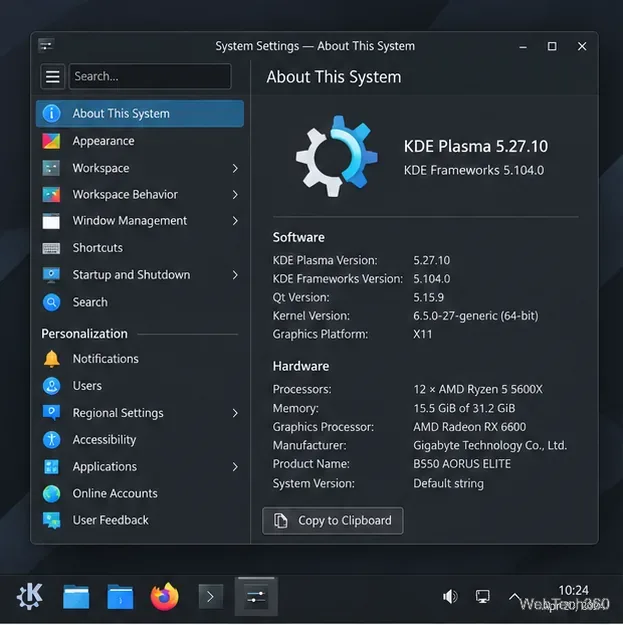
Open System Settings → About This System and check the Plasma version. Continue only if it is Plasma 5.24 or newer. The requirements are listed in the project’s upstream README; individual distribution packages may support fewer versions.
Check About This System to confirm the Plasma release before installing Latte Dock.
2. Check whether your distribution has a compatible package
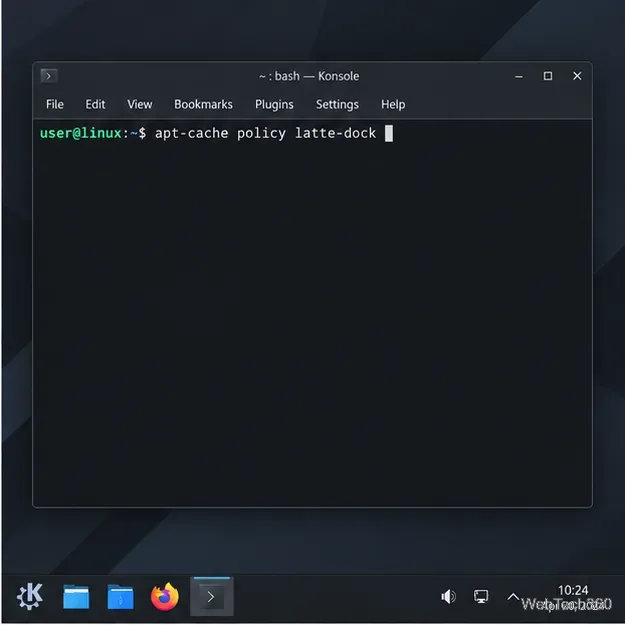
Package availability changes across Linux releases. The package indexes currently list Latte Dock for Debian 12 (Bookworm) and Ubuntu 24.04 LTS (Noble). On those systems, refresh APT’s package list and check for an installable candidate:
Check your enabled APT repositories before installing.
sudo apt update
apt-cache policy latte-dock
If Candidate shows a version, the package is available. If it shows (none), stop rather than adding an unfamiliar repository or installing a package built for another release. Compare your system with the official Debian Bookworm package record or Ubuntu Noble package record.
For Fedora, check dnf info latte-dock; for openSUSE, check zypper info latte-dock. Install only if your current catalog lists a build compatible with Plasma 5. For Arch, the upstream README points to the community-maintained AUR; inspect its package recipe and confirm Plasma 5 compatibility before building. The README links to the package sources for other distributions too.
3. Install the package
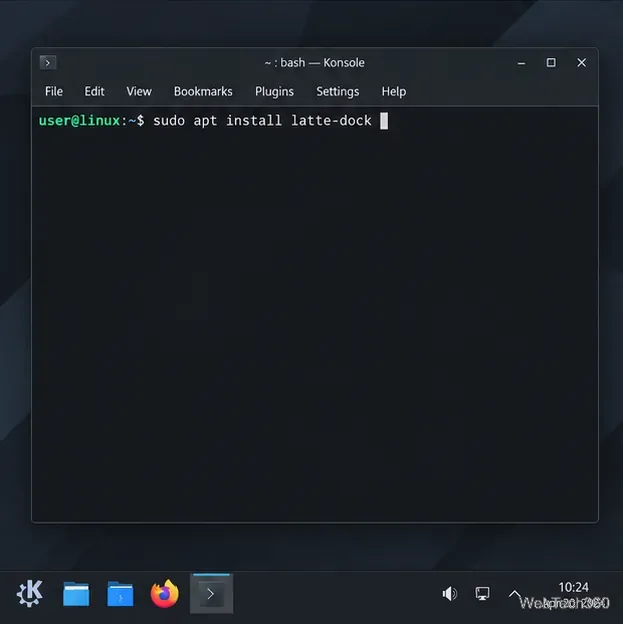
On Debian 12 or Ubuntu 24.04, if APT showed a candidate, install it with:
Install the distro package after confirming it is available for your system.
sudo apt install latte-dock
Review the package manager’s proposed changes, then accept to install Latte Dock and its dependencies. On other distributions, use the matching package manager only after verifying that its repository package supports your Plasma version.
A source build is a separate developer-oriented route: it requires the Qt 5 and Plasma 5 development libraries. If you need it, follow KDE’s official installation instructions for the dependency list and build steps. Avoid the old sudo bash install.sh command from outdated tutorials; the upstream procedure is different.
4. Launch Latte Dock
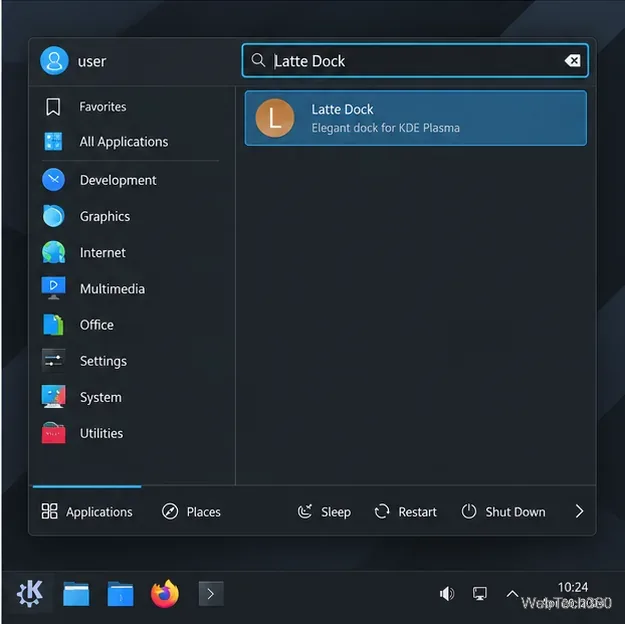
Open the application launcher, search for Latte Dock, and select it. Or start it in Konsole:
Search the Plasma application launcher for Latte Dock after installation.
latte-dock
Run the dock as your normal desktop user, not with sudo. Latte Dock belongs to your Plasma session; starting it as root can leave settings or files with the wrong ownership.
5. Move a conflicting Plasma panel
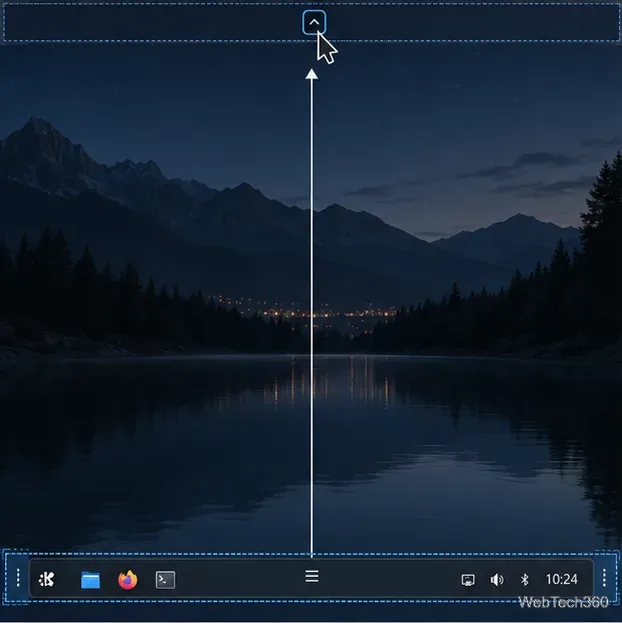
Plasma’s standard panel is often at the bottom edge, where Latte Dock appears by default. If the panel overlaps the dock, right-click an empty area of the panel and choose Enter Edit Mode. Drag the panel from an empty section to the top edge, then leave edit mode. You can instead set its visibility to Auto Hide. The KDE Plasma panel guide covers these controls. Keep the panel until the new layout works; removing it is not required.
Move the existing Plasma panel when it conflicts with Latte Dock.
6. Set up the dock
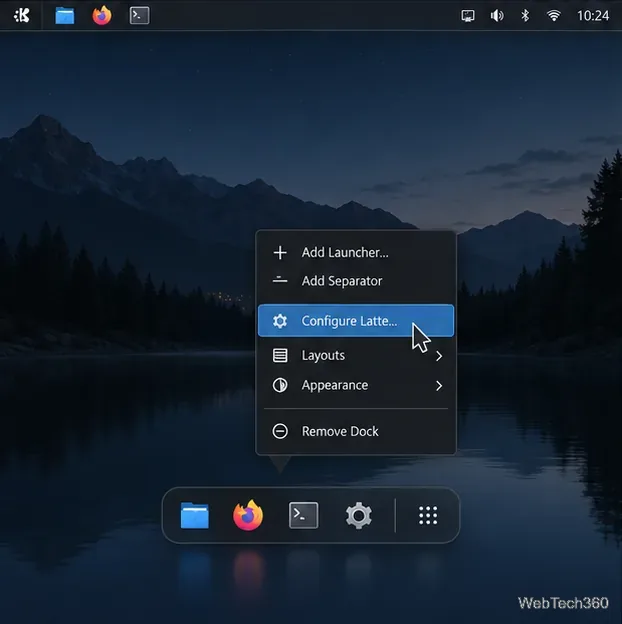
Right-click Latte Dock and select Configure Latte. Adjust the screen edge, alignment, size, and visibility to suit your desktop. To pin an application, open the dock’s context menu, choose Add Launcher, and select the app. These settings can be changed later without reinstalling the package.
Open Configure Latte from the dock context menu to change its position and behavior.
7. Start Latte Dock automatically at login
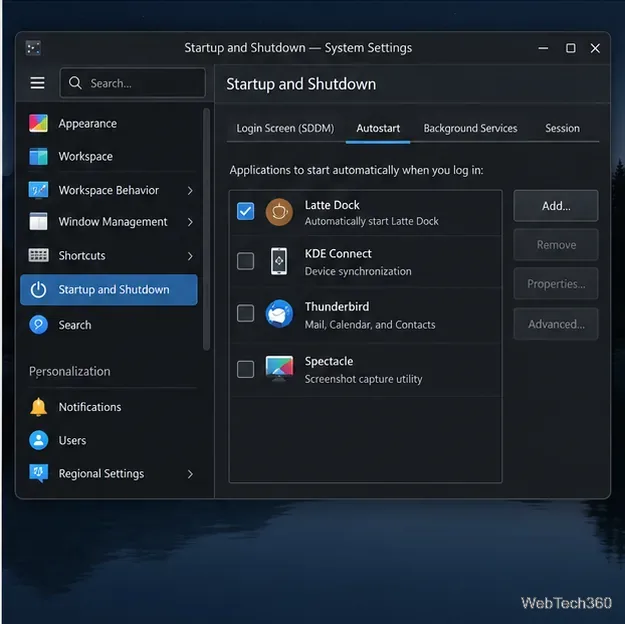
Open System Settings → Startup and Shutdown → Autostart, choose Add…, and select Latte Dock from the application list. Confirm that the entry is enabled. KDE’s Latte Dock FAQ documents this approach. If you use more than one desktop environment, check the entry’s advanced options and enable Autostart only in Plasma if available.
Use Plasma’s Autostart page to start Latte Dock when you sign in.
8. Test the setup and fix common problems
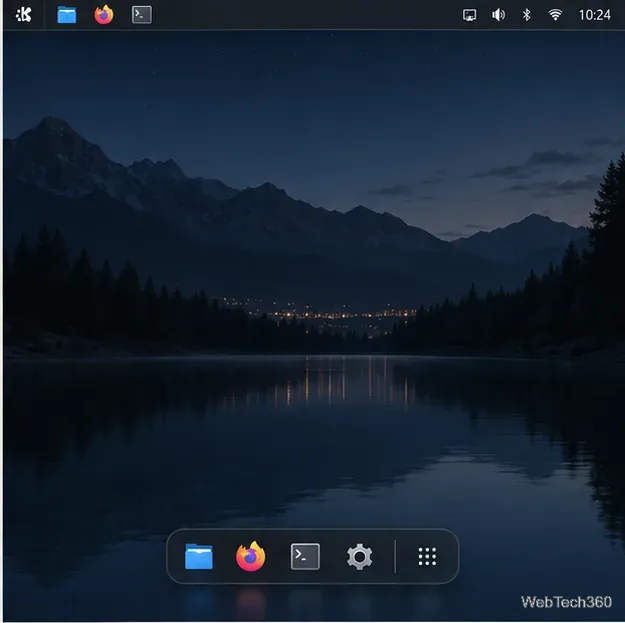
Sign out and back in to check that the dock appears once. If it does not, run latte-dock from Konsole and read any error message. Confirm that you installed a package built for Plasma 5 and that the system still has its required Qt 5 and KDE Frameworks libraries. If the dock appears behind another panel, move or auto-hide that panel and review Latte’s screen-edge and visibility settings.
After signing back in, confirm the dock appears once, separate from the top panel.
The original Latte Dock is not a supported drop-in dock for Plasma 6. Plasma’s built-in panel can be centered, resized, and set to auto-hide for a similar launcher bar. If you installed Latte Dock through APT and want to remove it, run sudo apt remove latte-dock; use your distribution’s package manager if you installed it another way.