Home
» LINUX
»
How to Install LosslessCut on Linux
How to Install LosslessCut on Linux
LosslessCut is available on Linux as a standalone AppImage and through app stores. For most x86_64 desktop PCs, the official GitHub AppImage is the simplest route to the newest build; it does not require AppImageLauncher.
Versions can differ by distribution channel. On October 21, 2026, GitHub marked v3.70.1 as the latest release, while Snapcraft and Flathub showed v3.69.0. Check the live listings before downloading because packages update on different schedules.
Choose a Linux build
Run uname -m in Terminal. Use the x86_64 AppImage only when the result is x86_64. For ARM devices, choose the matching arm64 or armv7l archive from the official releases; the project’s download notes say its ARM tar builds do not include FFmpeg. the Flathub listing includes x86_64 and aarch64 builds and marks the package as community provided.
Install the official AppImage
1. Download the latest file
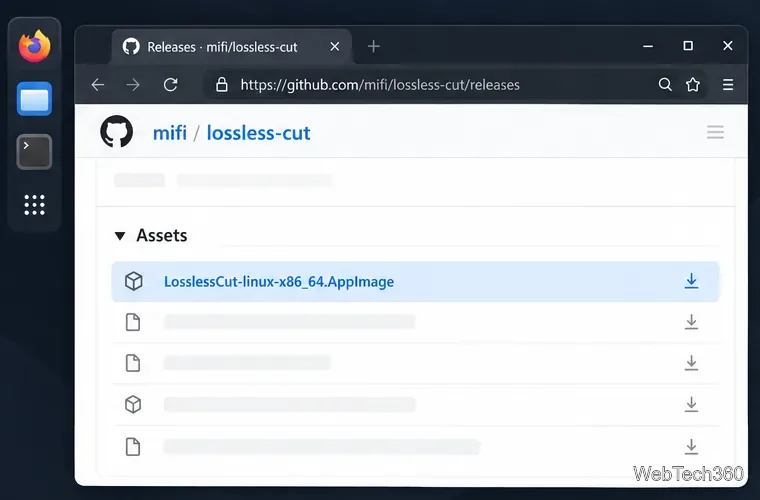
On the LosslessCut Releases page, download LosslessCut-linux-x86_64.AppImage. Or run these commands to save it in ~/Applications:
Select the x86_64 AppImage from the official release assets.
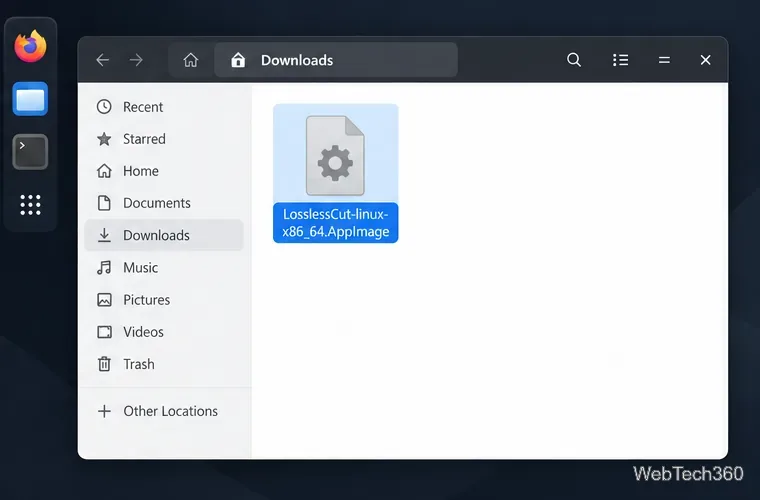
If you downloaded it in a browser, move the file from Downloads into that folder or adjust the following commands to match its location.
The downloaded AppImage appears as a single file.
2. Make the AppImage executable
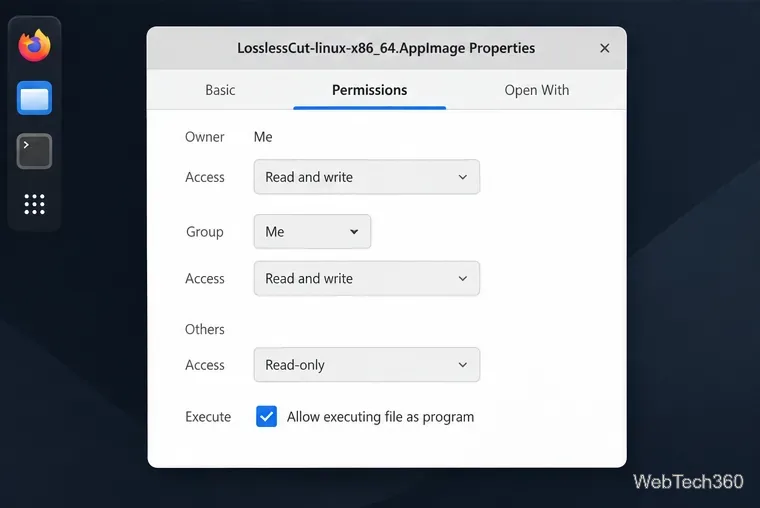
Right-click the file, open Properties, and look for an execution permission on the Permissions tab. On GNOME, enable Allow executing file as program. The wording varies by desktop; if there is no checkbox, use:
Enable execution in the file’s Permissions settings if your desktop offers this checkbox.
This marks the downloaded file as runnable. Only run AppImages from sources you trust; the AppImage instructions explain the executable permission requirement.
3. Launch the editor
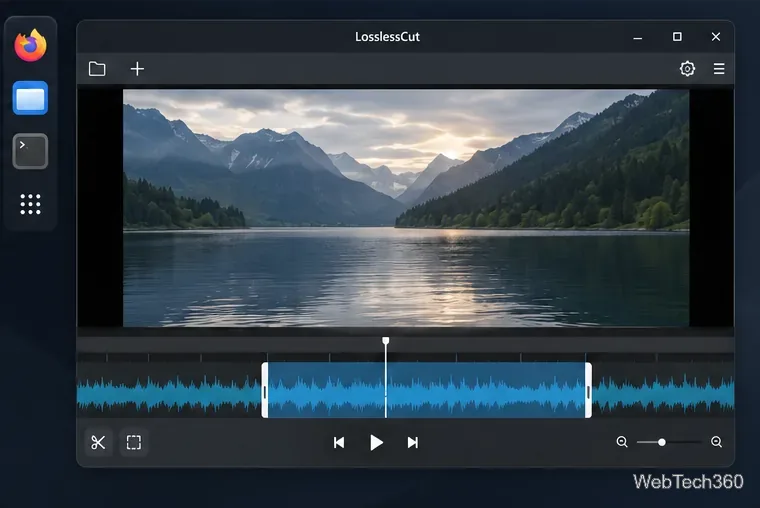
Double-click the AppImage and choose the option to run it if your desktop asks. You can also launch it from Terminal:
Since v3.70.0, the project’s Linux AppImage no longer requires libfuse2, so older guides that make this library a required step are outdated for current releases. For other launch errors, check the project’s Linux troubleshooting notes.
Update or remove it
To update, replace the AppImage with a newly downloaded release and repeat chmod +x if needed. To remove this installation, quit LosslessCut and delete the AppImage file. This does not remove a separate Snap, Flatpak, or AUR installation.
Install with Snap
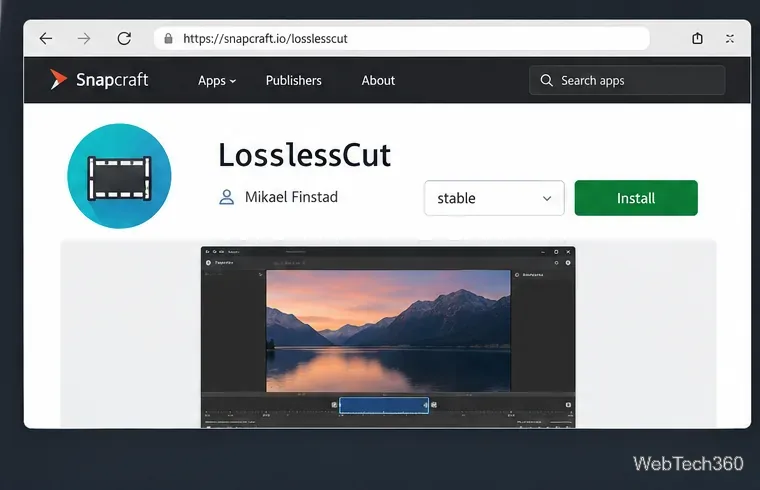
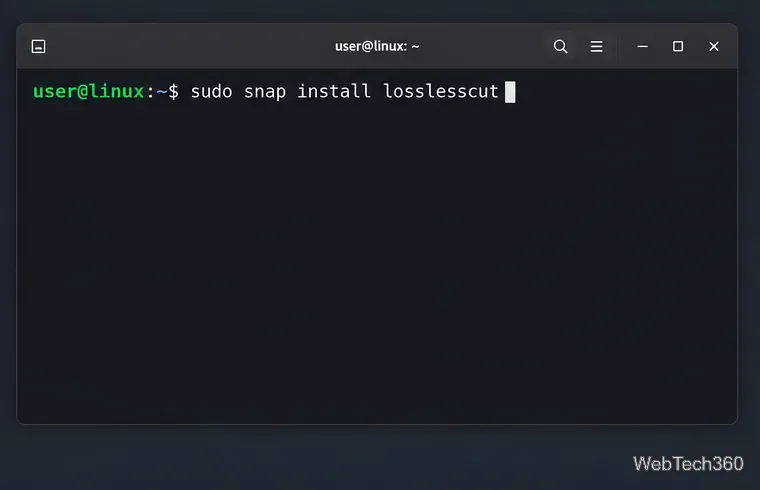
LosslessCut is published by the developer in the Snapcraft listing. If Snap support is enabled, run:
Snapcraft lists LosslessCut under its publisher account.Install the Snap after snapd is ready.
sudo snap install losslesscut
If snapd is missing, follow the Snap setup instructions for your distribution first. Ubuntu 18.04 and later commonly include Snap support; other defaults vary. Snap packages update through the Snap service, though the store version may lag behind GitHub.
Install the community Flatpak
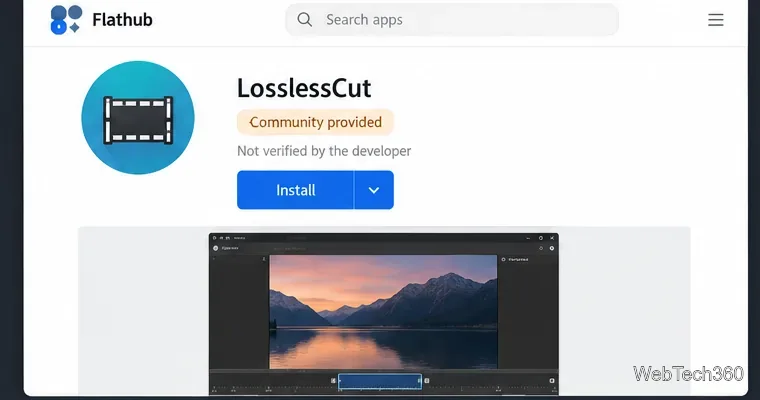
The Flathub listing identifies this as a community-maintained build, which the developer does not verify or support. If Flatpak is installed but Flathub is not configured, add the remote and install LosslessCut:
Flathub identifies this as a community-provided package.
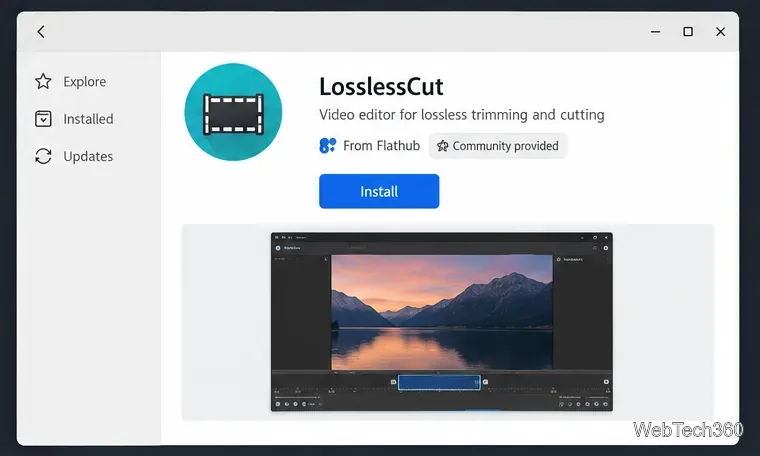
The Flatpak can also be installed from a graphical software center.
flatpak run no.mifi.losslesscut
Install Flatpak first using your distribution’s setup instructions if the command is unavailable. You can also install the app from a software center after adding Flathub.
Arch Linux option
Arch users can use the AppImage or the community AUR package losslesscut-bin. With an AUR helper such as yay, install it with yay -S losslesscut-bin. AUR recipes are maintained by community contributors, not the LosslessCut developer; inspect the current PKGBUILD and source details before building.
Fix common problems
Permission denied: repeat the chmod +x step and confirm the file path.
Wrong architecture: check uname -m; the x86_64 AppImage will not run on ARM.
Snap or Flatpak cannot see a video: open it through the file picker and check the package’s file permissions.
A store build crashes: the developer recommends trying the GitHub download for Snap or Flatpak issues; use the exact error message when checking the troubleshooting guide.
For a typical x86_64 Linux PC, downloading, enabling execution, and launching the AppImage is all that is required. Choose Snap for a store-managed install or Flathub if you accept its community-package status.