Home
» LINUX
»
How to Install Luminance HDR on Linux
How to Install Luminance HDR on Linux
Luminance HDR is an open-source desktop application for creating and tone-mapping high-dynamic-range images from bracketed photos and other supported files. On Linux, the simplest installation method is usually your distribution's package manager or the Flatpak build from Flathub. The project's own installation documentation recommends using a prebuilt package when possible rather than compiling the application yourself.
This guide covers current installation commands for Ubuntu, Debian, Fedora, and Arch Linux, plus the safest option for openSUSE users. The old instructions that relied on Arch's retired Community repository, Trizen, or outdated openSUSE Leap repositories are no longer appropriate.
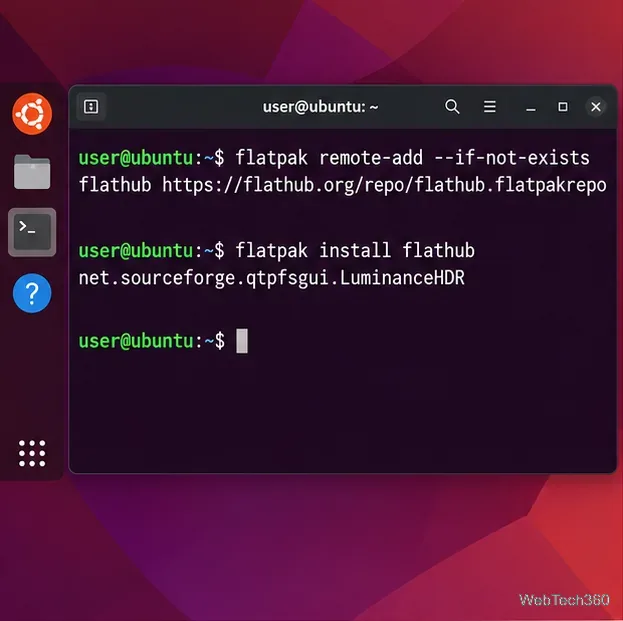
Flatpak is the easiest cross-distribution method, especially if your distro does not ship a current native package. First make sure Flatpak is installed, then add Flathub if it is not already configured:
Install the Flathub build with the Luminance HDR application ID.
Launch it from your desktop application menu or run:
flatpak run net.sourceforge.qtpfsgui.LuminanceHDR
The Flathub listing for Luminance HDR currently provides builds for x86_64 and aarch64. Flathub also labels this community build as unverified and reports home-folder access, so users who prefer distribution-maintained packaging may want one of the native methods below.
Install on Ubuntu or Debian
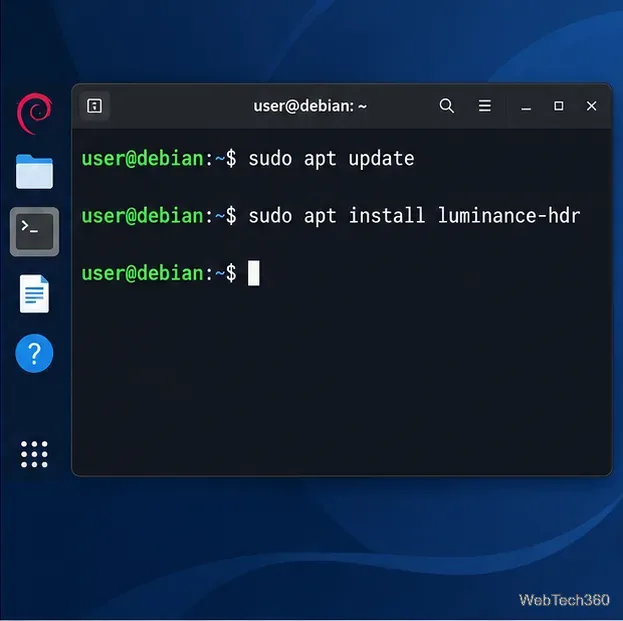
Ubuntu and Debian both provide a package named luminance-hdr. Update the package index and install it:
sudo apt update
sudo apt install luminance-hdr
Ubuntu and Debian use the luminance-hdr package name with APT.
Ubuntu publishes Luminance HDR in the Universe component. If APT says it cannot locate the package on Ubuntu, enable Universe and refresh the package list:
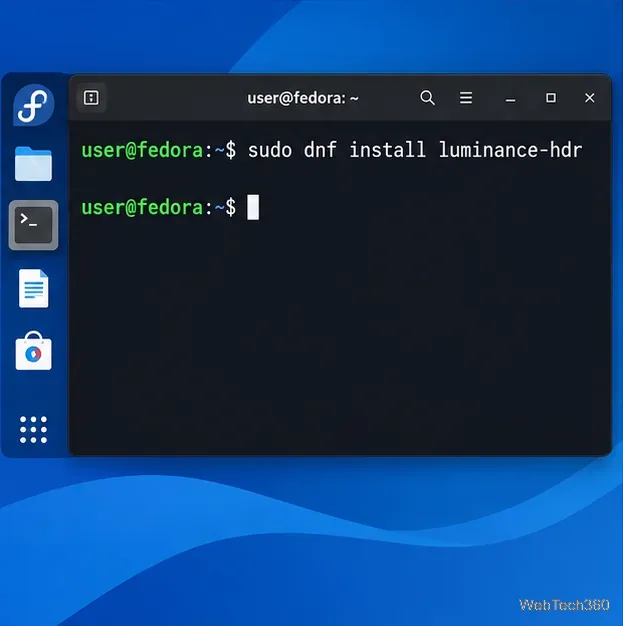
Fedora includes Luminance HDR in its package repositories. Install it with DNF:
sudo dnf install luminance-hdr
Fedora installs Luminance HDR directly with DNF.
The Fedora package page lists maintained builds for current Fedora releases.
Install on Arch Linux
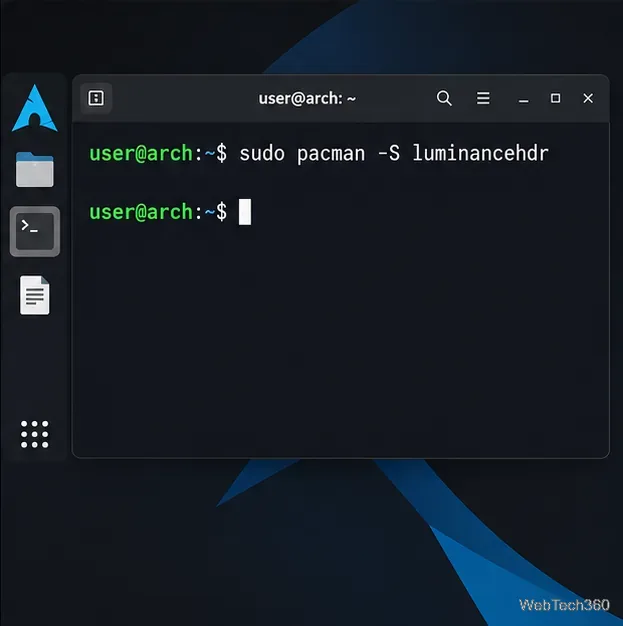
On Arch Linux, Luminance HDR is currently in the official Extra repository, so you do not need an AUR helper for the standard package. Install it with:
sudo pacman -S luminancehdr
Arch Linux provides the luminancehdr package in the official Extra repository.
The current package and dependencies are documented on the Arch Linux package page. This replaces the older workflow that used the retired Community repository or an AUR helper such as Trizen.
What about openSUSE?
The current openSUSE Software page for Luminance HDR does not list an official package for openSUSE Leap 16.0, while Tumbleweed is shown with a community package. Because repository URLs can change and community builds are not equivalent to official distribution packages, Flatpak is the cleaner general recommendation for openSUSE unless you deliberately choose a community package from the openSUSE Software page.
Confirm that Luminance HDR is installed
After installation, open your application launcher and search for Luminance HDR. For native packages, you can also try:
luminance-hdr
If the command is not found immediately after installation, close and reopen the terminal or launch the app from your desktop menu. If a native package is unavailable for your distribution or architecture, use the Flatpak method rather than adding an old third-party repository.
Should you build Luminance HDR from source?
Most users should not need to. Building from source requires a substantial set of development libraries, including Qt 5, Exiv2, Little CMS, LibRaw, OpenEXR, FFTW, Boost, GSL, and Eigen. If you specifically need to compile the project, follow the dependency list and CMake workflow in the upstream INSTALL.md instead of copying package commands intended for another distribution.
For a normal Linux workstation, the practical order is simple: use your distribution's official package when available, choose Flatpak when it is not, and compile from source only when you have a specific development reason.