Microsoft Edge Stable is available for 64-bit Linux, and the simplest installation method is to download Microsoft’s official DEB or RPM package and install it with your distribution’s package manager. Microsoft currently supports Ubuntu 18.04 or later, Debian 10 or later, openSUSE 15.5 or later, and Fedora Linux 39 or later. Other Linux distributions may run Edge, but Microsoft does not list them as officially supported.
Start from the official Microsoft Edge download page. This guide uses the Stable channel rather than Beta, Dev, or Canary builds.
Choose the correct Linux package
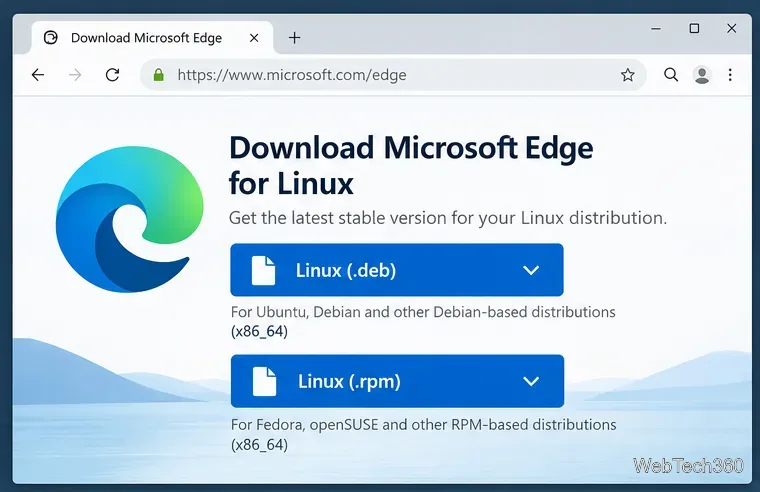
Download the package that matches your distribution:
- Ubuntu or Debian: choose the
.deb package. - Fedora or openSUSE: choose the
.rpm package.
Microsoft’s published Edge packages for Linux are built for 64-bit x86 systems. You can check your architecture with uname -m; the result should normally be x86_64. If you are running ARM64 Linux, do not assume the x86_64 package will work.
Install Microsoft Edge on Ubuntu or Debian
After the DEB package finishes downloading, open a terminal and move to your Downloads folder:
cd ~/Downloads
Then install the downloaded Stable package with APT:
sudo apt install ./microsoft-edge-stable_*_amd64.deb
APT reads the local DEB file and handles its required dependencies. This is cleaner than the older approach of installing with dpkg -i and then running a second command to repair missing dependencies.
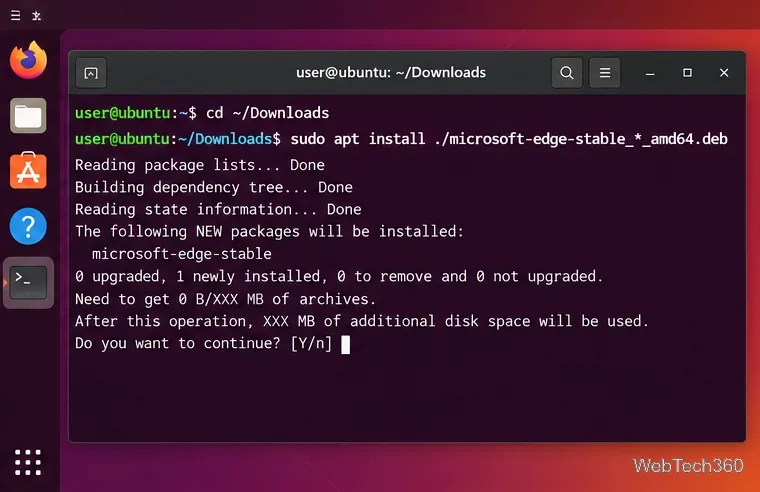
If the wildcard does not match a file, run ls microsoft-edge-stable* and use the exact filename that was downloaded. You can also install the DEB by opening it in your distribution’s graphical software installer, but the terminal command is easier to reproduce and troubleshoot.
Install Microsoft Edge on Fedora
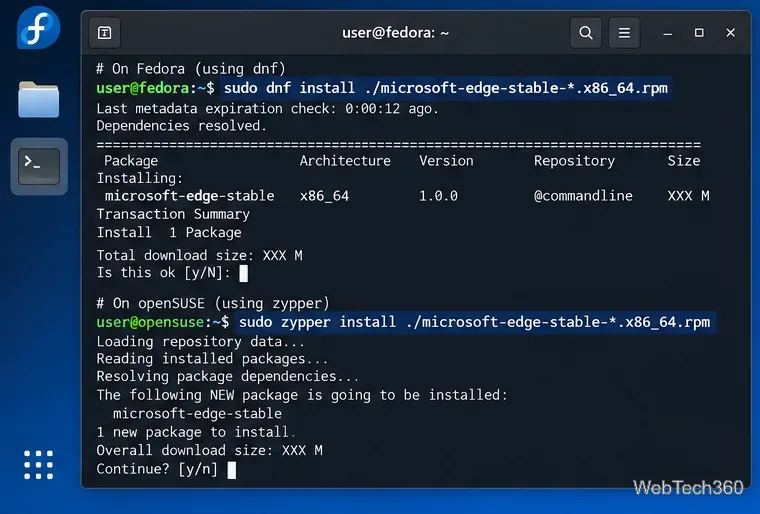
For Fedora, download the RPM package from Microsoft, open a terminal, and run:
cd ~/Downloads
sudo dnf install ./microsoft-edge-stable-*.x86_64.rpm
DNF will inspect the local package, resolve dependencies, and show the transaction before installation. Confirm when prompted.
Install Microsoft Edge on openSUSE
openSUSE uses the same official RPM package, but its standard package manager is Zypper:
cd ~/Downloads
sudo zypper install ./microsoft-edge-stable-*.x86_64.rpm
Review the package summary, accept the installation when prompted, and let Zypper finish before closing the terminal.
Launch Edge and confirm the installation
Once installation finishes, open your application menu and search for Microsoft Edge. You can also launch the Stable build from a terminal with:
microsoft-edge-stable
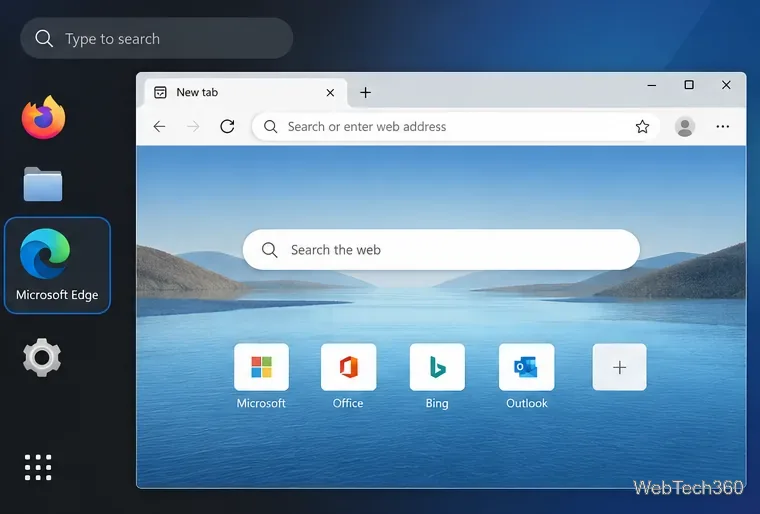
To confirm the browser version, open edge://settings/help. Edge displays the installed version there and can check for available updates. Microsoft publishes current Stable builds and fixes in the official Edge Stable release notes.
Keep Microsoft Edge updated
After installing Edge, continue using your distribution’s normal update workflow. On Debian and Ubuntu that usually means sudo apt update followed by sudo apt upgrade; Fedora users typically use sudo dnf upgrade, while openSUSE users can use sudo zypper update. If the Microsoft Edge repository is configured on your system, browser updates will be offered through the same package manager.
What about Arch Linux and other distributions?
The older practice of presenting an Arch User Repository package as an official Microsoft Edge installation method is misleading. Microsoft’s supported operating systems page currently lists Ubuntu, Debian, openSUSE, and Fedora for Linux. Community packages may exist for Arch Linux and other distributions, but they are maintained outside Microsoft’s supported Linux package list.
Quick troubleshooting checks
If the package will not install, first identify the distribution and architecture:
cat /etc/os-release
uname -m
On a supported x86_64 distribution, re-download the package from Microsoft if the package manager reports a corrupt or unreadable file. If you manage Microsoft repositories manually, the company also documents its Linux software repository service, including repository configuration and signing keys.
If you downloaded the wrong package type, delete it and download the correct format instead of trying to convert it: DEB is for Ubuntu and Debian, while RPM is for Fedora and openSUSE. Also make sure the download completed before running the install command.
If Edge installs but does not appear in the application menu immediately, log out and back in or start it once with microsoft-edge-stable. That separates a desktop-menu refresh issue from an actual package-installation problem.









