How to Share Files Over Bluetooth on Linux with Blueman

Send and receive files over Bluetooth on Linux with Blueman. Install OBEX support, pair devices, choose a file, accept transfers, and fix common issues.
Microsoft does not offer a native OneNote desktop installer for Linux. The supported way to use Microsoft OneNote on Linux is in a modern browser at OneNote for the web. You can keep it in a browser tab, install a Chrome shortcut that opens in its own window, or try P3X OneNote, an unofficial Linux client maintained by a third party.
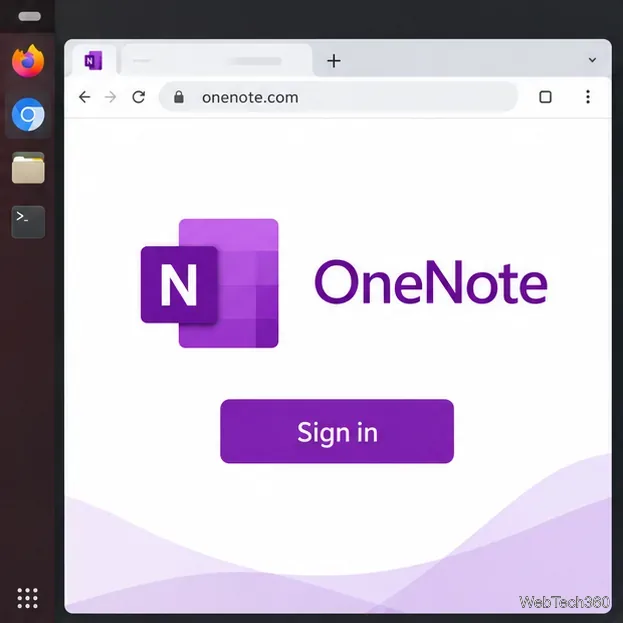
This option needs no Linux package and works with a personal Microsoft account or a work or school account. Microsoft describes OneNote for the web as a way to open and edit cloud notebooks from a modern browser on different operating systems.
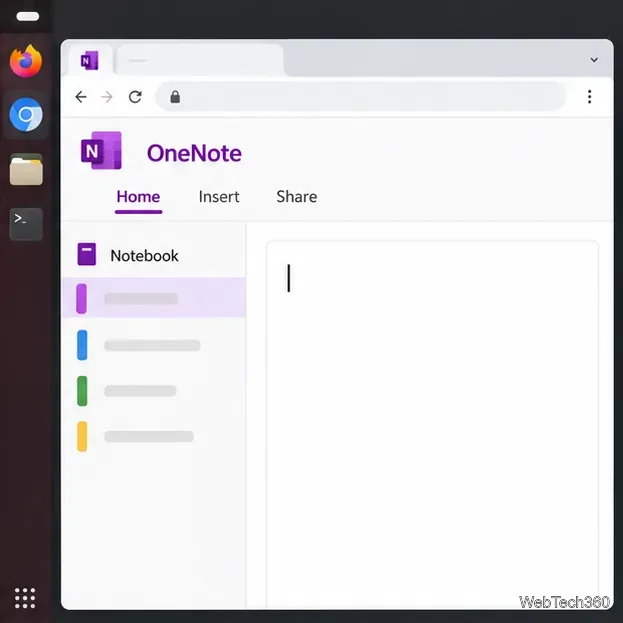
New notebooks are stored online, typically in OneDrive for a personal account or in your organization’s Microsoft 365 storage. OneNote for the web saves changes automatically, so there is no Save button. Keep an internet connection while you work and confirm that you are in the correct account if a notebook is missing.
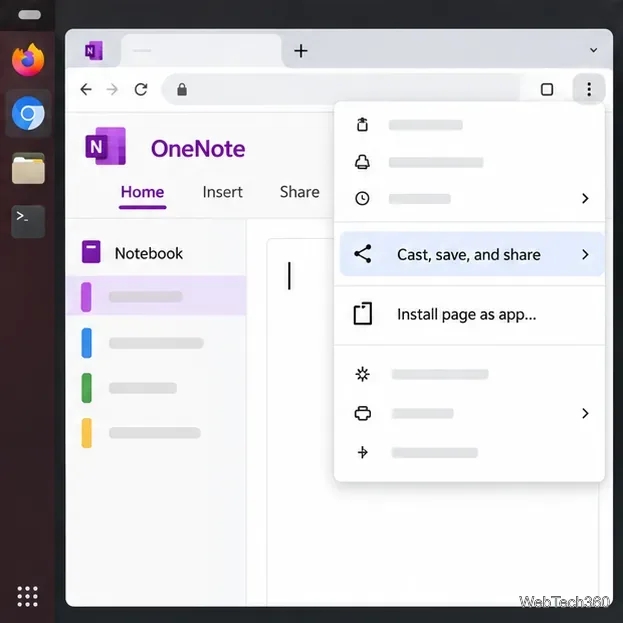
Chrome can install a website as a web app on Linux. This adds a launcher entry and opens OneNote in a separate window; it does not install Microsoft’s Windows desktop software or add its extra features.
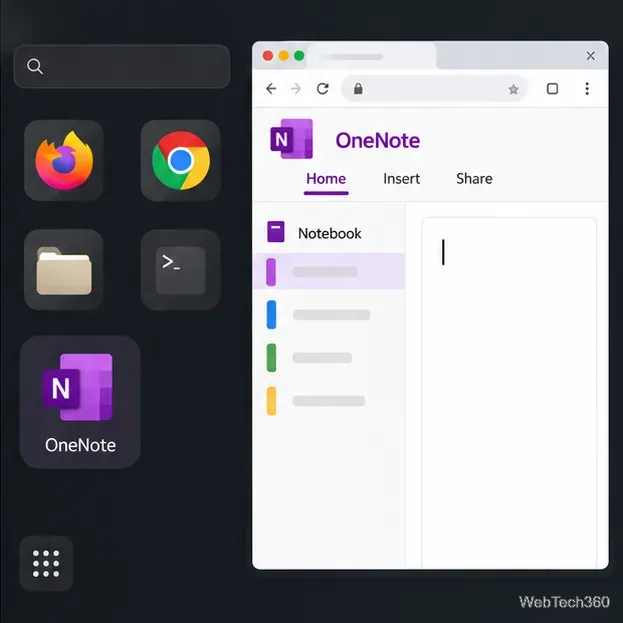
If you want an installable Linux package instead of a browser shortcut, the P3X OneNote project publishes an Electron-based client. It is a community project, not software made or supported by Microsoft, so review its source repository before signing in. The Snap Store listing currently uses the package name p3x-onenote.
sudo snap install p3x-onenote
After installation, launch P3X OneNote from your desktop’s application menu. For another package format, use the project’s current GitHub Releases page and choose a Linux asset that matches your distribution and processor architecture. Do not reuse the old, version-pinned AppImage links from older tutorials.
OneNote for the web is convenient for everyday typing, organizing, and sharing, but it is not identical to the desktop client. Microsoft documents differences in features such as ink and equations, audio and video, shapes, and Outlook integration. Check the browser-versus-desktop feature list if your workflow depends on one of those tools. Installing the Chrome shortcut does not change these limits or guarantee offline access.
For most Linux users, start with OneNote for the web and add the Chrome app shortcut if you want a dedicated window. Choose P3X only if you specifically prefer a third-party Linux package and are comfortable relying on an independently maintained client.
Send and receive files over Bluetooth on Linux with Blueman. Install OBEX support, pair devices, choose a file, accept transfers, and fix common issues.
Connect GNOME Files to SSH/SFTP, FTP, SMB, WebDAV, or NFS with the correct server URI, sign-in details, and fixes for common connection errors.
Open SFTP, SSH, SMB, FTP, NFS, and WebDAV locations in Dolphin, sign in safely, transfer files, and save network folders for later.
Connect a DualShock 4 to Linux by USB or Bluetooth, then check controller detection and configure Steam Input only when a game needs it.
Use DNF5 parallel downloads to reduce RPM install waits in GNOME Software, then tell when mirror or Flatpak delays need a different fix.
Access iCloud on Linux in a current browser. Learn how to sign in, use iCloud Drive and other web apps, and understand the limits of browser access.
Save GRUB settings, boot files, and UEFI entry details to removable storage, then use rescue media to repair the correct boot path safely.
Install Bitwarden on Linux with the right DEB, RPM, Snap, Flatpak, or AppImage package, then sign in and set a secure vault timeout.
Pick a screensaver theme in Xfce, preview it, choose when it starts, and configure automatic locking in the separate Lock Screen tab.
Stop GNOME Shell from blanking or locking your display automatically. Change Power and Screen Lock settings, or use Caffeine for a temporary keep-awake toggle.








