Home
» LINUX
»
How to Install Minetest (Luanti) on Linux
How to Install Minetest (Luanti) on Linux
To install Minetest on Linux, use the stable Flatpak package recommended on the project’s downloads page: flatpak install flathub org.luanti.luanti. The software is now called Luanti; Minetest is its former name, so search for “Luanti” in current app catalogs. Flatpak is the simplest choice across distributions, while Ubuntu, Arch, and Fedora users can also install through their native package managers.
Luanti is a game platform for block-based games, not a single game with one fixed mode. The project explains the name change in its project’s name-change announcement.
Install Minetest (Luanti) with Flatpak
The project lists Flatpak as a stable option for all Linux distributions. If Flatpak is already installed and the Flathub remote is enabled, go straight to the install command. If not, use the Flathub setup instructions for your distribution to install Flatpak and add Flathub; the steps differ by operating system.
1. Find Luanti in your software app or terminal
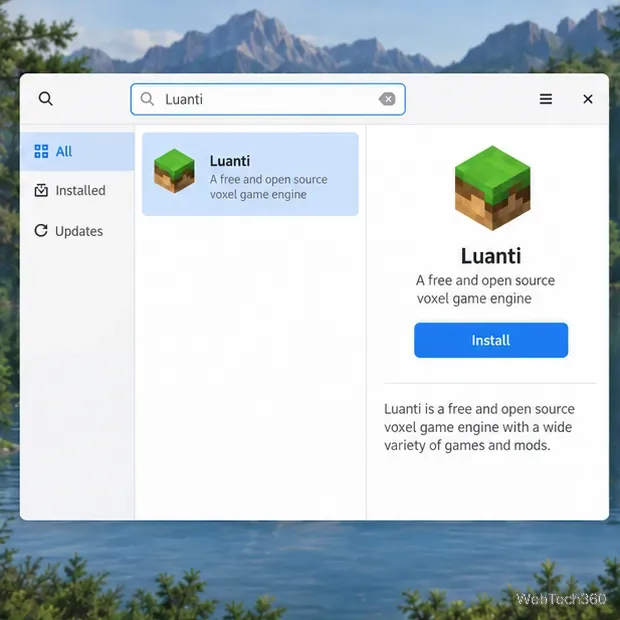
If your desktop’s software app offers Flathub apps, search for Luanti, open the result published by the Luanti Team, and choose Install. The exact store layout depends on your desktop. You can also use the terminal, which works the same way on any distribution with Flatpak and Flathub.
Find Luanti in a software catalog that includes Flathub apps.
2. Install the current Flathub app
Open a terminal and run:
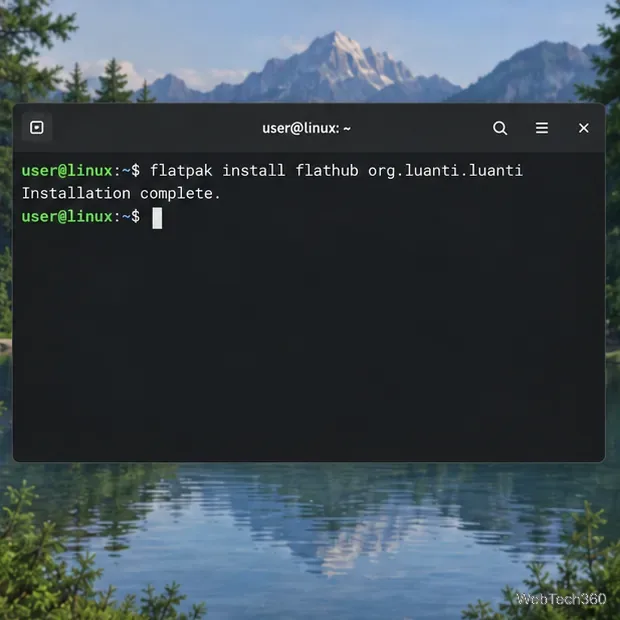
flatpak install flathub org.luanti.luanti
Review the prompt and confirm the installation. The application ID is org.luanti.luanti. If Flatpak reports that the flathub remote is missing, add it once with the command below, then repeat the install command:
You can also open Luanti’s Flathub listing and use its Install option. The page identifies the publisher and current app package.
The command installs the Luanti app using its current Flathub ID.
3. Launch Luanti and add a game
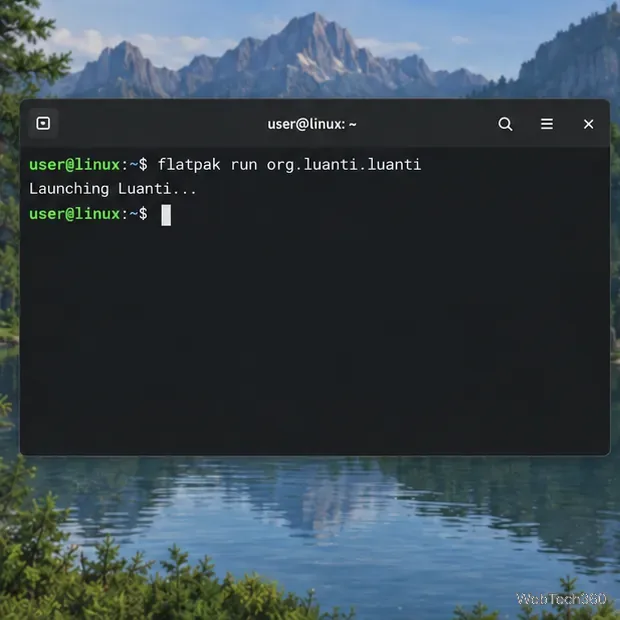
After installation, open Luanti from the application menu or launch it from a terminal:
flatpak run org.luanti.luanti
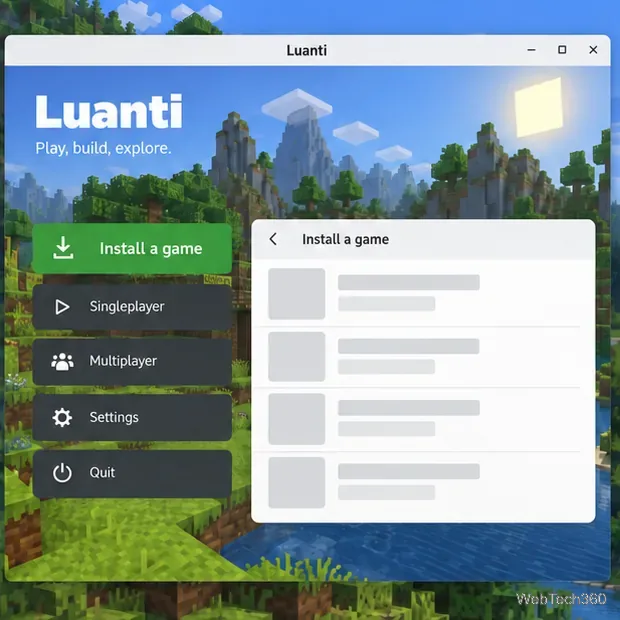
On first launch, Luanti directs you to its content browser to install a game. Choose a game from the available list, install it, and then select it for single-player play. The list can change as content is updated. Luanti is a platform, so installing the engine alone may not give you a playable single-player game yet. See the Luanti getting-started guide for the first-run flow and ways to join a server.
Start the app from a terminal with its Flatpak application ID.At first launch, install a game through Luanti’s content browser; available entries vary.
Install Luanti with a Linux package manager
Native packages integrate with your distribution’s update tools, but their names and release dates vary. The project notes that some distribution repositories may lag behind, so check its Luanti’s official Linux downloads page if a package is missing or older than you need.
Ubuntu and Ubuntu-based distributions
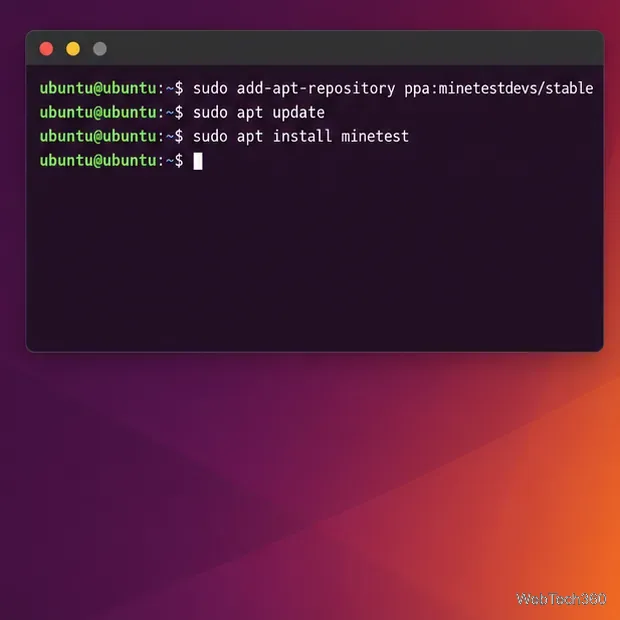
The project points Ubuntu users to its stable PPA because the standard Ubuntu archive can be outdated. Add that source, refresh the package list, and install the package named minetest:
This uses the stable channel; do not substitute the separate daily-build PPA unless you specifically want development builds. The project links to the stable Ubuntu PPA listed by the project.
Ubuntu’s stable PPA instructions still use the package name minetest.
Debian
The project currently recommends Flatpak or building from source for Debian because its repository package may be outdated. For most desktop users, follow the Flatpak steps above rather than adding an unrelated third-party repository.
Arch Linux and Fedora
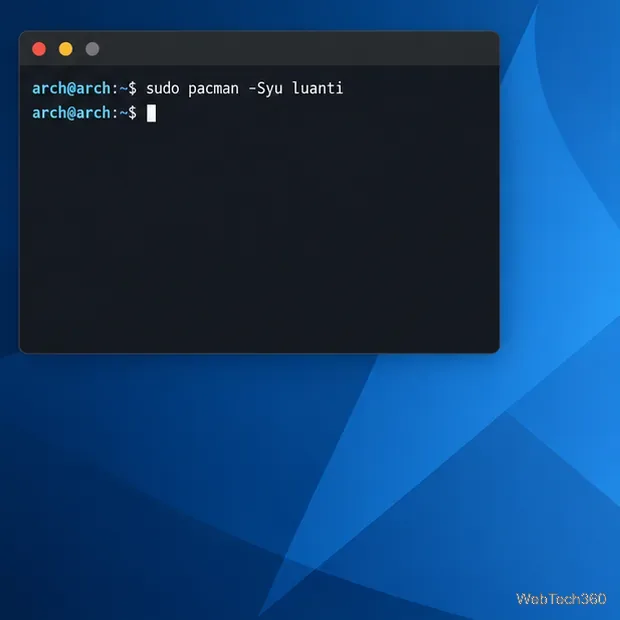
Arch’s official Extra repository uses the updated package name luanti. Synchronize packages and install it with:
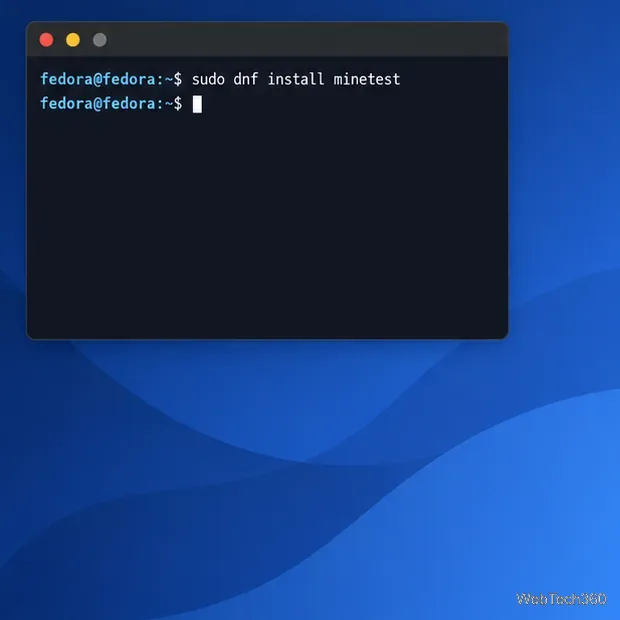
Fedora keeps the package name minetest in its repository.
openSUSE, Snap, and other distributions
For openSUSE and distributions not covered above, use the current package links on the project’s downloads page; availability can differ between releases such as Leap and Tumbleweed. The project also lists a stable Snap package. If Snap support is already set up, install it with sudo snap install luanti. The Snap Store identifies Snapcrafters as the publisher and says the package is not necessarily endorsed by Luanti’s developers, so Flatpak or a distribution package is preferable when you want the project’s directly listed build.
Use the Luanti Snap listing for its current install instructions and publisher details.
Update or remove the Flatpak
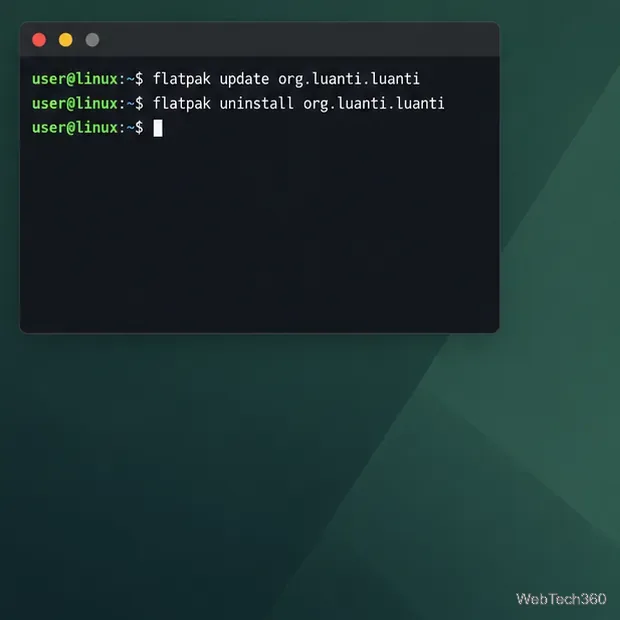
Flatpak updates Luanti separately from the system’s native packages. To check for and install updates, run:
flatpak update org.luanti.luanti
To uninstall the application instead, run:
flatpak uninstall org.luanti.luanti
Choose the command that matches your goal; uninstalling removes the app. For an installation made with APT, Pacman, DNF, or Snap, use that same package manager to update or remove it. If the app opens but has no game to play, return to the content browser and install one.
Use the update command to refresh Luanti or the uninstall command to remove it.