Notepadqq is a Notepad++-style text editor for Linux with syntax highlighting, multiple selections, regular-expression search, and other developer-focused tools. The easiest installation method now depends on your distribution. For most 64-bit x86 Linux desktops, the upstream AppImage is the simplest way to get the newest published release without adding an old repository.
There is one important caveat before you install it: the official Notepadqq repository currently warns that the project is not actively maintained and that recent operating system or Qt versions can trigger crashes. At the same time, GitHub lists Notepadqq 2.1.1, released July 3, 2026, as the latest release. Use the editor with that maintenance warning in mind, especially for unsaved work.
Install the latest Notepadqq AppImage
The official GitHub Releases page provides a Linux x86_64 AppImage for version 2.1.1. An AppImage runs as a self-contained application, so you do not need to add a PPA or modify your distribution's package sources.
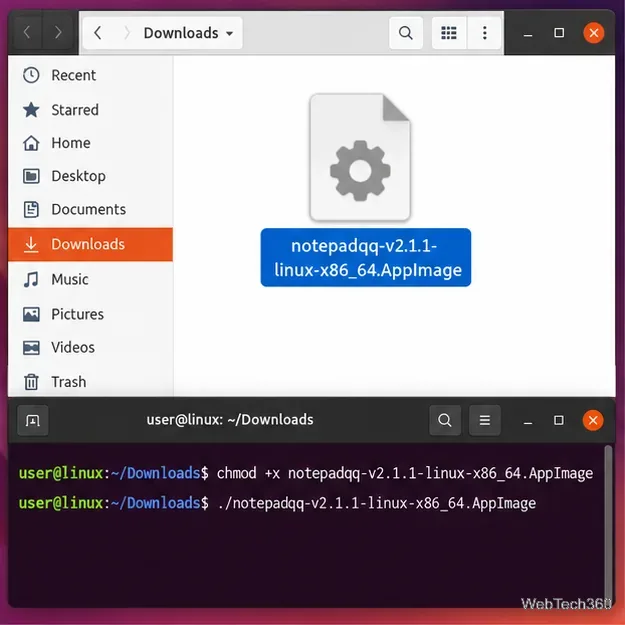
Download the Linux x86_64 AppImage from the latest Notepadqq release.
Open a terminal in the folder where the file was downloaded.
Make the file executable with chmod +x notepadqq-v2.1.1-linux-x86_64.AppImage. If the filename is different in a later release, use that filename instead.
Start it with ./notepadqq-v2.1.1-linux-x86_64.AppImage.
Make the downloaded AppImage executable, then run it directly from the terminal.
The current release asset is for x86_64. On ARM hardware, use a compatible distribution package if one is available or build from source.
Install Notepadqq on Ubuntu or Debian with APT
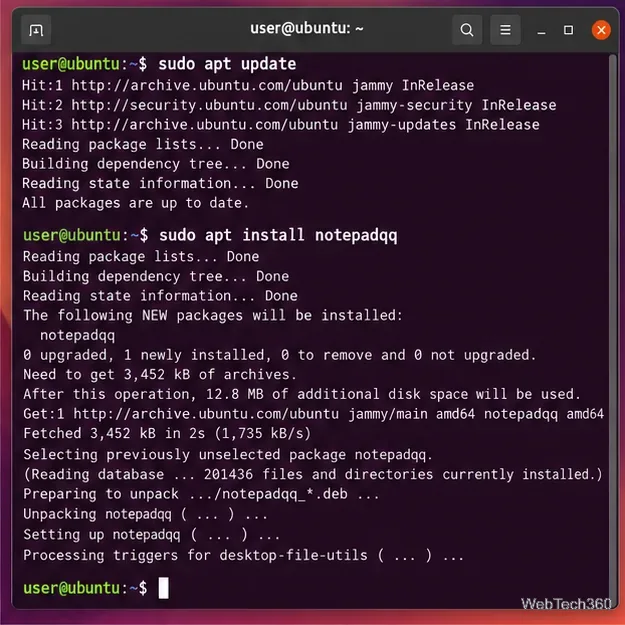
Ubuntu and Debian both currently publish Notepadqq packages, so the standard package-manager route is straightforward:
sudo apt update
sudo apt install notepadqq
Ubuntu lists Notepadqq in its Universe repository for supported releases including Ubuntu 24.04 LTS and 26.04 LTS, while Debian stable also carries the package. These distribution packages can lag behind the newest upstream release, so check the version if you specifically need the latest build.
On Ubuntu or Debian, APT is the simplest repository-based installation method.
Install Notepadqq with Snap
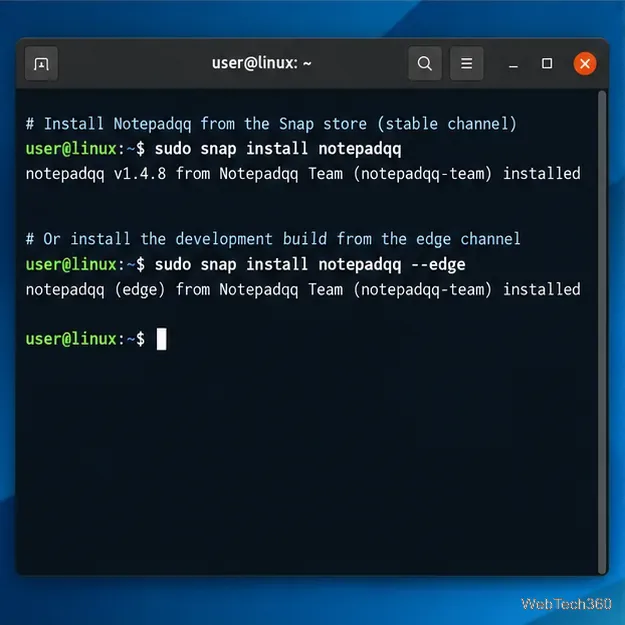
If Snap is already enabled on your distribution, you can install the stable channel with:
sudo snap install notepadqq
There is a freshness tradeoff. Snapcraft currently shows the stable channel as version 1.4.8, last updated September 14, 2018, while the edge channel was updated in August 2026. If you deliberately want the development channel, use sudo snap install notepadqq --edge. Edge builds are less conservative than stable releases, so they are better suited to testing than critical work.
Snap offers a stable channel and a newer edge channel; check which one matches your needs.
Fedora, Arch Linux, and Flatpak notes
Some commands repeated in older Notepadqq guides are no longer reliable. The Fedora package page only lists an old Fedora 33 build, so sudo dnf install notepadqq should not be treated as a current Fedora installation method. On modern Fedora, use the AppImage or build from the official source tree instead.
Likewise, the current ArchWiki application list marks Notepadqq as an AUR package rather than an official repository package. That means the old sudo pacman -S notepadqq advice may fail on a current Arch system. Review the AUR recipe before installing community packages.
A Flathub package also exists, but Flathub labels it unverified and community-provided, and it remains on the older 1.4.8 line. For a fresh installation, the upstream AppImage is the clearer choice.
Avoid the old Ubuntu PPA workaround
Do not copy the old workaround that manually adds the Ubuntu 18.04 bionic PPA to newer Ubuntu releases, and do not use legacy apt-key commands just to install Notepadqq. The official Notepadqq download page itself says the PPA method is not recommended. Use Ubuntu's current repository package, the AppImage, or Snap instead.
Launch Notepadqq after installation
For APT or Snap installations, open your desktop application menu and search for Notepadqq. You can also try notepadqq from a terminal when the package places the executable on your PATH. With the AppImage method, launch the AppImage file itself.
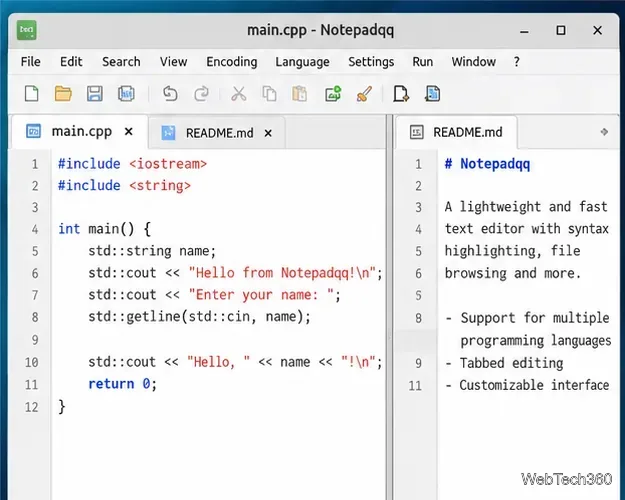
After installation, Notepadqq provides a tabbed editor with syntax highlighting and multi-document editing.
If the editor crashes on a very recent Linux desktop, remember that the upstream project explicitly warns about compatibility problems with newer OS and Qt versions. In that case, try the AppImage if you installed a distribution package, or consider another actively maintained editor for work where stability is essential.