How to Share Files Over Bluetooth on Linux with Blueman

Send and receive files over Bluetooth on Linux with Blueman. Install OBEX support, pair devices, choose a file, accept transfers, and fix common issues.
To install Apache OpenOffice on Linux, download the official archive that matches your system, unpack it, then install the included DEB or RPM packages with your distribution’s package manager. Ubuntu, Debian, and Linux Mint use the DEB steps below; Fedora uses DNF with the RPM archive, and openSUSE can use Zypper. Apache’s official download page currently lists version 4.1.17, released October 14, 2026.
The screen examples are representative. Package names, language-folder names, and application menus can vary with the selected download and Linux desktop.
Open the Apache OpenOffice download page. Select Linux 64-bit (x86-64), then choose the package format used by your distribution and the language you want. The downloads are generic Linux archives rather than packages built separately for every distribution. Apache’s platform hints identify DEB for Debian-family systems and RPM for Fedora, openSUSE, and other RPM-based distributions.
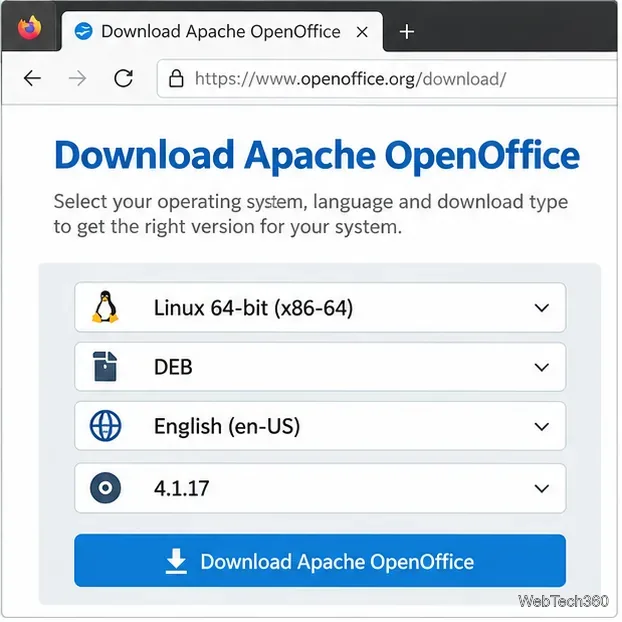
The downloaded file is a compressed .tar.gz archive containing many installer packages. The release number, locale, and package type appear in the filename. The example commands below use the English (United States) DEB archive for version 4.1.17; substitute the actual filename and locale if you chose a different option.
Before installing, use the SHA256 link on the download page to verify the archive. In a terminal opened in your Downloads folder, run:
sha256sum Apache_OpenOffice_4.1.17_Linux_x86-64_install-deb_en-US.tar.gzCompare the full checksum printed by the command with the official SHA256 value for that exact archive. If they differ, delete the download and fetch it again from the official page. Do not install a file whose checksum does not match.
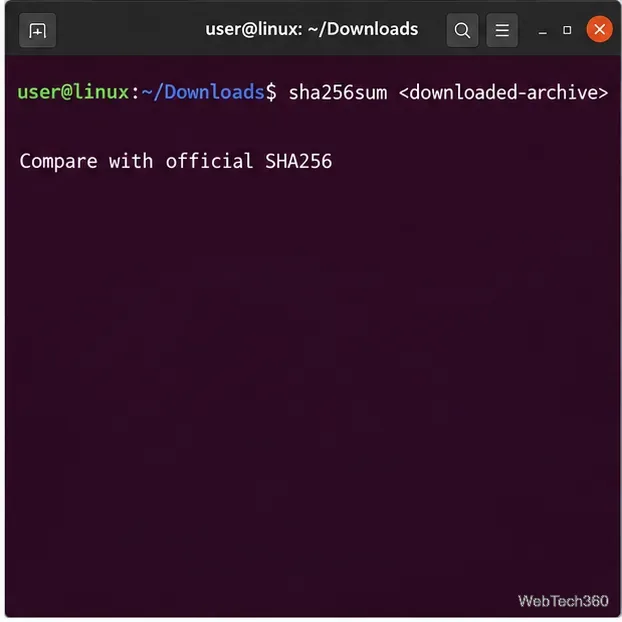
From the same terminal, extract the archive. Replace the example filename when your download uses another version, language, or package type.
tar -xvzf Apache_OpenOffice_4.1.17_Linux_x86-64_install-deb_en-US.tar.gzThis creates a language directory, commonly named en-US. Inside it, the DEB archive has a DEBS folder and the RPM archive has an RPMS folder. If you selected another language, use its directory name in the commands that follow.
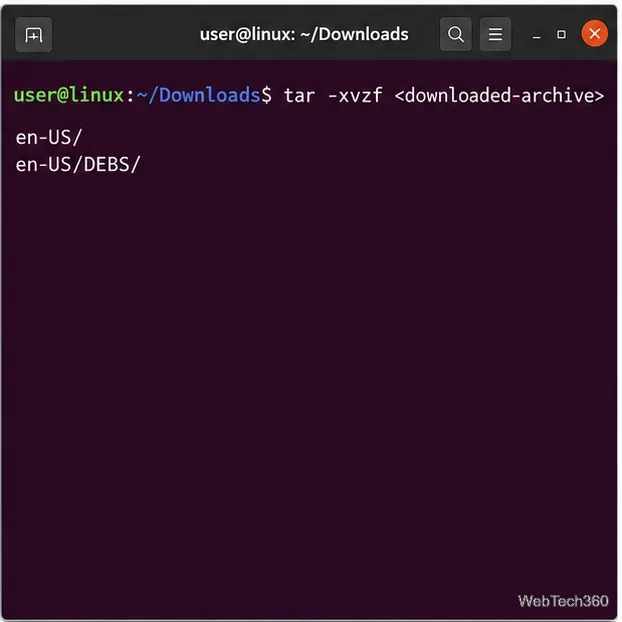
For a DEB download, move into its package directory and check that the installer files are there:
cd ~/Downloads/en-US/DEBS
ls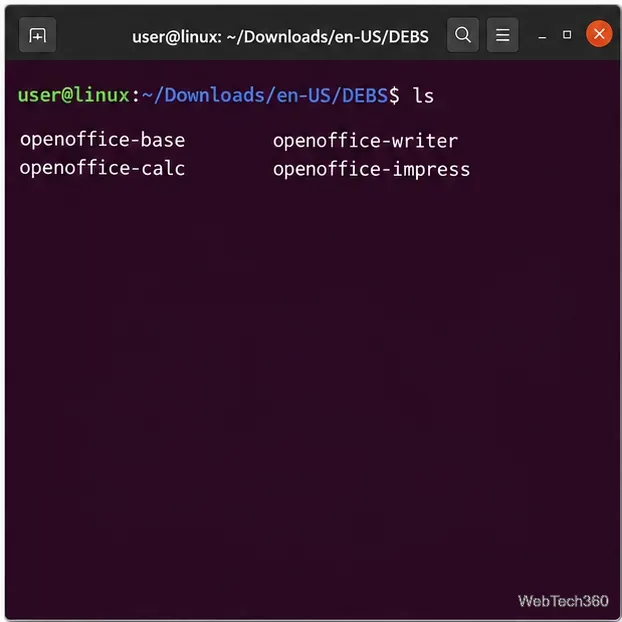
Install all included packages together:
sudo dpkg -i ./*.deb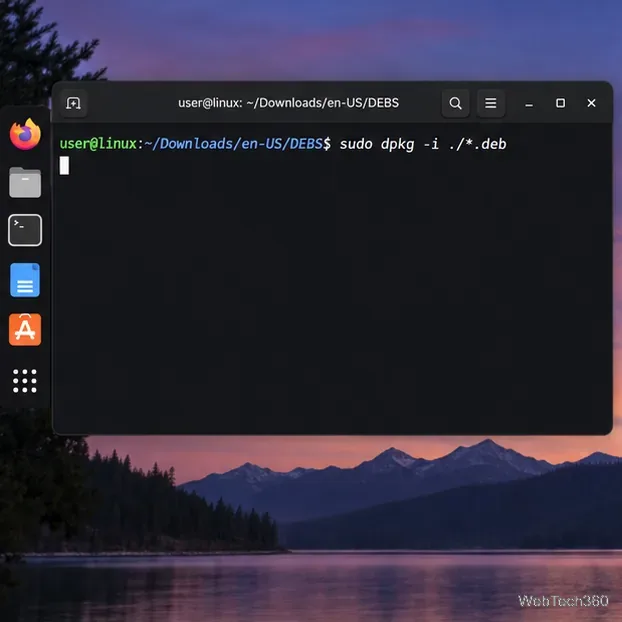
Review the package manager output and let the installation finish. If dpkg reports unmet dependencies, ask APT to resolve them:
sudo apt --fix-broken installRead APT’s proposed changes before confirming. When the core packages are installed, add the desktop menu integration package from the subfolder:
cd desktop-integration
sudo dpkg -i ./*.deb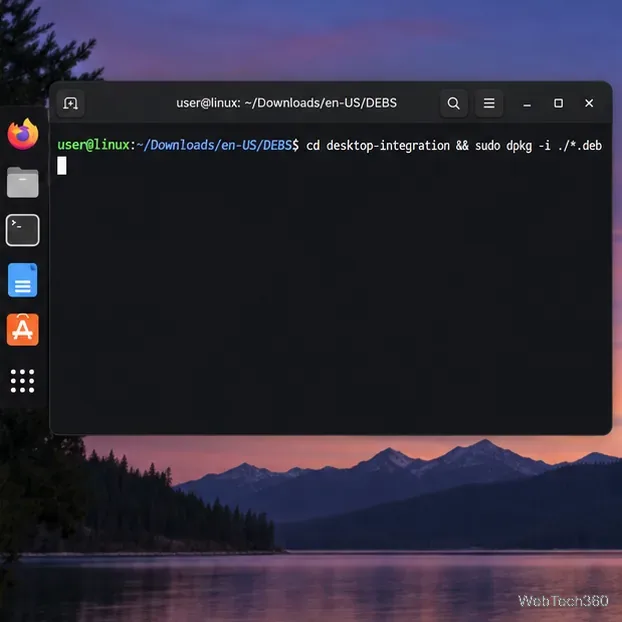
Apache’s Linux installation instructions describe installing the packages in DEBS and then installing desktop integration separately.
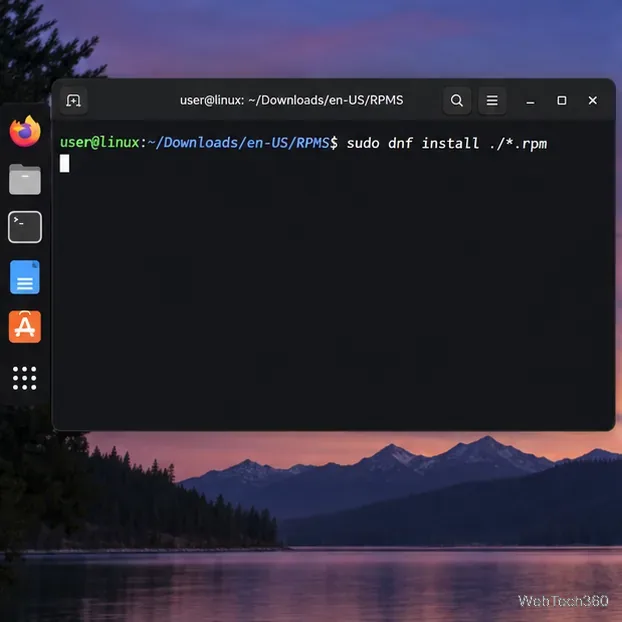
For an RPM download, change into the RPMS directory. On Fedora, install the local files with DNF:
cd ~/Downloads/en-US/RPMS
sudo dnf install ./*.rpm
On openSUSE, use Zypper:
sudo zypper install ./*.rpmBoth commands use the matching distribution’s package manager instead of disabling package-signature checks. If the main packages install but the desktop menu entries are missing, open RPMS/desktop-integration and install only the menu package that matches your distribution or desktop environment. Do not install every distro-specific menu RPM at once; filenames differ by release.
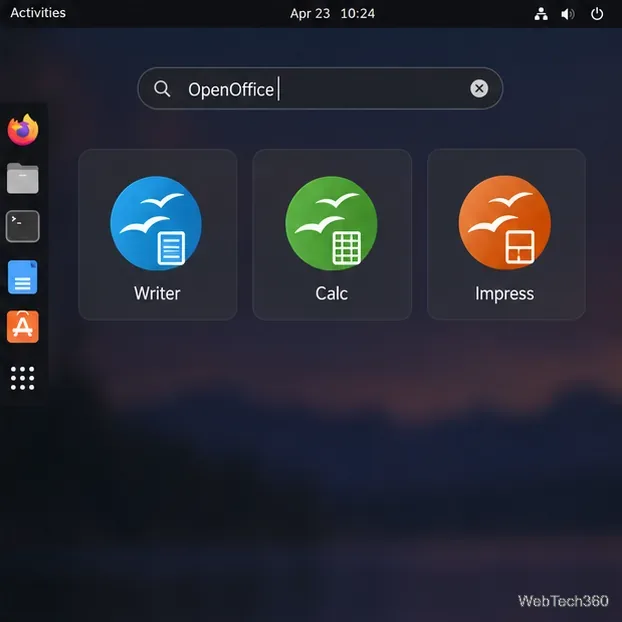
Open your application menu and search for Writer, Calc, or Impress. Start Writer to complete any first-run setup and confirm that the suite opens. A desktop entry may not appear until you install the integration package above.
Apache does not provide an Arch-specific package in its generic Linux download instructions. Arch users who choose an AUR build are using a community-maintained package, so inspect its current PKGBUILD, source URL, and update history before installing it. The old instruction to install an AUR helper and run a package by a generic name can become stale as package names and maintainers change.
If LibreOffice is already installed, check which program the soffice command resolves to before changing anything. Apache notes that distributions can route that command to another office suite; avoid deleting symlinks or removing packages unless you understand what owns them. Apache OpenOffice’s executable is named soffice, and its installer normally adds a launcher or command link.
Java is not required for basic Writer, Calc, or Impress use. Apache says Base and some wizards rely on Java, so install and configure a compatible Java runtime only if you need those features. See Apache’s Java guidance for details.
Send and receive files over Bluetooth on Linux with Blueman. Install OBEX support, pair devices, choose a file, accept transfers, and fix common issues.
Connect GNOME Files to SSH/SFTP, FTP, SMB, WebDAV, or NFS with the correct server URI, sign-in details, and fixes for common connection errors.
Open SFTP, SSH, SMB, FTP, NFS, and WebDAV locations in Dolphin, sign in safely, transfer files, and save network folders for later.
Connect a DualShock 4 to Linux by USB or Bluetooth, then check controller detection and configure Steam Input only when a game needs it.
Use DNF5 parallel downloads to reduce RPM install waits in GNOME Software, then tell when mirror or Flatpak delays need a different fix.
Access iCloud on Linux in a current browser. Learn how to sign in, use iCloud Drive and other web apps, and understand the limits of browser access.
Save GRUB settings, boot files, and UEFI entry details to removable storage, then use rescue media to repair the correct boot path safely.
Install Bitwarden on Linux with the right DEB, RPM, Snap, Flatpak, or AppImage package, then sign in and set a secure vault timeout.
Pick a screensaver theme in Xfce, preview it, choose when it starts, and configure automatic locking in the separate Lock Screen tab.
Stop GNOME Shell from blanking or locking your display automatically. Change Power and Screen Lock settings, or use Caffeine for a temporary keep-awake toggle.








