Home
» LINUX
»
How to Install Opera Developer on Linux
How to Install Opera Developer on Linux
To install Opera Developer on Linux, download the current Developer package from Opera and install the format that matches your distribution: DEB for Ubuntu or Debian, RPM for Fedora or openSUSE, or Snap on a system with snapd. Arch Linux users can build the community-maintained AUR package. Opera Developer is an early-access browser, so expect experimental changes and use a stable browser for work that cannot tolerate interruptions.
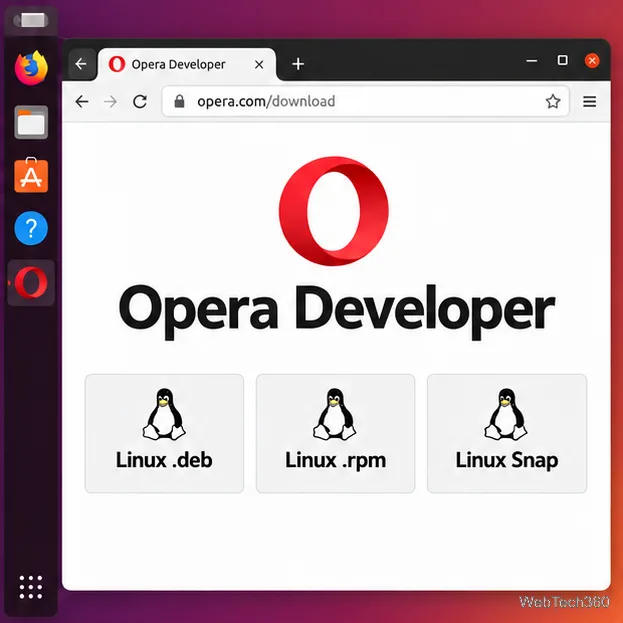
Use Opera’s current download page instead of copying an old version-specific URL. The Linux downloads are listed under the Opera Developer section; make sure you do not select the separate Opera One (stable) download by mistake.
The Opera Developer download section lists Linux DEB, RPM, and Snap choices.
Choose a package for your Linux distribution
Distribution or setup
Package
Installer
Ubuntu, Debian, and compatible distributions
DEB
APT
Fedora and openSUSE
RPM
DNF or Zypper
Most distributions with Snap support
Snap
snapd
Arch Linux
AUR build
makepkg
Opera’s download page currently lists DEB, RPM, and Snap builds for Opera Developer. The AUR is a separate, community-maintained route for Arch; it is not an Opera-supported package repository.
Install the DEB package on Ubuntu or Debian
Open the Opera download page, find Opera Developer, and choose Linux .deb. Save the file in your Downloads folder.
Open Terminal and install the local package with APT:
cd ~/Downloads
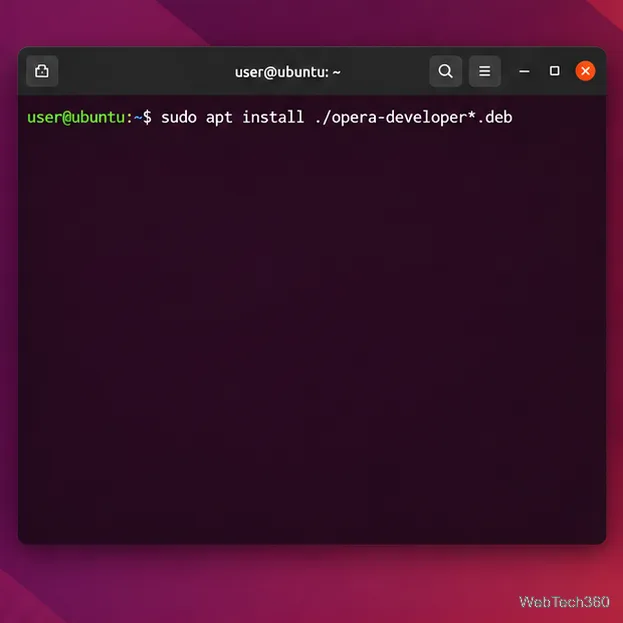
sudo apt install ./opera-developer*.deb
APT can install a local DEB and resolve its dependencies from your configured repositories. If you have downloaded more than one Developer DEB, replace the wildcard with the exact filename so APT installs the intended file.
On Ubuntu or Debian, APT installs the downloaded local DEB and resolves available dependencies.
Opera says installing its DEB package configures its package repository for updates. If your installer asks whether to add Opera’s update source, read the prompt and approve it only if you want updates through APT. See Opera’s APT repository page for current details.
Install the RPM package on Fedora or openSUSE
From the Opera Developer section, download Linux .rpm to ~/Downloads. Do not use an RPM link from the Opera One section; it installs the stable browser.
Fedora
In Terminal, run:
cd ~/Downloads
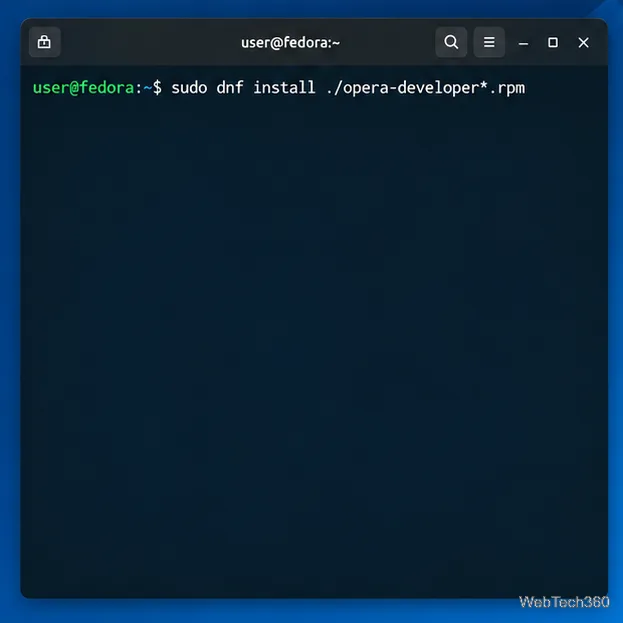
sudo dnf install ./opera-developer*.rpm
Review the package transaction and confirm it if the details are correct. DNF installs the local RPM and requests any dependencies available from your enabled Fedora repositories.
Fedora users can pass the downloaded RPM to DNF.
openSUSE
Use Zypper to install the downloaded local RPM:
cd ~/Downloads
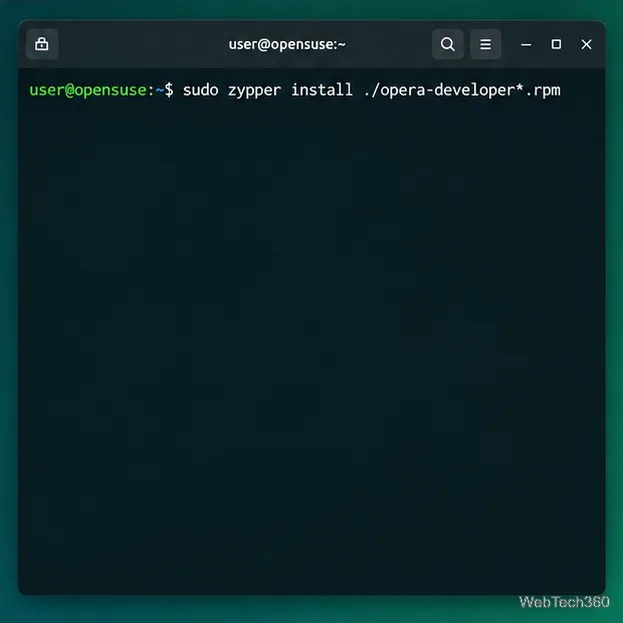
sudo zypper install ./opera-developer*.rpm
Check the packages Zypper proposes before accepting the transaction.
On openSUSE, Zypper installs the local RPM package.
Install Opera Developer as a Snap
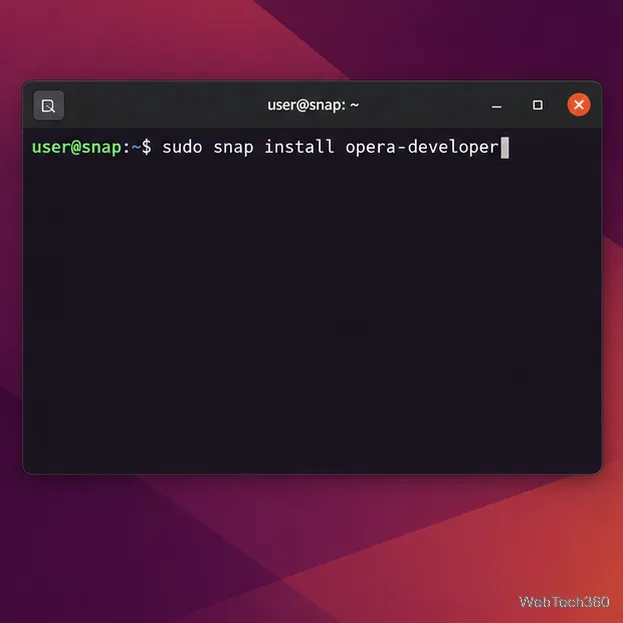
Snap is a convenient option when your distribution has snapd installed. The Snap Store lists Opera as the verified publisher of opera-developer. Run:
sudo snap install opera-developer
The Snap package can be installed on a Linux system with snapd.
If the shell reports that snap is not found, install and enable snapd using the Snapcraft instructions for your distribution, then retry the command. The Snap Store includes distribution-specific setup links, including one for Arch Linux.
Build the AUR package on Arch Linux
Opera does not list a native Arch package on its download page. The opera-developer AUR package is maintained by the Arch community. AUR build files are user-submitted: review the package’s PKGBUILD and changes before building, and do not run makepkg as root.
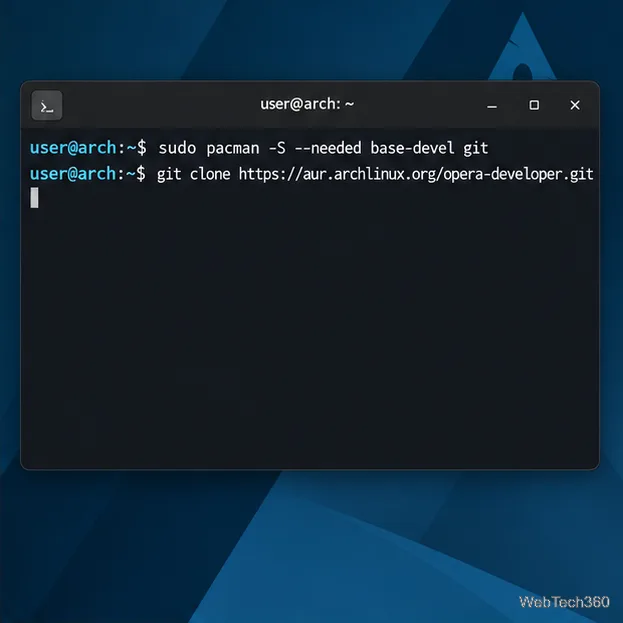
Install the standard build tools and Git, then clone the package repository:
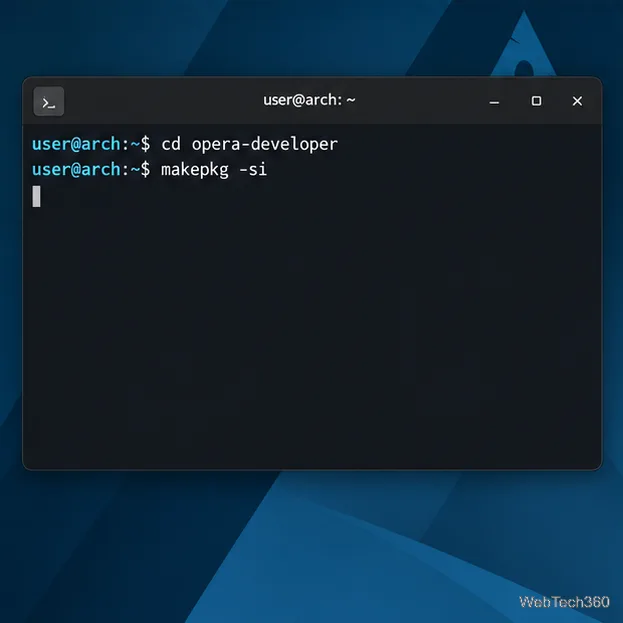
Enter the new directory and build/install the package as your regular user:
cd opera-developer
makepkg -si
Read the prompts and confirm only after reviewing the package actions. For future releases, update through your AUR helper or repeat the AUR build process after checking the latest PKGBUILD.
Prepare the Arch build tools, then clone the AUR package repository.Build the AUR package as a regular user and review the package prompts.
Open the browser and check the installation
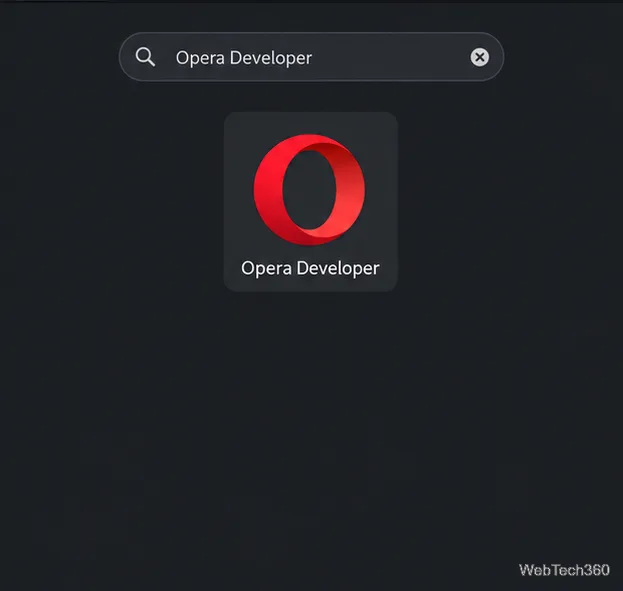
After installation completes, open your desktop’s applications menu and search for Opera Developer. The launcher entry should be distinct from Opera One if both are installed. Start it and open the browser’s About page to confirm that you installed the Developer channel and see its installed version.
After installation, search the applications menu for Opera Developer.
Fix common installation problems
The package command says no file matched: check the Downloads folder with ls ~/Downloads/opera-developer*. If the actual filename differs, use its full path in the install command.
APT reports a dependency problem: run sudo apt update and retry sudo apt install ./filename.deb. Installing a local package with APT is preferable to using dpkg -i alone because APT can resolve dependencies.
Snap is unavailable: snapd is not installed or active. Follow the Snapcraft setup link above for your distribution.
The Arch build fails: read the error and the latest AUR comments or package changes before retrying. Do not copy an old AUR helper command or run the build as root.