Home
» LINUX
»
How to Install Pardus 23 on Legacy Hardware: Step-by-Step
How to Install Pardus 23 on Legacy Hardware: Step-by-Step
An older desktop or laptop can still be useful, but installing a modern Linux distribution on it raises a few questions that matter more than the installation clicks themselves. Is the processor actually 64-bit? Should you choose GNOME or XFCE? Does “legacy hardware” mean a Legacy BIOS installation, and if so, should the disk use GPT or an MBR-style partition table? What should you do if the installer boots but the installed system does not?
For Pardus 23, these questions have fairly clear answers. As of October 2026, Pardus still lists Pardus 23.4 XFCE and GNOME among older releases that continue to be supported. The official Pardus 23.0 release notes describe XFCE 4.18 as the default lightweight desktop and list a minimum 1.0 GHz 64-bit CPU, 1 GB RAM, and 8 GB of disk space for Pardus 23. Pardus' later download information gives the same low-end class of requirement for the XFCE edition, while GNOME expects more CPU, memory, disk space, and display resolution.
The first requirement is not the age of the computer; it is the CPU architecture. Pardus 23 desktop installation images in the official archive are labeled amd64. A PC can have an old-fashioned Legacy BIOS and still have a 64-bit CPU, which is common with many Core 2-era and later systems. A truly 32-bit-only processor is different: the current Pardus 23 desktop ISO is not the right installation image for it.
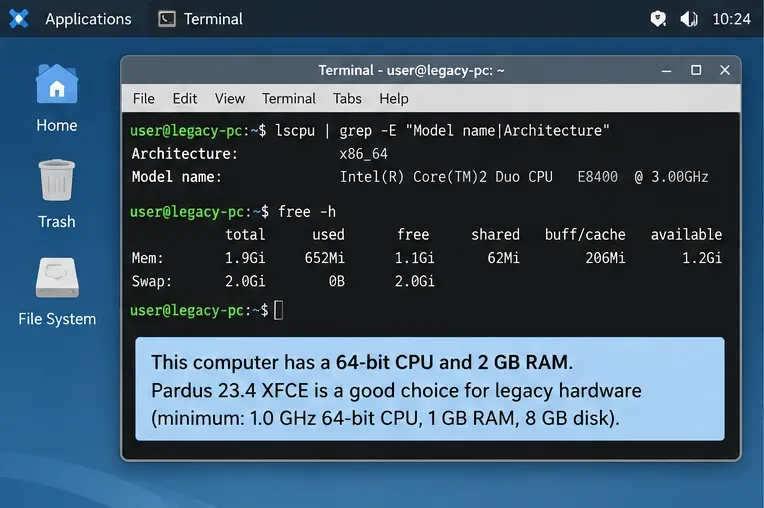
Before creating installation media, confirm that the old PC still has a 64-bit processor. Pardus 23 desktop ISOs are amd64 even when the machine uses traditional Legacy BIOS.
If the output says x86_64, the CPU meets the architecture requirement. For a machine near the minimum specification, choose XFCE rather than GNOME. The official Pardus 23 notes call XFCE lightweight and designed to use fewer system resources. That does not guarantee excellent performance on every old GPU, Wi-Fi adapter, or hard disk, but it is the more sensible Pardus 23 desktop starting point for low-spec hardware.
Which Pardus 23 ISO should I install in 2026?
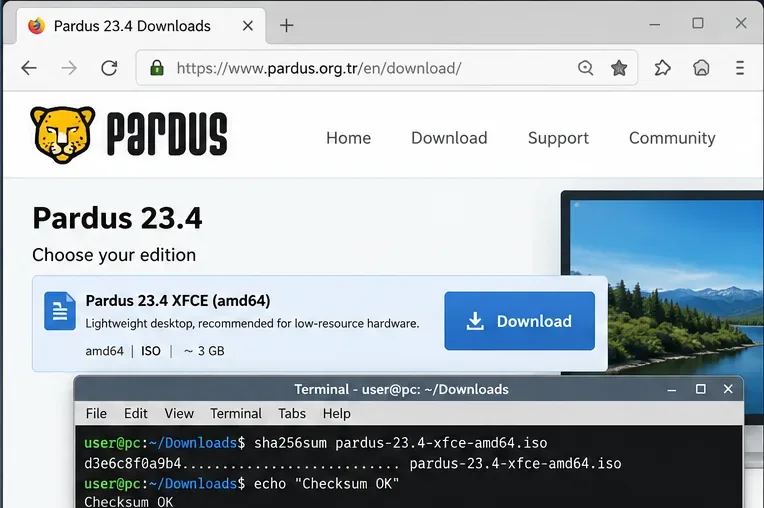
Use Pardus 23.4 XFCE unless you have a specific reason to install an earlier 23.x point release. Pardus' old-releases page currently lists 23.4 as a supported older release, and the official ISO archive contains Pardus-23.4-XFCE-amd64.iso together with MD5, SHA-1, SHA-256, and SHA-512 checksum files.
Download from the official archive rather than an unofficial mirror. After the download, verify the file against the published SHA256SUMS entry. On Linux, the basic check is:
sha256sum Pardus-23.4-XFCE-amd64.iso
Compare the resulting hash character-for-character with the official value in the Pardus 23 archive. A checksum mismatch means you should not continue with that file.
For low-resource systems, choose the Pardus 23.4 XFCE image from the official old-releases archive and compare its checksum with the published checksum file before writing the USB.
Do I need UEFI for Pardus 23?
No. The official Pardus XFCE installation guide documents both UEFI and Legacy boot paths. For a machine that only supports Legacy BIOS, Pardus can be installed using the Legacy path. The important rule is consistency: boot the installer in the same firmware mode that you intend to use after installation.
If the computer offers both UEFI and Legacy/CSM, choose one deliberately. This guide focuses on Legacy. The Pardus installation guide specifies an msdos partition table for Legacy installation, while its UEFI path uses GPT and an EFI System Partition. Mixing those instructions is a common way to end up with a system that installs successfully but does not boot.
Step 1: Write the Pardus ISO to a USB drive
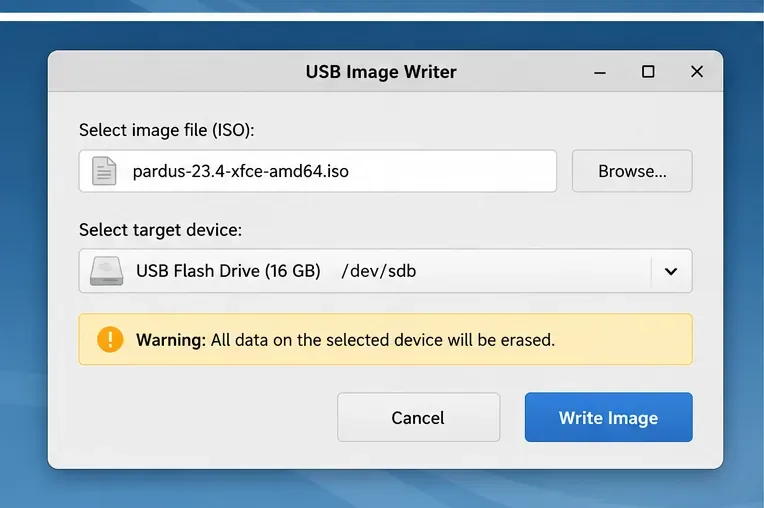
Use an image-writing tool rather than copying the ISO file onto a normal formatted USB drive. Pardus provides its own Pardus Image Writer, described by the project as an application for writing Linux and Windows image files to USB media. Other operating systems can use an equivalent raw-image writer.
Select the Pardus 23.4 XFCE ISO, select the correct USB device, and start the write. Everything already on that USB drive will be destroyed.
Write the ISO as an image to a USB drive. The selected USB is erased, so confirm the target device carefully before starting.
If the machine later drops to a GRUB prompt or refuses to boot the installer, recreate the USB and verify the ISO checksum before changing partitions or BIOS settings. A damaged download or incorrectly written installation medium can imitate a much more complicated boot problem.
Step 2: How should I configure an old BIOS?
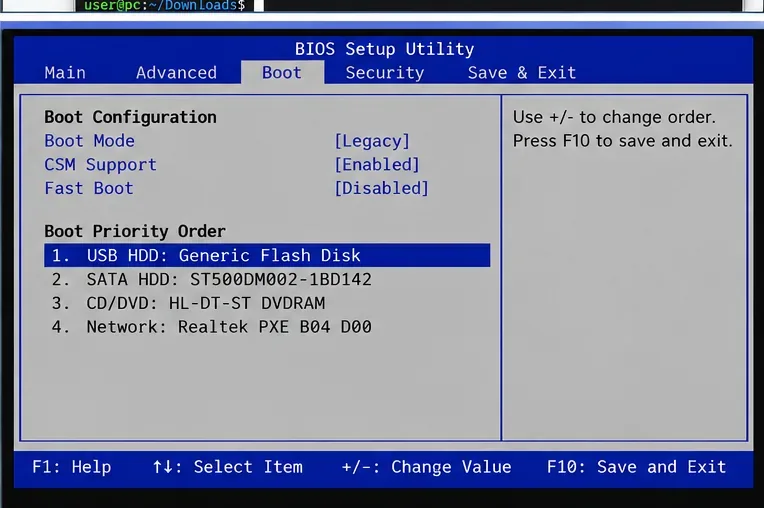
Insert the USB and enter the firmware setup or one-time boot menu. The exact key varies by manufacturer; the Pardus guide mentions common keys such as F2, F8, F12, and Delete. On a pure Legacy machine, select the USB device from the traditional BIOS boot list. On a hybrid system, choose the non-UEFI USB entry if you intend to install in Legacy mode.
On a BIOS-only or Legacy/CSM installation, boot the USB in Legacy mode. Avoid installing in UEFI mode and later trying to boot the disk in Legacy mode.
Do not change unrelated BIOS settings just because the hardware is old. Settings such as SATA mode can affect an existing operating system. If the USB is visible and boots correctly, leave storage settings alone unless you have a specific diagnosed reason to change them.
Step 3: Should I test the live environment before installing?
Yes, especially on legacy hardware. If the image offers a live session, use it long enough to test the display, keyboard, mouse or touchpad, Ethernet, Wi-Fi, sound, and storage detection. This does not prove every installed-system feature will work, but it can expose obvious hardware incompatibility before you erase a disk.
On a machine with only 1 GB of RAM, the live environment may feel slower than the installed system because the installer and desktop are sharing limited memory. That alone is not a definitive failure. A black screen, missing storage device, or completely unsupported network adapter is more significant.
Step 4: Erase the disk or partition manually?
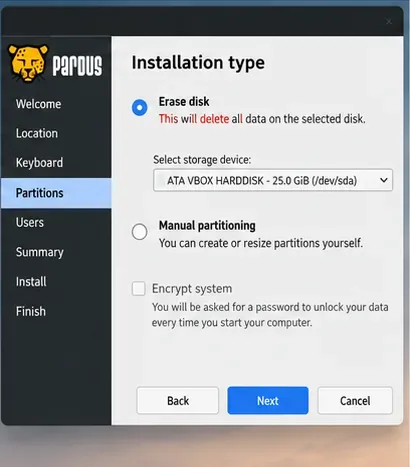
Use the automatic whole-disk choice when the machine is being dedicated to Pardus and you have already backed up everything important. It is the simplest and least error-prone route.
Use the whole-disk option only when the disk can be erased. Choose manual partitioning when you must preserve another system or existing data.
Choose manual partitioning when you need to preserve an existing operating system, keep a data partition, or control swap and /home separately. The official Pardus guide says that for a Legacy installation, the disk can be initialized with an msdos partition table. At minimum, Pardus needs a root filesystem mounted at /. A separate /home is optional.
The official guide also recommends a swap area and suggests swap equal to RAM. On an old machine with 1–2 GB of memory, having swap is useful because it gives the kernel somewhere to move inactive pages when RAM is tight. It does not make a slow hard drive behave like RAM, so heavy swapping will still feel slow.
How much disk space should I allocate?
Pardus 23's published minimum for XFCE is 8 GB, with 10 GB or more recommended in the original release notes. Treat that as an installation floor, not a comfortable long-term target. Updates, browser caches, applications, and user files consume space quickly. If the disk has room, giving the root filesystem substantially more than 10 GB reduces maintenance pressure later.
Before confirming any erase or partition operation, read the model and capacity of the selected disk. Old PCs sometimes contain both a small SSD and a larger hard drive; selecting the wrong device can destroy the only copy of valuable data.
Step 5: Create the user account
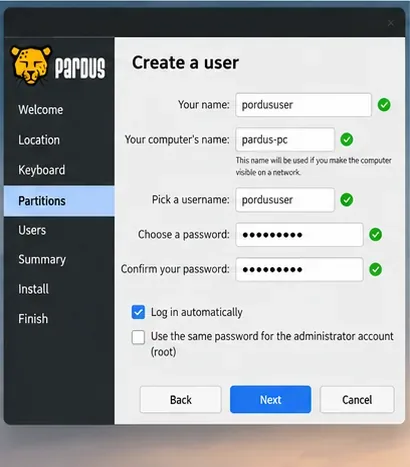
Continue through language, location, keyboard, and account pages. Create a local username and a password you can reliably type on the selected keyboard layout. Pay attention to Num Lock on older full-size keyboards and to non-US keyboard layouts, because a password entered with the wrong layout can be difficult to reproduce after reboot.
Create the local user and a strong password. Interface labels can vary slightly across Pardus 23 point releases, but the installer collects the same core account information.
The exact labels and visual styling can vary slightly among Pardus 23 point releases, but the purpose is the same: define the local account, computer name, locale, and authentication information before files are installed.
Step 6: What should I check before pressing Install?
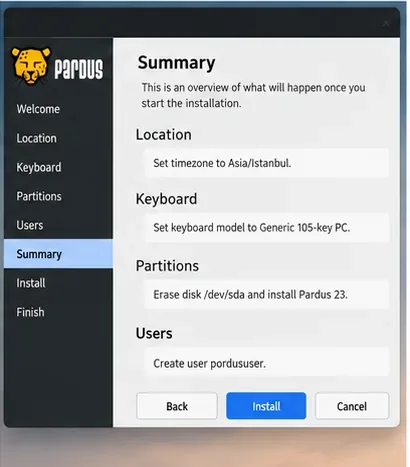
The summary screen is where you should slow down. Verify the target disk, partition changes, keyboard layout, timezone, and username. If the summary says the installer will erase a disk you intended to keep, go back rather than hoping the next screen will ask again.
Read the installation summary before committing changes, especially the target disk and partition plan. This is the last convenient point to catch a wrong-disk selection.
Once installation begins, let it complete without removing the USB or powering off the machine. Old mechanical hard drives can make this stage noticeably slower than on a modern SSD.
Step 7: Reboot in the same firmware mode
When the installer finishes, shut down or restart as instructed, remove the installation USB when appropriate, and let the computer boot from its internal disk. If you installed in Legacy mode, keep Legacy/CSM enabled and keep the internal disk available in the Legacy boot order.
If the firmware says there is no bootable device, first verify that it is not trying to boot only in UEFI mode. A Legacy installation will not magically become a UEFI installation after the USB is removed.
Step 8: How do I verify the installation?
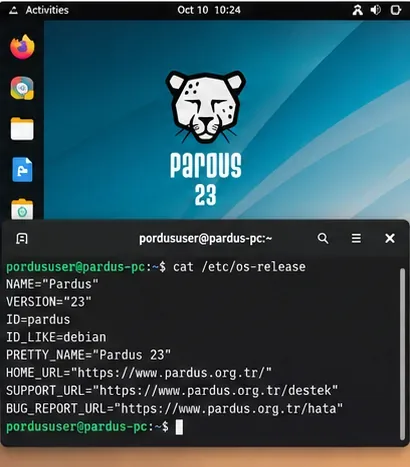
Do not consider the job finished merely because the desktop appears once. Verify the operating system, updates, free storage, memory pressure, and important hardware.
cat /etc/os-release
uname -r
free -h
df -h /
ip link
After rebooting from the internal disk, confirm the Pardus release, network, storage, and display behavior before considering the installation complete.
Then update the installed packages:
sudo apt update
sudo apt full-upgrade
Reboot after major kernel or firmware updates, then test the same hardware you checked in the live session: Ethernet or Wi-Fi, sound, display resolution, suspend if you intend to use it, and USB ports. On old systems, browser video playback and graphics acceleration are also worth checking because they can reveal GPU limitations that a basic desktop session does not.
What if Pardus boots from USB but shows a black screen?
Start with the easy causes. Verify the ISO checksum, rewrite the USB, and try another USB port. If the boot menu offers an alternate graphics or compatibility choice, use that rather than immediately repartitioning the disk. A graphical failure before installation is usually not fixed by changing the root filesystem.
Hardware support is the point where the limits of a generic installation guide matter most. Pardus 23 is based around a Linux 6.1-era stack, so a very old GPU or an unusual Wi-Fi chipset can still require troubleshooting. Conversely, some newer devices may work better with a newer kernel. If the live session cannot detect essential hardware, investigate that device before committing the disk.
What if the installed system lands at GRUB or does not boot?
Check three things in order:
Was the USB image written correctly and did the installer itself boot reliably?
Did you install and reboot in the same firmware mode: Legacy to Legacy, or UEFI to UEFI?
For a manual Legacy installation, did you use an MBR/msdos partitioning layout and install the bootloader to the intended disk?
If you accidentally mixed UEFI and Legacy modes, changing random GRUB commands is usually less efficient than first correcting the firmware mode and confirming the disk layout.
When should you stop trying to use Pardus 23 on this machine?
Change approach if the CPU is 32-bit-only, because the official Pardus 23 desktop archive provides amd64 images. Also reconsider the plan if essential hardware is unsupported in the live environment, if the machine has so little RAM that normal applications constantly swap, or if the hard drive is failing. No desktop environment can compensate for bad storage.
For an old but 64-bit PC with roughly 1–2 GB of RAM, functioning storage, and supported graphics, Pardus 23.4 XFCE remains the Pardus 23 edition that best matches the project's own low-resource positioning. The useful success criterion is not simply “the installer reached 100%.” It is that the machine boots from its internal disk in the intended Legacy mode, updates successfully, recognizes the hardware you need, and remains responsive enough for the workload you actually plan to run.