Home
» LINUX
»
How to Install Software on Fedora Linux with DNF and Software Centers
How to Install Software on Fedora Linux with DNF and Software Centers
Fedora Linux software can be installed from the terminal with DNF or through a desktop app store. On a traditional Fedora Workstation or Spin, use dnf to find and install RPM packages from enabled repositories. GNOME Software and KDE Discover provide search-and-click workflows and may also show Flatpak apps from configured remotes. Before installing, check which source supplies the app.
This guide covers traditional Fedora installations. Fedora Atomic Desktops such as Silverblue and Kinoite use a different model for host RPM packages; Flatpak is a common route for desktop apps there. See the Fedora Atomic Desktops overview if you use one of those editions.
Choose a package source
DNF installs RPM packages and their dependencies from repositories enabled on your system. Fedora’s desktop stores can also list Flatpaks. The same application may appear more than once, with labels such as Fedora Linux (RPM), Fedora Flatpak, or Flathub. These are different package sources and may have separate update paths, so check the source and publisher on the app page. Prefer Fedora’s repositories or the application publisher’s documented source. Add a third-party repository only when you trust its maintainer and understand what it will provide.
Install software with DNF in Terminal
For example, the package name for the GIMP image editor is gimp. You can confirm its current Fedora listing on Fedora Packages. Use these steps for another program by substituting its package name.
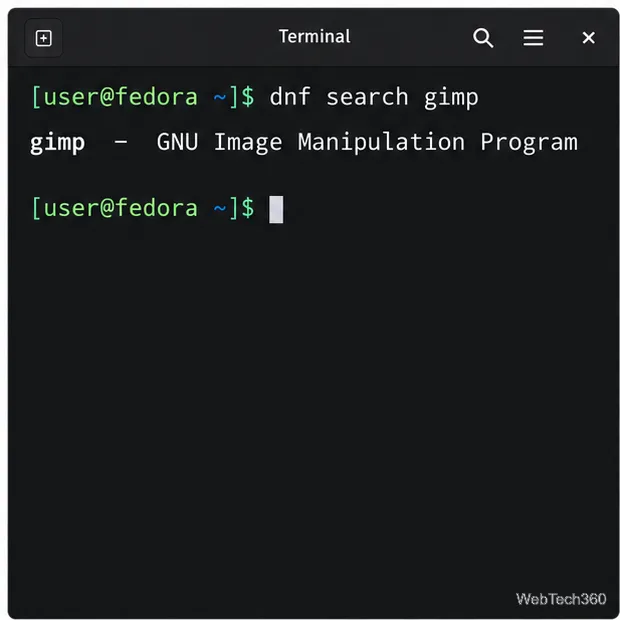
Search for the package. Open Terminal and run dnf search gimp. DNF searches package names and summaries; if results are broad, use dnf search --name gimp to search names only. The result can differ based on your Fedora release and enabled repositories.
The search result shows a matching package name and short description.
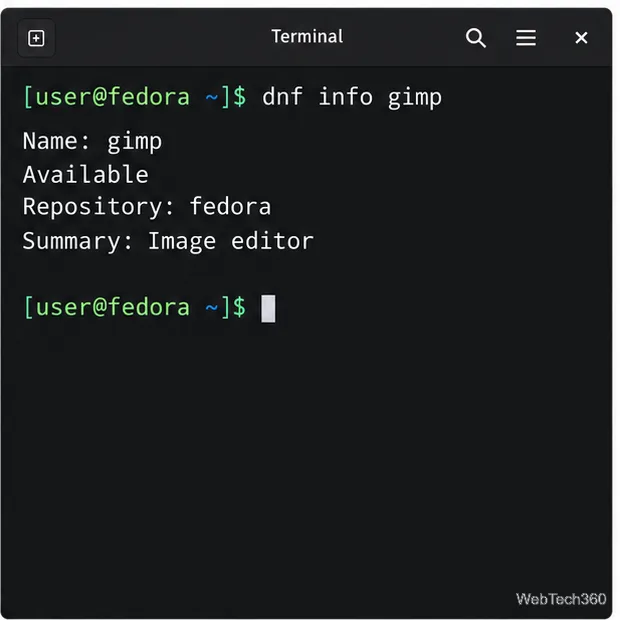
Check the package details. Run dnf info gimp to check the package summary and repository before installing. If several similarly named packages appear, use this information and the project’s official documentation to choose the right one.
Review the package name and repository before you install it.
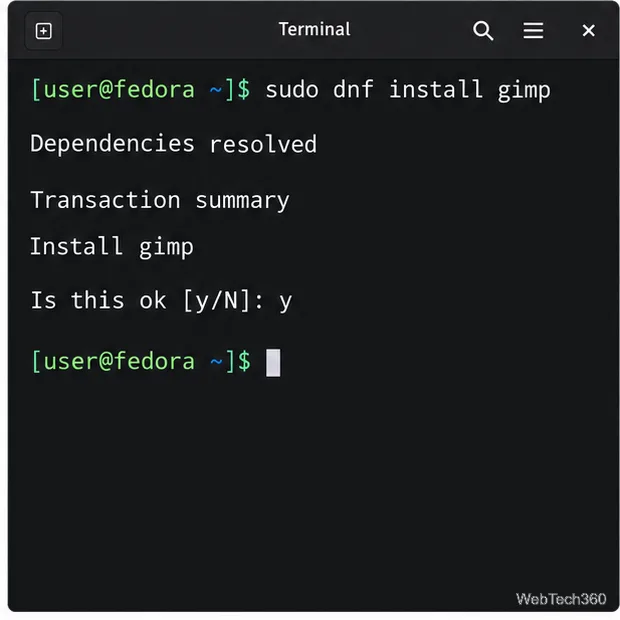
Install and review the transaction. Run sudo dnf install gimp. Enter your account password if prompted. DNF resolves dependencies and displays a transaction summary; read the packages and repository sources, then type y and press Enter to continue. Leaving out -y gives you a chance to cancel if the proposed changes are unexpected.
DNF asks you to approve the planned package transaction before continuing.
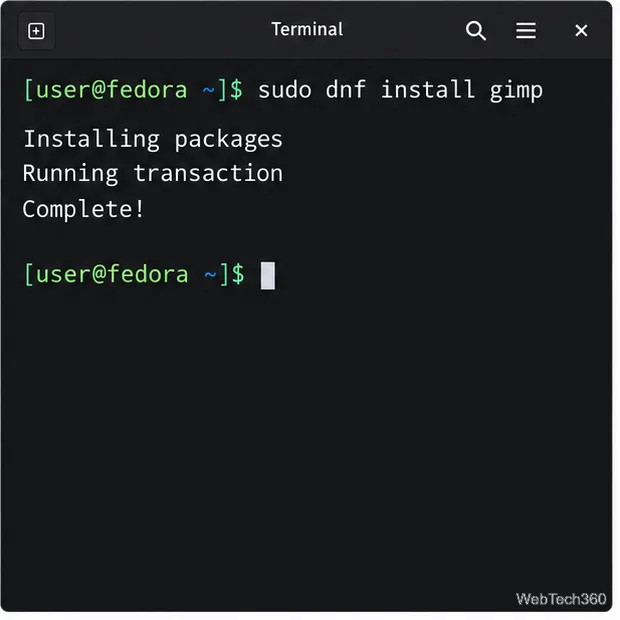
Open or remove the app. When DNF reports that the transaction is complete, launch GIMP from the application menu. To uninstall this RPM later, run sudo dnf remove gimp and review the proposed removals before confirming. Removing a package can also remove dependencies that are no longer needed.
A completed transaction returns control to the terminal; open the app from your desktop menu.
Fedora 41 and later use DNF 5 behind the familiar dnf command, so you do not need to replace it with dnf5 for these steps. See the official DNF 5 search, install, and remove references for command options.
Install with GNOME Software
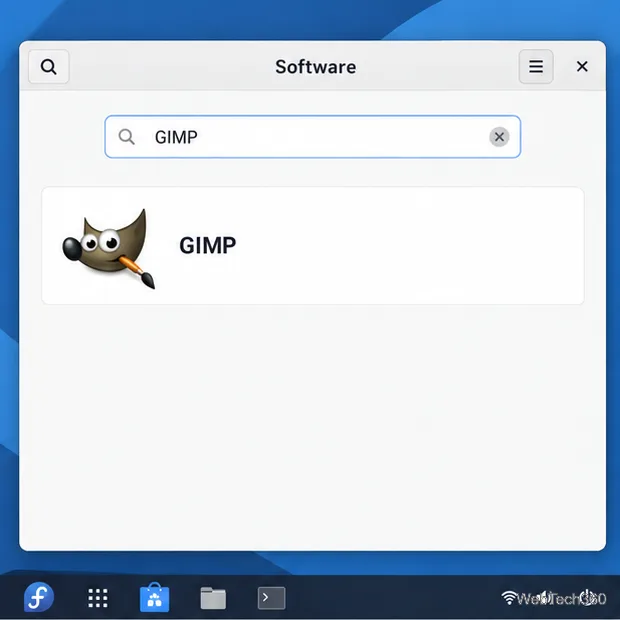
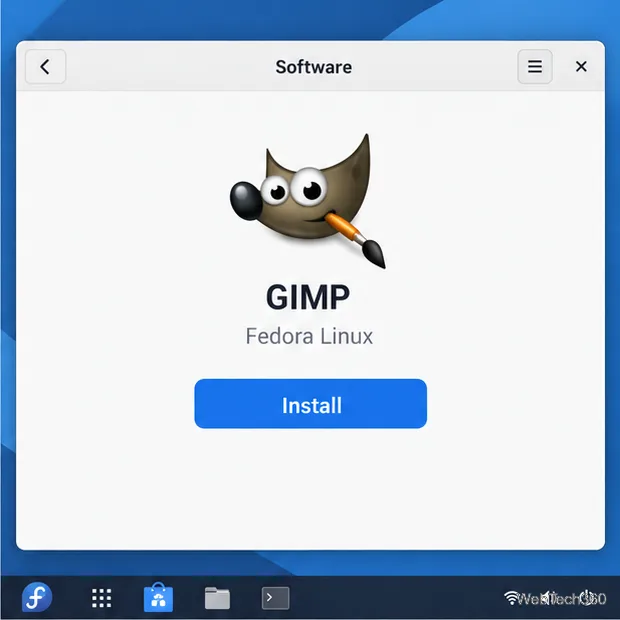
On Fedora Workstation, open the applications grid and choose Software. Search for the program, select its result, and check the app name and source on the details page. If Fedora offers both an RPM and a Flatpak, choose the one that fits your preference; the source label helps distinguish them. Select Install and authenticate if Fedora asks for your password. When installation finishes, launch the app from its page or the applications grid. The exact labels can vary slightly by Fedora and GNOME Software version.
Search in Software to find an application by its display name.Confirm the source on the app details page, then choose Install.
GNOME Software can browse categories, search for apps, and install or remove applications. Fedora’s guide to finding and installing Linux applications explains the source labels used in Fedora’s graphical stores.
Install with KDE Discover
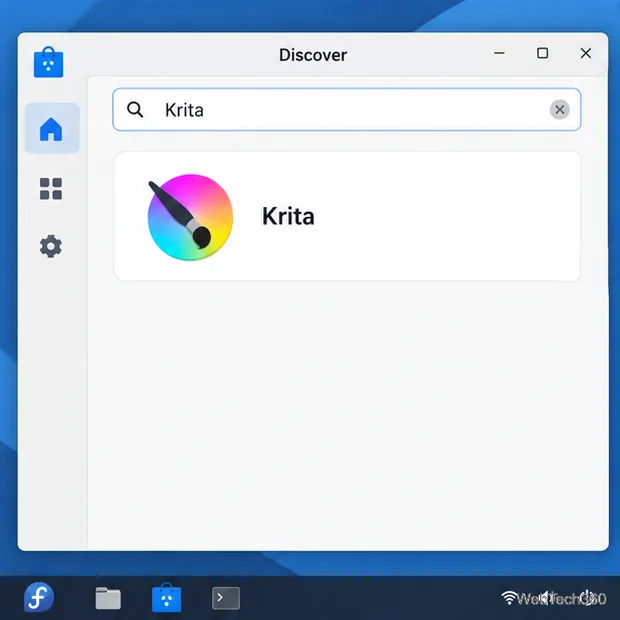
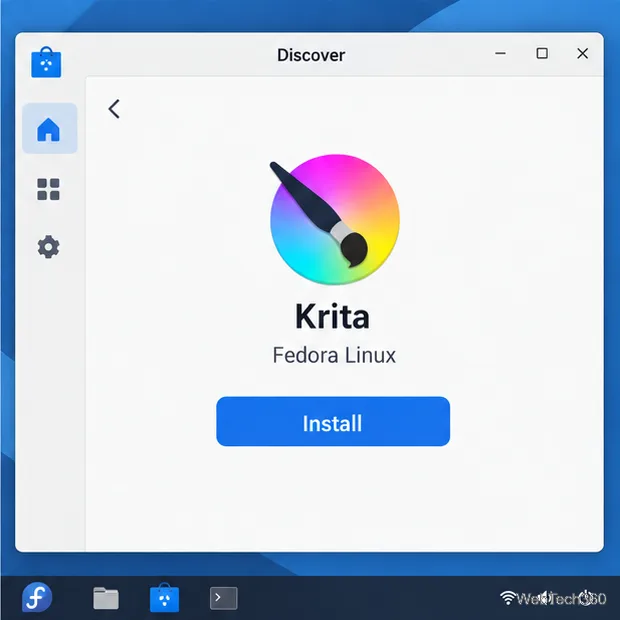
On Fedora’s KDE Plasma edition, open Discover from the application launcher. Search or browse for an app, open its details, and inspect the listed source. Discover can manage Fedora repository packages and Flatpaks when the matching backend and remote are available. Choose Install, approve any authentication prompt, and wait for the app page to show that installation has finished. You can then launch the program from Discover or the application launcher.
Discover searches the software sources configured on this Fedora system.Check the source on the details page before installing the selected app.
For Flatpak-specific setup, Fedora’s Flatpak usage guide describes installation through both GNOME Software and KDE Discover. The GNOME Software and KDE Discover project pages describe each store’s capabilities.
If an app does not appear
Check the spelling and try the package’s technical name; an app’s menu name and RPM name are not always identical. In DNF, dnf search --all keyword also searches package descriptions and URLs. If the app is still missing, check whether it supports your Fedora release and whether its official repository or Flatpak remote is enabled. Do not install a package from an unfamiliar source just because it appears in a search result. For development libraries, use the project’s language-specific package manager as directed by its documentation; DNF is for Fedora system packages.
For the current official repository and desktop-store instructions, start with Fedora’s application installation guide and the upstream DNF 5 command references linked above.