How to Share Files Over Bluetooth on Linux with Blueman

Send and receive files over Bluetooth on Linux with Blueman. Install OBEX support, pair devices, choose a file, accept transfers, and fix common issues.
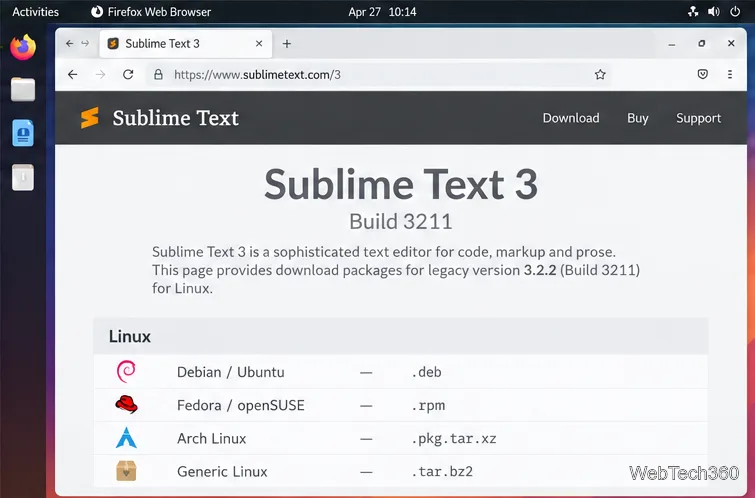
To install Sublime Text 3 on Linux, download the archived Linux package for your distribution and install that local file. The official archive still offers Sublime Text 3.2.2, Build 3211, released October 1, 2019. This is a legacy release: Sublime Text 4 is the current version. The current Linux repository instructions follow the live release channel, so use the archived download page when you specifically need version 3.
Open the official Sublime Text 3 downloads page and check that it shows Build 3211. If your project does not require version 3, install the current stable release from the current download page instead; it includes newer fixes and Linux support updates.
Sublime Text can be evaluated without an enforced time limit, but a license is required for continued use. See the official previous-version guidance for license and archive details.
The Build 3211 page lists 64-bit packages for Debian and Ubuntu (.deb), Fedora and openSUSE (RPM), and Arch Linux (.pkg.tar.xz). It also provides a generic Linux tarball. A 32-bit tarball is listed separately; do not install a 64-bit package on a 32-bit system. Download the package, its matching signature when offered, and the publisher key from the same official page.
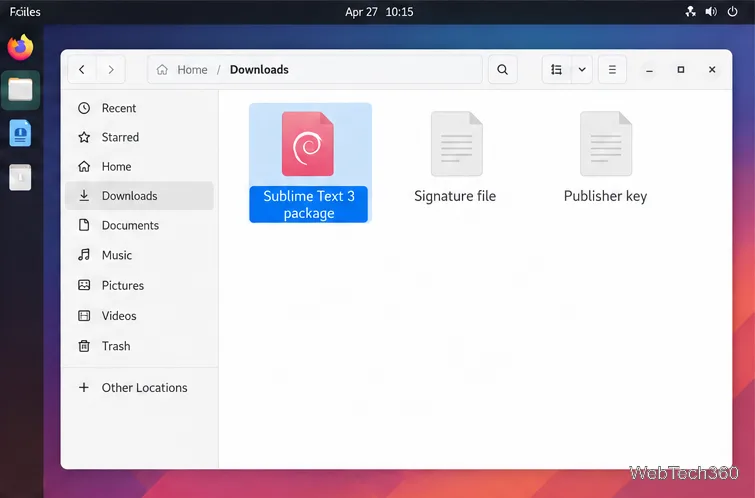
The archive page links a public key and detached signatures for the Debian, Arch, and tarball downloads; the RPM is signed. In the directory containing the downloaded files, import the key and check the signature that matches your package:
gpg --import sublimehq-pub.gpg
gpg --verify sublime-text_build-3211_amd64.deb.sig sublime-text_build-3211_amd64.deb
For an Arch package, use its .pkg.tar.xz.sig file in the same command; for the generic tarball, use its .tar.bz2.asc file. On RPM systems, import the supplied key with sudo rpm --import sublimehq-pub.gpg, then check the package with rpm -Kv sublime-text-3211-1.x86_64.rpm. Continue only when the signature check succeeds. Replace the example file names if your browser saved the downloads under different names.
Open a terminal in the folder containing the downloaded .deb, usually Downloads, and run:
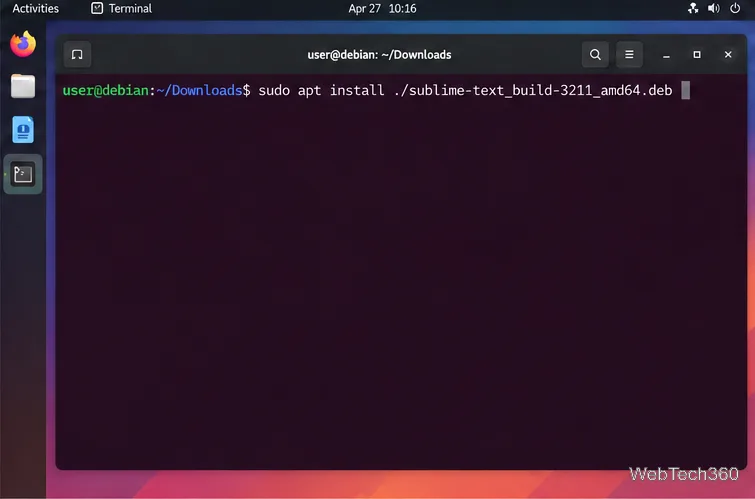
sudo apt install ./sublime-text_build-3211_amd64.debThe ./ tells APT to install the local file. If you run the command from another directory, give APT the full path to the package.
For Fedora, install the downloaded RPM with DNF:
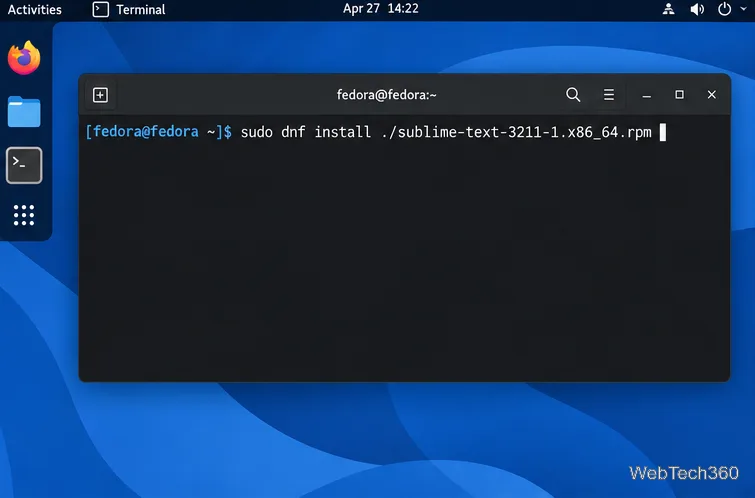
sudo dnf install ./sublime-text-3211-1.x86_64.rpmFor openSUSE, use Zypper with the same RPM:
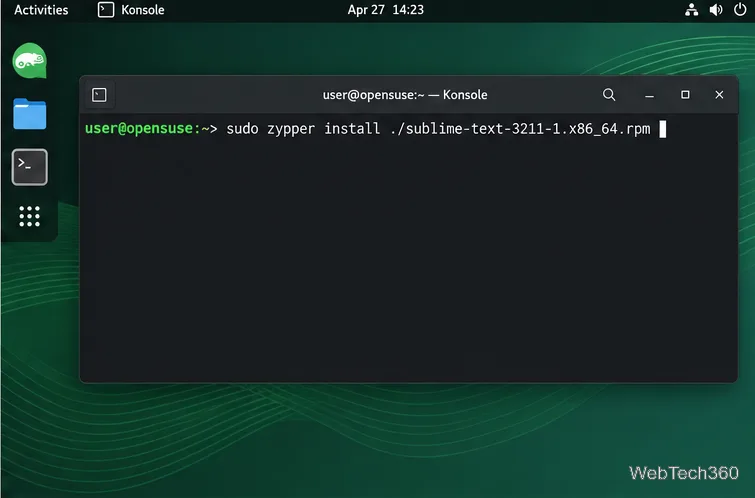
sudo zypper install ./sublime-text-3211-1.x86_64.rpmRun the command from the download folder or replace the relative path with the full file path.
Download the package, its matching signature, and the publisher key from the official archive. Add and locally sign the key using Sublime Text’s Pacman instructions:
sudo pacman-key --add sublimehq-pub.gpg
sudo pacman-key --lsign-key 8A8F901A
Then install the local package:
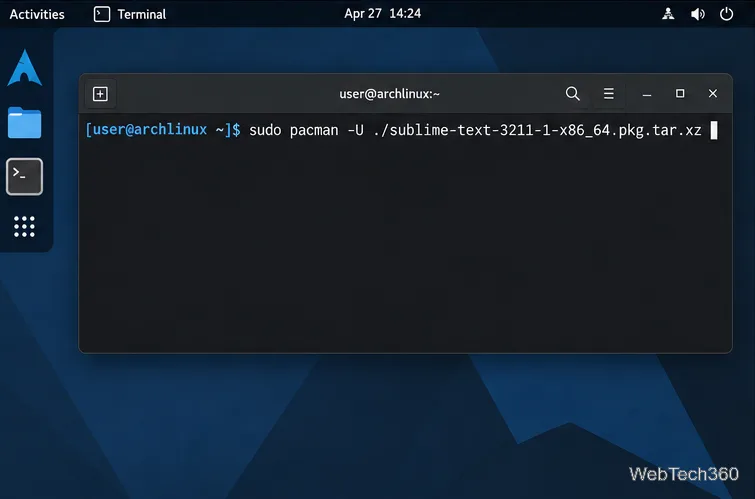
sudo pacman -U ./sublime-text-3211-1-x86_64.pkg.tar.xzUse the generic .tar.bz2 archive. Extract it in a folder you own, open the extracted sublime_text_3 directory, and run its sublime_text executable. This portable install is not managed by your system package manager. If you want the subl terminal command, follow the Linux section of Sublime's command-line documentation and point the link to the executable's actual location.
For package installs, search the desktop application menu for Sublime Text or launch it from a terminal. The packaged install provides the subl command, so you can check the version with:
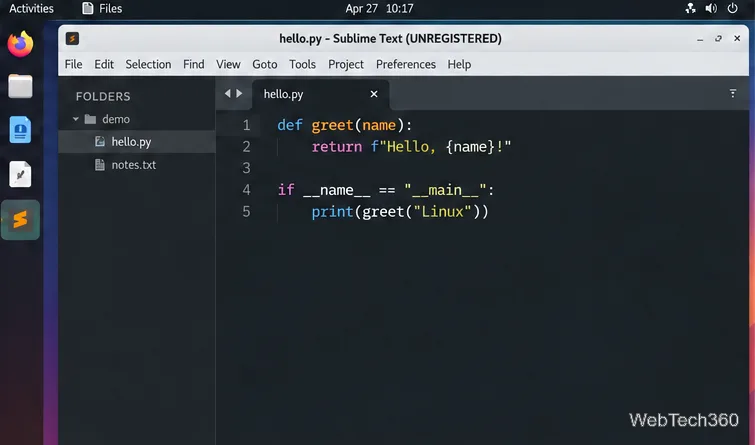
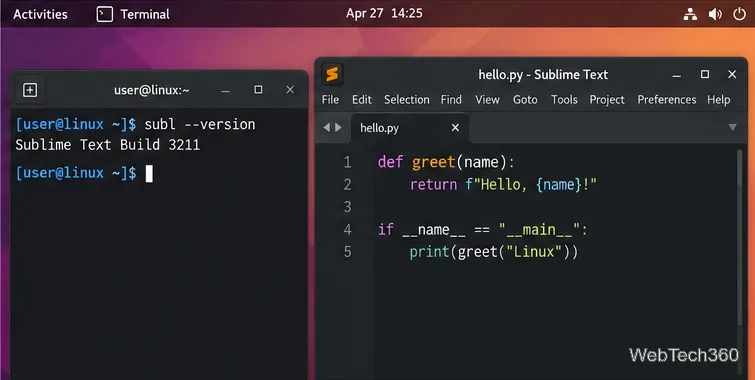
subl --versionConfirm that the output says Sublime Text Build 3211. If it reports a different build, the system may be launching an existing installation or a newer package.
./ for local APT, DNF, and Zypper packages.Because Build 3211 dates to 2019, choose it only when you need the older release. The official download page and Linux repository documentation are the best places to check package availability and current install instructions.
Send and receive files over Bluetooth on Linux with Blueman. Install OBEX support, pair devices, choose a file, accept transfers, and fix common issues.
Connect GNOME Files to SSH/SFTP, FTP, SMB, WebDAV, or NFS with the correct server URI, sign-in details, and fixes for common connection errors.
Open SFTP, SSH, SMB, FTP, NFS, and WebDAV locations in Dolphin, sign in safely, transfer files, and save network folders for later.
Connect a DualShock 4 to Linux by USB or Bluetooth, then check controller detection and configure Steam Input only when a game needs it.
Use DNF5 parallel downloads to reduce RPM install waits in GNOME Software, then tell when mirror or Flatpak delays need a different fix.
Access iCloud on Linux in a current browser. Learn how to sign in, use iCloud Drive and other web apps, and understand the limits of browser access.
Save GRUB settings, boot files, and UEFI entry details to removable storage, then use rescue media to repair the correct boot path safely.
Install Bitwarden on Linux with the right DEB, RPM, Snap, Flatpak, or AppImage package, then sign in and set a secure vault timeout.
Pick a screensaver theme in Xfce, preview it, choose when it starts, and configure automatic locking in the separate Lock Screen tab.
Stop GNOME Shell from blanking or locking your display automatically. Change Power and Screen Lock settings, or use Caffeine for a temporary keep-awake toggle.








