Home
» LINUX
»
How to Install the AbiWord Word Processor on Linux
How to Install the AbiWord Word Processor on Linux
To install AbiWord on Linux, use your distribution's package manager when it offers the app, or install the Flathub Flatpak for a consistent option across distributions. The package name is abiword in Ubuntu, Debian, Fedora, Arch, and openSUSE Tumbleweed repositories. If your release does not provide it, Flatpak is the practical fallback.
Package versions and availability vary by release. A native package follows your distribution's normal update process; Flatpak is maintained separately through Flathub. Choose one installation method, then launch AbiWord from your desktop's application menu or terminal.
Install AbiWord from your distribution's repository
Open a terminal and use only the command for your distribution. The installer may ask for your administrator password and confirmation before downloading the app and its dependencies. Do not edit repository configuration files just to install AbiWord unless your distribution's official documentation specifically tells you to.
Ubuntu or Debian
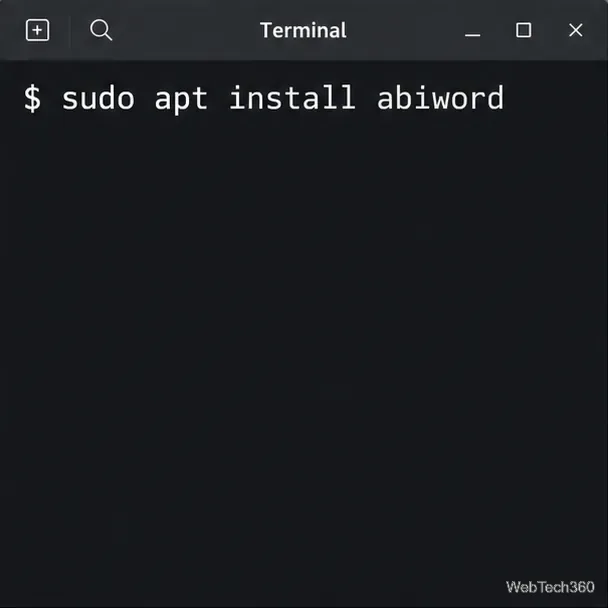
APT installs AbiWord on Ubuntu and Debian.
Refresh the package index, then install AbiWord with APT:
sudo apt update
sudo apt install abiword
Ubuntu packages AbiWord in the Universe component. If APT reports that it cannot find the package, update the package index and check that Universe is enabled in your software sources. Debian lists abiword in its stable archive. See the official Ubuntu package record and Debian package page.
Fedora
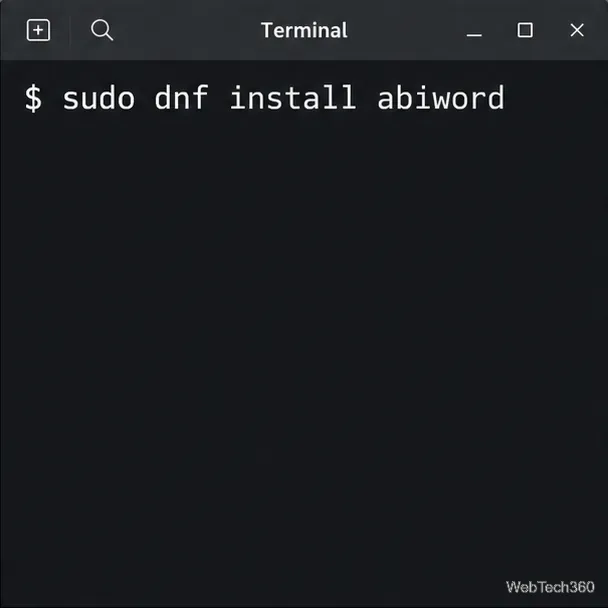
Use DNF to install AbiWord from Fedora repositories.
On Fedora, run:
sudo dnf install abiword
Accept the transaction when DNF displays the packages it will install. Fedora's package catalog tracks availability by release, so consult the official Fedora AbiWord package page if a current release reports no match.
Arch Linux
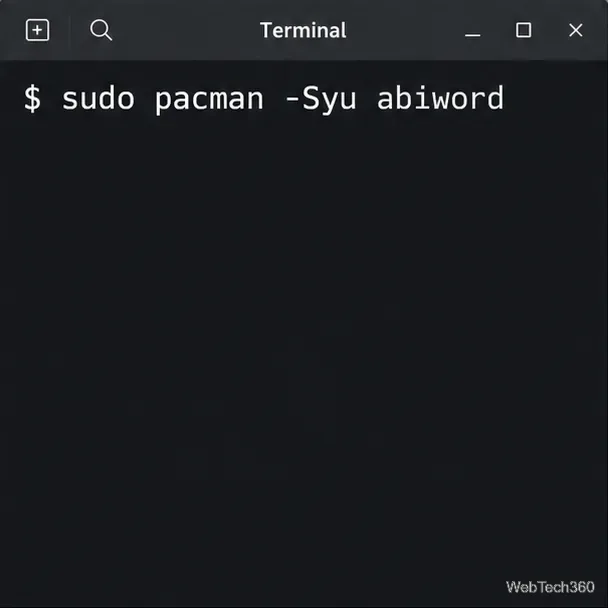
Pacman updates the Arch system and installs AbiWord in one transaction.
Install from Arch's Extra repository with a full system upgrade:
sudo pacman -Syu abiword
Arch recommends avoiding partial upgrades; using -Syu synchronizes package databases and updates the installed system as part of the same operation. The official Arch package listing shows the repository and supported architecture. The Extra repository is normally enabled, so editing /etc/pacman.conf is not part of the usual installation.
openSUSE
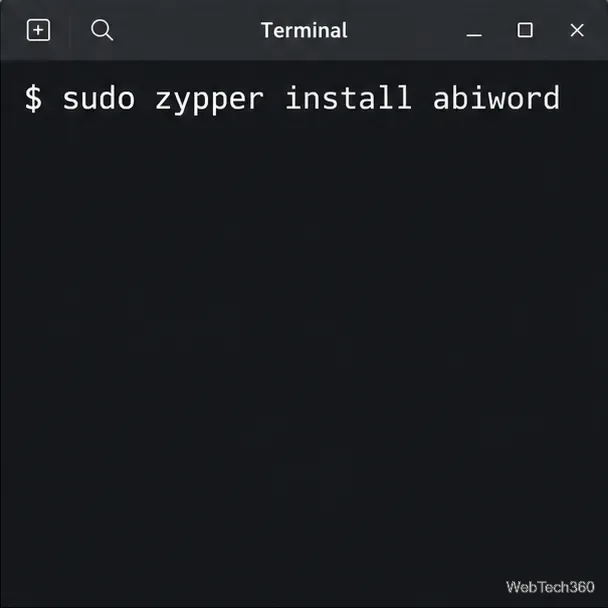
Zypper can install AbiWord on openSUSE Tumbleweed when its package is available.
On openSUSE Tumbleweed, use Zypper if the package appears in your enabled repositories:
sudo zypper install abiword
The openSUSE software catalog lists an official Tumbleweed package, but currently shows no official package for Leap 16.0. If you use Leap and Zypper cannot find AbiWord, skip unofficial repositories and use the Flatpak method below. Check the openSUSE package finder for the status of your release.
Install AbiWord with Flatpak
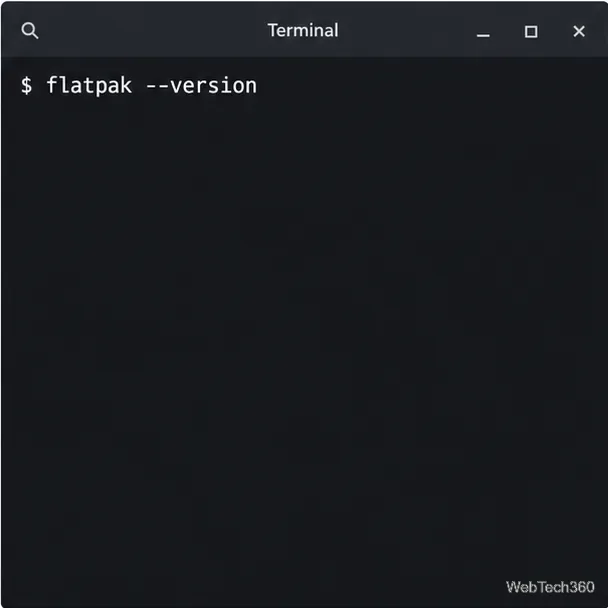
Flatpak is useful when your distribution does not package AbiWord or you prefer to get it from Flathub. First check whether Flatpak is installed:
This command confirms that Flatpak is installed and available in the terminal.
flatpak --version
If the terminal says the command is unavailable, use Flathub's distribution-specific setup guide to install Flatpak first. The setup steps differ across Linux releases; do not copy an installation command meant for a different distribution.
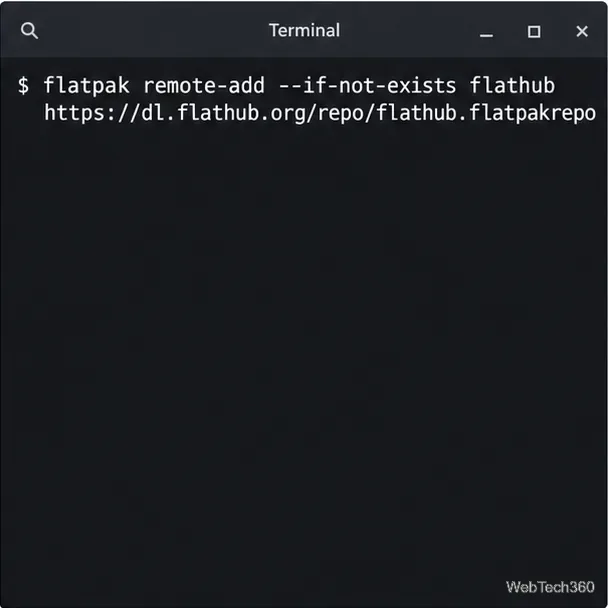
If Flathub is not already configured, add it with the official repository file:
Add Flathub as a Flatpak remote before installing its AbiWord package.
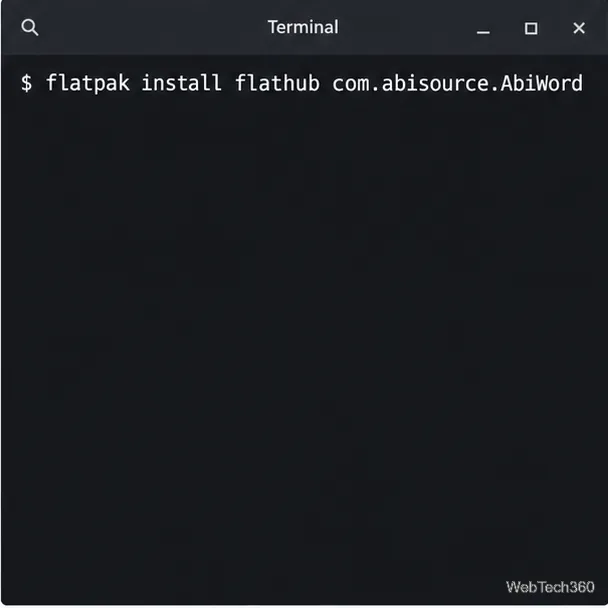
Then install AbiWord. When prompted, review the runtime and application details and confirm the installation:
Install AbiWord from Flathub using its application ID.
flatpak install flathub com.abisource.AbiWord
Flatpak uses a system-wide installation by default and may request authorization. You can use the --user option with both remote setup and installation to keep the app in your own account. Flatpak documents the difference between system-wide and per-user installs.
Launch AbiWord and confirm it works
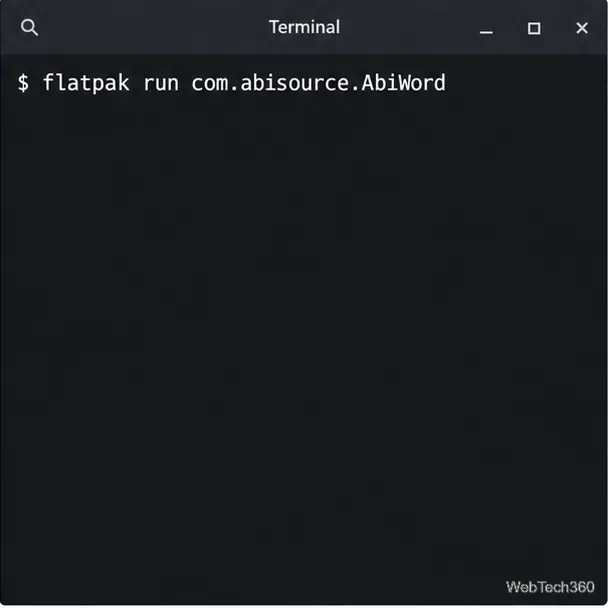
After installation, search for AbiWord in your desktop's application menu. If you installed the Flatpak and do not see a launcher yet, start it directly:
Launch the Flathub build from the terminal if it is not visible in the app menu.
flatpak run com.abisource.AbiWord
For a native package, you can try abiword from a terminal. Create a blank document, type a short test line, and save it to a new file before opening important work. AbiWord supports multiple import and export formats, but complex formatting can vary between word processors; keep the original copy of any document you are converting.
Fix common installation problems
APT cannot locate AbiWord: run sudo apt update and check that Ubuntu's Universe component is enabled. Confirm the package exists for your release in the official package index.
DNF or Zypper finds no package: check the current release's official package catalog. openSUSE Leap 16.0 has no official AbiWord package at present; use Flathub instead.
Pacman warns about upgrades: allow the full -Syu system update to complete. Avoid refreshing package databases without upgrading the system.
Flatpak cannot find Flathub or the app: confirm the Flathub remote is configured with flatpak remotes, then repeat the install command. If Flatpak itself is missing, follow the setup guide for your distribution.
The app does not appear in the menu: launch the native build with abiword or the Flatpak build with flatpak run com.abisource.AbiWord. Make sure you use the command that matches how you installed it.
Once AbiWord opens and saves a test document, the installation is complete. Keep it updated through the same source you used to install it: your Linux package manager for a native package or Flatpak for the Flathub build.