Home
» LINUX
»
How to Install the Beaker Browser on Linux with an AppImage
How to Install the Beaker Browser on Linux with an AppImage
The simplest way to run the Beaker browser on Linux is to use the Linux AppImage from the project's official Releases page. Download the file, make it executable, and launch it from your desktop or a terminal. You do not need a Debian, Fedora, Arch, or openSUSE package command for this route.
There is an important caveat: Beaker is discontinued. The project repository was archived on December 27, 2022, and its latest listed release is version 1.1.0, published on December 8, 2020. It no longer receives upstream maintenance or security fixes. Treat it as a legacy browser for a specific Beaker or Hypercore use case, not as a safe replacement for a supported everyday browser. Avoid using it for sensitive accounts or private browsing.
Before you install Beaker
The archived Beaker project page sends users to its Releases page for binary downloads and lists a separate source-build route for developers. The AppImage is a single executable file, so the steps below work the same way on most Linux distributions. It does not install a package into the system package database, and you should not run it with sudo.
Because the Linux build dates to 2020, compatibility with a current distribution is not guaranteed. Download the asset from the upstream Beaker Releases page, rather than an unofficial mirror. The listed Linux file is Beaker.Browser-1.1.0.AppImage. Keep in mind that this old build may need runtime components that are no longer installed by default on your distribution.
Install and launch the Linux AppImage
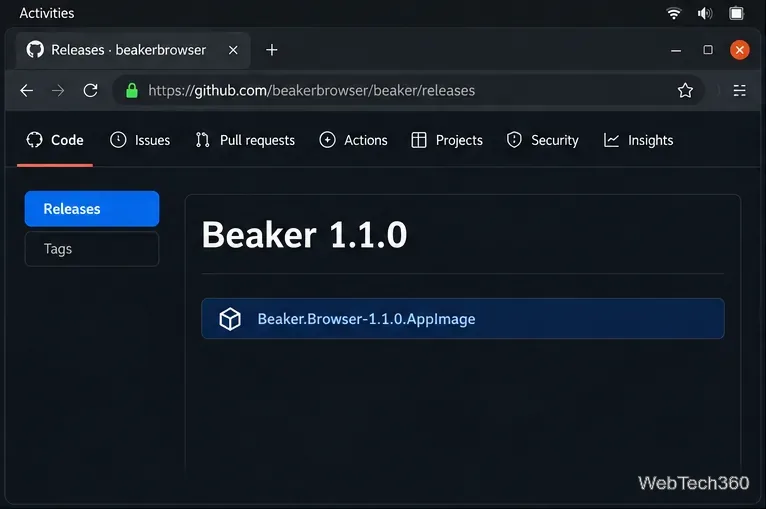
Open the official release page. Find Beaker 1.1.0 and download its Linux AppImage asset. Do not choose the Windows installer, macOS disk image, or source archive. The release page is the upstream location for the project's published binaries.
Select the AppImage file listed with the Beaker 1.1.0 release.
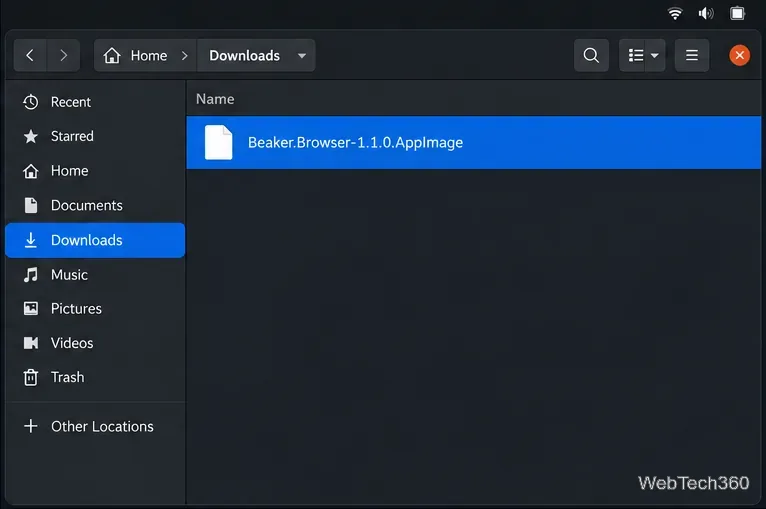
Keep the file in Downloads for the first launch. Confirm that the downloaded filename is Beaker.Browser-1.1.0.AppImage. Linux filenames are case-sensitive. If your browser added a number such as (1) to the name, either remove that suffix or use the actual name in the commands below.
Check the downloaded AppImage name before running the terminal commands.
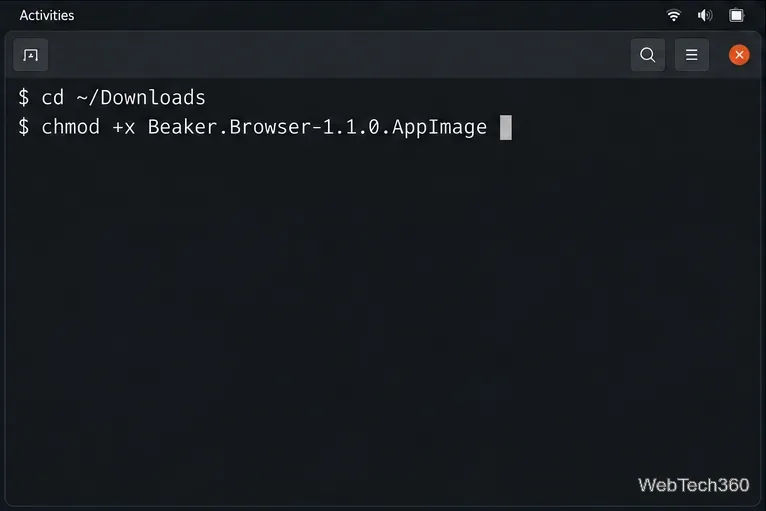
Allow the file to run. Open a terminal and give the AppImage execute permission. Run these commands as your regular user, not as root:
cd ~/Downloads
chmod +x Beaker.Browser-1.1.0.AppImage
If you saved the download somewhere else, change to that directory first. The chmod command changes the permission on this file; it does not install Beaker system-wide or modify other applications.
Set the execute bit before launching the AppImage.
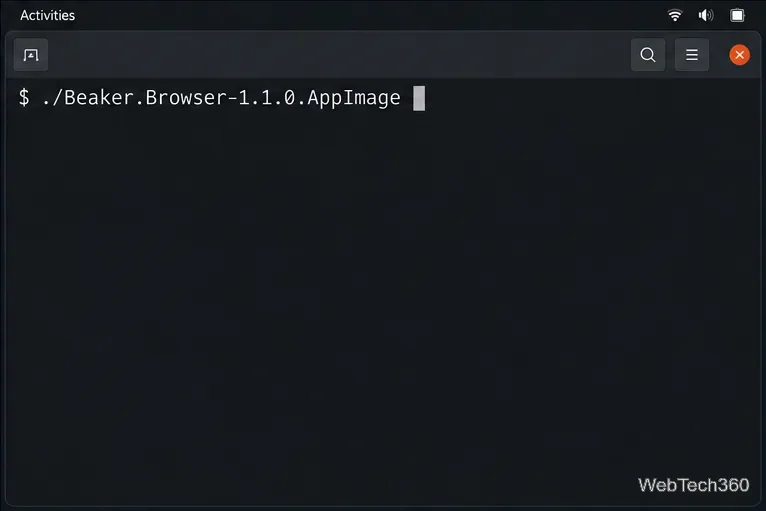
Start Beaker. From the same terminal, run:
./Beaker.Browser-1.1.0.AppImage
If the system can run this older AppImage, Beaker should open as a desktop application. You can also use your file manager: open the file's Properties, enable the executable or “Allow executing file as program” permission, close the dialog, and double-click the AppImage. The exact wording varies by desktop environment. The AppImage quickstart documents both the graphical and terminal methods.
Run the AppImage directly; it does not require a system-wide install.
Desktop menu access and source builds
An AppImage can run without creating a menu entry. If Beaker does not appear in your desktop's Internet or applications menu, use the command above or open the file in your file manager. Desktop integration is optional and differs among Linux desktops; see the AppImage documentation on desktop integration if you want a launcher. The old instructions that create a root-owned script in /usr/bin and hard-code a home-directory username are unnecessary for this installation and can break when the AppImage is moved.
The archived README also documents compiling Beaker from source, including a Node.js-based build under beaker/scripts. That route is intended for developers who need the source, not as a better-supported desktop installation: the repository is read-only, the documented toolchain is old, and maintainers no longer test compatibility with current Linux releases. Refer to the archived source-build instructions only if you specifically need to build the project.
Troubleshooting
“Permission denied” or the file will not open
Repeat chmod +x using the exact path and filename. If the AppImage is on a removable drive or a mounted partition, that location may be mounted with a noexec option; copy the file to a directory in your home folder and try again. Also check that you are running the command from the folder containing the file.
A message mentions FUSE or libfuse.so.2
Some Linux systems need a FUSE compatibility package to run older AppImages. Package names and availability vary by distribution, so use your distribution's package documentation rather than downloading a library from an unverified site. The AppImage FUSE troubleshooting guide explains common causes. Since Beaker's AppImage is old and the project is archived, a compatibility error may have no maintained upstream fix.
Beaker is missing from the application menu
This is expected on desktops that do not automatically integrate AppImages. The file can still be started from the terminal or file manager. Do not recreate the old hard-coded launcher from the previous guide; it points to a source directory and will not match the AppImage workflow.
Use the AppImage only if its legacy peer-to-peer features are what you need and it runs on your distribution. For regular web access, choose a browser that still receives security updates.