How to Share Files Over Bluetooth on Linux with Blueman

Send and receive files over Bluetooth on Linux with Blueman. Install OBEX support, pair devices, choose a file, accept transfers, and fix common issues.
To install the Enlightenment desktop environment, use your distribution’s package manager to install the package named enlightenment, then log out and select Enlightenment from the session menu on the sign-in screen. Ubuntu, Debian, Arch Linux, and Fedora provide a direct package command. On openSUSE, check your release’s package availability before adding a repository.
One common source of confusion is EFL, the Enlightenment Foundation Libraries. EFL supports Enlightenment and related applications, but installing the desktop session is a separate task. For the desktop, install enlightenment, not only the library package efl. The upstream project describes Enlightenment as a desktop shell rather than a complete suite of everyday applications.
Save any open work and use a terminal in your current desktop. These commands install packages from repositories configured for your system, so the version can vary by distribution and release. Read the package manager’s confirmation prompt before accepting the changes. You do not need to remove your current desktop environment; both can remain installed, and you can choose a session each time you sign in.
Refresh the package list, then install the desktop package:
sudo apt update && sudo apt install enlightenment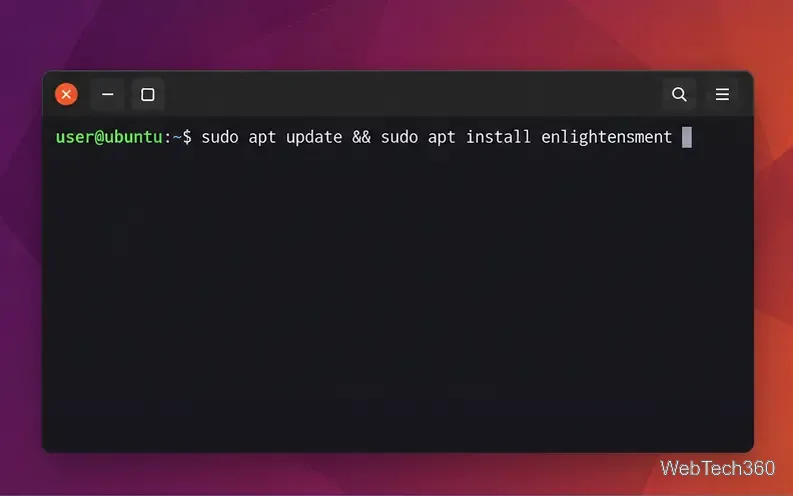
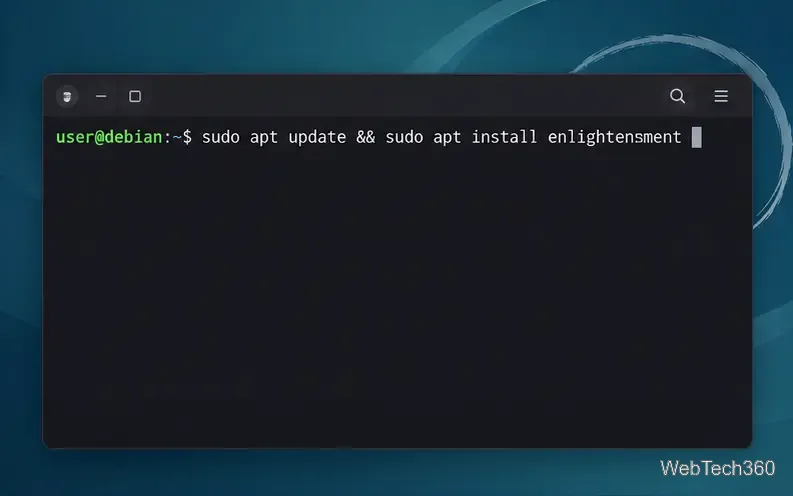
Ubuntu lists Enlightenment in its package index, and Debian includes an enlightenment package in its stable repository. On Ubuntu, if APT says it cannot find the package, check that the Universe component is enabled for your release and refresh the package list again. Use the package search pages for Ubuntu and Debian to confirm availability.
Install from the official Extra repository. Arch recommends keeping a full system upgrade in step with package installation; avoid a database-only refresh followed by a partial upgrade.
sudo pacman -Syu enlightenment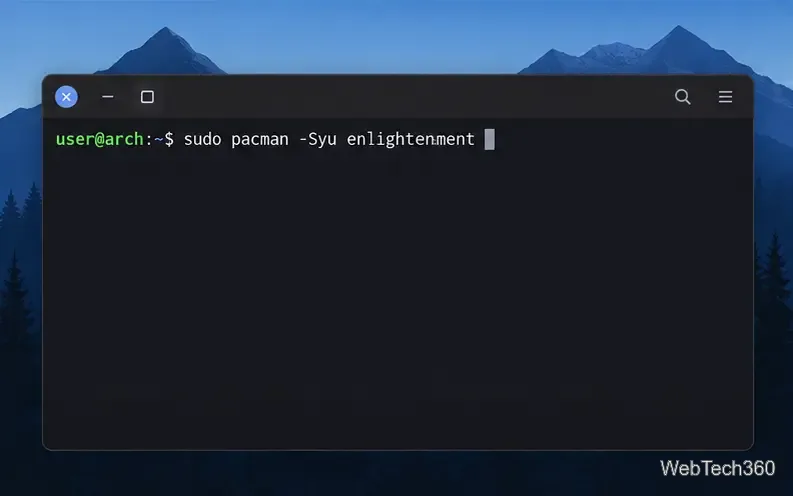
Review the package list and approve the transaction when prompted. The Arch package database identifies this package as the Enlightenment window manager and lists its dependencies. Arch’s system-maintenance guidance warns against partial upgrades. If Pacman cannot find it, verify that the Extra repository is enabled and synchronize through the full upgrade command above.
Fedora packages the desktop as enlightenment. Install it with DNF:
sudo dnf install enlightenment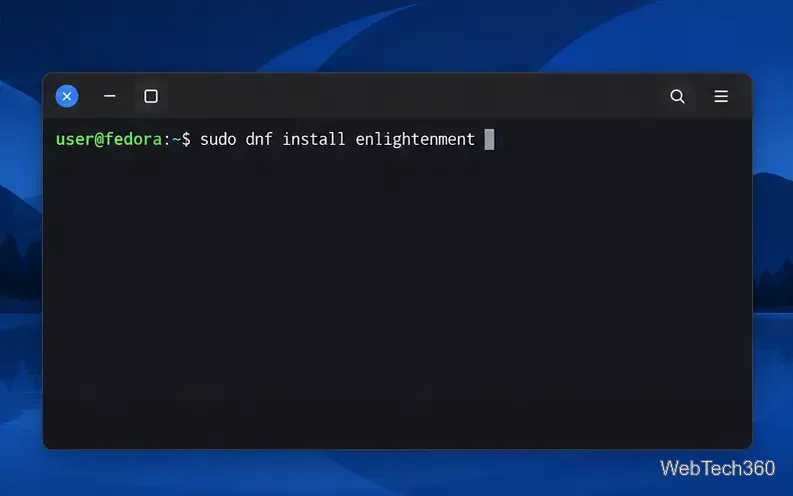
DNF resolves the EFL libraries and other dependencies automatically. The Fedora package listing identifies Enlightenment separately from the EFL library package, so use the desktop package name shown here.
Package availability differs by openSUSE release. First search the repositories already enabled on your system:
zypper search enlightenment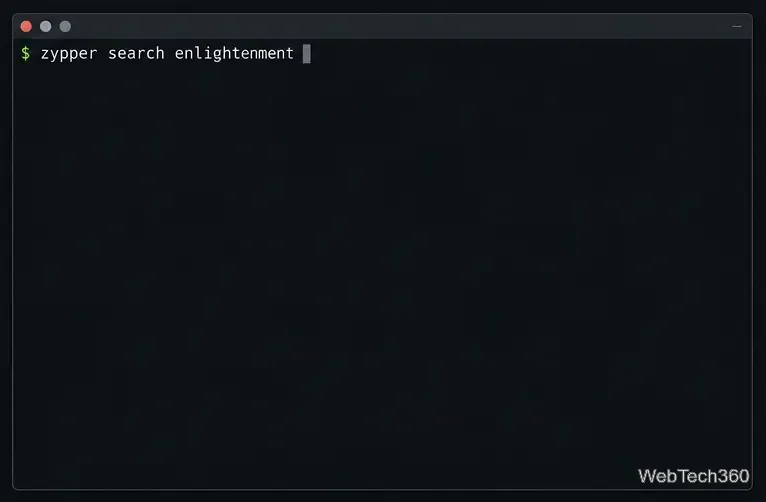
If the results show the exact enlightenment package for your release, install it with sudo zypper install enlightenment. Confirm that the package comes from a repository you trust. The official openSUSE software page currently says there is no official Enlightenment package for Leap 16.0; community or experimental builds are separate options and may have different maintenance or compatibility. Check the openSUSE package page before adding any repository. The older nightly-repository command sometimes copied into guides should not be applied blindly to a different release.
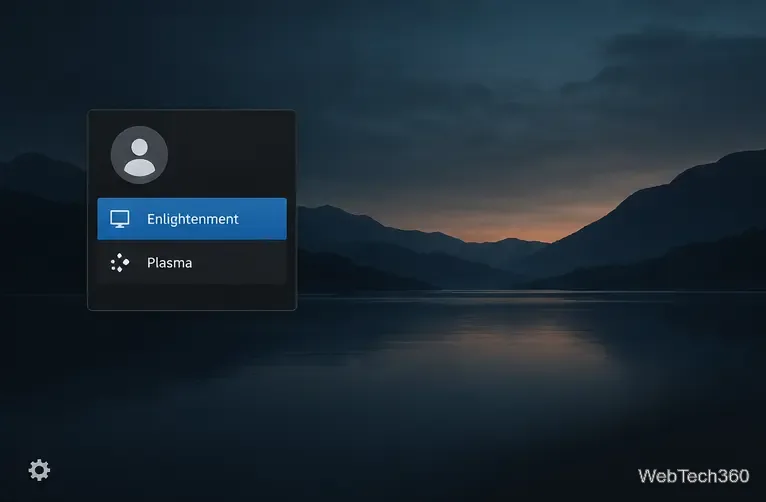
After installation, log out of your current session. At the graphical sign-in screen, open the session selector—often shown as a gear or menu near the password field—and choose Enlightenment. Then sign in normally. The selector’s location and appearance depend on whether your distribution uses GDM, SDDM, LightDM, or another display manager.
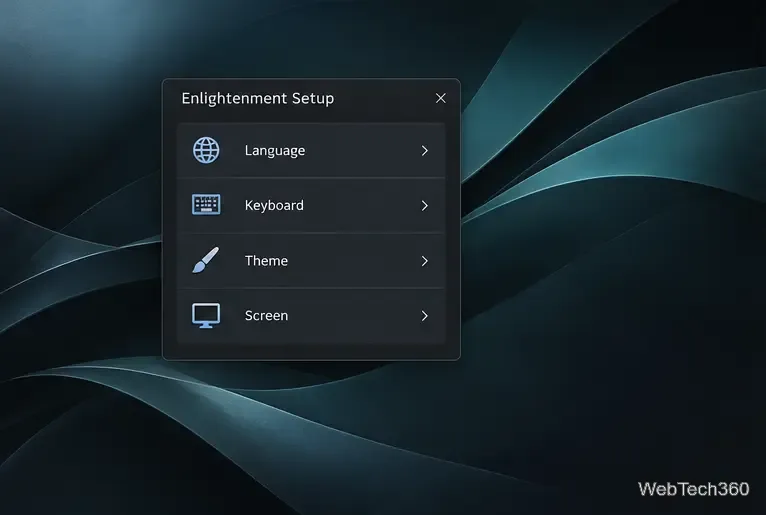
On the first launch, Enlightenment may show a setup assistant. Follow any prompts to choose available language, keyboard, theme, screen, or input preferences. The exact screens vary with the Enlightenment version and package build. These settings can also be changed later from the desktop’s configuration tools.
Once the session loads, check that your display, keyboard, network, sound, and application launchers behave as expected. Enlightenment includes a configurable shelf and application menu; upstream documentation notes that the menu can be opened from the shelf or by clicking the desktop background. Explore settings gradually so you can identify which change affects a particular part of the interface.
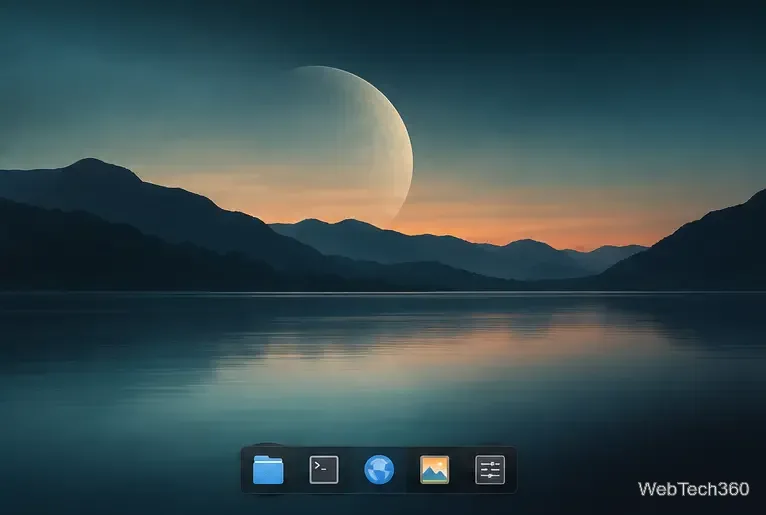
enlightenment as installed.For feature details, consult the official Enlightenment overview. The package indexes linked above are the best place to check current distribution-specific availability.
Send and receive files over Bluetooth on Linux with Blueman. Install OBEX support, pair devices, choose a file, accept transfers, and fix common issues.
Connect GNOME Files to SSH/SFTP, FTP, SMB, WebDAV, or NFS with the correct server URI, sign-in details, and fixes for common connection errors.
Open SFTP, SSH, SMB, FTP, NFS, and WebDAV locations in Dolphin, sign in safely, transfer files, and save network folders for later.
Connect a DualShock 4 to Linux by USB or Bluetooth, then check controller detection and configure Steam Input only when a game needs it.
Use DNF5 parallel downloads to reduce RPM install waits in GNOME Software, then tell when mirror or Flatpak delays need a different fix.
Access iCloud on Linux in a current browser. Learn how to sign in, use iCloud Drive and other web apps, and understand the limits of browser access.
Save GRUB settings, boot files, and UEFI entry details to removable storage, then use rescue media to repair the correct boot path safely.
Install Bitwarden on Linux with the right DEB, RPM, Snap, Flatpak, or AppImage package, then sign in and set a secure vault timeout.
Pick a screensaver theme in Xfce, preview it, choose when it starts, and configure automatic locking in the separate Lock Screen tab.
Stop GNOME Shell from blanking or locking your display automatically. Change Power and Screen Lock settings, or use Caffeine for a temporary keep-awake toggle.








