Flatery is a flat, colorful icon theme for Linux with light, dark, and multiple color variants. The simplest current installation route is to download the project from its upstream GitHub repository, extract it, and run the included installer. You can install Flatery only for your account or make it available to every user on the system.
The project is still available from the official Flatery repository on GitHub. The old workflow of downloading a separate archive for every color is unnecessary when you use the repository bundle.
1. Download Flatery
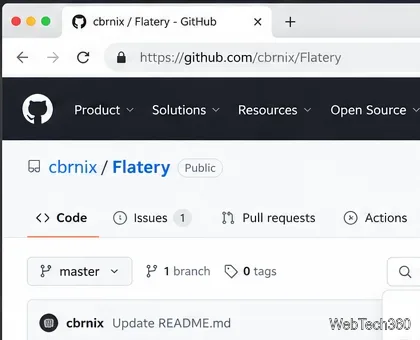
Open the Flatery GitHub page and choose Code > Download ZIP. If you already have Git installed, you can clone the repository instead:
cd ~/Downloads
git clone https://github.com/cbrnix/Flatery.git
If you used Download ZIP, extract the downloaded archive with your file manager. On most systems, the extracted directory will be named Flatery-master. You can also extract it from a terminal if the unzip command is installed:
cd ~/Downloads
unzip Flatery-master.zip
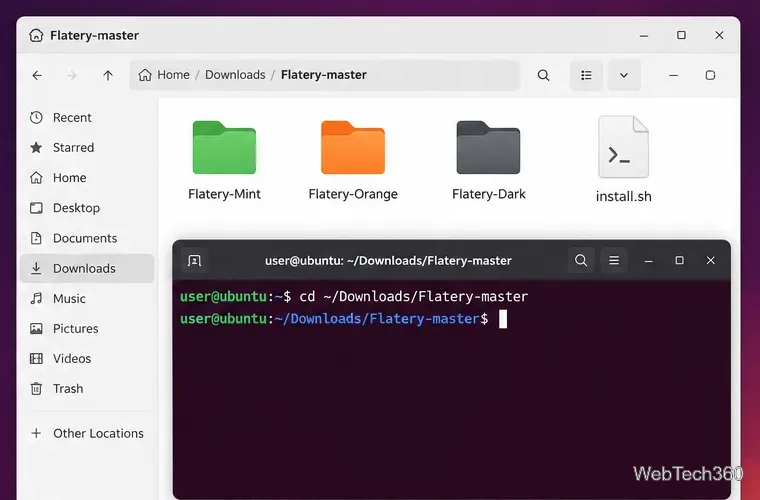
cd Flatery-master
If you cloned the project with Git, use cd ~/Downloads/Flatery instead.
2. Check the extracted theme folders
Inside the project directory you should see install.sh plus theme folders such as Flatery-Mint, Flatery-Orange, Flatery-Dark, and other color variants. A valid Linux icon theme contains an index.theme file in its theme folder. That layout follows the freedesktop.org Icon Theme Specification.
3. Install Flatery for your user account
The included installer is the easiest option. From the extracted project directory, make the script executable if necessary:
chmod +x install.sh
To install the available Flatery-* variants for your current account, run:
./install.sh
The upstream script places user-installed variants in ~/.local/share/icons and creates that directory when needed. This is preferable to using sudo when only one account needs the theme.
Install only selected variants
Use the script's -v option to limit the installation. For example:
./install.sh -v "Mint Orange"

Variant names are the part after Flatery-. To see the script's supported options, run ./install.sh -h.
4. Install Flatery system-wide, if needed
If several accounts on the same computer should use Flatery, run the installer with root privileges and the -g option:
sudo ./install.sh -g
That installs the selected variants under /usr/share/icons. You can combine the options, for example sudo ./install.sh -g -v "Mint Mint-Dark".
If you prefer a manual installation, copy the desired theme folder into ~/.local/share/icons for one user or /usr/share/icons for all users. Keep the directory structure intact so that index.theme remains directly inside each theme folder.
5. Activate the Flatery icon theme
Installing the files does not automatically switch your desktop to Flatery. The final step depends on the desktop environment:
- GNOME: open GNOME Tweaks, choose Appearance, then select a Flatery variant under Icons. GNOME Tweaks is maintained by the GNOME project; its upstream project is linked from the official GNOME GitHub mirror. You can also set a known theme name from an active GNOME session with
gsettings set org.gnome.desktop.interface icon-theme 'Flatery-Mint'.
- KDE Plasma: open System Settings, go to the Icons page under the appearance settings, choose the Flatery variant, and click Apply. KDE documents the icon-theme selector in its Plasma Icons documentation.
- Cinnamon, MATE, Xfce, and similar desktops: open the desktop's Appearance, Themes, or Icons settings and select the installed Flatery variant.
Flatery does not appear in the icon list
First, check that the theme is not nested one directory too deep. For example, the correct path should look like ~/.local/share/icons/Flatery-Mint/index.theme, not ~/.local/share/icons/Flatery-Mint/Flatery-Mint/index.theme.
If the folder is correct, close and reopen your desktop's appearance tool. You can also log out and back in if the desktop has cached its theme list. If only a few application icons keep their original appearance, the installation may still be working: icon themes can inherit icons from fallback themes when a requested icon is not provided.
Because Flatery is a third-party theme, it is also sensible to review install.sh before executing it with sudo. For a single-user setup, the normal non-root installation is usually all you need.









