How to Share Files Over Bluetooth on Linux with Blueman

Send and receive files over Bluetooth on Linux with Blueman. Install OBEX support, pair devices, choose a file, accept transfers, and fix common issues.
To install the McMojave Linux theme, download the current source from its maintainer, install the build tools required by your distribution, and run the included installer. The project is now listed on GitHub as Mojave GTK Theme. The default user install affects only your account.
Mojave styles GTK apps and includes GTK 2/3, GNOME Shell, Cinnamon, and Xfwm components. It fits GTK desktops such as GNOME, Xfce, MATE, Cinnamon, and Pantheon; it does not automatically theme Qt apps, docks, icons, or wallpapers. Plasma has a separate KDE theme. Modern GNOME apps using GTK 4/libadwaita may need the project’s optional GTK 4 mode and still may not follow every custom style.
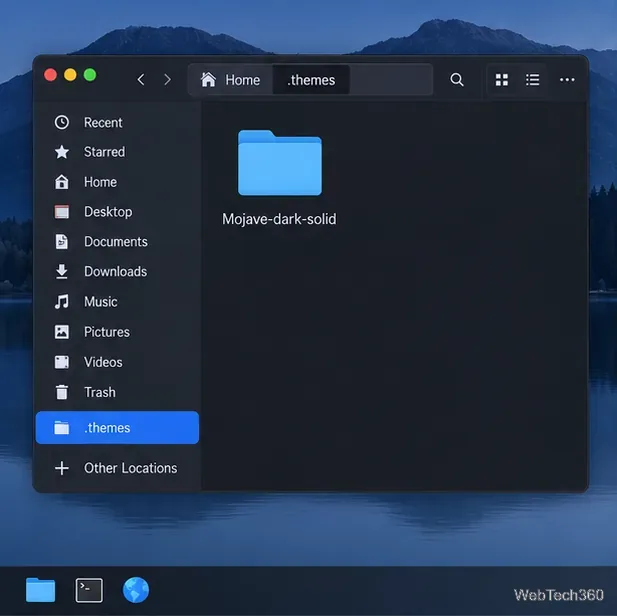
Use the user install for a theme that only your account needs; the default destination is ~/.themes. The installer also accepts a system-wide destination, but writing to /usr/share/themes requires administrator access. These steps use the user-level default.
Open the maintainer’s Mojave GTK Theme repository. The repository README identifies the project’s supported desktop components, options, and build requirements. The older archive names in previous instructions can differ from the current source, so do not rely on a filename such as Mojave-dark-solid.tar.xz unless that exact file is listed by the maintainer.
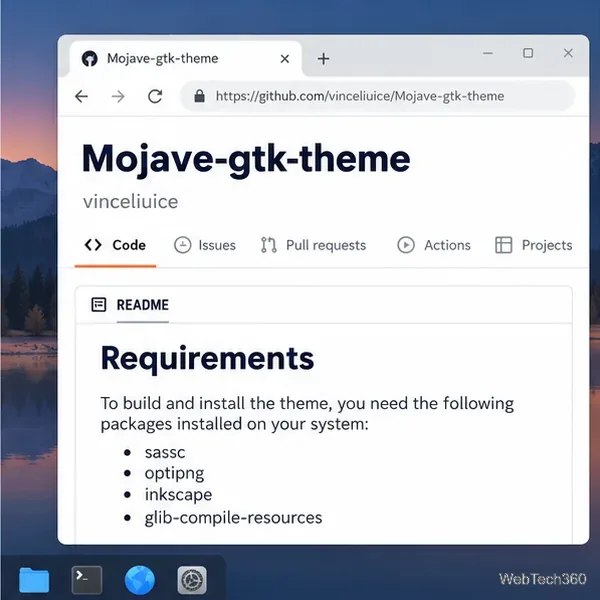
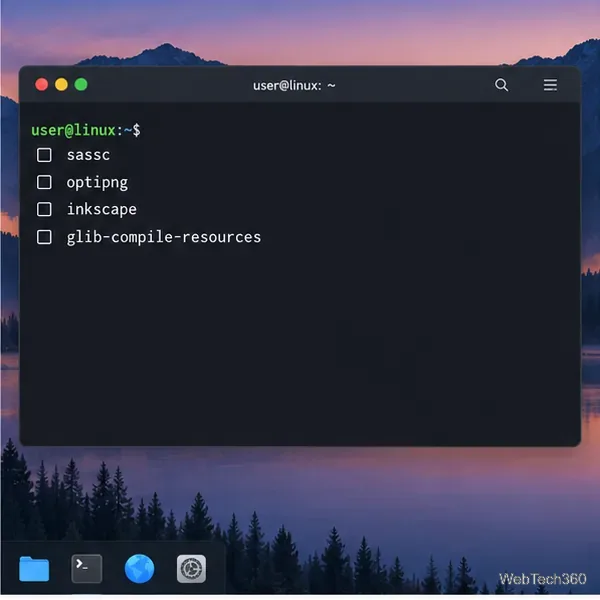
The source installer builds theme assets locally. The upstream README lists tools including sassc, optipng, inkscape, and glib-compile-resources, plus GTK 2 engines for GTK 2 support. Package names vary across Ubuntu, Fedora, Arch, and other distributions, so install the equivalents from your distro’s trusted repositories. If you only use GTK 3 apps, GTK 2 engines may not be needed for those apps, but follow the project’s requirements if the build reports a missing tool.
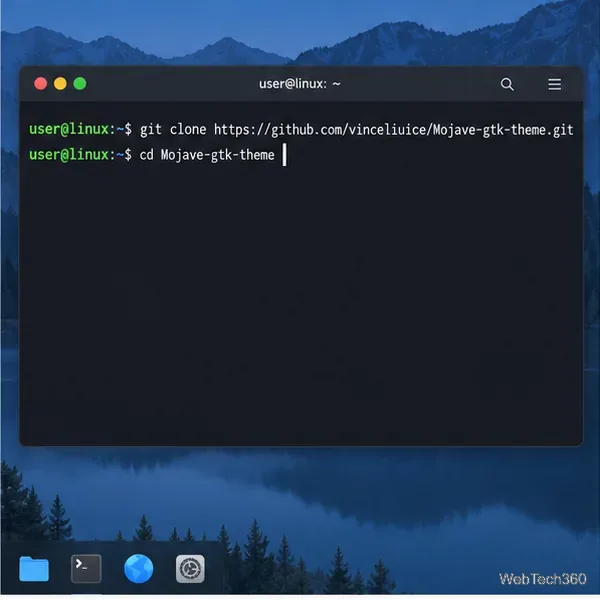
Install Git if needed, then open a terminal and run:
git clone https://github.com/vinceliuice/Mojave-gtk-theme.git
cd Mojave-gtk-theme
This downloads the source and enters its folder. Use the maintainer’s repository URL, not a third-party re-upload.
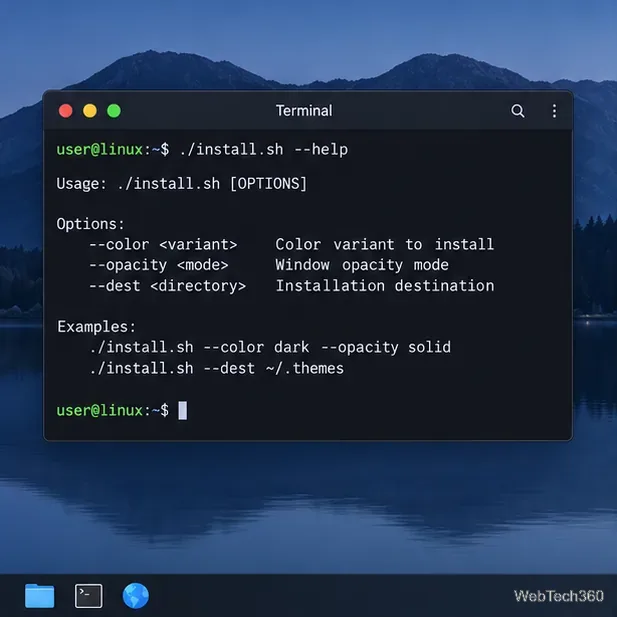
First check the options supported by the version you downloaded:
./install.sh --helpTo install a dark, solid variant into the default user theme folder, run:
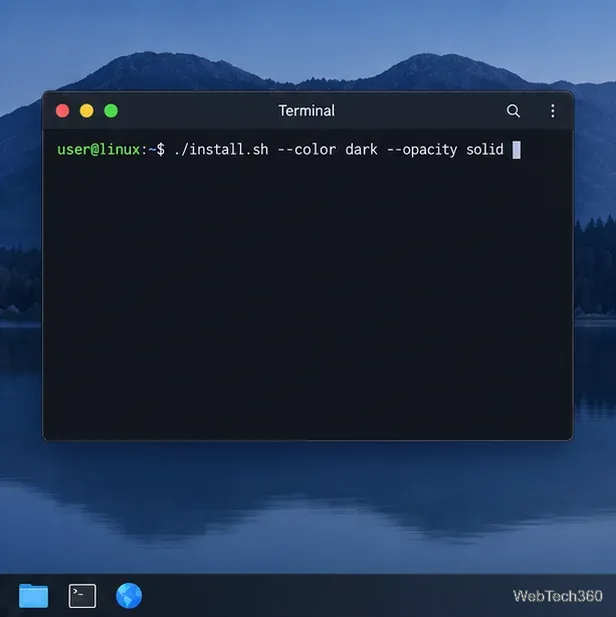
./install.sh --color dark --opacity solidFor a light version, replace dark with light. Options include light or dark colors and standard or solid opacity. Running ./install.sh without options builds the default set. Omit sudo for a user install.
For every user, run sudo ./install.sh --dest /usr/share/themes after setup. Only do this with the maintainer’s source and the options you want.
The repository also documents --libadwaita for GTK 4 files used by libadwaita applications. Check the current README for how to combine it with variant options. It does not guarantee that every modern GNOME app will honor a custom GTK theme.
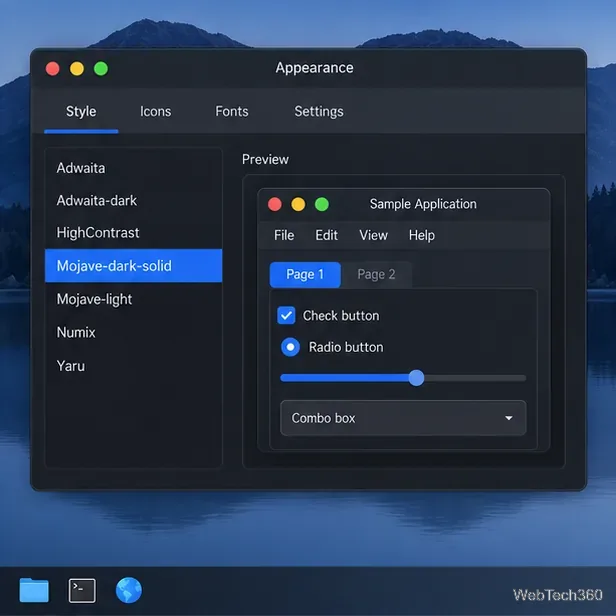
After installation, open your desktop’s appearance or theme settings and select the Mojave variant. In Xfce, open Settings > Appearance > Style. Xubuntu’s Xubuntu’s theming guide explains how GTK controls, window decorations, and icons are configured separately. In GNOME, choose the GTK theme in Tweaks under Appearance; on some versions the control is labeled “Legacy Applications.” Cinnamon and MATE provide similar theme or appearance panels, though menu names vary by distribution.
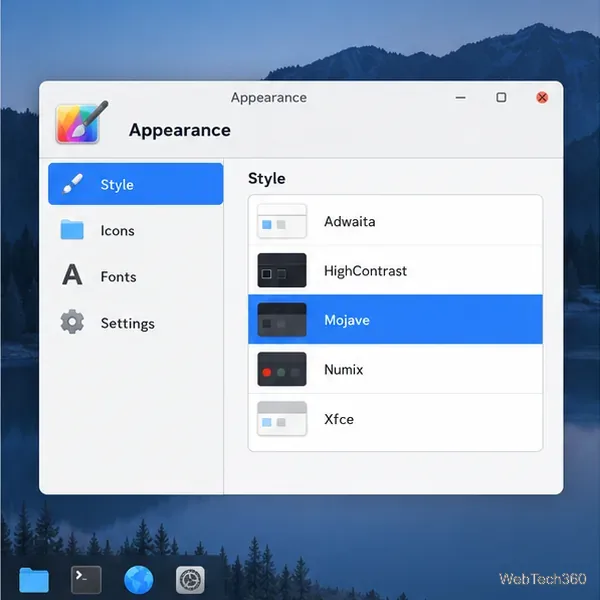
GNOME Shell styling is separate from GTK apps. The theme includes Shell files, but loading a user-installed Shell theme may require GNOME’s User Themes extension. GTK selection alone will not change every panel or app.
~/.themes.Mojave-dark-solid.Send and receive files over Bluetooth on Linux with Blueman. Install OBEX support, pair devices, choose a file, accept transfers, and fix common issues.
Connect GNOME Files to SSH/SFTP, FTP, SMB, WebDAV, or NFS with the correct server URI, sign-in details, and fixes for common connection errors.
Open SFTP, SSH, SMB, FTP, NFS, and WebDAV locations in Dolphin, sign in safely, transfer files, and save network folders for later.
Connect a DualShock 4 to Linux by USB or Bluetooth, then check controller detection and configure Steam Input only when a game needs it.
Use DNF5 parallel downloads to reduce RPM install waits in GNOME Software, then tell when mirror or Flatpak delays need a different fix.
Access iCloud on Linux in a current browser. Learn how to sign in, use iCloud Drive and other web apps, and understand the limits of browser access.
Save GRUB settings, boot files, and UEFI entry details to removable storage, then use rescue media to repair the correct boot path safely.
Install Bitwarden on Linux with the right DEB, RPM, Snap, Flatpak, or AppImage package, then sign in and set a secure vault timeout.
Pick a screensaver theme in Xfce, preview it, choose when it starts, and configure automatic locking in the separate Lock Screen tab.
Stop GNOME Shell from blanking or locking your display automatically. Change Power and Screen Lock settings, or use Caffeine for a temporary keep-awake toggle.








