How to Share Files Over Bluetooth on Linux with Blueman

Send and receive files over Bluetooth on Linux with Blueman. Install OBEX support, pair devices, choose a file, accept transfers, and fix common issues.
To install the current Midori browser on Linux, use the publisher's APT instructions on Debian or Ubuntu. On another distribution, start at Midori's official download page and use only a Linux package explicitly compatible with your distribution and processor. Older guides that recommend Midori 5, 7, or 8 describe the previous WebKit/GTK browser; the current Midori project is a newer Gecko-based browser, so its packages and installation steps have changed.
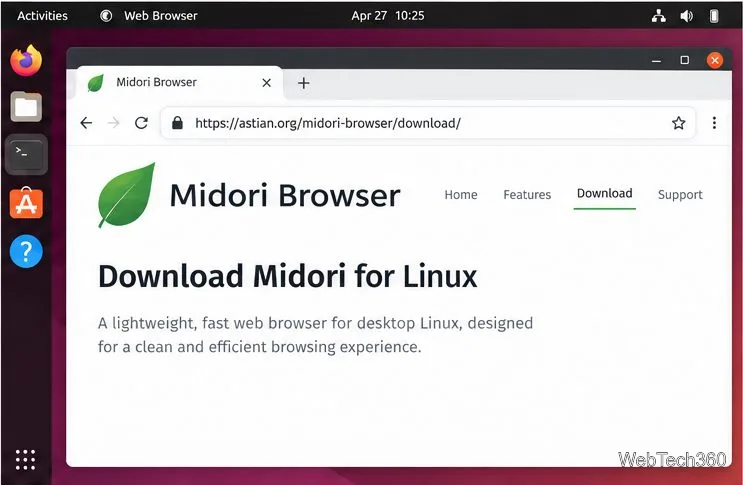
Search results can mix instructions for the historic Midori browser with the current project maintained by Astian. Astian's current upstream repository describes Midori as Gecko-based and documents Linux installation. Use the current Midori desktop repository and the official Midori download page as your starting points.
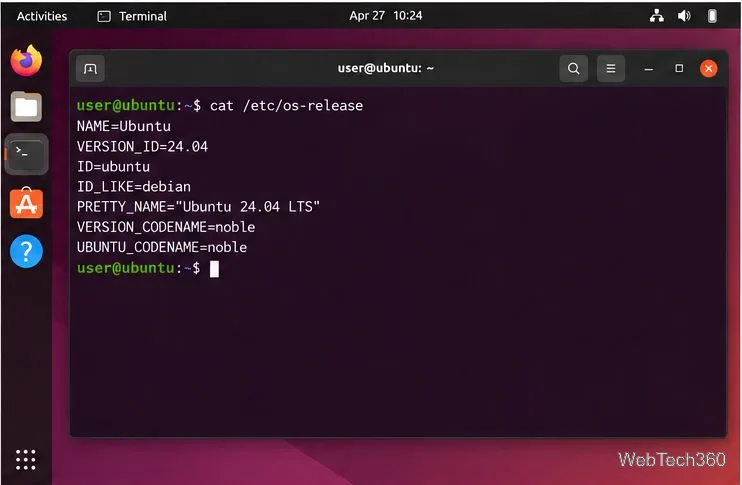
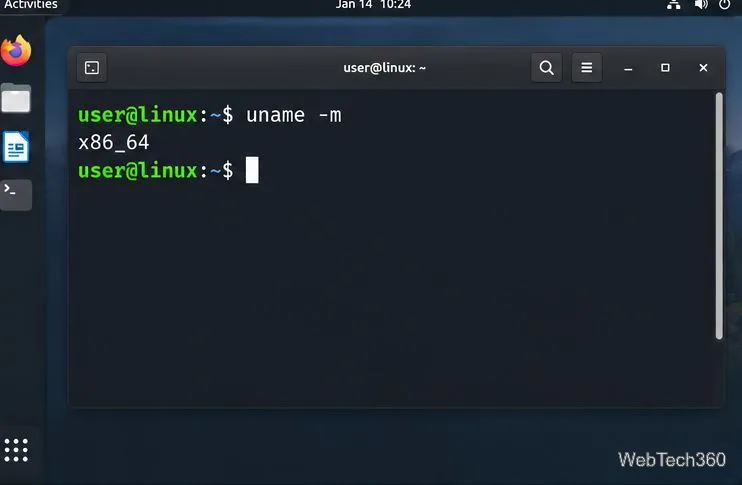
Run cat /etc/os-release to identify your distribution. For a downloadable build, also check the CPU architecture with uname -m and select a matching package. Common labels include x86_64 and aarch64; use the one reported by your own machine.
The current upstream README documents APT setup for Debian and Ubuntu. It adds the signing key and package source, refreshes metadata, and installs Midori. In a terminal, enter these published commands:
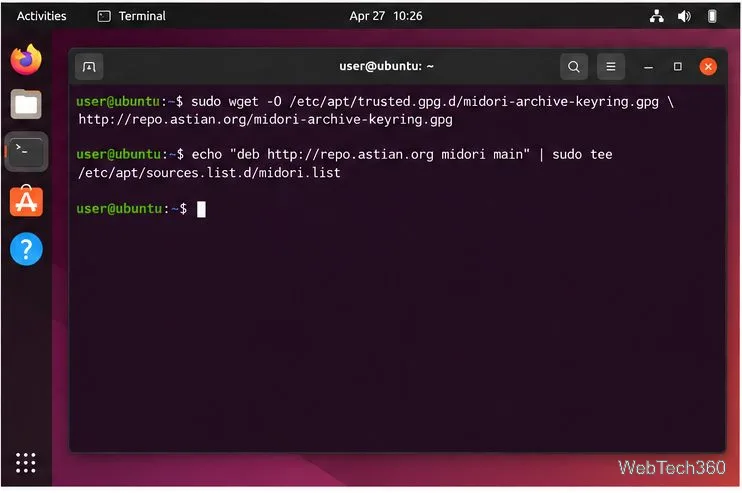
sudo wget -O /etc/apt/trusted.gpg.d/midori-archive-keyring.gpg \
  http://repo.astian.org/midori-archive-keyring.gpg
echo "deb http://repo.astian.org midori main" | \
  sudo tee /etc/apt/sources.list.d/midori.list
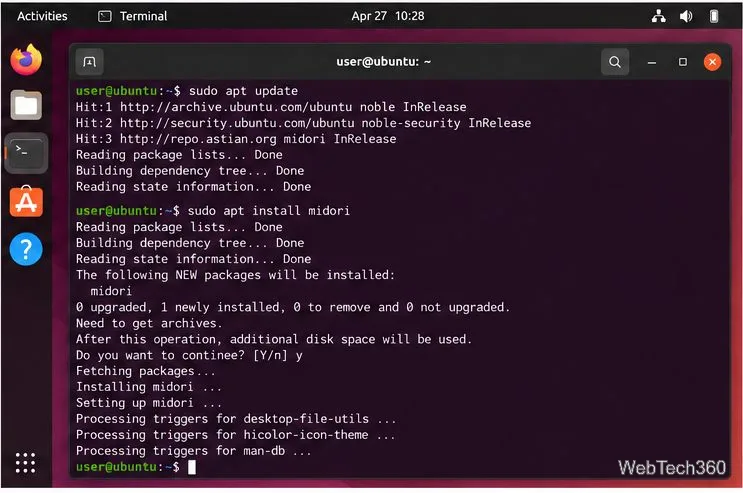
sudo apt update
sudo apt install midori
Before the final install, apt policy midori shows the candidate and repository supplying it; confirm that the configured source is the one you intended. When APT asks to continue, review the package summary before confirming. apt update refreshes metadata after the source is added; apt install resolves dependencies and installs Midori.
Review the repository transport before running these commands. The upstream README currently uses http:// for the signing-key download and package source. APT verifies signed metadata after the key is trusted, but the first key fetch is not authenticated. Do not guess HTTPS replacements. If you do not accept this risk, check for an HTTPS installer with publisher-provided integrity instructions or wait for secure repository guidance.
The old commands dnf install midori, pacman -S midori, and zypper install midori may install a different or older package. Upstream documents APT for Debian and Ubuntu and points other platforms to its current site.
On the official download page, choose Linux and check the listed distribution and architecture. Install only a compatible package in its intended format. If it opens in your desktop's package installer, review its name and publisher before selecting Install; file names and dialogs vary. Avoid unofficial mirrors and incompatible packages.
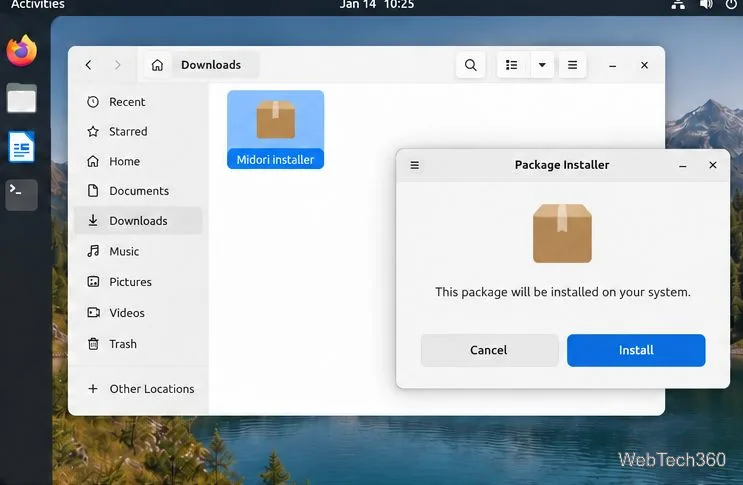
If the official page does not list a compatible package for your distribution, the current upstream installation notes do not provide a verified one-command alternative for it. Avoid copying older Snap or Flatpak commands from legacy Midori guides unless Astian's current site explicitly identifies that package as the current desktop browser.
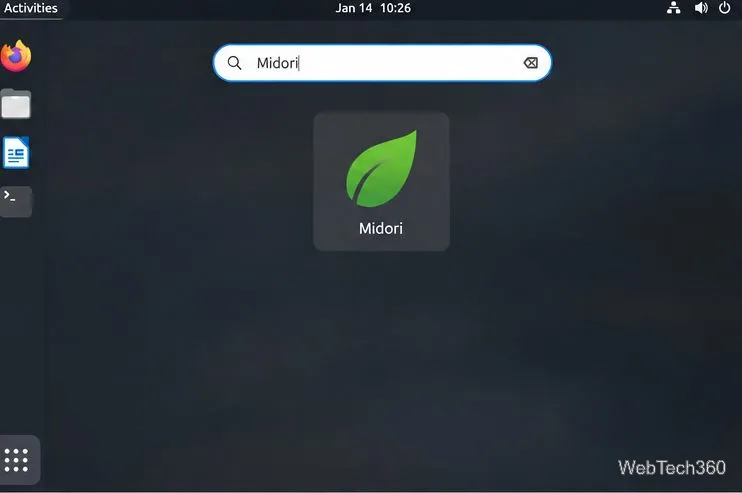
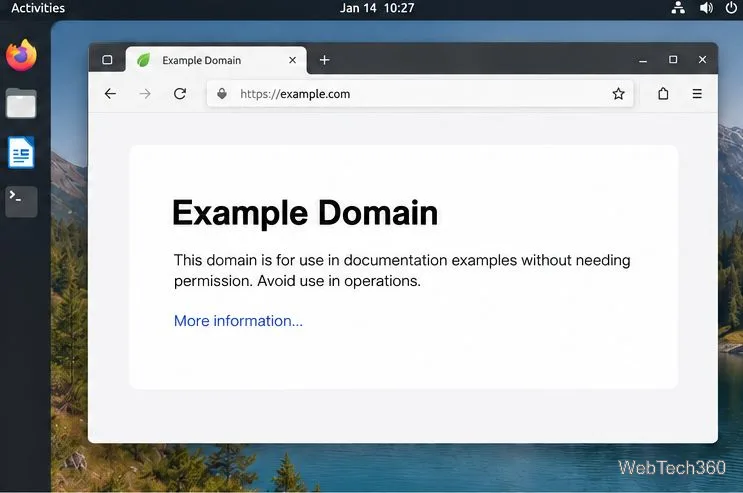
When installation finishes, search for Midori in the application menu and launch it. If it does not appear after an APT install, refresh the desktop session and search again. Avoid downloading replacement packages from unrelated sites.
On Debian or Ubuntu, run sudo apt update and upgrade Midori through the same source or your system updater. If APT cannot locate the package, check the source file and refresh the package list.
For signing-key or repository errors, review the upstream instructions and do not bypass signature checks. Remove an APT installation with sudo apt remove midori; elsewhere, remove it through the same package manager you used to install it.
Send and receive files over Bluetooth on Linux with Blueman. Install OBEX support, pair devices, choose a file, accept transfers, and fix common issues.
Connect GNOME Files to SSH/SFTP, FTP, SMB, WebDAV, or NFS with the correct server URI, sign-in details, and fixes for common connection errors.
Open SFTP, SSH, SMB, FTP, NFS, and WebDAV locations in Dolphin, sign in safely, transfer files, and save network folders for later.
Connect a DualShock 4 to Linux by USB or Bluetooth, then check controller detection and configure Steam Input only when a game needs it.
Use DNF5 parallel downloads to reduce RPM install waits in GNOME Software, then tell when mirror or Flatpak delays need a different fix.
Access iCloud on Linux in a current browser. Learn how to sign in, use iCloud Drive and other web apps, and understand the limits of browser access.
Save GRUB settings, boot files, and UEFI entry details to removable storage, then use rescue media to repair the correct boot path safely.
Install Bitwarden on Linux with the right DEB, RPM, Snap, Flatpak, or AppImage package, then sign in and set a secure vault timeout.
Pick a screensaver theme in Xfce, preview it, choose when it starts, and configure automatic locking in the separate Lock Screen tab.
Stop GNOME Shell from blanking or locking your display automatically. Change Power and Screen Lock settings, or use Caffeine for a temporary keep-awake toggle.








