How to Share Files Over Bluetooth on Linux with Blueman

Send and receive files over Bluetooth on Linux with Blueman. Install OBEX support, pair devices, choose a file, accept transfers, and fix common issues.
To install the official Minecraft Launcher on Linux, download the Linux package from Minecraft.net and choose the method for your distribution: use the .deb package on Ubuntu or Debian, the AUR package on Arch, or the .tar.gz archive on other Linux systems. Then open the launcher and sign in with the Microsoft account that has access to Minecraft: Java Edition.
Mojang’s Linux download is for Java Edition. The official download page does not offer a Linux Bedrock launcher. You no longer need to follow old instructions for a standalone JAR file or launch the game with java -jar; use the launcher downloads linked from the official Minecraft download page.
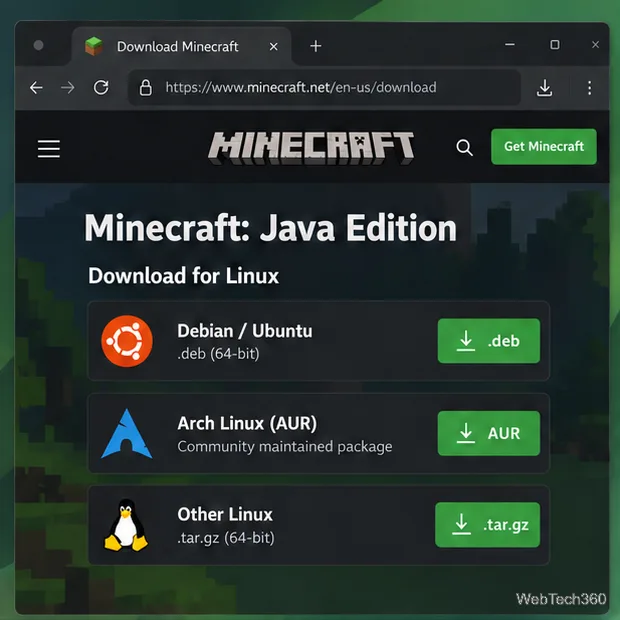
Open Minecraft.net’s download page and look under Other versions & platforms or the Java Edition alternative downloads. Select the package that matches your distribution:
.deb package.minecraft-launcher in the Arch User Repository (AUR).Minecraft.tar.gz archive.Use Minecraft.net as the starting point so you get the launcher file it currently links for Linux. Do not install a Debian package on Fedora or Arch; choose the AUR or generic archive route instead. The official Minecraft Help Center also describes the launcher as the tool for downloading and managing game installations: Download and Install the Minecraft Launcher.
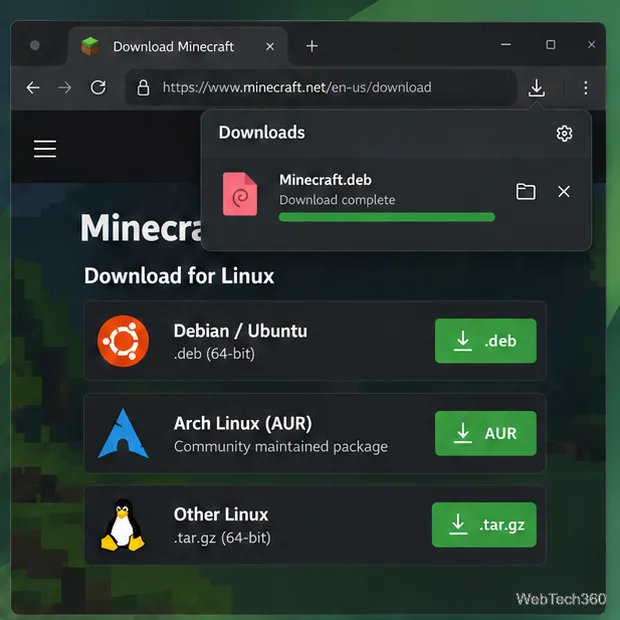
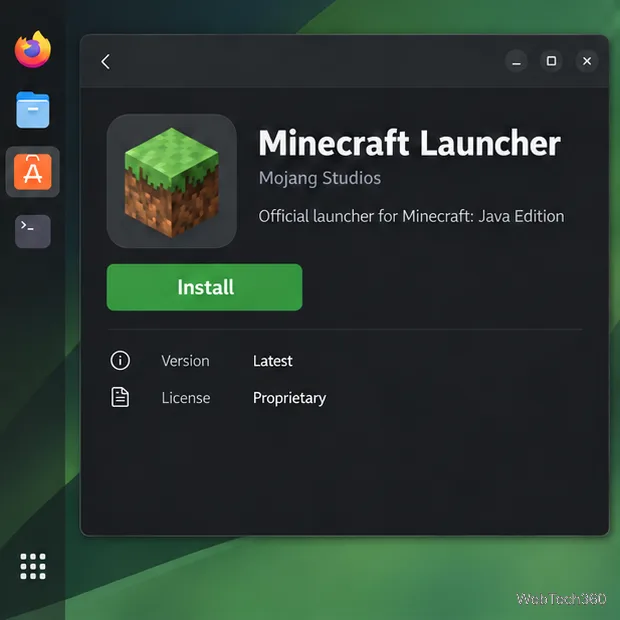
After the .deb download finishes, open your Downloads folder. Depending on your desktop, double-click Minecraft.deb to open Software Install, App Center, or another package installer. Review the package and choose Install, then approve the system password prompt.
If you prefer the terminal, open it and install the downloaded file with APT:
cd ~/Downloads
sudo apt install ./Minecraft.deb
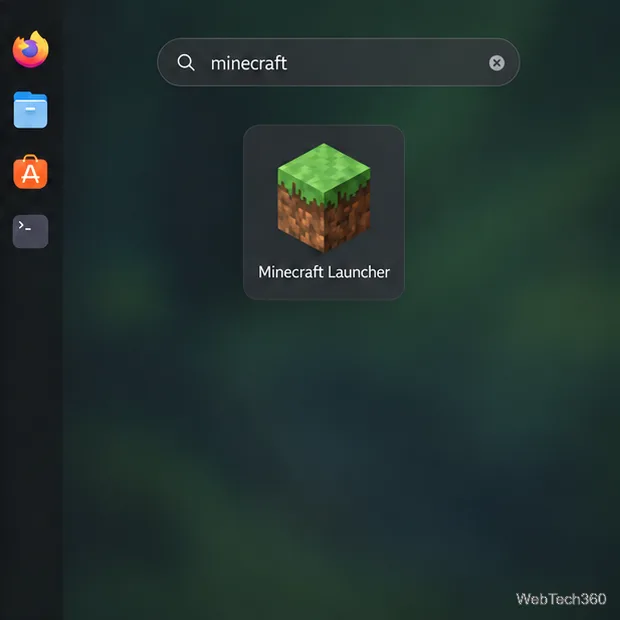
If your browser saved the file under a different name, replace Minecraft.deb with that exact name. The ./ tells APT to install the local file and resolve its available package dependencies. When installation completes, open your desktop’s application menu, search for Minecraft Launcher, and start it.
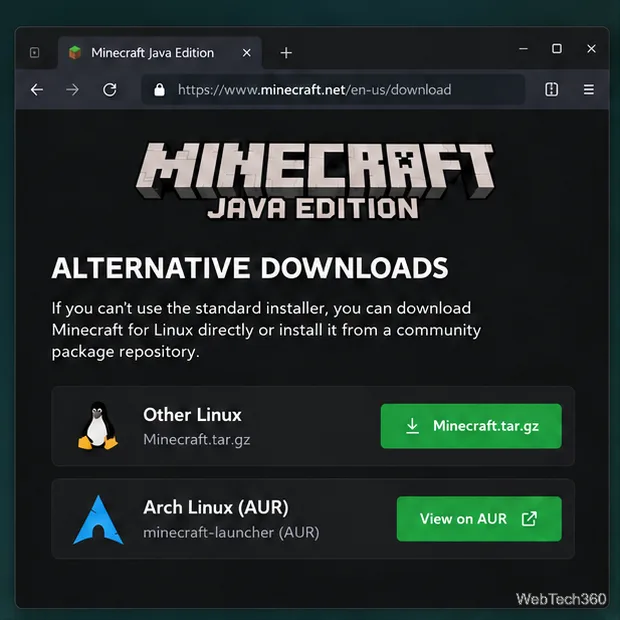
Minecraft.net links Arch users to the AUR, which is community maintained. Review the package build instructions before installing, and build it as your normal user rather than running makepkg as root. If you use the manual AUR workflow, install the build tools and clone the package:
sudo pacman -S --needed base-devel git
git clone https://aur.archlinux.org/minecraft-launcher.git
cd minecraft-launcher
makepkg -si
The last command builds the package and asks Pacman to install it. If you already use an AUR helper, you can use that helper to install minecraft-launcher instead. For details, start from Minecraft’s download page and its linked AUR package page.
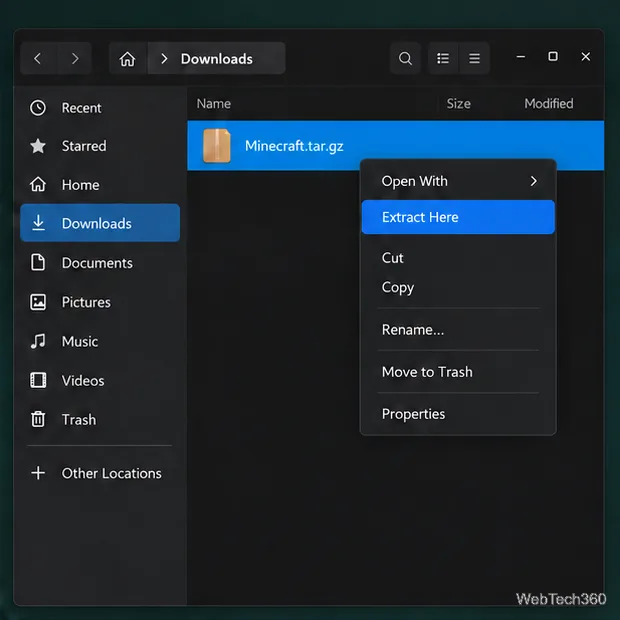
Download Minecraft.tar.gz from the official page, then use your file manager’s Extract Here or Extract To option. Open the extracted folder and run the executable named minecraft-launcher. Keep the extracted folder in a location you can find again; the archive route may not add an application-menu shortcut automatically.
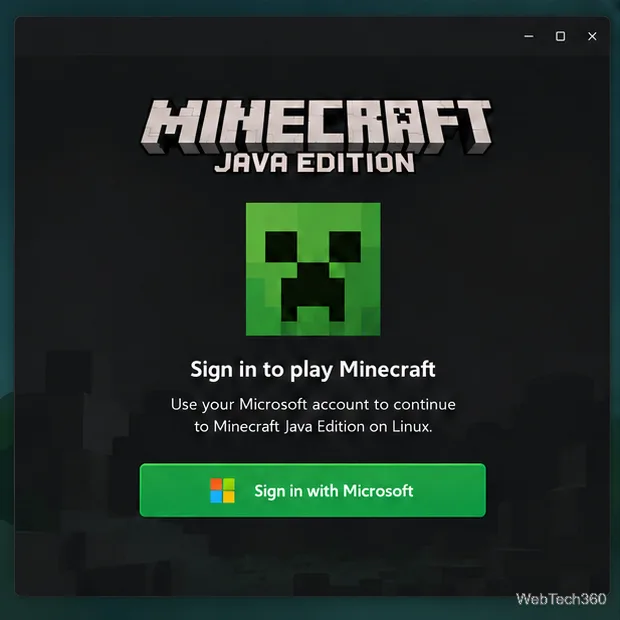
On the first launch, choose the Microsoft sign-in option and use the account that owns or has access to Minecraft: Java Edition. Installing the launcher does not itself grant a game license. If the game is missing after sign-in, check that you used the correct account before reinstalling anything.
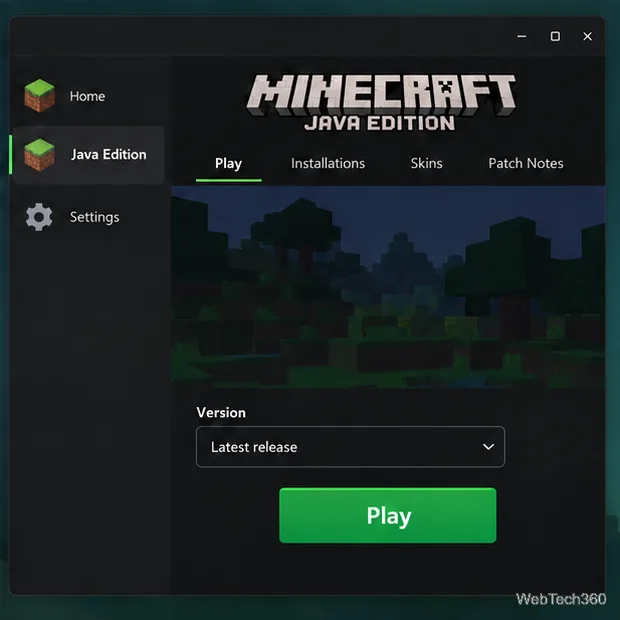
When the launcher opens, select Java Edition, choose a release from the version selector if needed, and click Play. The launcher downloads the selected game files the first time, so keep an internet connection available until setup finishes. Minecraft’s edition guide lists Java Edition for Linux and explains the platform differences: Different Minecraft Editions.
The earlier mc-installer Snap and Flathub package are third-party wrappers, not the Linux package choices listed by Mojang. The Snap Store entry names a third-party publisher, and the Flathub listing says its wrapper is unverified and not affiliated with or supported by Mojang or Microsoft. If you specifically want Mojang’s Linux launcher, use the .deb, AUR, or .tar.gz route above.
sudo apt update, then retry sudo apt install ./Minecraft.deb.minecraft-launcher from there.Send and receive files over Bluetooth on Linux with Blueman. Install OBEX support, pair devices, choose a file, accept transfers, and fix common issues.
Connect GNOME Files to SSH/SFTP, FTP, SMB, WebDAV, or NFS with the correct server URI, sign-in details, and fixes for common connection errors.
Open SFTP, SSH, SMB, FTP, NFS, and WebDAV locations in Dolphin, sign in safely, transfer files, and save network folders for later.
Connect a DualShock 4 to Linux by USB or Bluetooth, then check controller detection and configure Steam Input only when a game needs it.
Use DNF5 parallel downloads to reduce RPM install waits in GNOME Software, then tell when mirror or Flatpak delays need a different fix.
Access iCloud on Linux in a current browser. Learn how to sign in, use iCloud Drive and other web apps, and understand the limits of browser access.
Save GRUB settings, boot files, and UEFI entry details to removable storage, then use rescue media to repair the correct boot path safely.
Install Bitwarden on Linux with the right DEB, RPM, Snap, Flatpak, or AppImage package, then sign in and set a secure vault timeout.
Pick a screensaver theme in Xfce, preview it, choose when it starts, and configure automatic locking in the separate Lock Screen tab.
Stop GNOME Shell from blanking or locking your display automatically. Change Power and Screen Lock settings, or use Caffeine for a temporary keep-awake toggle.








