How to Share Files Over Bluetooth on Linux with Blueman

Send and receive files over Bluetooth on Linux with Blueman. Install OBEX support, pair devices, choose a file, accept transfers, and fix common issues.
To install the official Snap Store desktop app on Linux, make sure snapd is installed and responding, then run sudo snap install snap-store. Canonical’s current Snapcraft listing calls the product App Center, but the package name is still snap-store. It is published by Canonical’s verified account. Older Ubuntu releases may still show the name Snap Store.
The Snap Store website is the online catalog; the app is a graphical storefront for finding and managing snaps from your desktop. The steps below install the desktop app. They do not install snap support for a distribution that does not already have it.
snapd is the background service that downloads, installs, refreshes, and removes snaps. In a terminal, check whether the Snap command can reach it:
snap versionA working setup returns version information for both snap and snapd. If the command is missing or reports that it cannot contact the daemon, install and configure snapd first. The required package and service steps vary by distribution, so use Canonical’s snapd installation guide and select the instructions for your exact Linux distribution. Canonical lists snapd as preinstalled on Ubuntu 18.04 and later and on several other systems; that does not apply to every Linux installation.
Some distributions require a log out and back in, a restart, or a systemd socket step after installing snapd. Follow the page for your distribution rather than copying a command written for another one. Once snap version can show the daemon version, continue.
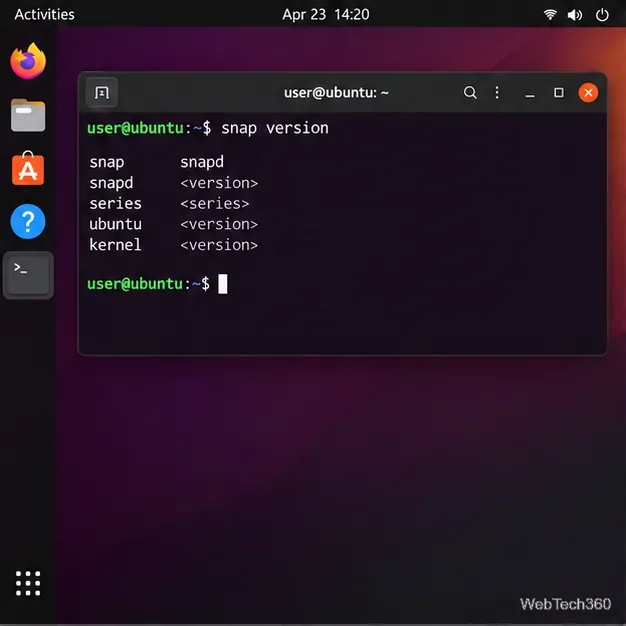
snap version to confirm the Snap client and daemon respond.With snapd working, install Canonical’s desktop storefront from the official Snap Store:
sudo snap install snap-storeEnter your Linux account password if prompted. Let the command finish; the download and setup time depends on your connection and system. When it returns to the shell prompt without an error, the package is installed. If Snap reports that snap-store is already installed, you can skip ahead and open it. The current package name and installation command are shown on the Canonical-verified App Center (snap-store) listing.
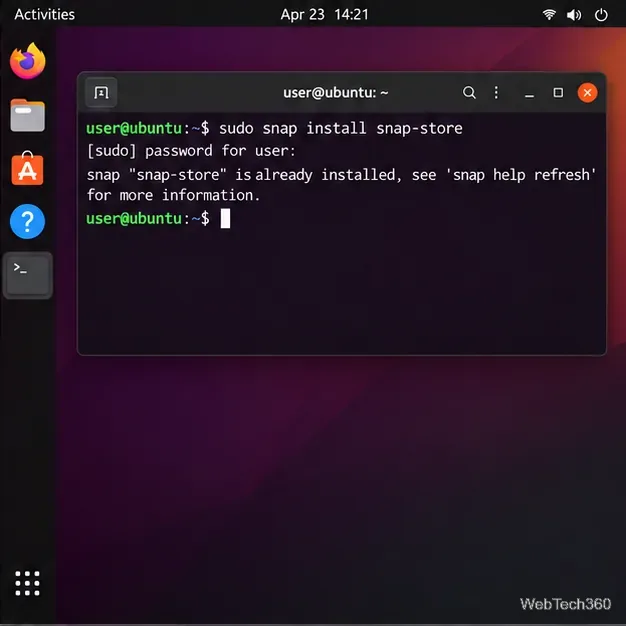
snap-store is already installed, move on to launching the app.Launch it from your desktop’s application menu. Search for App Center or Snap Store; the displayed name can differ by distribution and release. You can also start it from a terminal with:
snap-storeOn Ubuntu, the current storefront may already be available as App Center, so check your app grid before installing another copy. Canonical notes that in older Ubuntu releases, App Center was called Snap Store and was based on GNOME Software. On another desktop, the icon may appear under a different application category, but the package command remains the same.
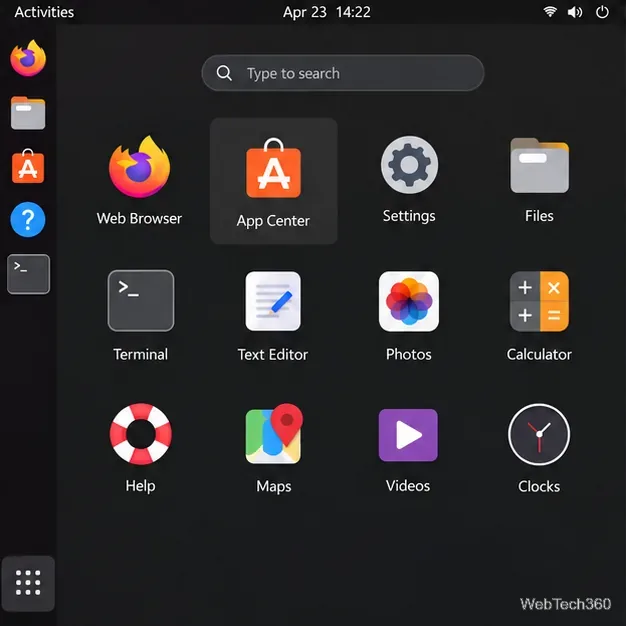
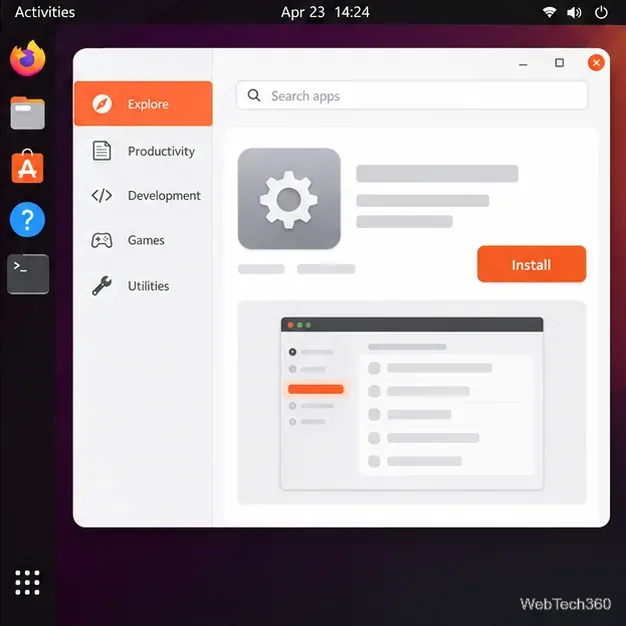
In the storefront, browse the available categories or use the search field to find an app. Open its listing and review the description, publisher, screenshots, and other details before installing. A verified publisher badge helps identify a publisher that Canonical has verified; it does not mean every listing in the store is published by Canonical.
Select Install on the app’s page and authenticate if your desktop asks you to. The store downloads the snap and any required components, then adds the app to the desktop menu when its package provides a launcher. The storefront can also display installed snaps and offer updates or removal controls, though labels can vary with the app version and desktop environment.
snap: command not found: snapd is not installed or your session has not picked up its command path. Follow your distribution’s setup page, then log out and back in or restart if instructed.snap-store in a terminal so any error is visible. Check for a working graphical desktop session and a network connection, and allow the first launch to finish loading.gnome-3-28-1804 as a universal prerequisite. The current Canonical listing’s installation command is sudo snap install snap-store; troubleshoot a specific launch error using the current package and distribution documentation.For a clean setup, the essential sequence is simple: prepare snapd using instructions for your distribution, install snap-store, and launch the app from the menu or terminal. Use the package listing and your distribution’s Snap documentation when a system-specific error interrupts that sequence.
Send and receive files over Bluetooth on Linux with Blueman. Install OBEX support, pair devices, choose a file, accept transfers, and fix common issues.
Connect GNOME Files to SSH/SFTP, FTP, SMB, WebDAV, or NFS with the correct server URI, sign-in details, and fixes for common connection errors.
Open SFTP, SSH, SMB, FTP, NFS, and WebDAV locations in Dolphin, sign in safely, transfer files, and save network folders for later.
Connect a DualShock 4 to Linux by USB or Bluetooth, then check controller detection and configure Steam Input only when a game needs it.
Use DNF5 parallel downloads to reduce RPM install waits in GNOME Software, then tell when mirror or Flatpak delays need a different fix.
Access iCloud on Linux in a current browser. Learn how to sign in, use iCloud Drive and other web apps, and understand the limits of browser access.
Save GRUB settings, boot files, and UEFI entry details to removable storage, then use rescue media to repair the correct boot path safely.
Install Bitwarden on Linux with the right DEB, RPM, Snap, Flatpak, or AppImage package, then sign in and set a secure vault timeout.
Pick a screensaver theme in Xfce, preview it, choose when it starts, and configure automatic locking in the separate Lock Screen tab.
Stop GNOME Shell from blanking or locking your display automatically. Change Power and Screen Lock settings, or use Caffeine for a temporary keep-awake toggle.








