Home
» LINUX
»
How to Install the Olive Video Editor on Linux (Flatpak or AppImage)
How to Install the Olive Video Editor on Linux (Flatpak or AppImage)
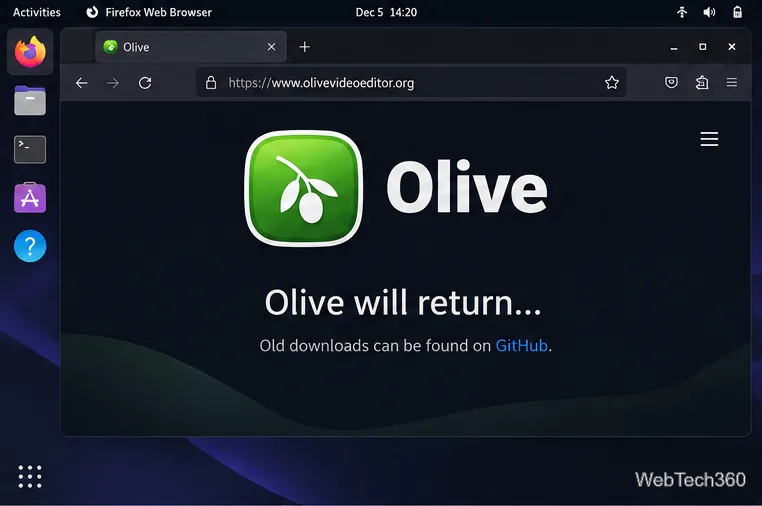
You can still install the Olive video editor on Linux, but the available builds are old and experimental. The simplest route is Flatpak; the upstream project also provides a Linux AppImage on GitHub. Check the version notes before installing: Olive’s official site says “Olive will return” and directs visitors to older downloads, while the project labels its 0.2.0 nightly release as unstable. These builds are useful for trying Olive, but they are a poor choice for work that needs dependable editing or long-term support.
The project’s official website links to older downloads on GitHub. Its latest listed 0.2.0-nightly release was rebuilt on December 5, 2024, and the release page says the last code change was September 24, 2023. The project README describes Olive as alpha software and highly unstable. The Flathub listing is a separate community package, version 0.1.2; Flathub says it is unverified and not affiliated with or supported by Olive Team.
Choose a Linux installation method
Method
What to expect
Flatpak from Flathub
Uses the app ID org.olivevideoeditor.Olive and works across distributions that support Flatpak. The listed build is an old community package.
Upstream AppImage
Runs as a single downloaded file and does not require adding a distribution repository. The current upstream download is marked nightly and unstable.
For a quick install, use Flatpak if it is already configured on your system. Choose the AppImage if you specifically want the upstream nightly build. Neither route provides a recent stable release.
Install Olive with Flatpak
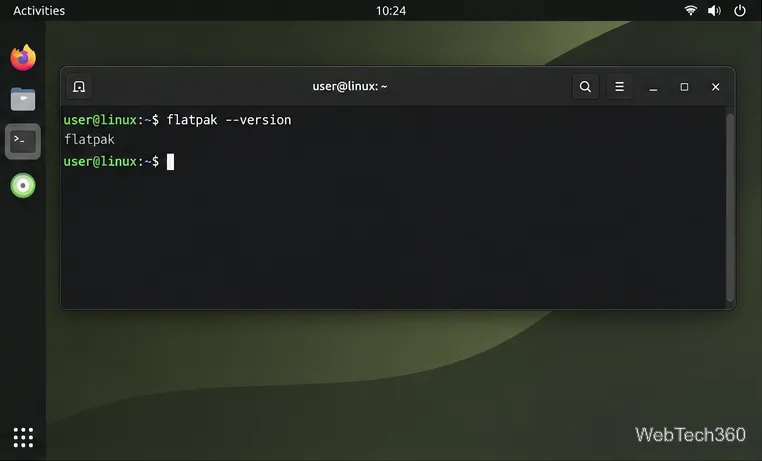
Check whether Flatpak is installed. Open a terminal and run:
flatpak --version
Check that the Flatpak command is available before setting up the application.
If Linux reports that the command is missing, follow the Flathub setup instructions for your distribution. They cover installing Flatpak and connecting the Flathub repository for Ubuntu, Debian, Fedora, Arch, openSUSE, and other distributions.
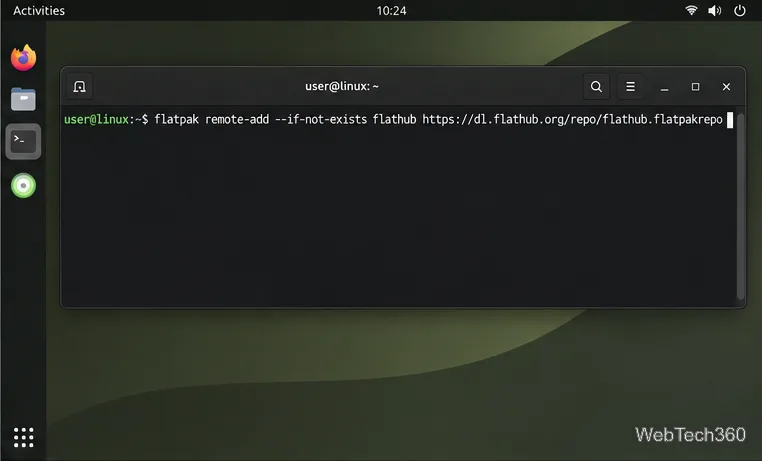
Add Flathub. If Flatpak is installed but Flathub is not listed among your remotes, run the repository command from the official Flatpak documentation:
Register the Flathub repository so Flatpak can find Olive.
Flatpak may ask for administrator authentication when adding a system-wide remote. The command is safe to repeat: --if-not-exists avoids adding a second remote with the same name.
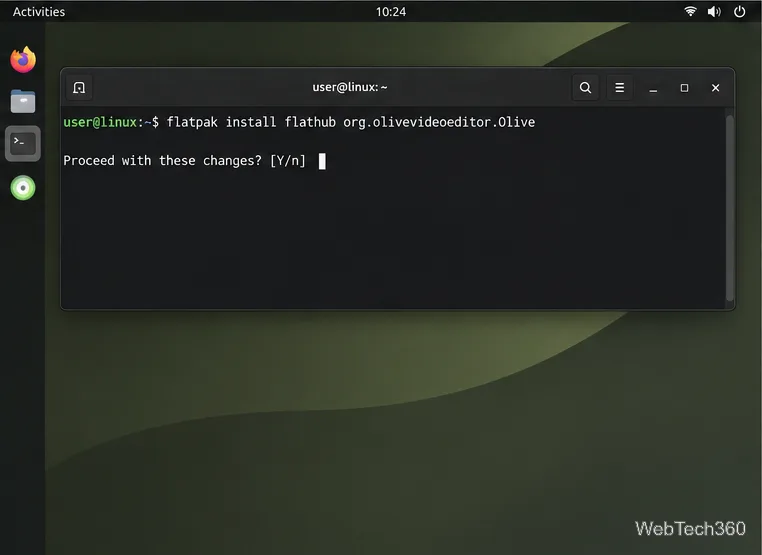
Review Flatpak’s confirmation prompt and proceed with the Olive installation.
Read the confirmation prompt, then approve it to download Olive and any required runtime. To launch it, open the applications menu and select Olive, or run:
Start the editor and confirm it opens.
flatpak run org.olivevideoeditor.Olive
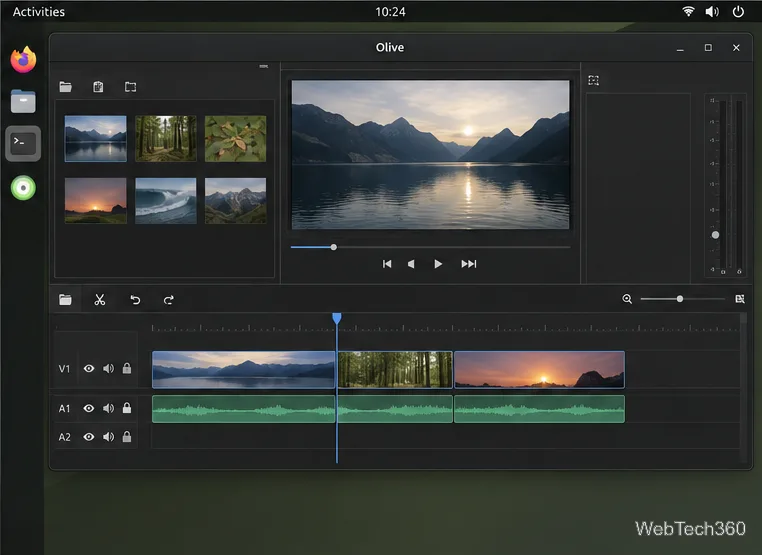
After launch, Olive’s editing workspace appears with media and timeline panels.
Flatpak updates are handled separately from system package updates. Run flatpak update to check for updates to installed Flatpak apps. To remove Olive later, use flatpak uninstall org.olivevideoeditor.Olive.
Run the upstream Olive AppImage
An AppImage is a portable application file. You download it, mark it executable, and run it; there is no package-manager installation step. Olive’s official website points to GitHub for older downloads, so use the project’s release page instead of a third-party download mirror.
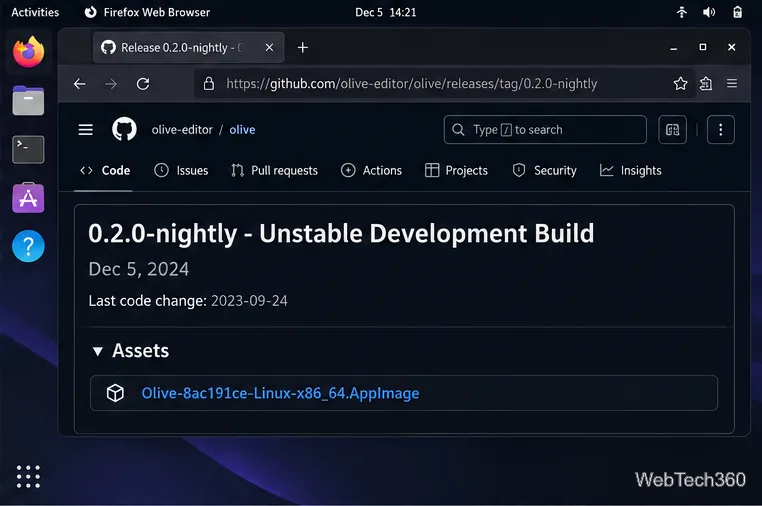
Open the upstream release page. Visit the 0.2.0-nightly release on GitHub. It is explicitly a pre-release and an unstable development build.
The project site directs users to GitHub for its older Olive downloads.
Download the Linux AppImage. On the release page, expand Assets and choose the Linux file that matches your computer. The x86_64 asset shown in the example is named Olive-8ac191ce-Linux-x86_64.AppImage. If your system uses another processor architecture, check the release page for a matching build rather than trying to run the x86_64 file.
The release page marks 0.2.0-nightly as an unstable development build.
To check your architecture in a terminal, run uname -m. An x86_64 computer should report x86_64. Keep the downloaded file in your Downloads folder for the commands below; if its name differs, substitute the exact downloaded filename.
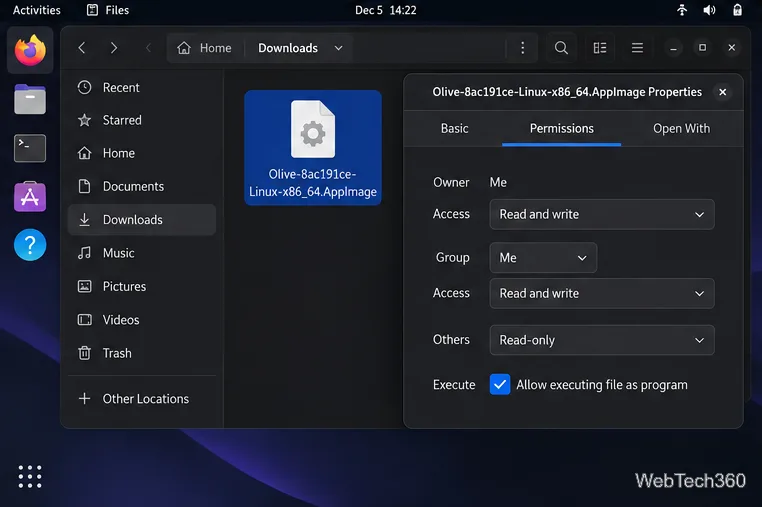
Allow the file to run. In your file manager, right-click the AppImage, open Properties, and enable Allow executing file as program under Permissions. You can also do this in a terminal:
cd ~/Downloads
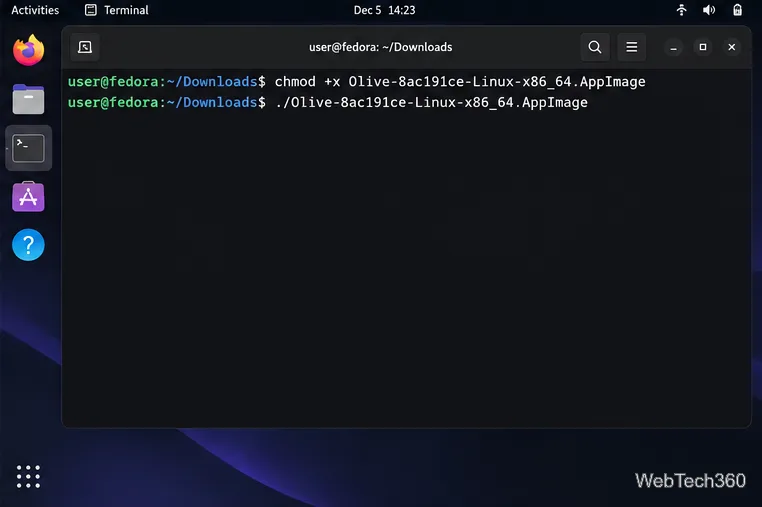
chmod +x Olive-8ac191ce-Linux-x86_64.AppImage
The AppImage must be marked executable before Linux can launch it.
Launch Olive. Double-click the file and choose Run if your desktop asks what to do, or start it from the terminal:
cd ~/Downloads
./Olive-8ac191ce-Linux-x86_64.AppImage
Run the AppImage from its folder after making it executable.
Because an AppImage is a standalone file, keep it in a folder you can find again. To update it, download a newer build from the project’s release page and repeat the permission step. The upstream page currently labels this build unstable, so save project backups and test it with nonessential footage first.
When older installation guides do not match
Older Olive tutorials may still show an Ubuntu PPA, a Debian package, a Snap command using the --edge channel, or an AUR package named olive-git. Those instructions refer to older packaging arrangements and do not establish that a current, maintained build is available through those channels. Before adding a repository or installing a third-party package, check the project’s current website and release page. If Olive fails to launch, try starting it from a terminal to see the error, and confirm that the AppImage architecture matches the output of uname -m.