Home
» LINUX
»
How to Install the UKUI Desktop Environment on Linux
How to Install the UKUI Desktop Environment on Linux
To install the UKUI desktop environment, use your Linux distribution’s package manager when a maintained UKUI session is available. On Ubuntu, the official archive provides a single desktop package. Debian’s current Testing branch packages the session manager, while Arch Linux’s old one-command instructions no longer describe a complete install from its official repositories.
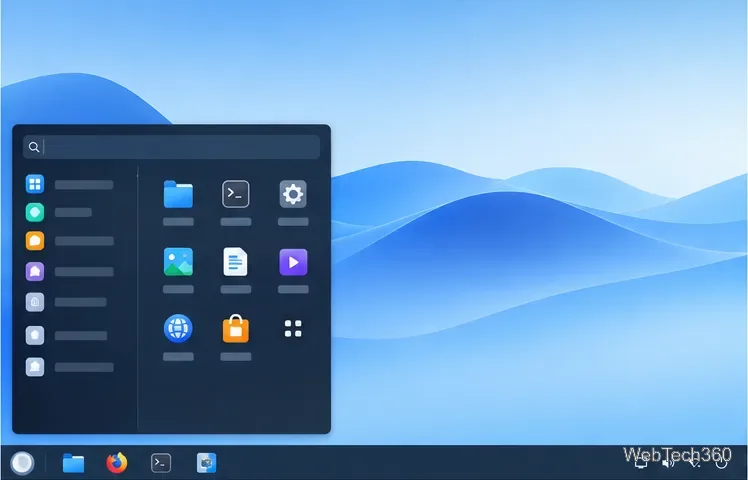
A desktop layout with the launcher open at the left and a panel along the bottom.
UKUI began as the desktop for Ubuntu Kylin and is now made up of several components, including a session manager, panel, settings services, and applications. Installing it adds another login session; it does not replace your Linux distribution or automatically remove your existing desktop. Availability depends on the release and package repositories enabled on your computer.
Check your distribution before installing
Use the instructions for the release you already run. Do not switch a Debian Stable computer to Testing or add an unrelated repository just to make one desktop package appear. Desktop packages can pull in many dependencies, so review the package manager’s proposed changes before confirming.
Install UKUI on Ubuntu
Ubuntu publishes ukui-desktop-environment in its official archive. Refresh the package index, then install that metapackage; APT will resolve the matching UKUI components and dependencies for your Ubuntu release.
A terminal window shows package processing during a desktop installation.
The package is in Ubuntu’s Universe component. If APT reports “Unable to locate package,” check that Universe is enabled for your release, run sudo apt update again, and confirm that your software sources are reachable. The Ubuntu package archive lists the UKUI metapackage and its core and extras variants; the full metapackage is the simplest starting point.
If installation asks which display manager to use, keeping your current one is usually the least disruptive choice. When the package operation finishes, save your work and sign out. At the login screen, open the session selector—often shown as a gear or menu—choose UKUI, and sign in. The selector’s appearance depends on the display manager.
Install UKUI on Debian
Debian’s packaging differs by branch. The current Testing branch, Forky, provides ukui-session-manager; the package recommends the panel, file manager, settings daemon, and window manager needed for a fuller session. Request recommended packages explicitly if you have changed APT’s default behavior:
A package-installation terminal shows completed status marks and a shell prompt.
Debian 13 Stable (Trixie) includes some UKUI components, but its package index does not currently list ukui-session-manager. That means a complete supported UKUI session is not a straightforward Stable install at the time of this update. Do not add Testing repositories to a Stable system just to install it: mixing branches can upgrade or replace core system packages. If you need UKUI on Debian, use a Debian release where the session package is available or choose Ubuntu Kylin.
After installation, sign out and look for UKUI in your display manager’s session menu. If your Debian system has no graphical login manager, the session package’s documentation names LightDM as one example of a display manager that can start UKUI; choose and configure a display manager according to your system setup.
What to know about Arch Linux
Do not copy older Arch commands without checking their current package source. The UKUI project README has historically shown pacman -S ukui xorg-server, but Arch’s current official package group named ukui lists only indicator-china-weather, not a complete UKUI desktop. The old AUR clone-and-build recipe may also point to a stale or incomplete package snapshot.
Search the official repositories with:
pacman -Ss ukui
If you use an AUR helper, search the AUR separately and verify that any result is a maintained desktop package with the required components. Read its PKGBUILD before building: AUR recipes are user-submitted build instructions, not official Arch packages. Follow the Arch Wiki’s AUR guidance, and stop if the package is orphaned, flagged, or missing dependencies. If no maintained package is available for your setup, there is no reliable one-command Arch installation to recommend.
Select UKUI after installation
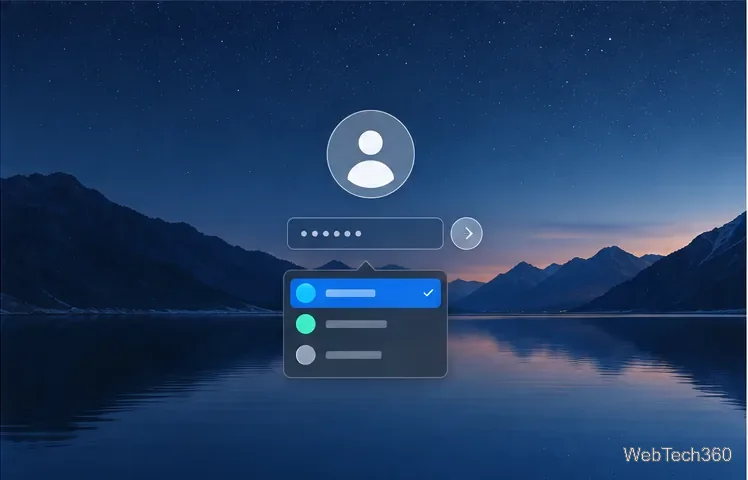
A login screen shows a session chooser; available names and controls vary by display manager.
Save open work and sign out of your current desktop.
Open the session menu on the login screen.
Select UKUI, then enter your password.
If UKUI does not appear, confirm that the session manager package installed successfully and that your login manager has refreshed its session list. Restarting the computer can refresh the list. A display manager may use a different label or place the session selector in a different corner.
Why the old source-build steps are not included
The top-level UKUI project describes a collection of separately packaged components; it is not a single portable desktop program that can reliably be installed with ./autogen.sh, make, and sudo make install. Building it from source requires distribution-specific dependencies and packaging decisions. Use the upstream project’s component and development documentation only if you are maintaining or porting UKUI, and prefer distribution packages for a normal desktop install.